
How to Force Your GHL Calendar to Use One Time Zone
Updated April 3, 2024
Businesses near time zone boundaries or tourist destinations risk clients booking appointments in mismatched time zones, causing scheduling confusion. This tutorial shows you how to disable the contact time zone option in GoHighLevel so all bookings default to your configured location time zone.
How to prevent users from making appointments in time zones other than the business’s time zone:
If your client’s business operates in close proximity to a time zone boundary or within a bustling tourist destination frequented by visitors from various time zones, it’s advisable to implement measures to restrict appointment bookings based on the client’s local time zone rather than the visitor’s.
To prevent people from being able to book appointments in their own time zones please head into:
Settings > Select the Business Info tab > Scroll down and activate the “Disable Contact Time zone” checkbox.
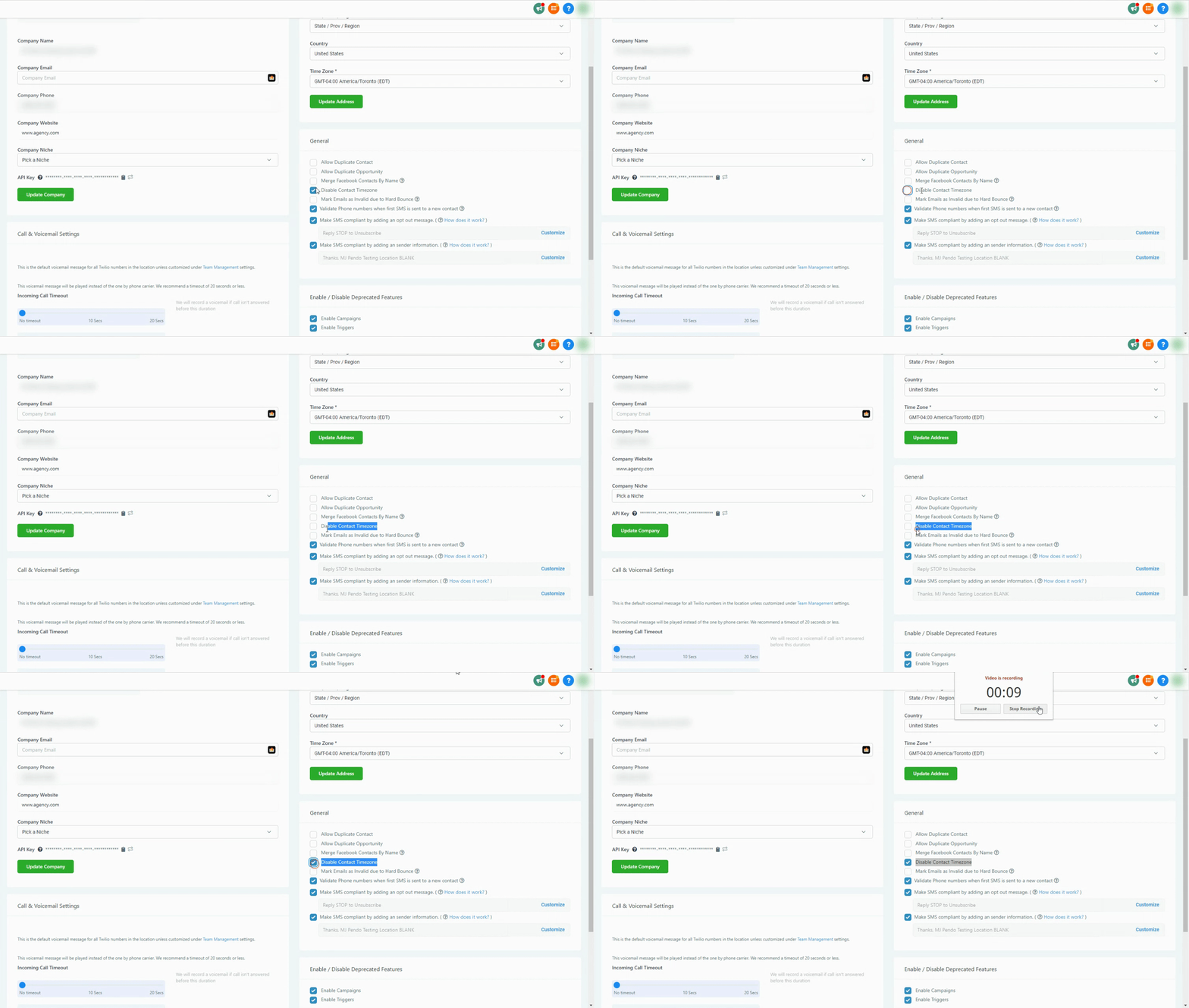
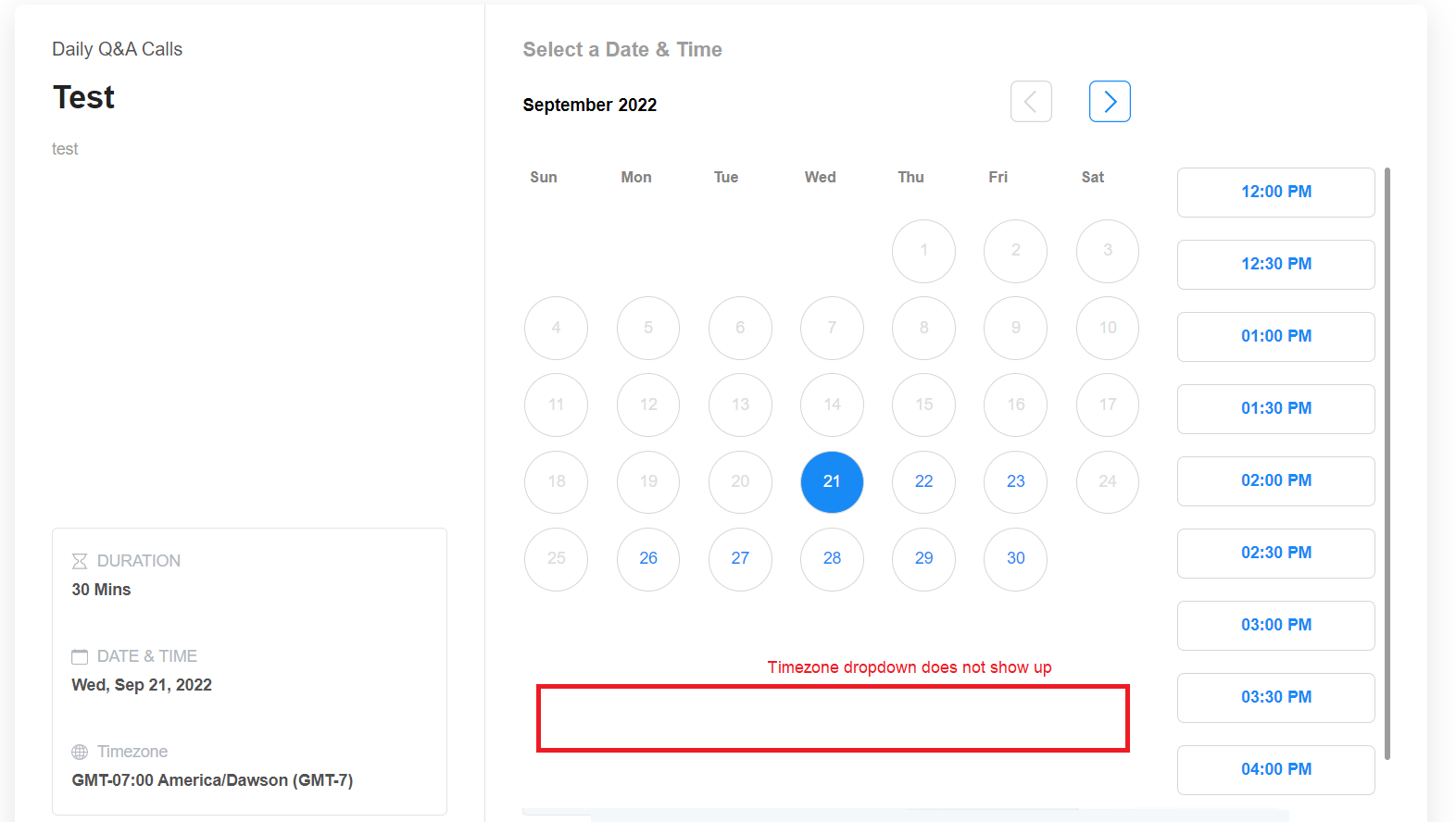
When the “Disable Contact Time zone” option is checked, the time zone dropdown selector will be hidden from the calendar widget interface (refer to the screenshot below). Consequently, appointments will default to the time zone configured in the location settings.
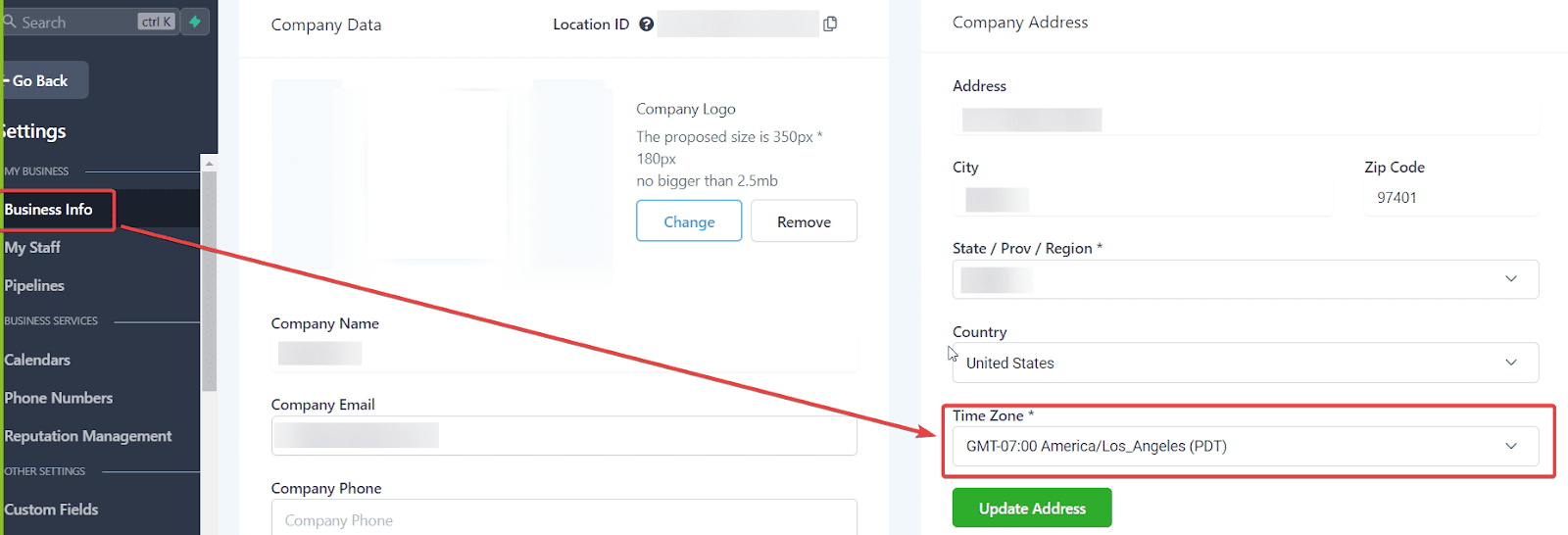
To see which timezone the location is set to please head into the Location Settings > Business Info> Time Zone field.
The screenshot shows after you have selected the “Disable Contact Time zone” checkbox on the calendar widget
This screenshot shows the default calendar widget with the timezone preference

Keep learning