
How to Block Off Days and Times in Your GHL Calendar
Updated April 2, 2024
Unmanaged calendar availability in GoHighLevel can lead to appointments being booked on days or at times you cannot honour. By following these steps, you will block specific days and time slots directly from the scheduling view, giving you precise control over your booking windows.
Update: With the latest enhancement to the group calendar feature, users gain the ability to reserve time slots solely upon logging in.
To block a specific day off within a calendar, go to Scheduling > Calendar, click the “All Day” block at the top of the date that you wish to block off, then click “Close”.
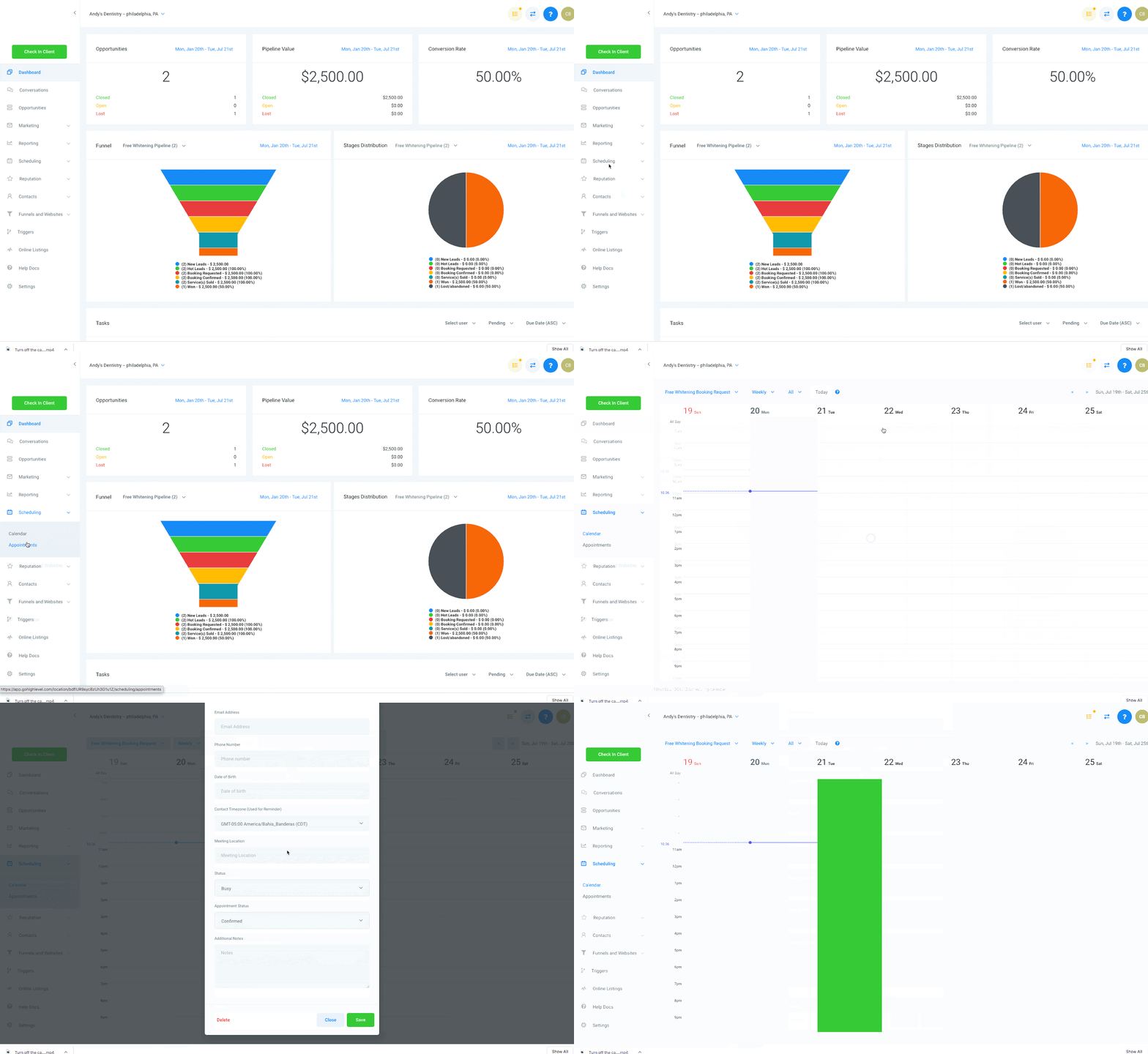
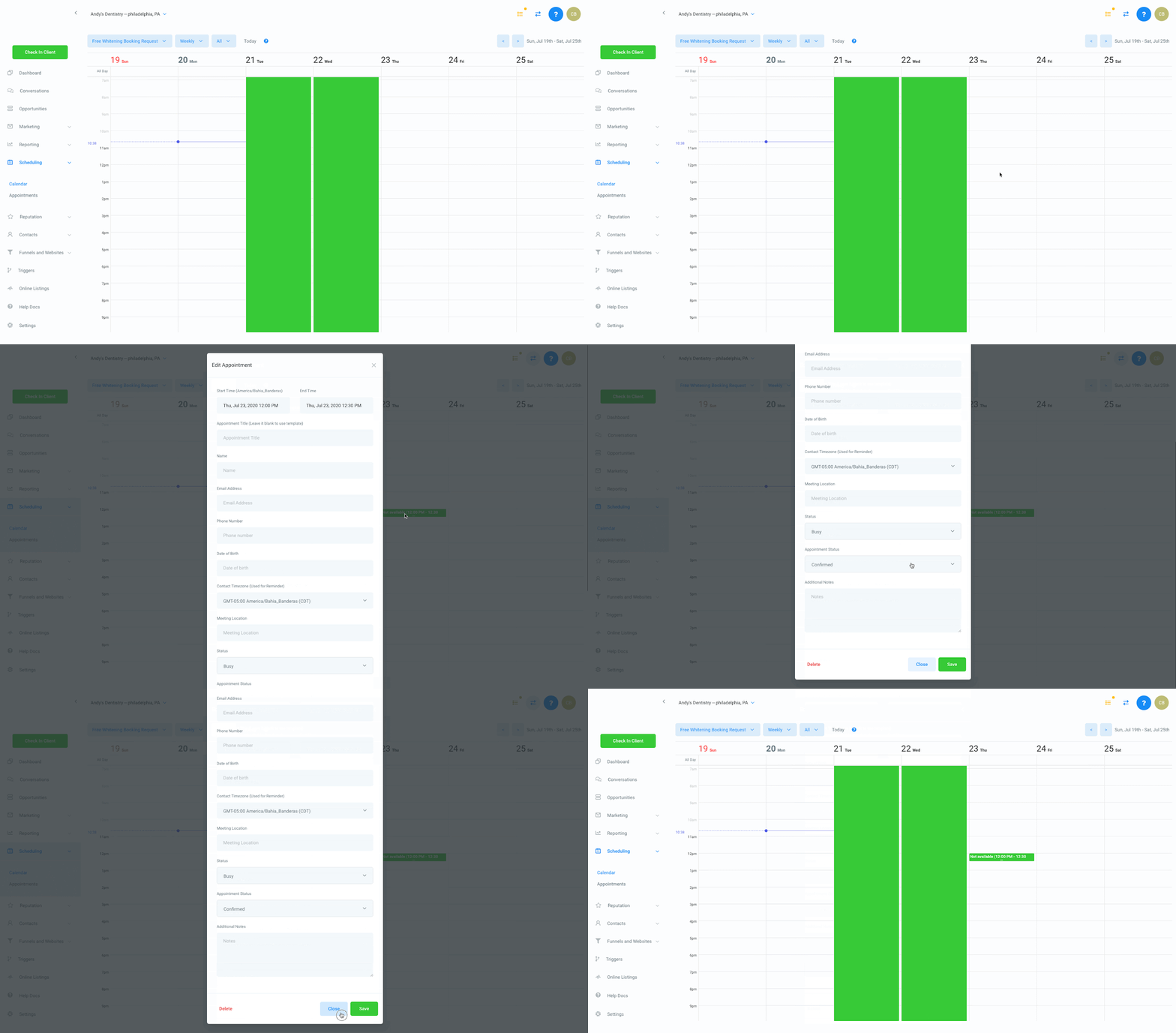
To block a specific time off within a calendar, go to Scheduling > Calendar, click the time you’d like to block, then click “Close”.
Keep in mind that you have the flexibility to designate longer time blocks by adjusting the “End Time” directly within the popup modal interface.
Keep learning