
How to Set Up Round Robin Campaigns in GoHighLevel
Updated March 10, 2023
Uneven lead distribution across sales teams creates friction, missed opportunities, and staff resentment that hurts agency revenue. This guide walks you through configuring GoHighLevel Round Robin campaigns — from creating multiple users to assigning them so every lead is distributed automatically and fairly.
Round Robin Campaigns are beneficial for businesses that have multiple staff members. They distribute leads evenly to users on a one-to-one basis, ensuring that all users, particularly salespeople, receive leads impartially and equitably.
Step 1: Create multiple users. To perform a ’round robin’ assignment, it is necessary to have several users configured in the system. The instructions outlined below should be followed to establish multiple users.
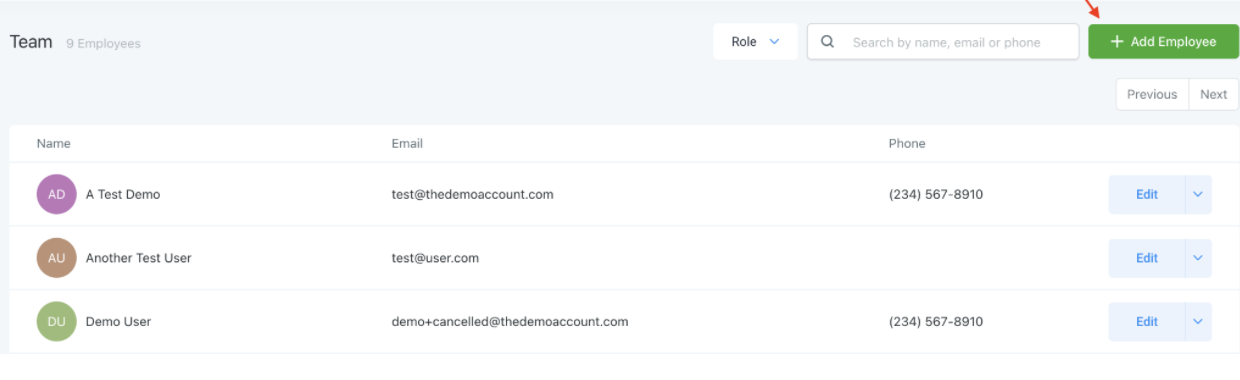
- To create multiple users, go to the section labeled “Team Management.”
- From there, select the option to add an employee by clicking on the “+Add Employee” button.
- Enter the necessary user information and save it. Repeat these steps for each user.
- Note: It is advisable to utilize the individual’s distinct email and phone number since these details will be used to communicate with the leads they are assigned to.
Step 2: Assign multiple users to a campaign. To transform a campaign into a Round Robin campaign, it is essential to allocate users to it.
- To assign users to a campaign and enable Round Robin functionality, access the “Campaigns” section.
- Either establish a new campaign or access an existing one.
- Click on the dropdown menu labeled “Campaign Configuration” and then select “Users” from the subsequent dropdown menu.
- Choose the suitable users to assign to the campaign.
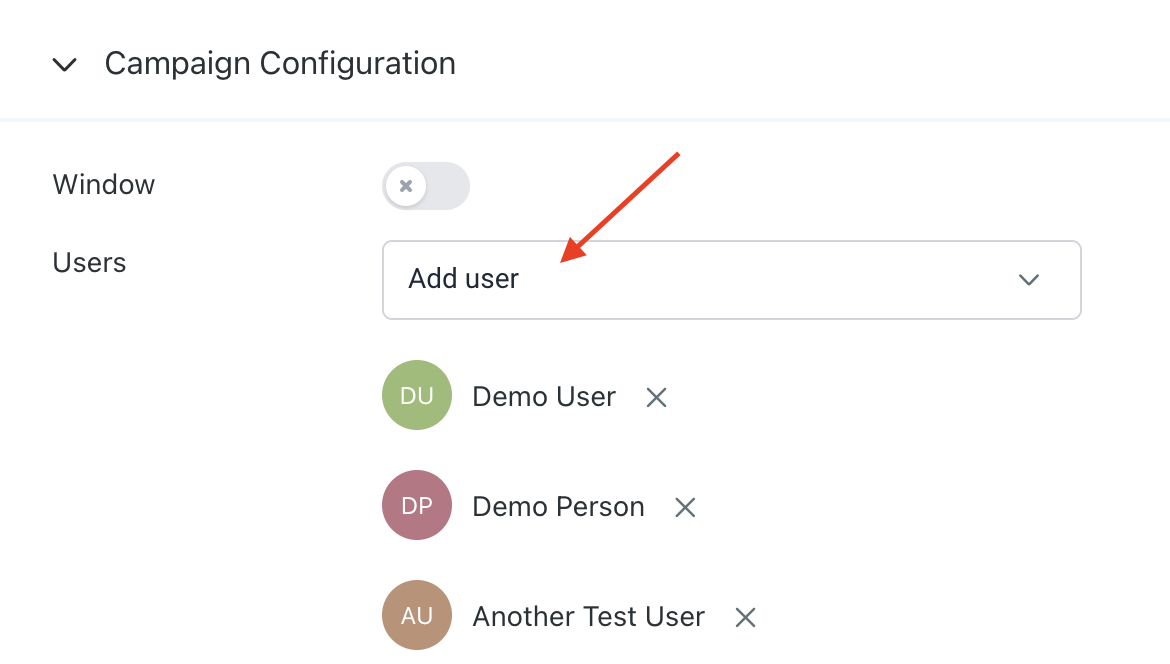
- Save.
- NOTE: It is advisable to keep the ‘from email’ and ‘from name’ fields under the From Address section in the campaign configuration blank. The system will automatically utilize the name and email address established for the user (as outlined in step 1) as the default. This guarantees that all emails dispatched from the campaign originate from the designated user.
- By incorporating merge fields or custom values, you can personalize emails and SMS messages, thereby making them adaptable for numerous users.
Keep learning