
How to Create and Save Group Hashtags in the Social Planner
Updated March 25, 2024
Managing hashtags one by one for every social post wastes time and leads to inconsistent reach across campaigns. This tutorial shows you how to create, save, and apply group hashtags inside the GoHighLevel Social Planner so your content is always optimised and ready to publish.
A hashtag consists of a blend of letters, digits, or emojis preceded by the # symbol (for instance, #NoFilter). These tags serve to classify content, enhancing its discoverability. Leveraging hashtags is an optimal strategy for broadening your audience reach and boosting engagement.
How to create group hashtags within the social planner
- Go to ‘Marketing‘ > ‘Social Planner‘ > Click on the ‘Create New Post‘ button
- In Create Post, there is an option to add hashtags ‘#’.
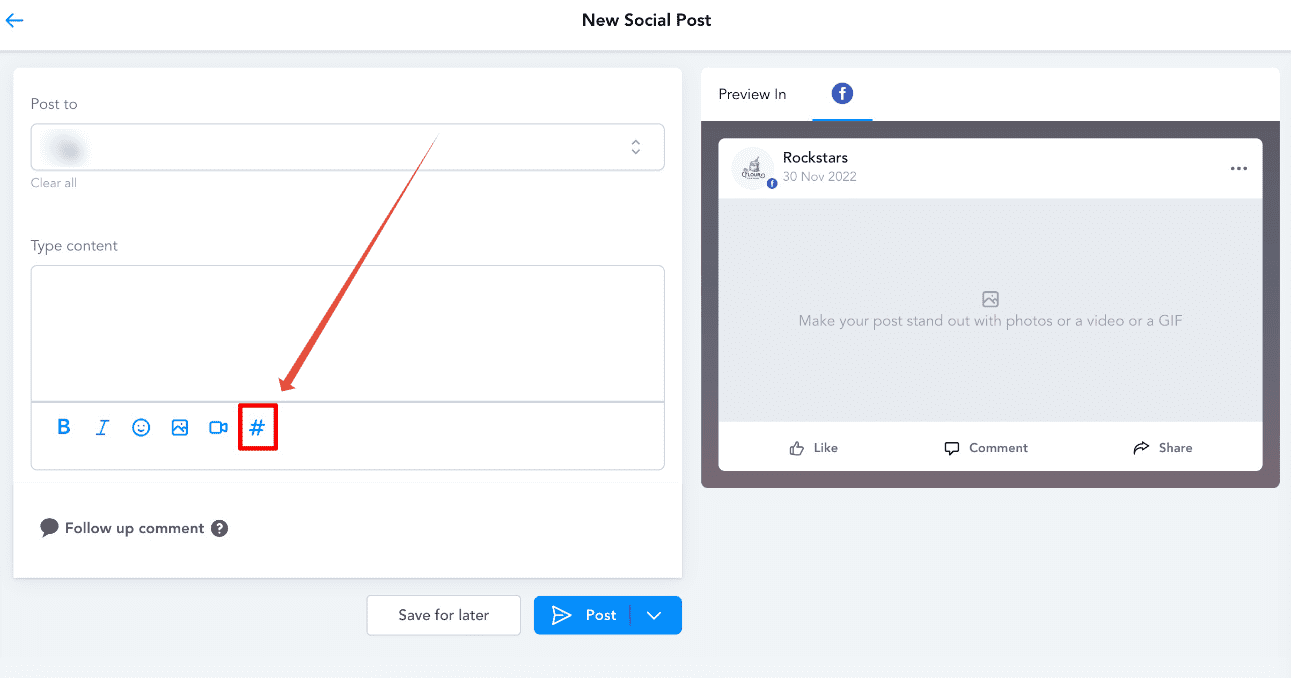
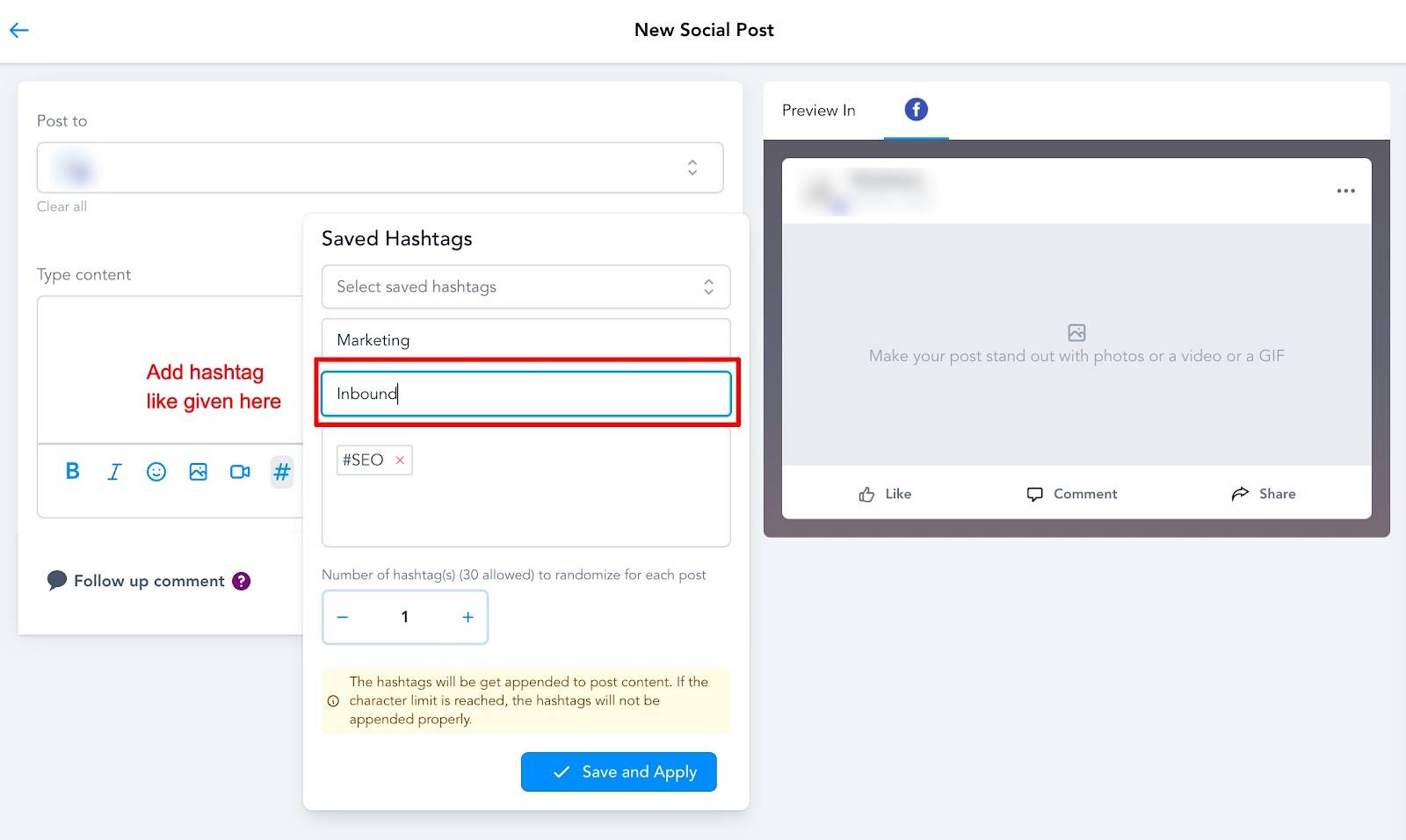
3. After clicking on the ‘#’, a pop-up will appear, which requires information regarding the new addition. You need to add a Name for the set and the hashtags you want to use when selecting this particular set of hashtags. There is an option to add several hashtags when the post is created.
You can include up to 30 hashtags in every post. After adding your hashtags, simply click ‘Save and Apply’ to preserve your hashtag group. When crafting a new social post, users have the option to select the saved hashtag grouping they wish to include with their content.
Keep learning