
How to Connect Your Twitter Account to GHL Social Planner
Updated March 21, 2024
Managing Twitter alongside your other social channels becomes fragmented without a centralised tool, costing agencies time and consistency. Connect your Twitter account to GoHighLevel Social Planner to schedule content, publish tweets, and engage your audience from a single platform.
Unlock the power of Social Planner, enabling you to seamlessly incorporate all your Twitter profiles for publishing content and interacting with your audience through tweets and retweets.(follow-up comments).
Step 1. Go to Social Planner > Setting
To begin, navigate to the Social Planner section. Located at the top right corner of the Social Planner interface, you’ll find a ‘Settings’ option represented by a gear icon. Click on it to access the Settings menu.

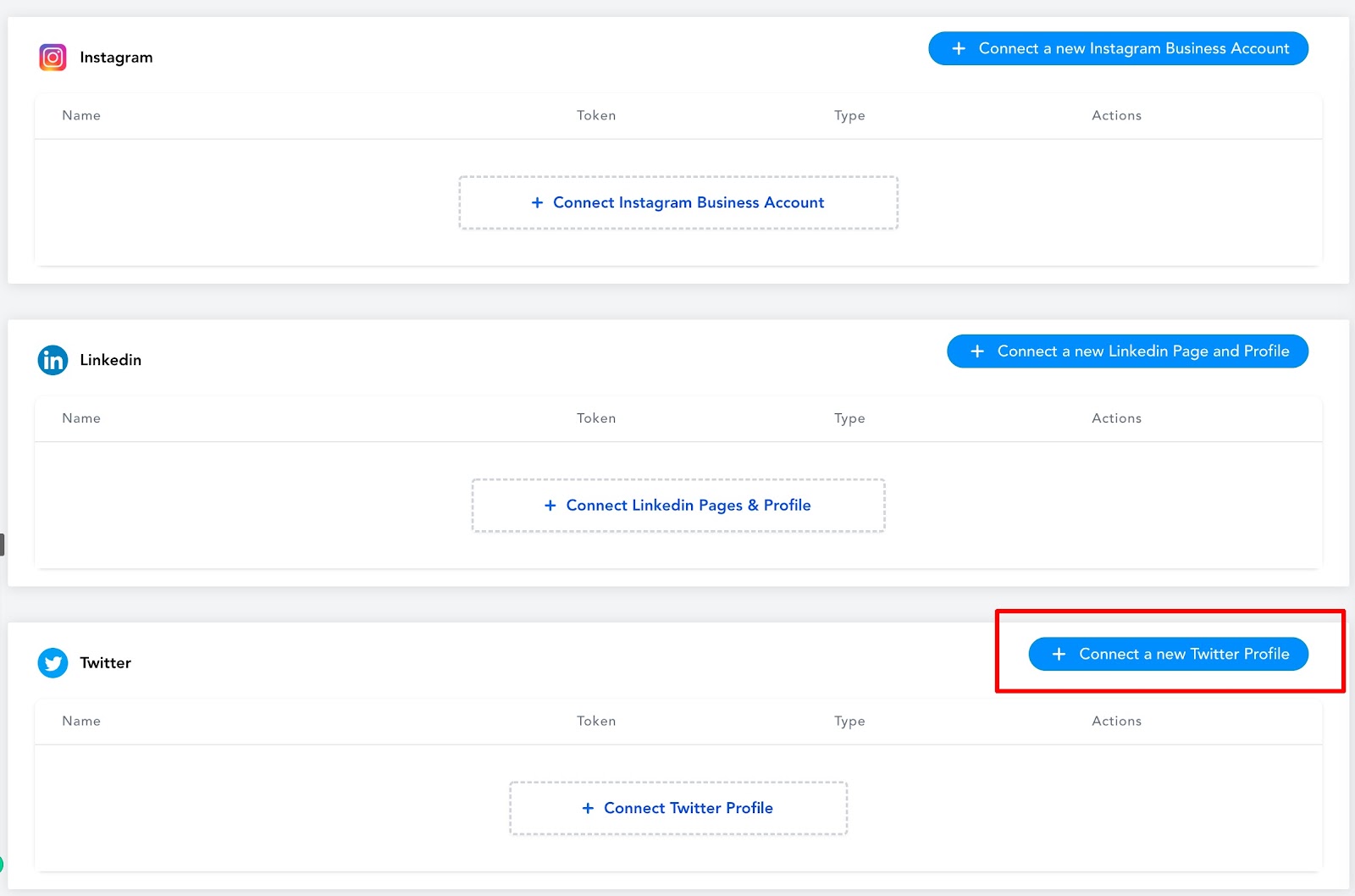
Step 2. Click on Connect a new Twitter Account
The following step entails selecting ‘Connect a New Twitter Account’ from the displayed table, facilitating smooth management of your Twitter profiles.
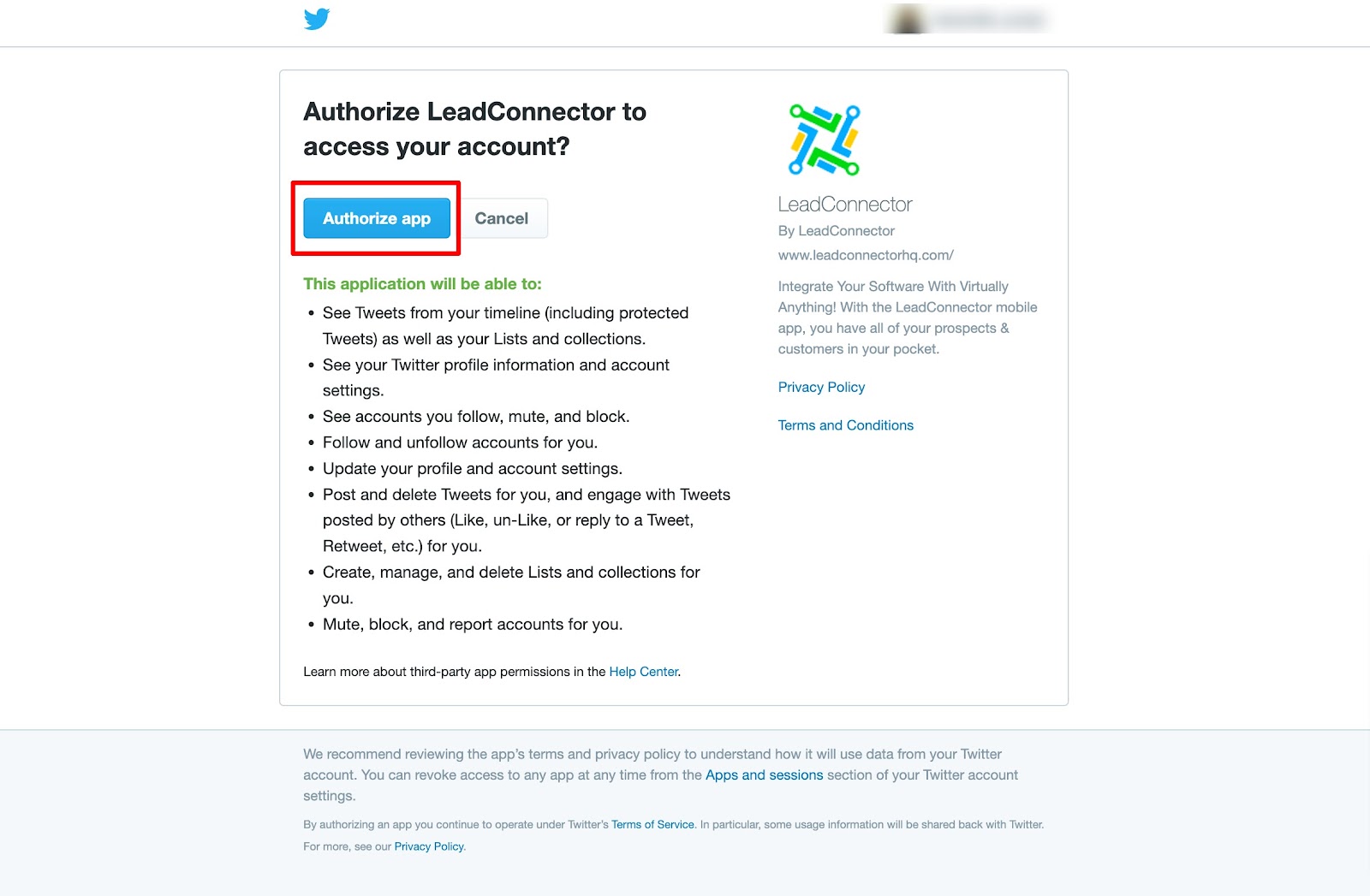
Step 3. Authorize Twitter Profile
Click on the Authorize App and your Twitter profile should be connected with ContentStudio.
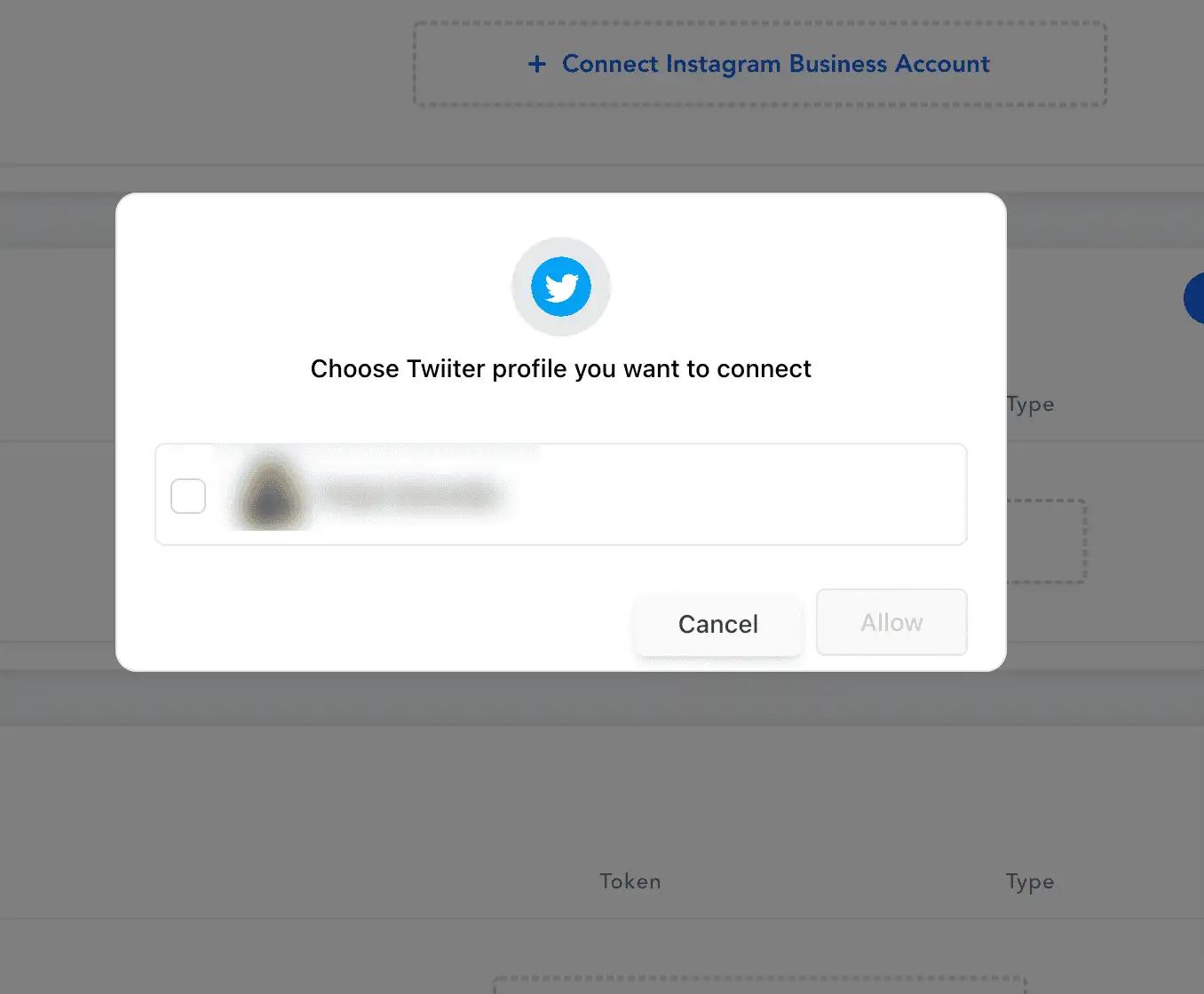
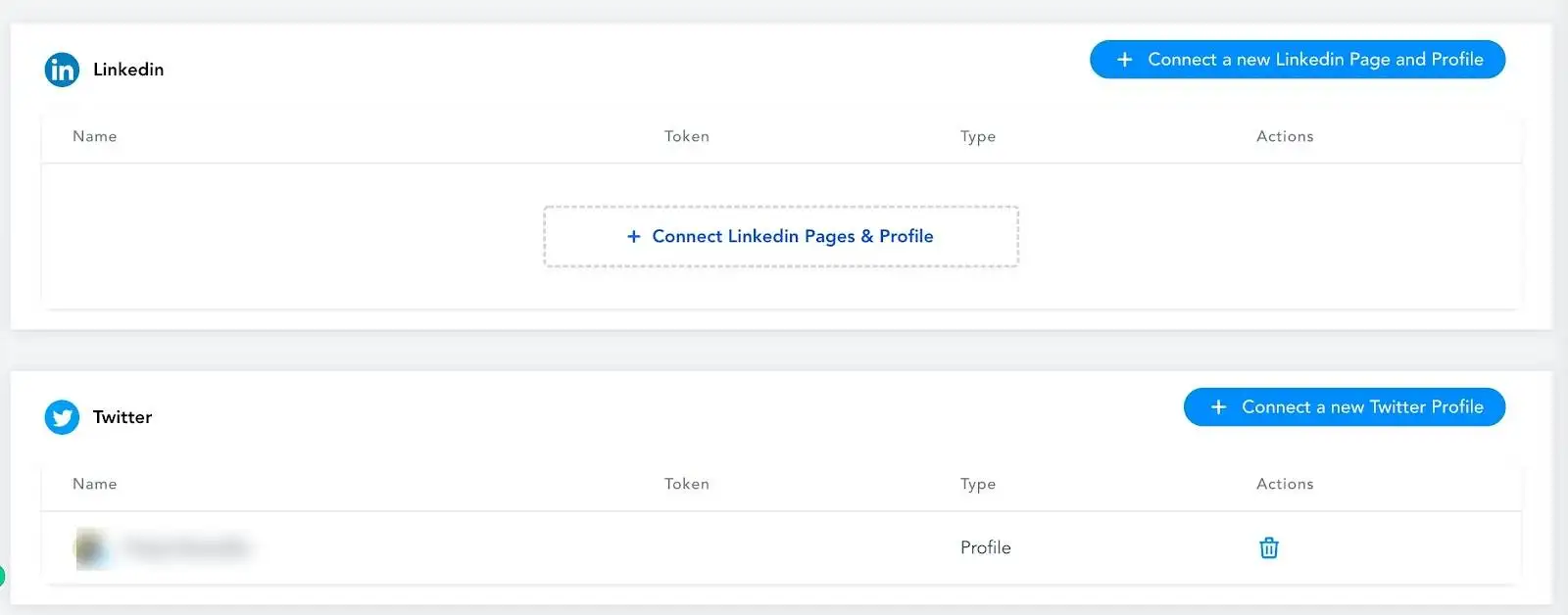
Step 4. Verify your connection
Finally, all the pages you selected in the previous step will be listed below, confirming a successful connection, as illustrated in the image below.
Keep learning