
How to Connect Your Instagram Business Account in Social Planner
Updated March 20, 2024
Without a properly connected Instagram Business account, your GoHighLevel Social Planner cannot schedule or publish content to Instagram. Follow these steps to link your Instagram Business profile through Facebook and start managing all your social posts from a single dashboard.
Once you have successfully completed the below steps
Note:If you haven’t yet switched your Instagram personal profile to a business profile, follow these two essential steps:
- How to make an Instagram profile into a business account
- How to connect an Instagram business account with your Facebook account
Step 1: Go to Social Planner > Setting
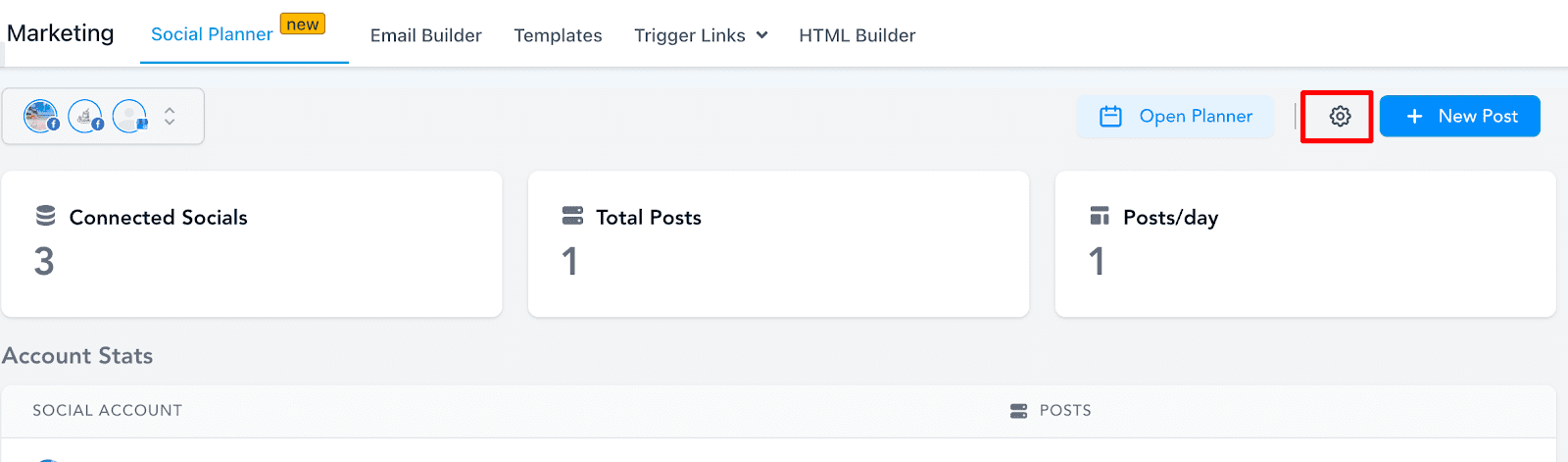
The initial step involves navigating to the Marketing section and selecting the Social Planner feature. Upon entering the Social Planner, you’ll encounter a wizard prompting you to connect your accounts. Alternatively, within the Social Planner overview, you can access settings by clicking on the (gear icon).
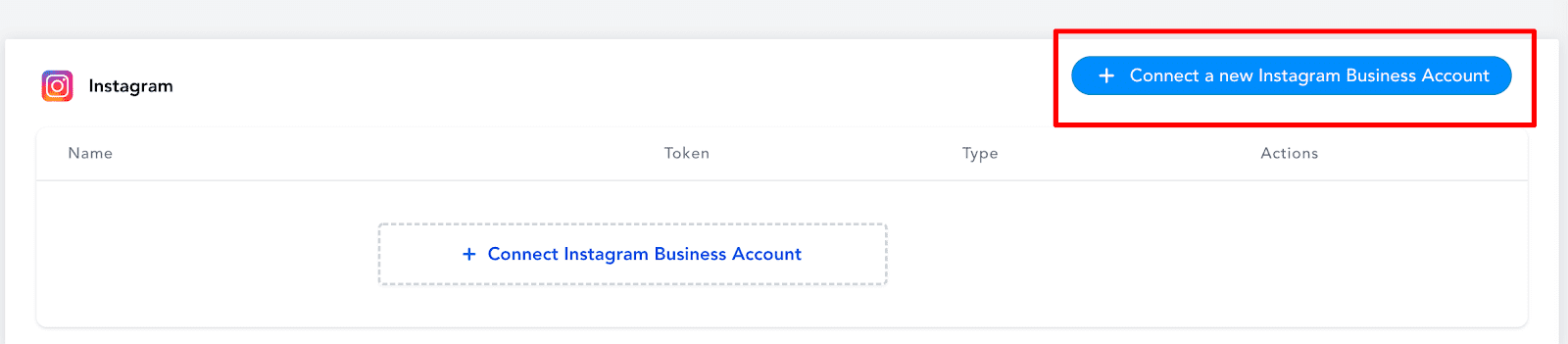
Step 2: After clicking Add account, there will be an option to add the Instagram Business Account
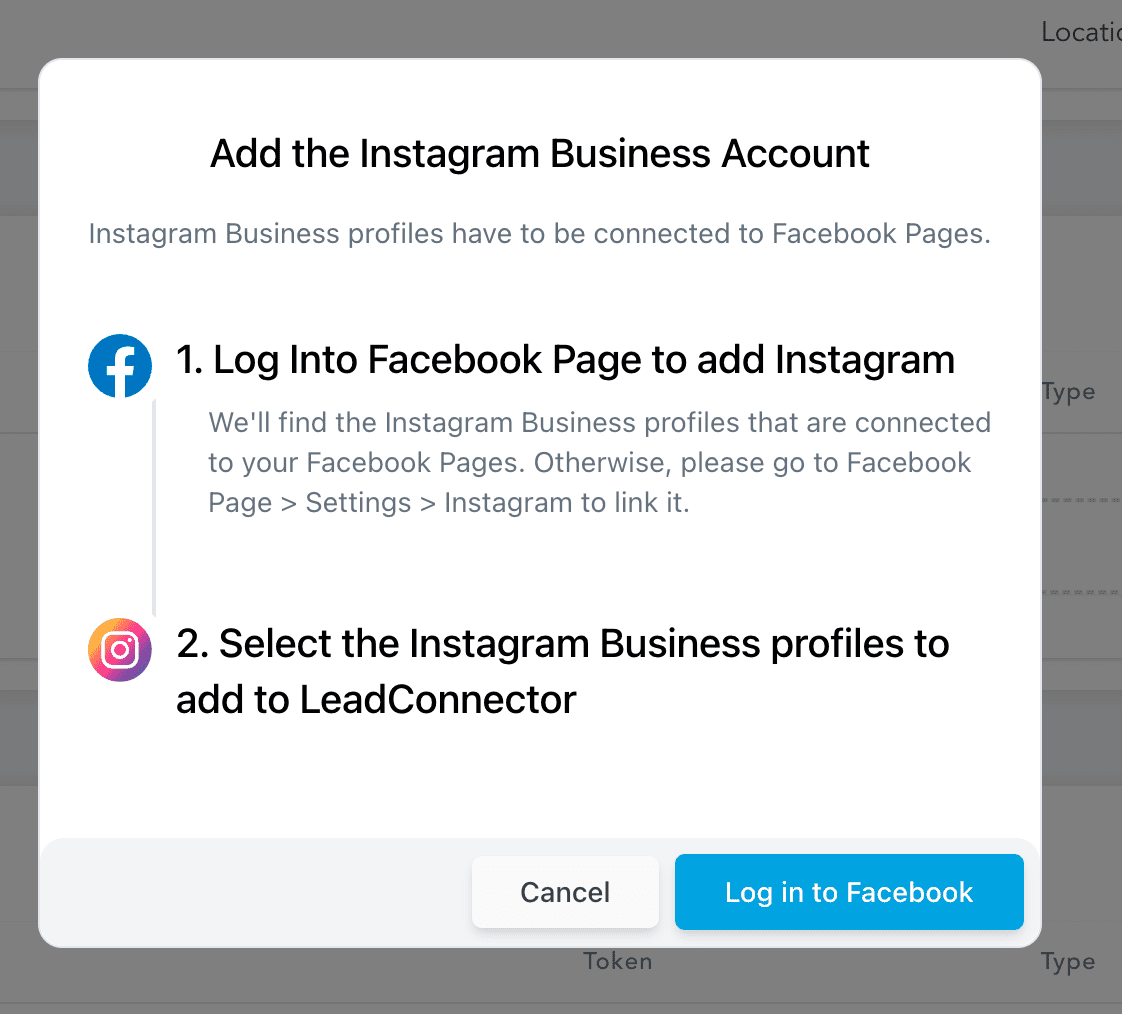
Step 3:You’ll be prompted to select Facebook and grant permissions for the Social Planner. Utilize a Facebook account linked to your Instagram Business profile, enter the required information, and proceed by clicking ‘Log In’.
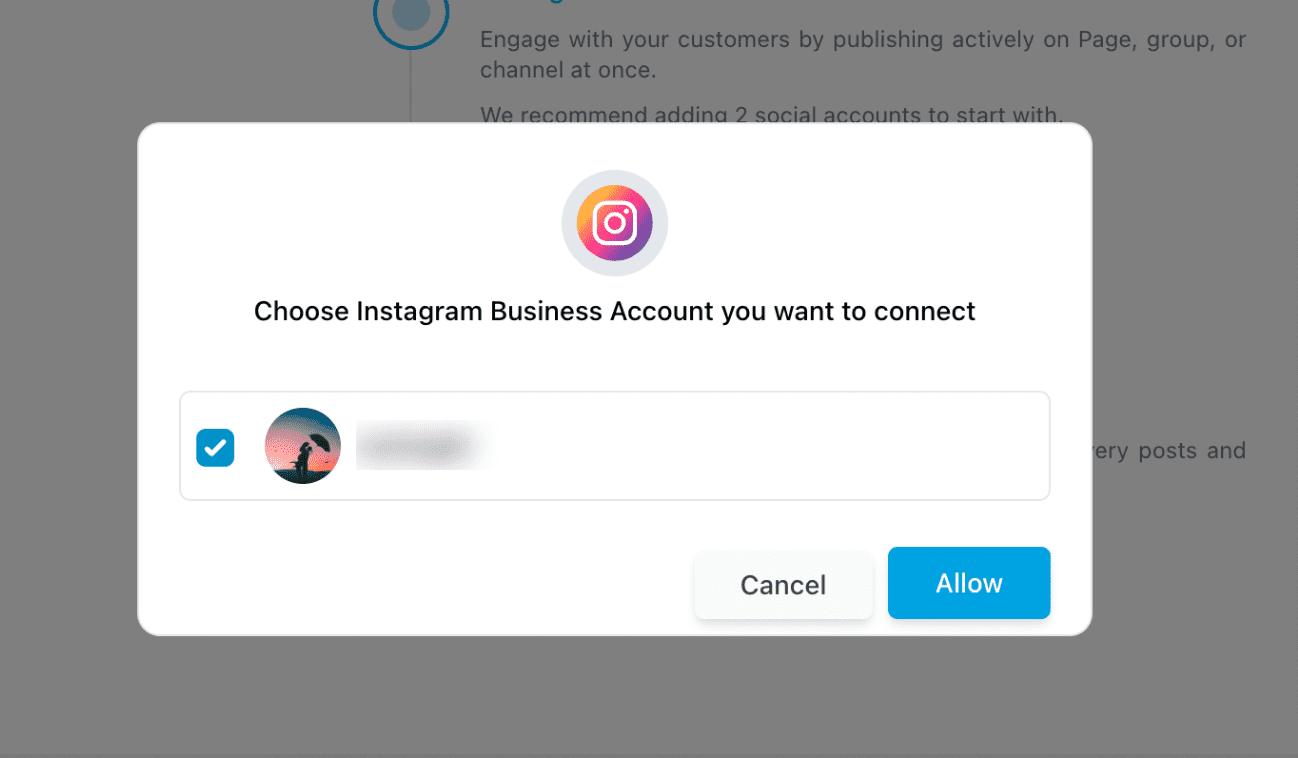
Step 4: The subsequent step involves choosing the Instagram Business Profile(s) you want to incorporate into Social Planner. If an Instagram Business Profile isn’t verified, it indicates that the account isn’t linked to any Facebook page, a prerequisite set by Facebook for posting.
Step 5: You can manage the accounts from the Setting Icon
Keep learning