


Growthable

How to Record Calls and Listen to Recordings in GoHighLevel

Updated November 23, 2022

Without call recording enabled in GoHighLevel, there is no way to review conversations for quality assurance or dispute resolution. This tutorial walks you through activating call recording on your phone numbers and playing back recorded calls from any contact record.

You may want to record calls to be able to review them for quality assurance.

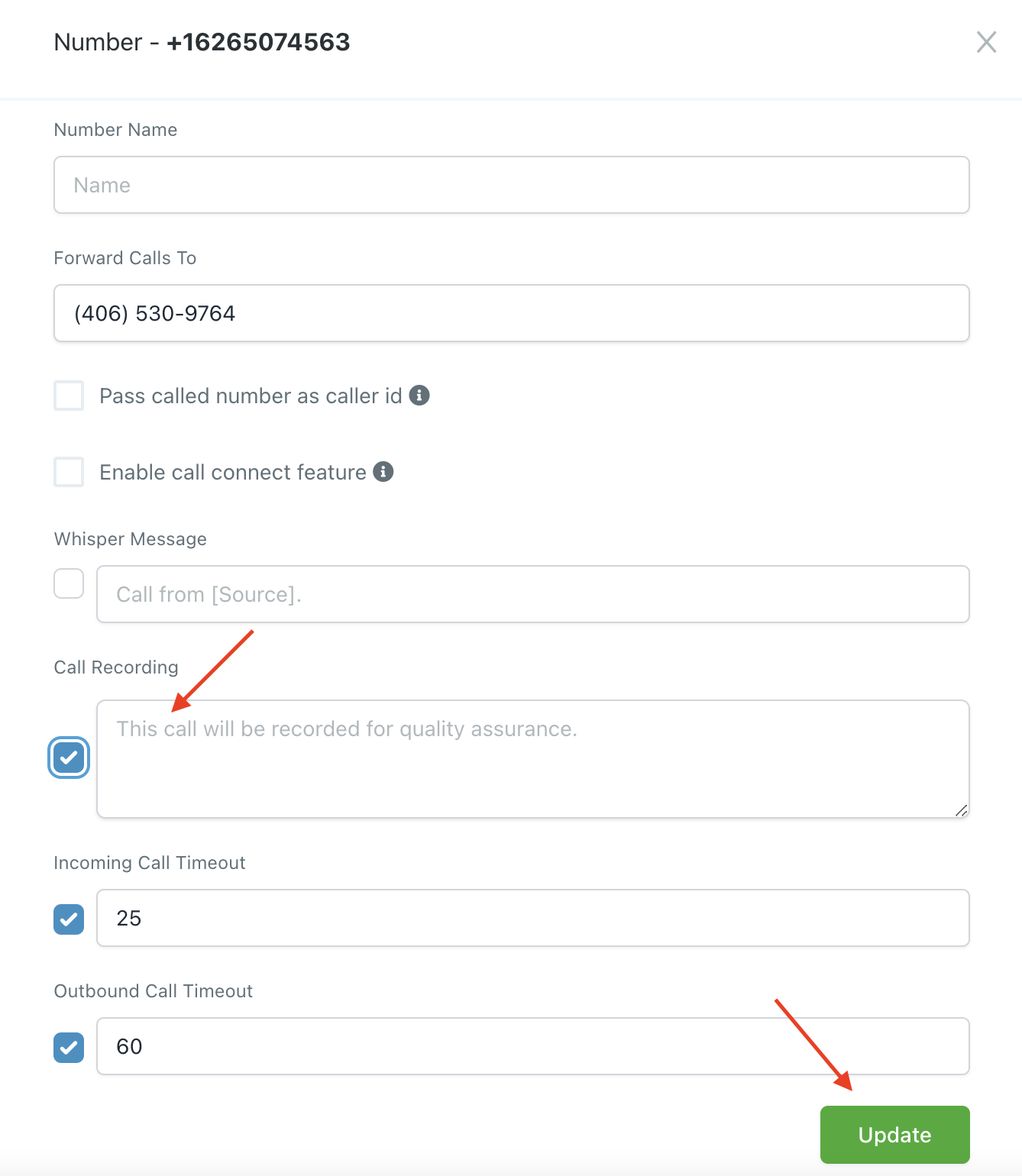
Step 1: Ensure you have call recording enabled.

  • Navigate to Settings > Phone Numbers > Edit.
  • Check the call recording box.
  • Click Update to confirm the changes.
GoHighLevel Call Recording: Enable & Review Call Logs — screenshot 1

NOTE: If you put a space in the “Call Recording” section, that will get rid of any message. 

Step 2: Listening to Recordings

  • Navigate to Contacts and choose the contact you wish to listen to a recorded call with.
  • Click into that contract record. Within the contact recorded for that individual contact, the center panel of the contact page should display communication you’ve had with the contact- from texts to emails to calls.
GoHighLevel Call Recording: Enable & Review Call Logs — screenshot 2
  • Recorded calls with feature a play button, and you can click that to listen within the contact record. You will also see a stop button, volume button, and download button.

Keep learning