
How to Connect Your LinkedIn Profile and Pages in GHL Social Planner
Updated March 13, 2024
Managing LinkedIn content across multiple profiles and pages becomes fragmented without a centralised tool linked to your workflows. By connecting your LinkedIn profile and pages to GoHighLevel Social Planner, you can schedule and manage all LinkedIn content directly from your sub-account.
Step 1: The first step is to log into the sub-account and go to Marketing, click on the Social Planner.

Step 2: Upon accessing Social Planner, users will encounter a setup guide featuring a “connect” option. Alternatively, by exploring the Social Planner’s overview, users can find a “Settings” option, symbolized by a gear icon.

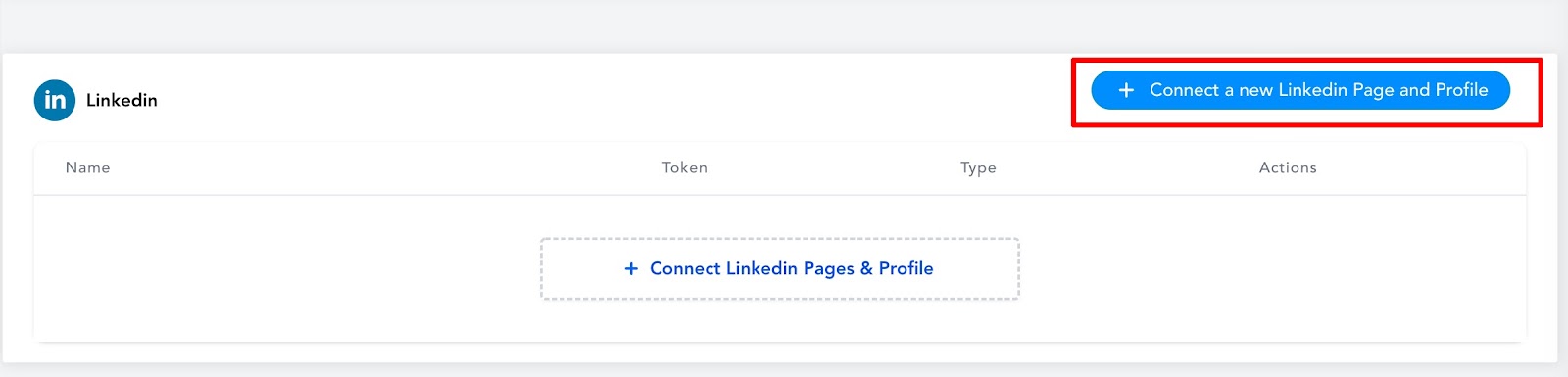
Step 3: After clicking Add Linkedin Profile/Page(s), there will be an option to add them.
Note
Make sure that your personal LinkedIn account is a Super admin of the Page you want to add to Social Planner.
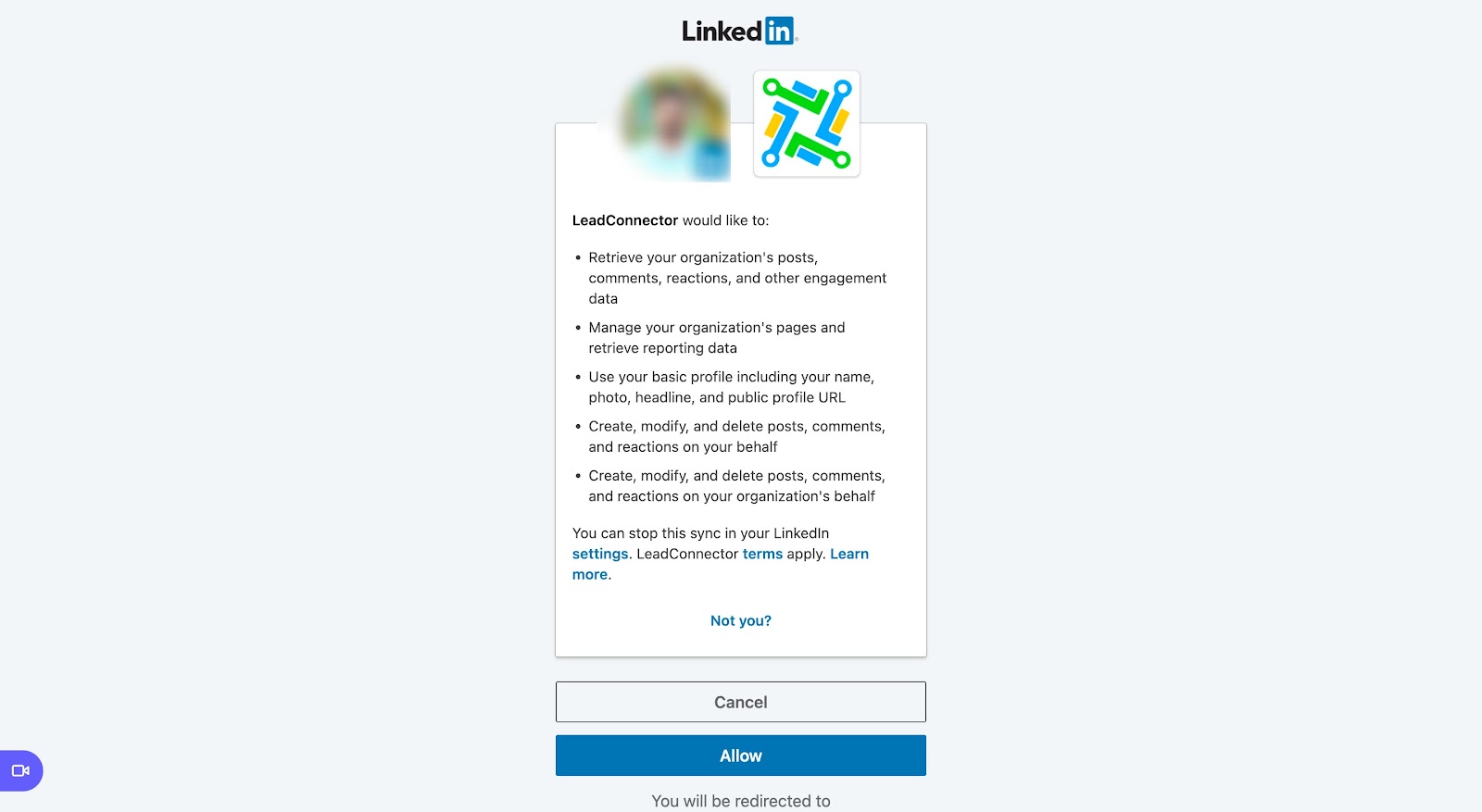
Step 4: If you are connecting it first time inside Social Planner, you will be required to provide the permissions for the social planner.
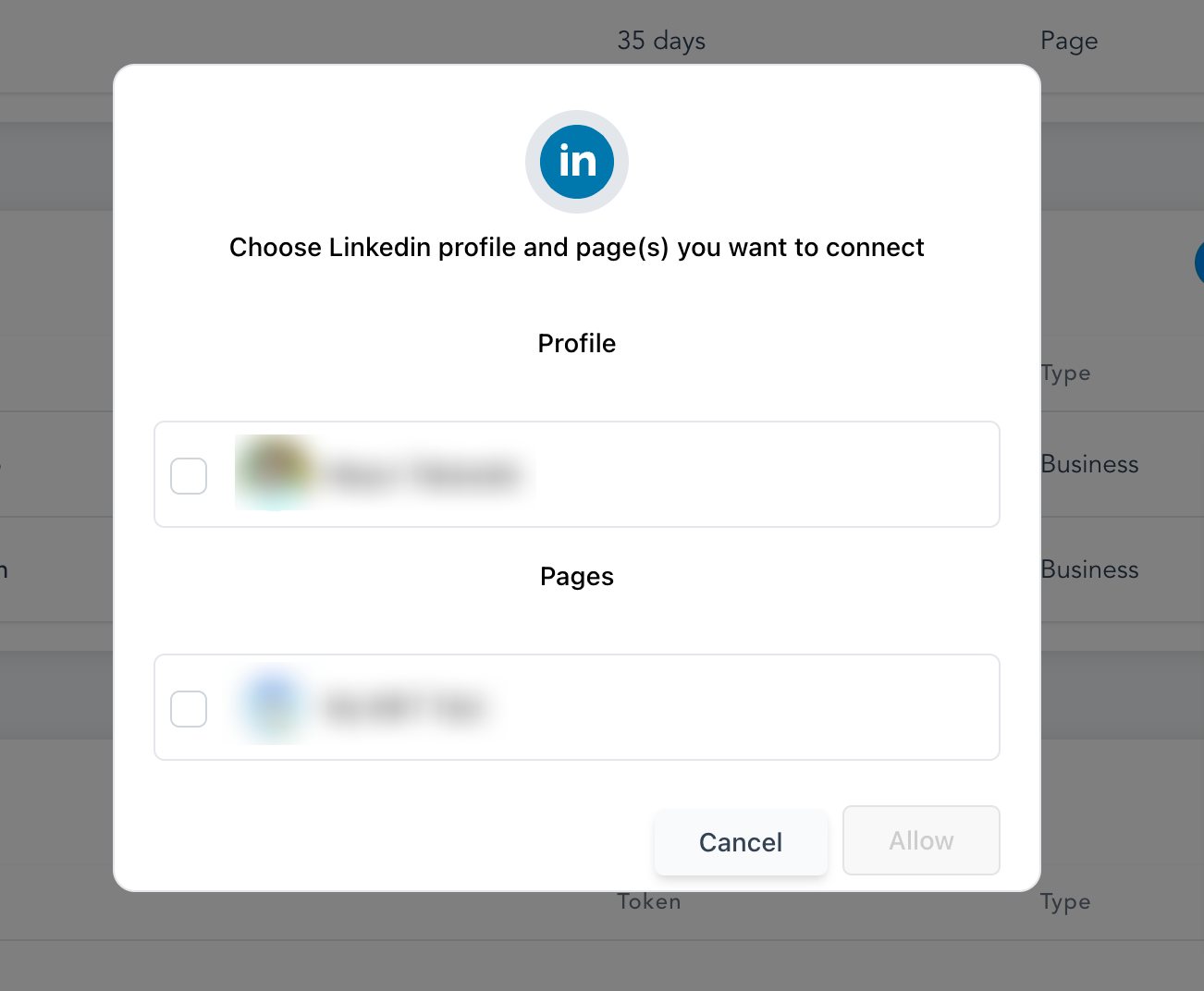
Step 5: Next step is to choose the Linkedin Profile and Page(s) for the social planner
Step 6: You can manage the accounts from the Setting Icon
FAQ
Why am I unable to share or repost my content on LinkedIn?
LinkedIn restricts the ability to “Share” and “Repost” content that is published on its pages through third-party applications, as part of its limitations on page functionalities.
Keep learning