
How to Set Up Drip Content for Subcategories in GHL Memberships
Updated November 21, 2022
Without drip scheduling, members can access all course content at once, reducing engagement and perceived value. Follow these steps to configure timed drip content for subcategories inside GoHighLevel Memberships, including day-based release settings for each post or video.
This article will walk you through the steps to set up drip content for subcategories in the Memberships area of your system.
Step 1: Navigate to Membership > Products > All Products
Step 2: Click into a particular product.
Step 3: Click the + next to the category, and choose “Add Subcategory” from the dropdown menu.
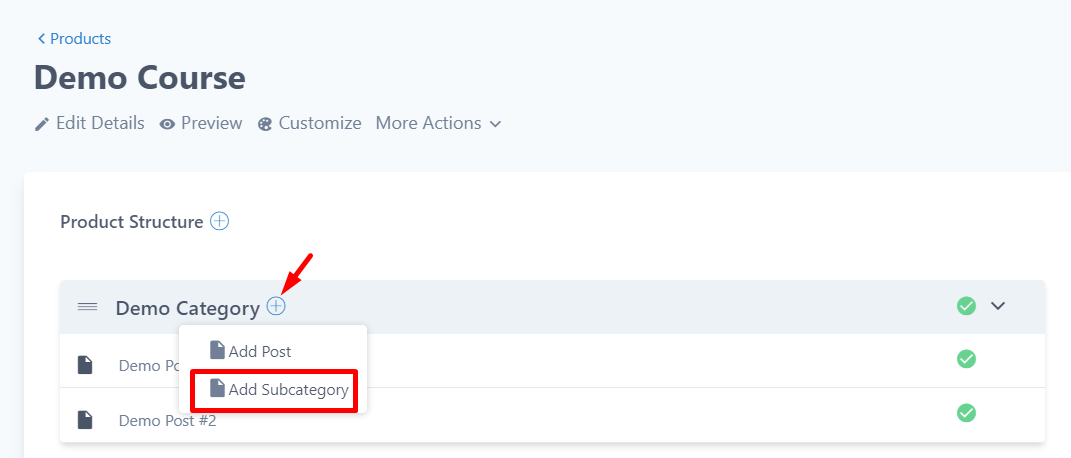
Step 4: Click and drag the posts/videos to move them between the sub-categories
Step 5: Click the folder icon on the right of a post/video to configure the drip feature.
Step 6: Enter the number of days in the “Configure Drip Settings” window that pops up. (For example, if you want weekly drips, set each sub category for 7, 14, 21, etc. days.)
Keep learning