
How to Add a Chat Widget to Your GoHighLevel Membership Area
Updated November 21, 2022
Without a chat widget in your membership area, contacts navigating your courses or content have no direct way to reach you. Follow this guide to grab your GoHighLevel chat widget code and embed it into your membership site settings in minutes.
If you are using the chat widget feature, you can add your chat widget to your Membership section of your system, for your contacts that are using the Membership section.
Follow these steps to add your chat widget to your Membership section. (Check out our other tutorials if you need assistance creating and setting up your chat widget).
Step 1: Grab your Chat Widget code
- Navigate to Sites > Chat Widget
- Click “Get Code”
- Copy the code (you’ll need it in step 2)

Step 2: Add the code to your Membership Settings
- Navigate to Sites >Membership > Settings
- Click into “Site Details”

- Expand the “Advanced” dropdown.

- Add your custom JS, CSS, or Tracking Code.
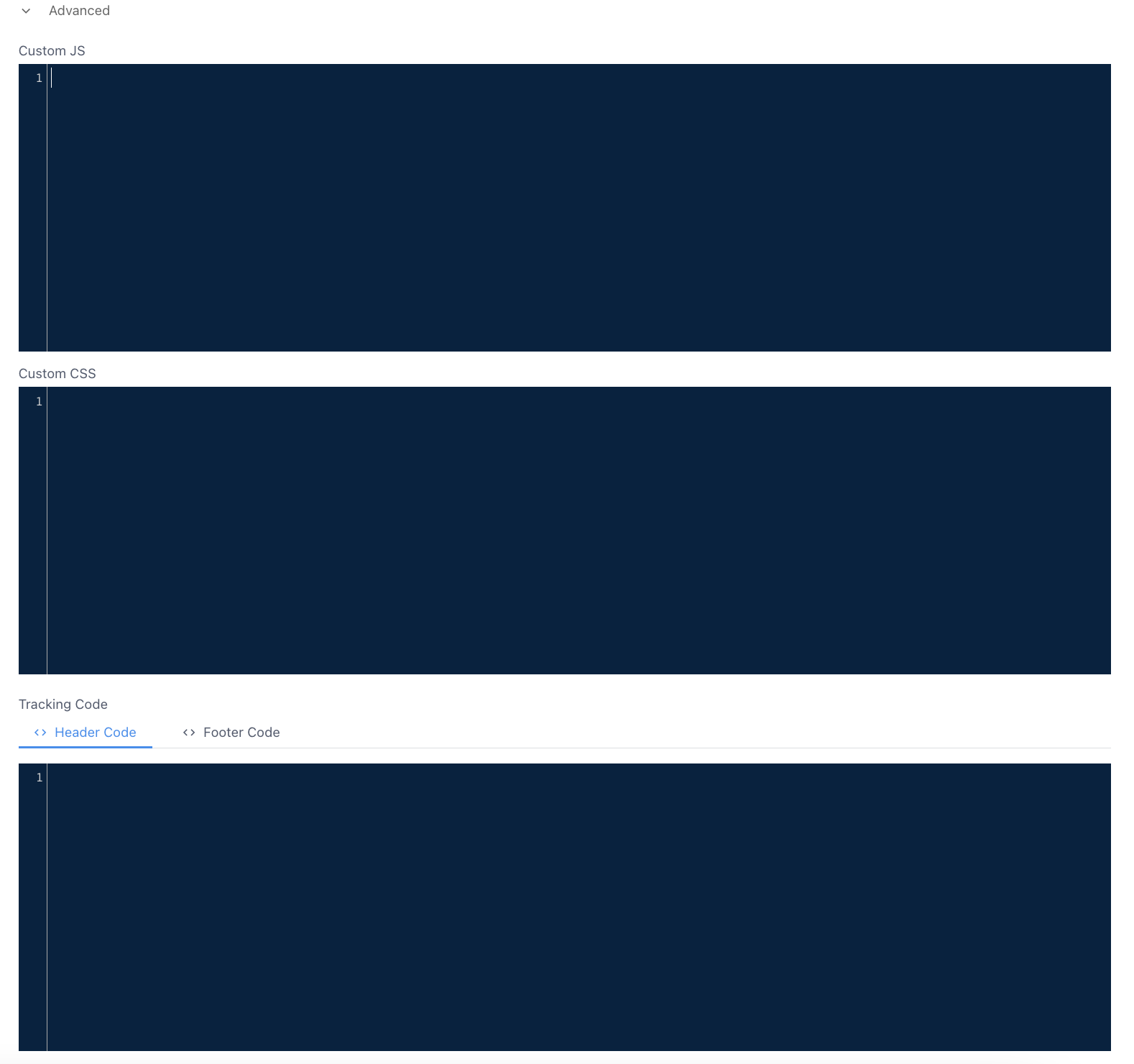
- Click “Save” to confirm your changes.
Keep learning