
How to Create and Use Snippets in GoHighLevel Conversations
Updated February 17, 2025
Repetitive messaging slows teams down and risks inconsistent brand communication across every customer touchpoint. This guide shows you how to create, organise, and deploy GoHighLevel Snippets inside Conversations to speed up responses and maintain a consistent voice at scale.
What are Snippets?
Snippets are pre-designed message templates for text or email that enable teams to deliver consistent communication. By using Snippets, you can streamline the process of sending repetitive messages, guaranteeing both accuracy and a consistent brand voice in every exchange. These templates can be easily inserted into conversations, enhancing the speed and efficiency of customer interactions. Snippets also allow for customization through placeholders, such as names or trigger links, offering flexibility for various situations.
Why You Should Use Snippets
Communication inefficiencies can lead to delays, inconsistent messaging, and missed opportunities to engage with customers effectively. Snippets solve these problems by:
- Reducing time spent typing repetitive messages.
- Ensuring a consistent tone and language across teams.
- Increasing productivity by offering pre-organized, ready-to-use templates.
- Avoiding errors with reusable, pre-approved text that aligns with your brand voice.
Whether it’s responding to FAQs, following up on missed appointments, or managing recurring queries, Snippets eliminate manual efforts and maintain professionalism.
Where You Can Find Snippets
Snippets are located within your software interface and can be accessed as follows:
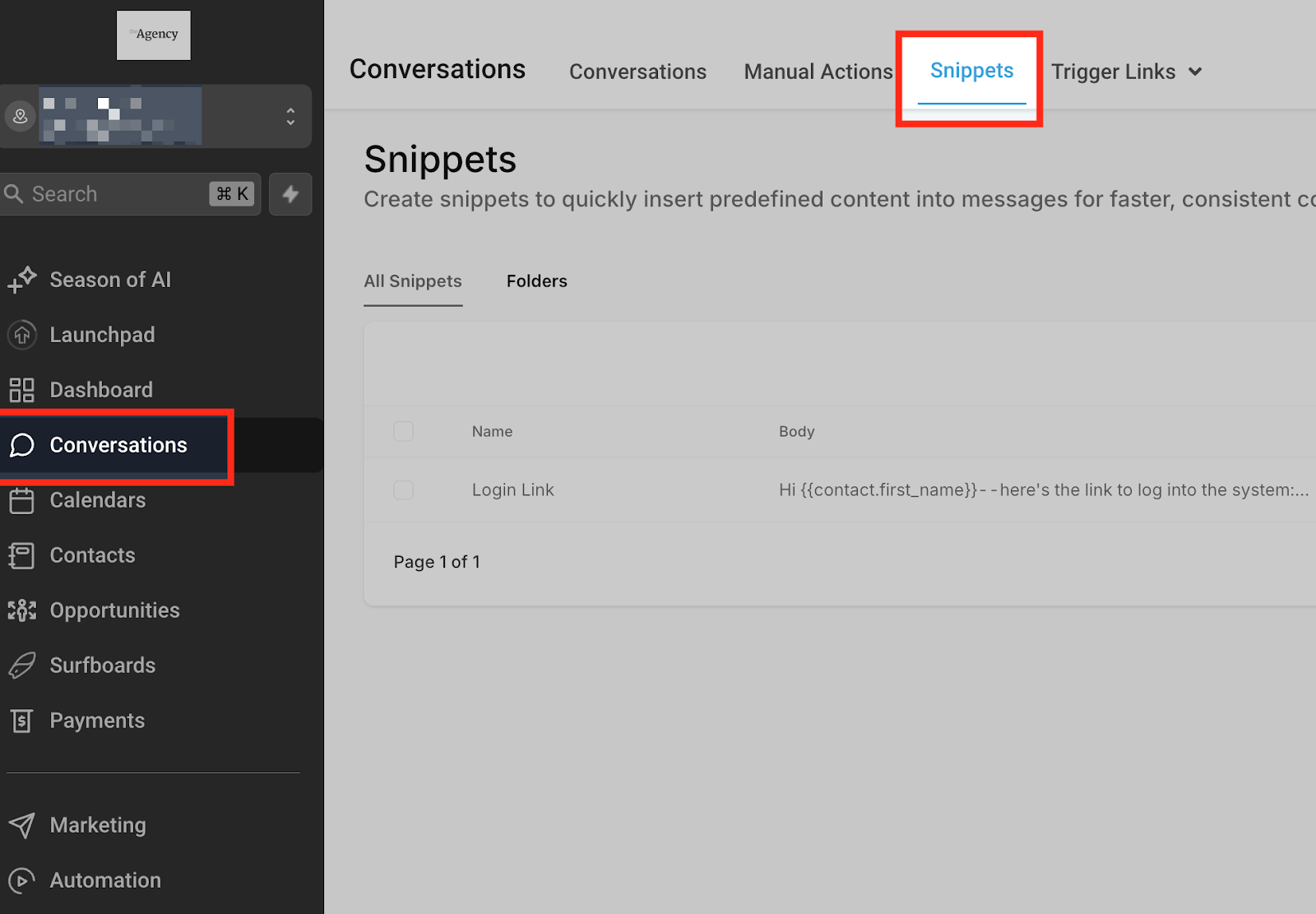
- Navigate to Conversations on the left-hand menu.Select Snippets at the top of the screen.
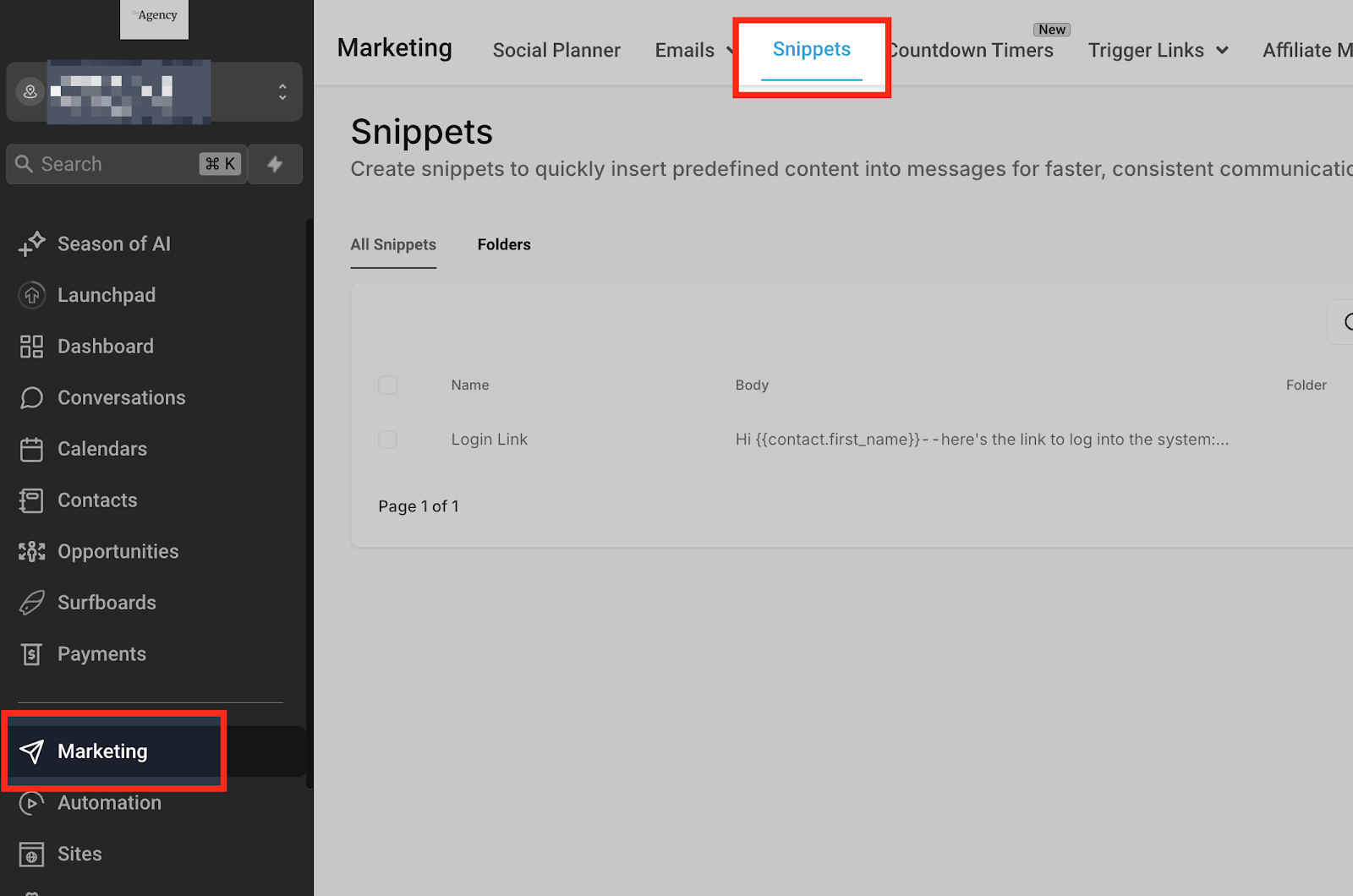
- Alternatively, you can access them via Marketing > Snippets.
How to Set Up Snippets
1. Create a New Snippet
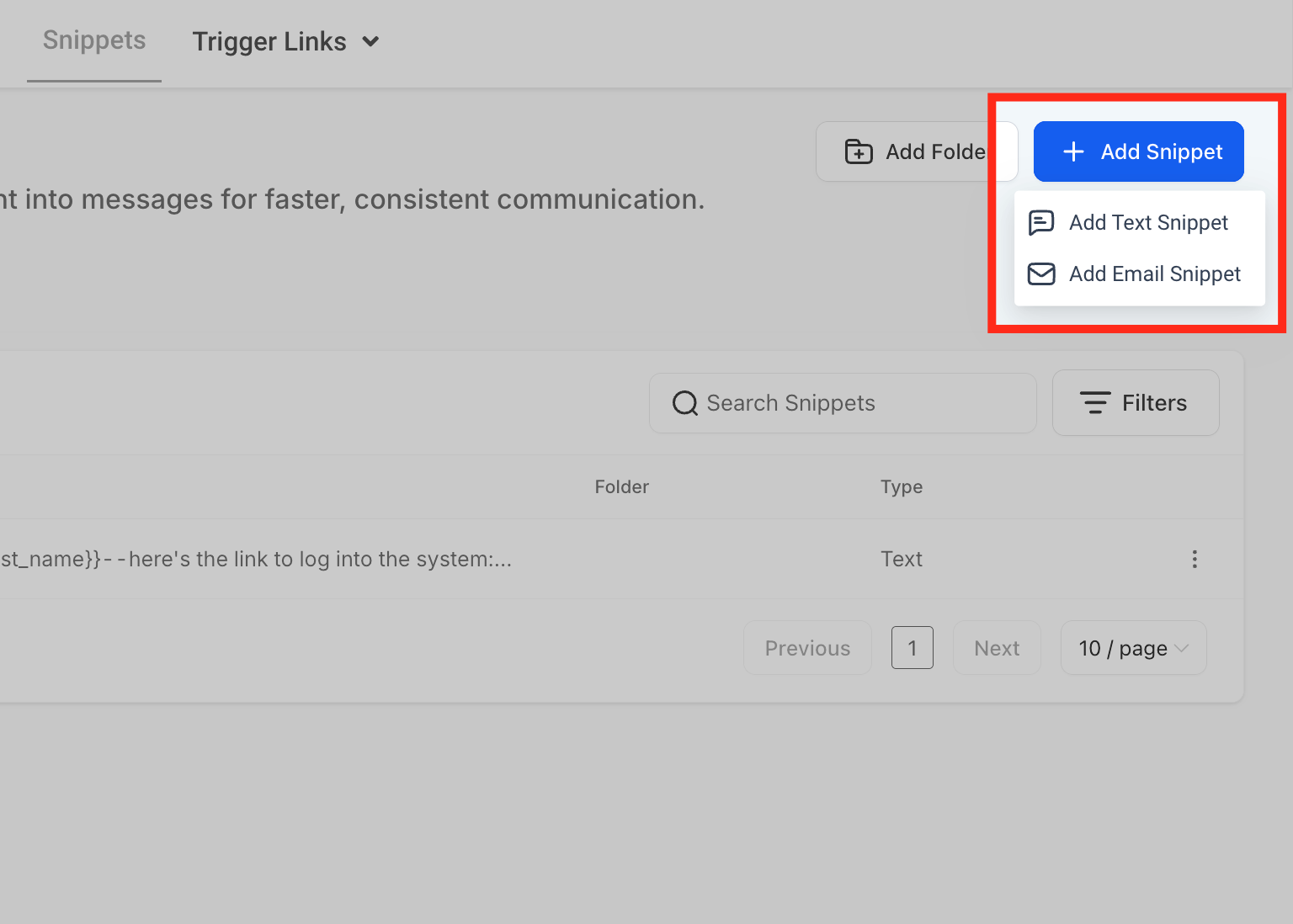
- Go to Conversations > Snippets or Marketing > Snippets. Click on Add Snippet and choose between Text or Email.
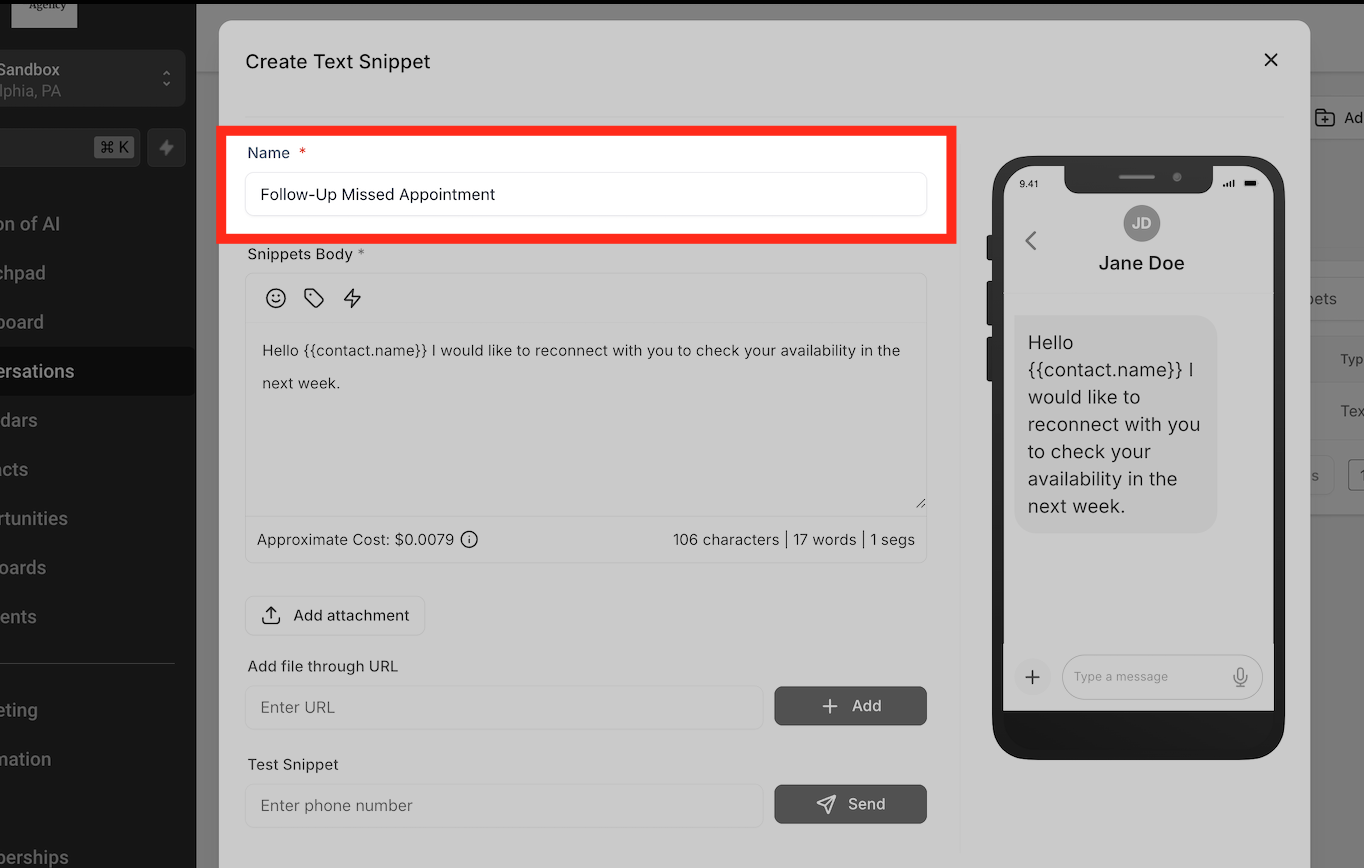
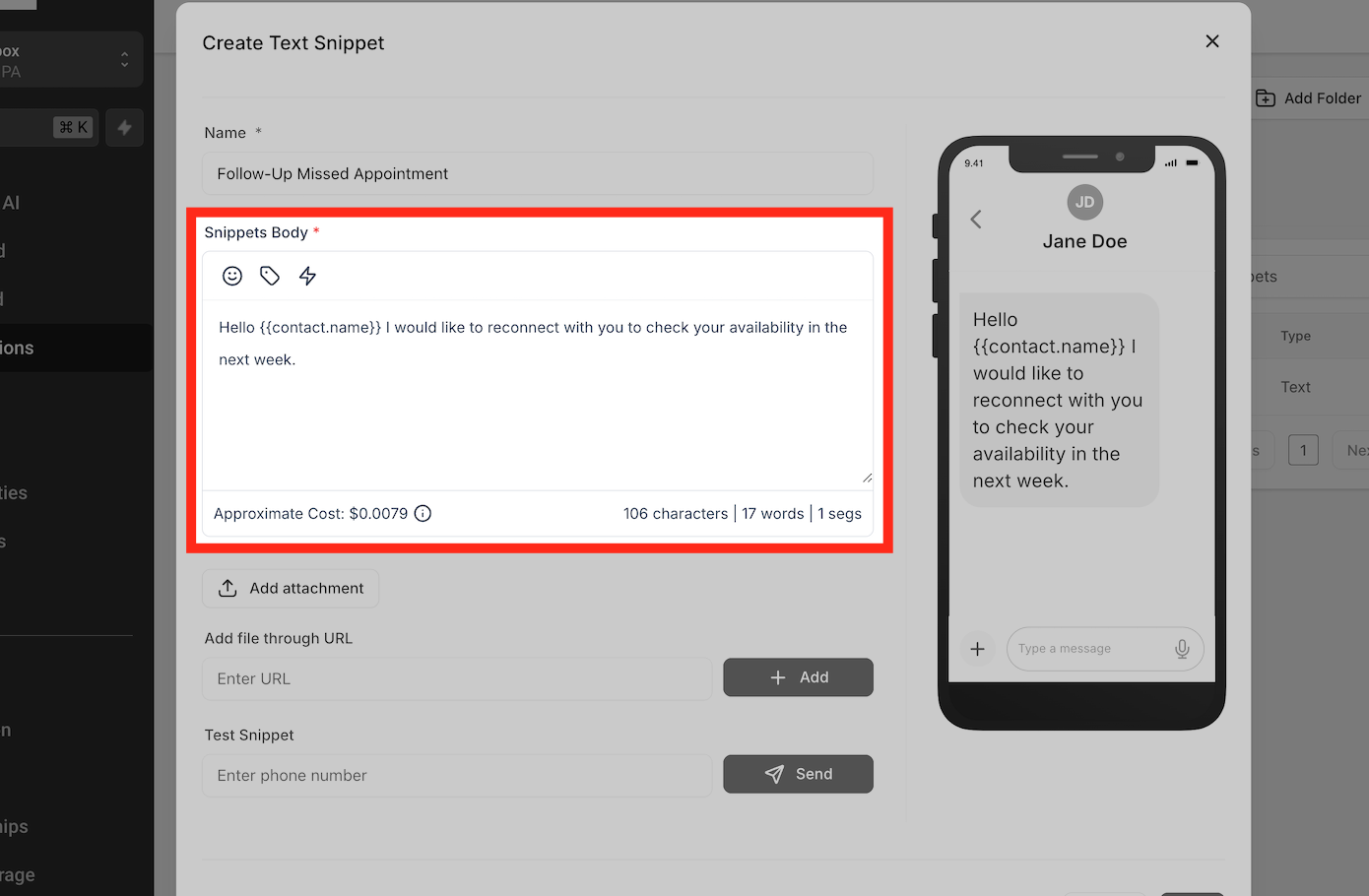
- Name the snippet appropriately, such as “Follow-Up Missed Appointment” or “FAQ: Hours of Operation.”
- Compose the message body, using Custom Values or placeholders for personalization.
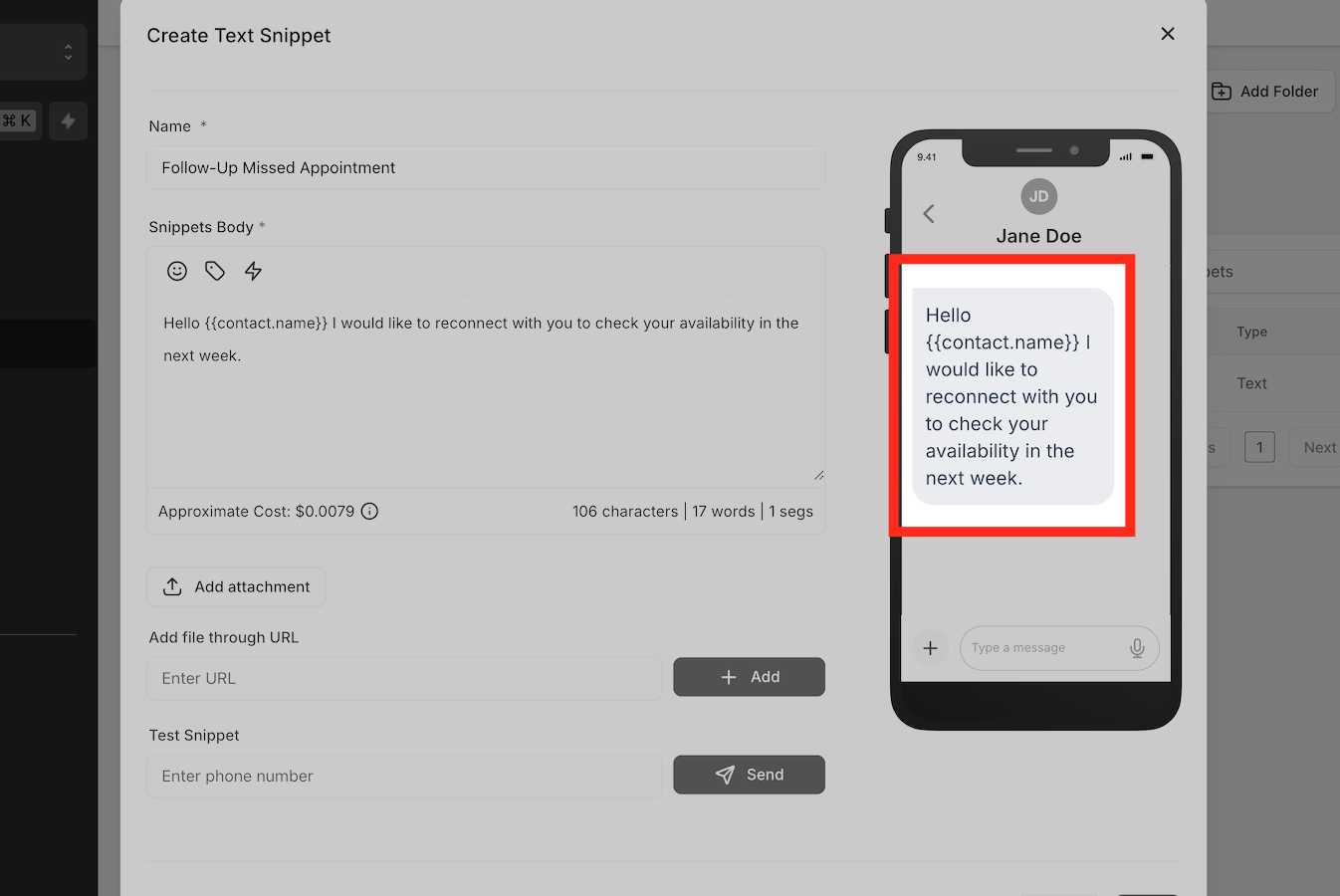
- Preview your snippet on the right to ensure accuracy.
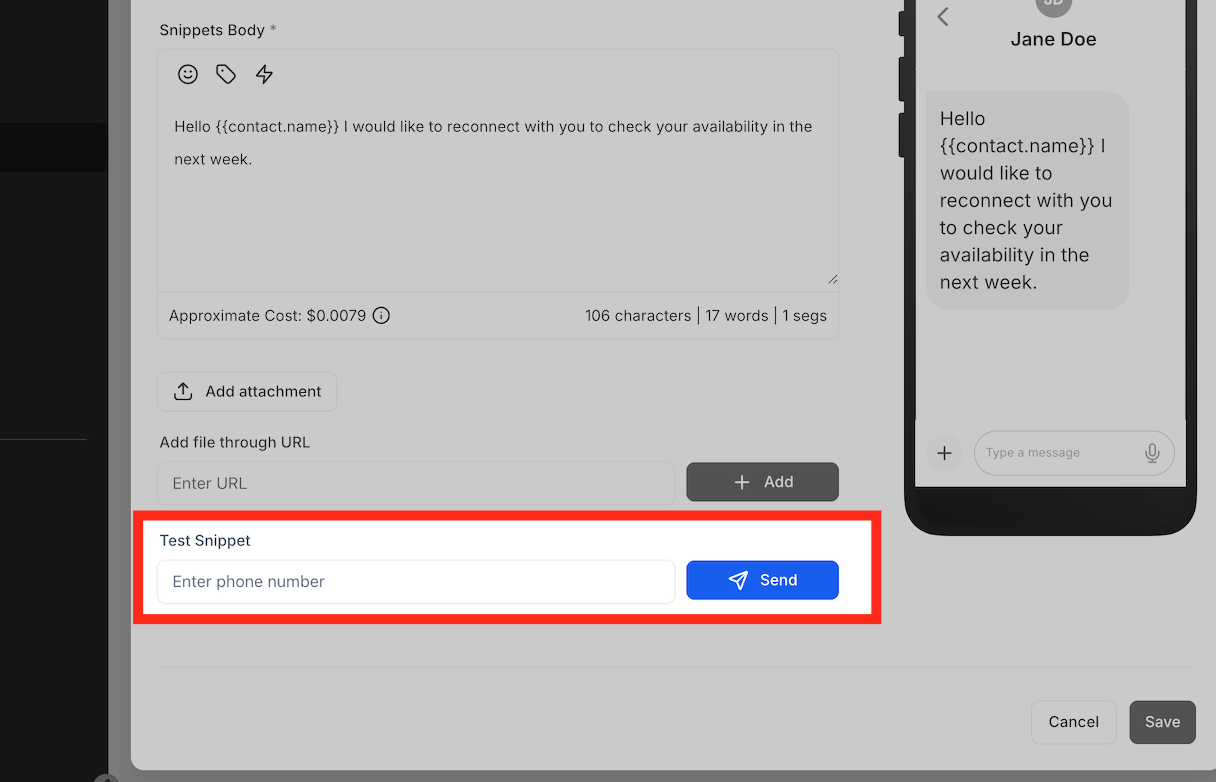
- Test the snippet by sending a sample to yourself (via SMS or email) if needed.
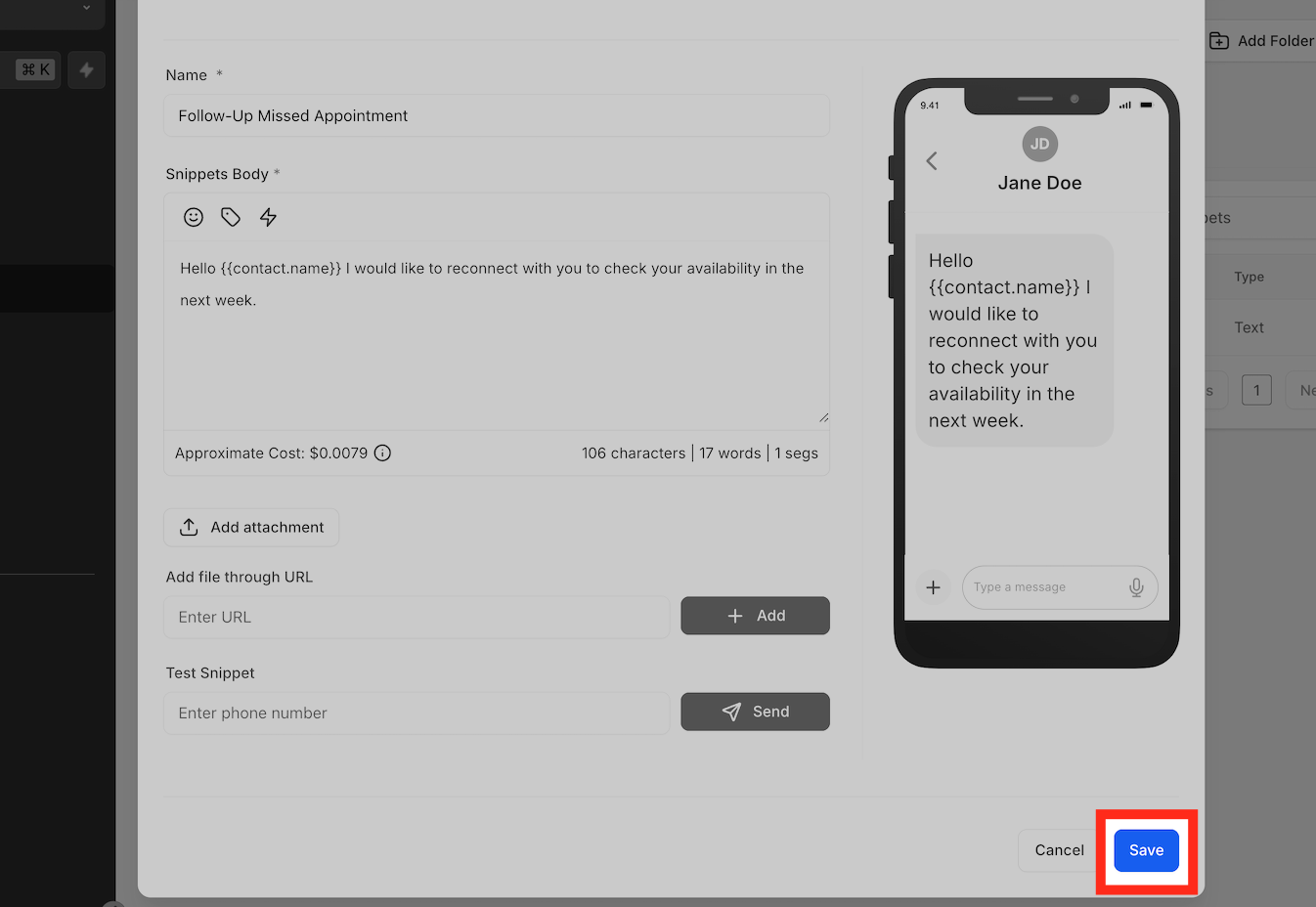
- Once finalized, click Save.
2. Organize Snippets into Folders
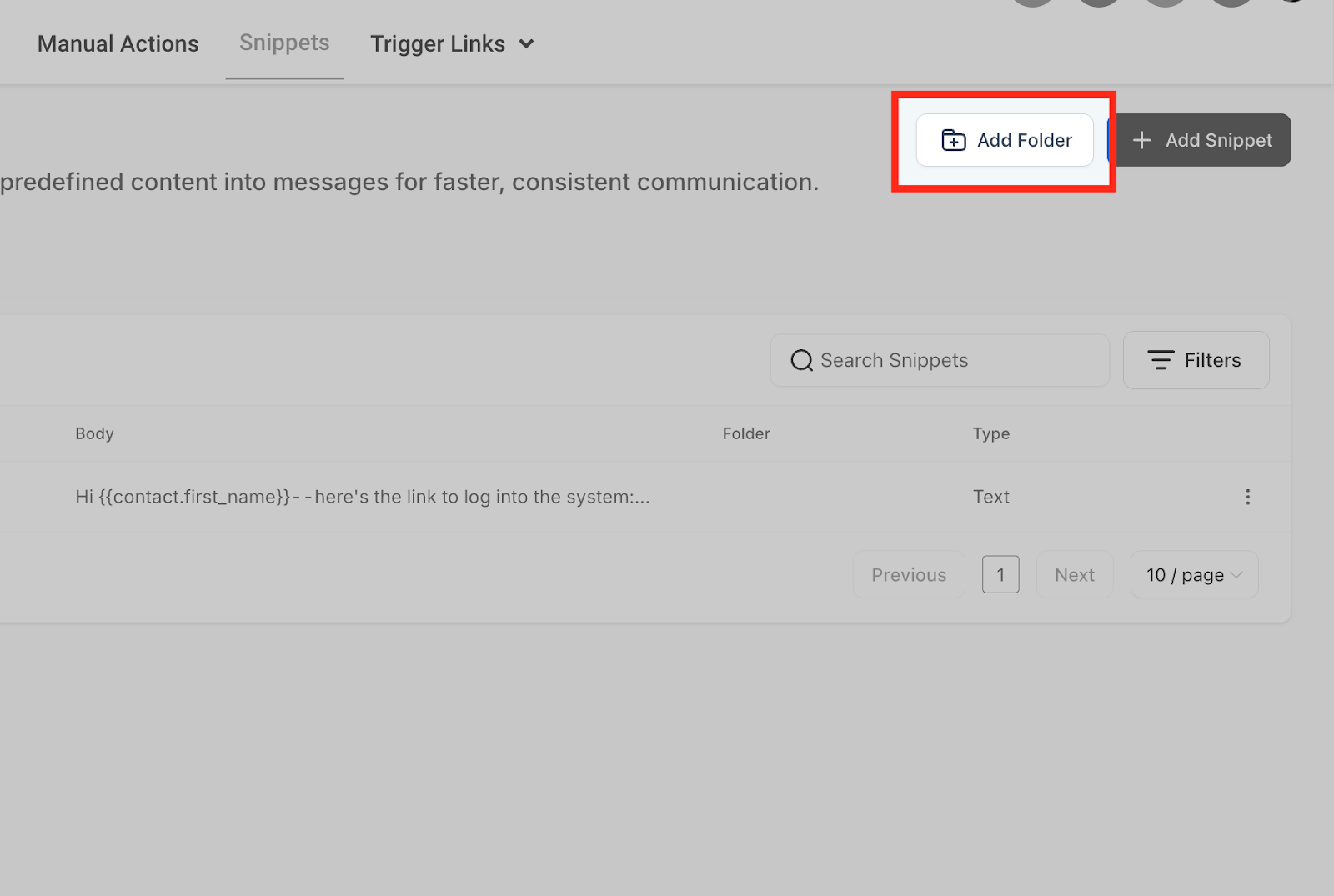
- Click Add Folder to create a folder (e.g., “Appointments”).
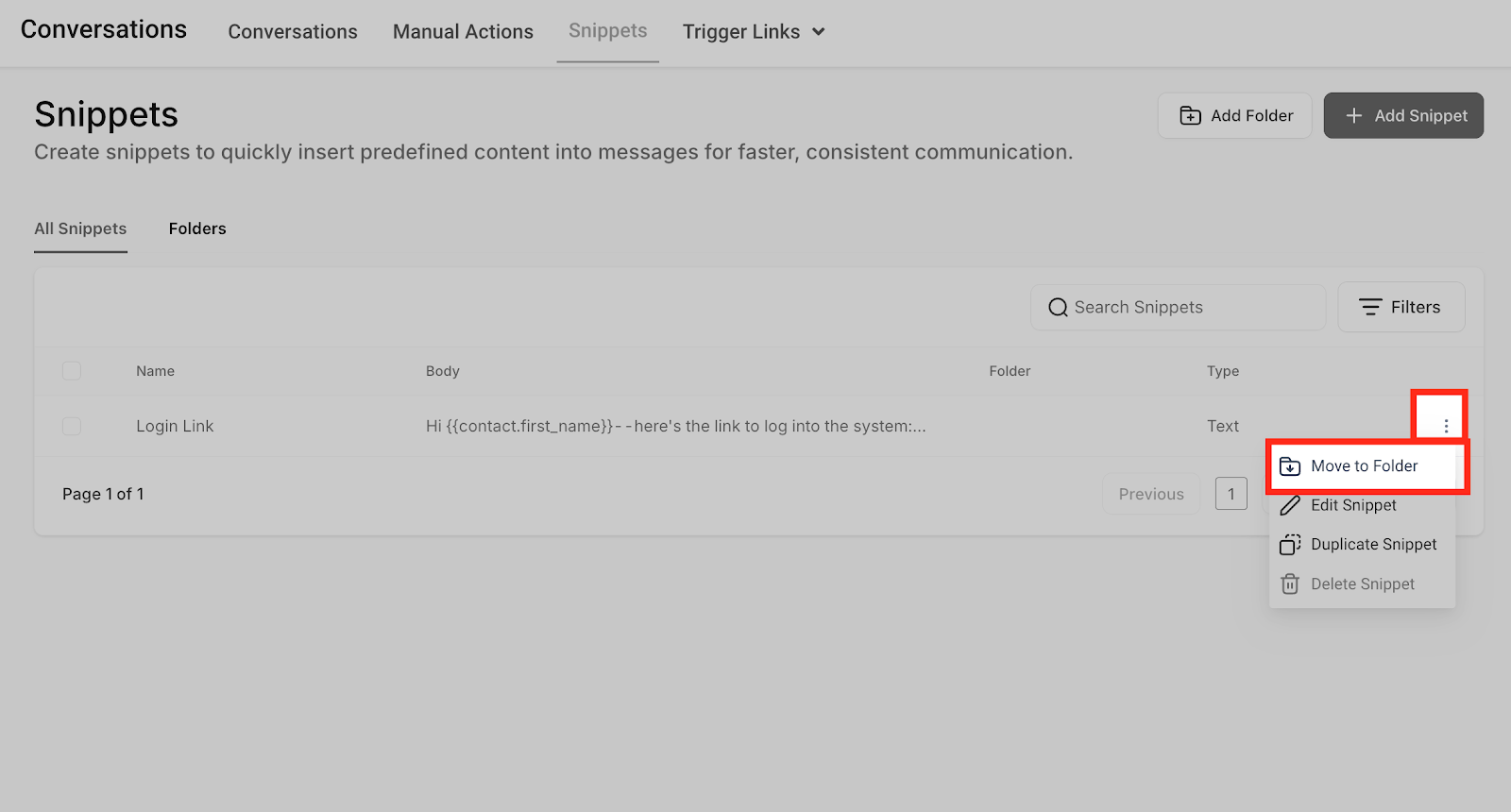
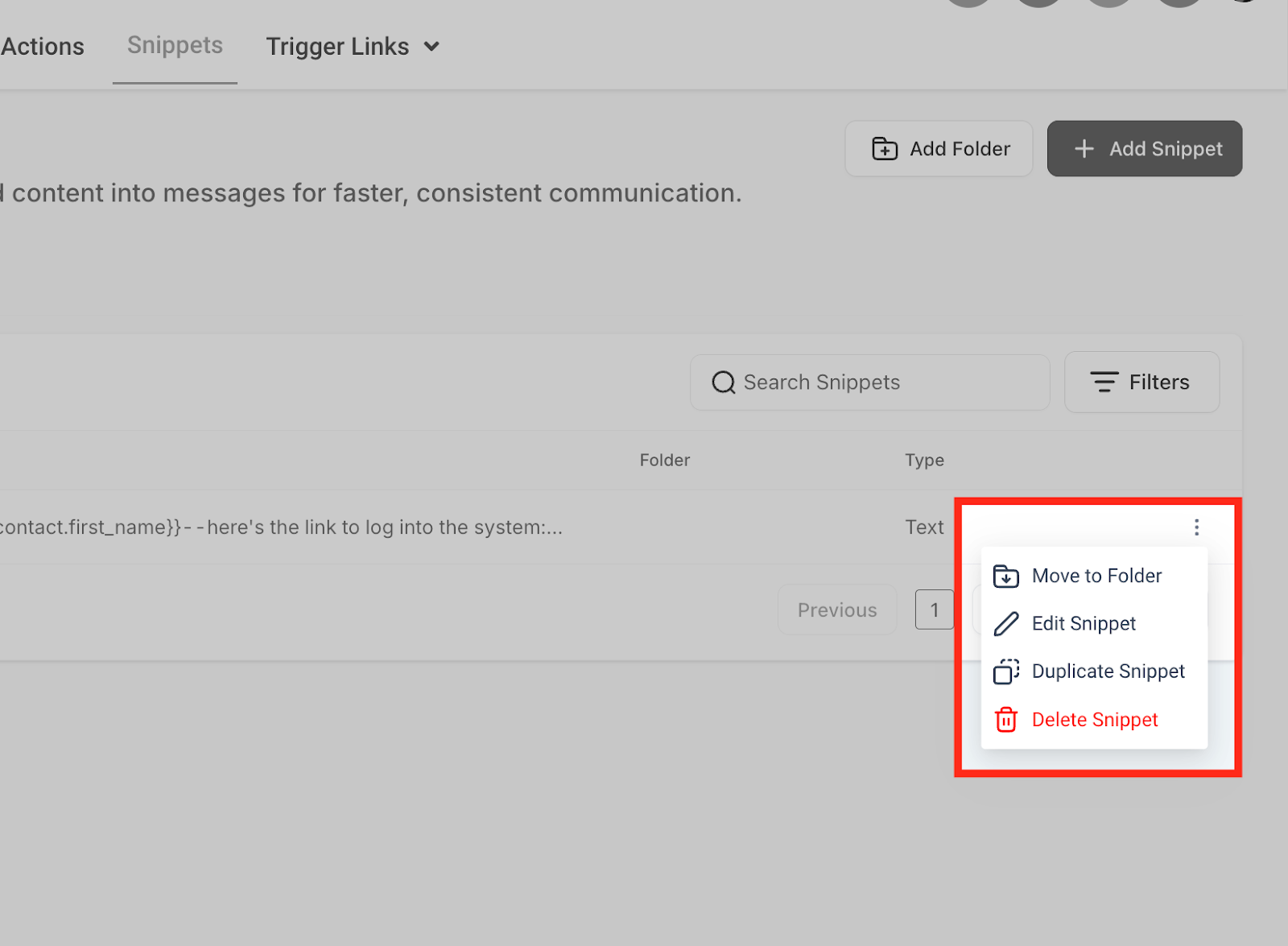
- Assign snippets to folders by selecting a snippet, clicking the three-dot menu, and choosing Move to Folder.
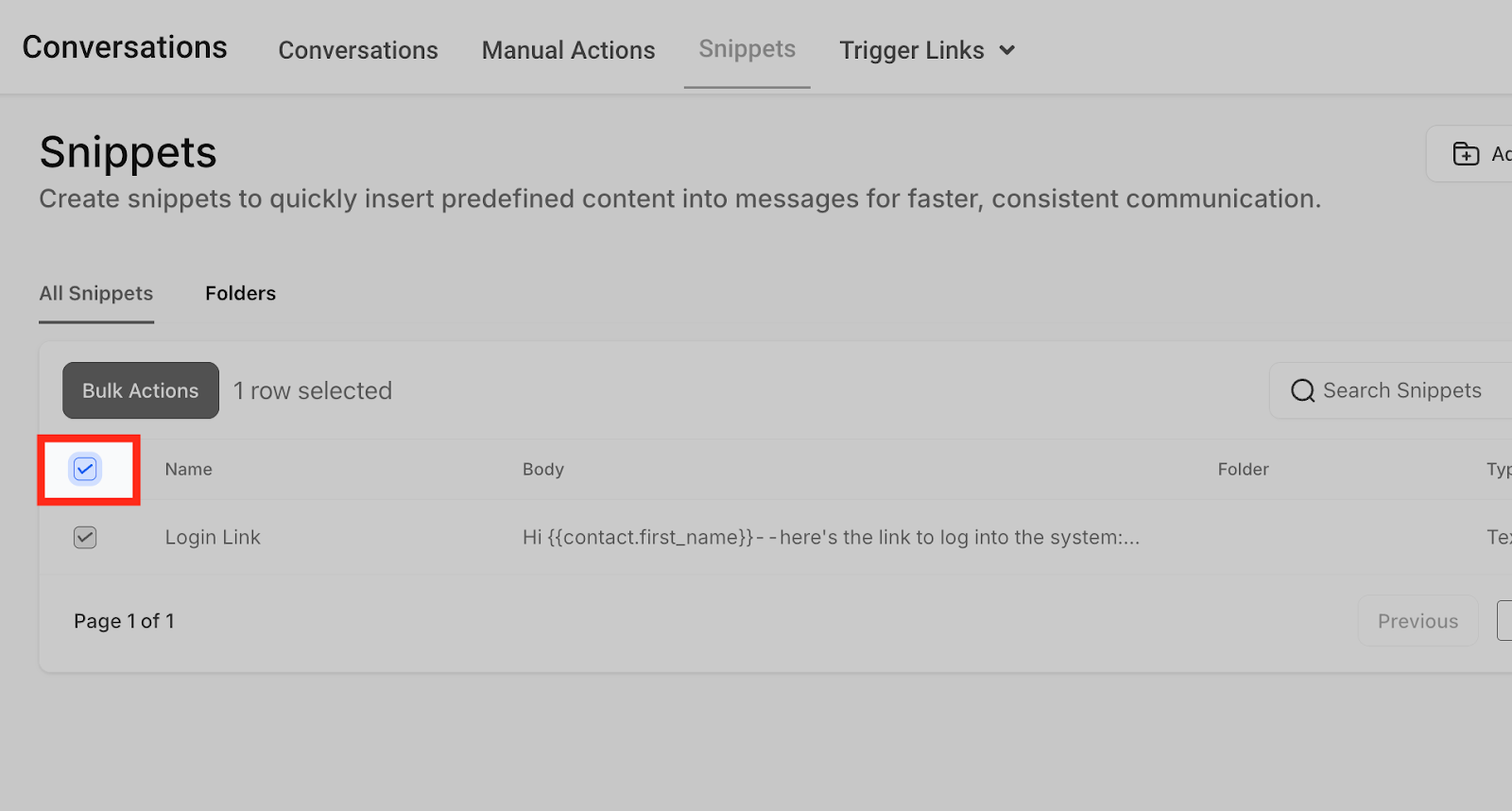
- You can also bulk move multiple snippets into a folder for better organization.
3. Use Search and Filters
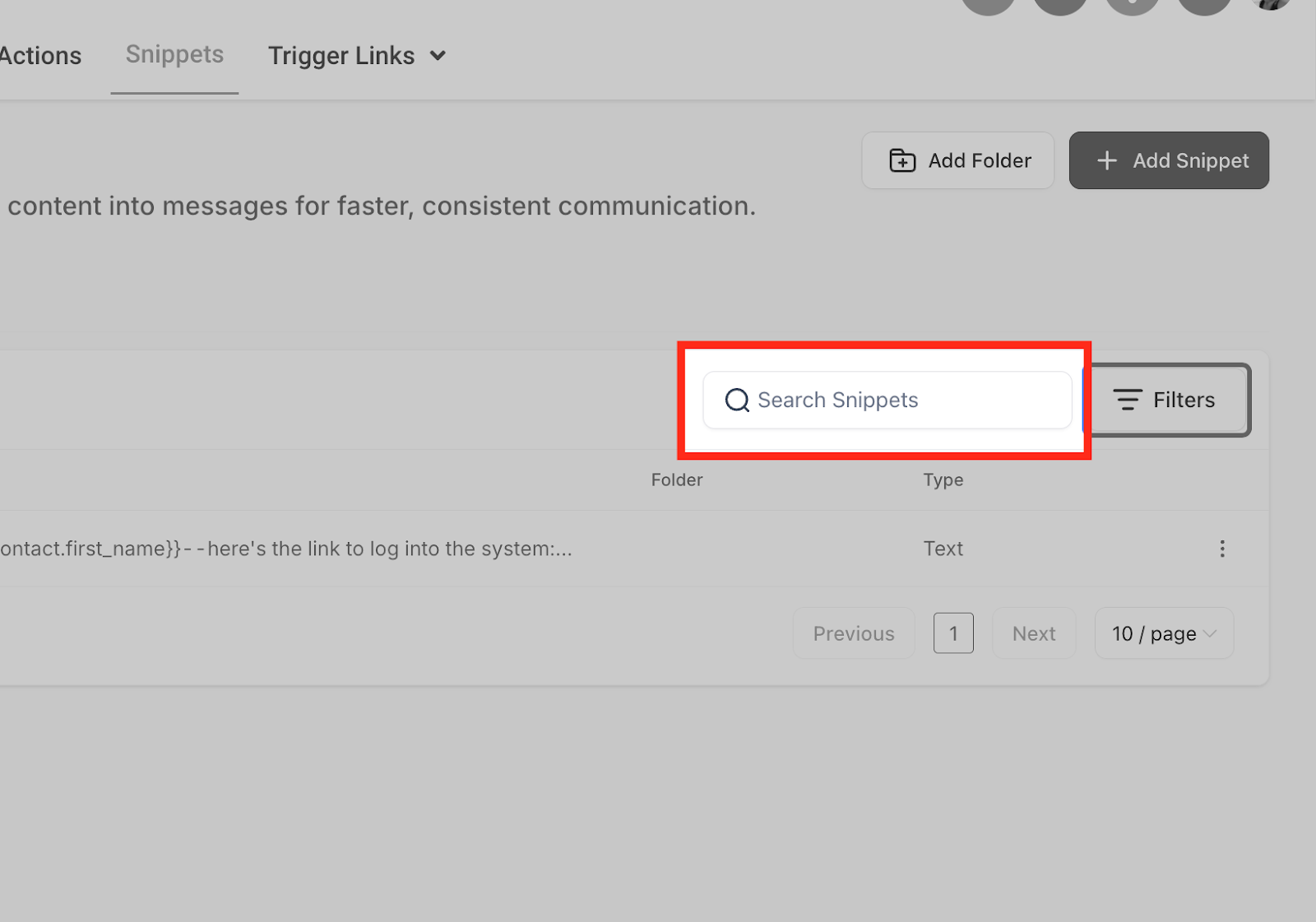
- Quickly find snippets by typing a keyword or using filters (Text or Email) to narrow down the results.
- Manage snippets efficiently by editing, duplicating, or deleting them directly from the menu options.

4. Use Snippets in Conversations
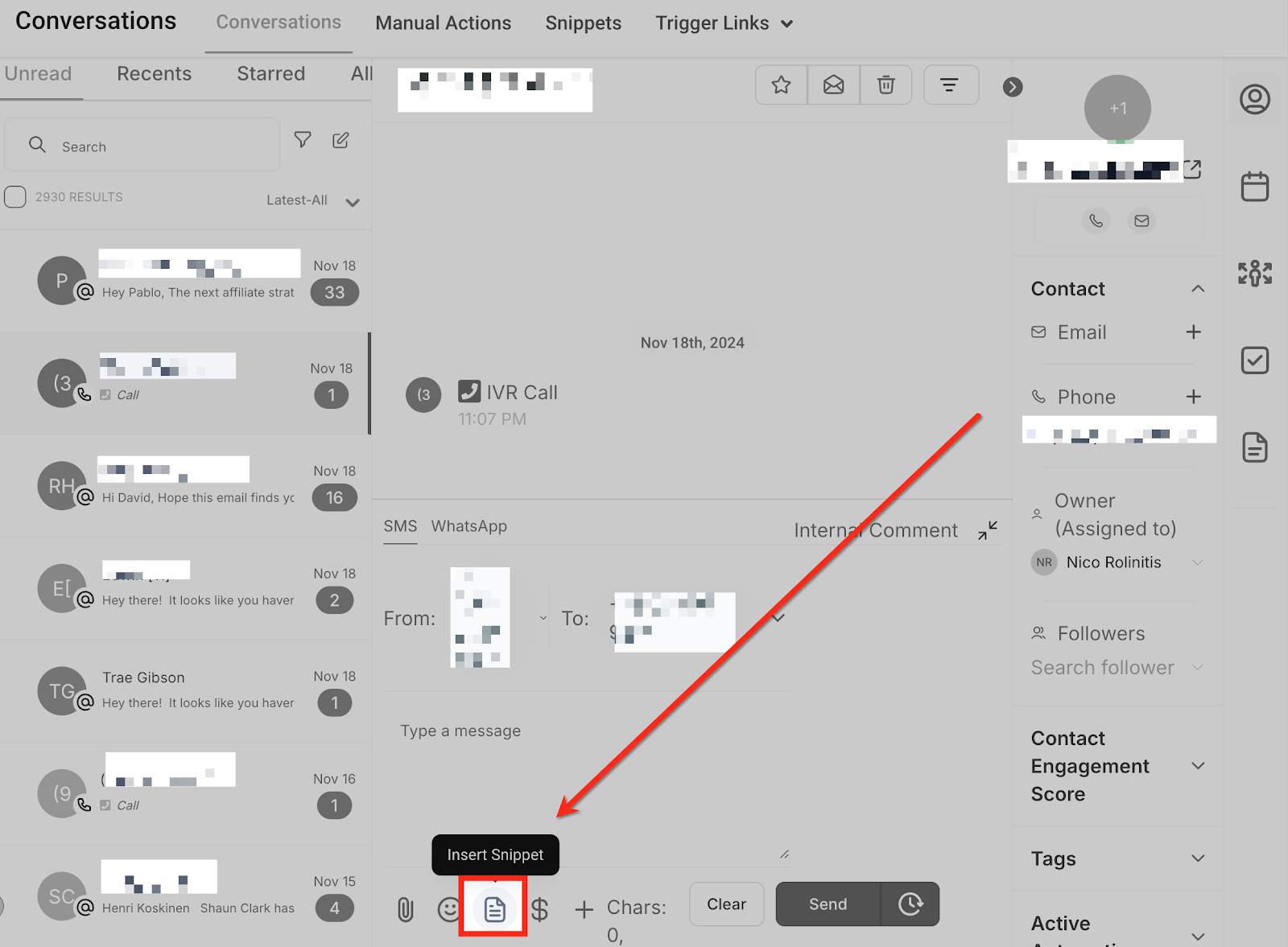
- Open a conversation thread and click on the Snippets icon at the bottom.
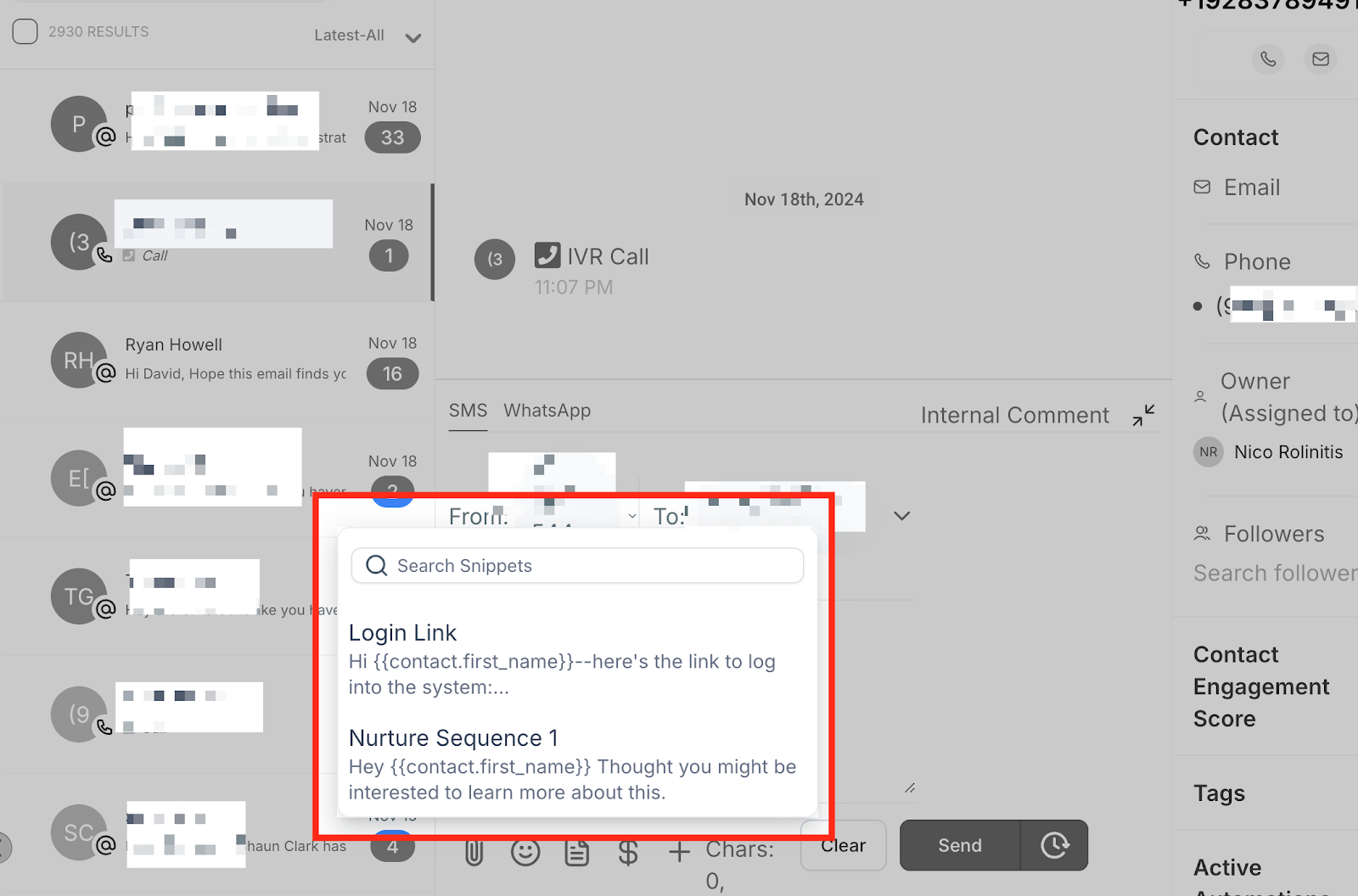
- Navigate through folders or use the search bar to find your desired snippet.
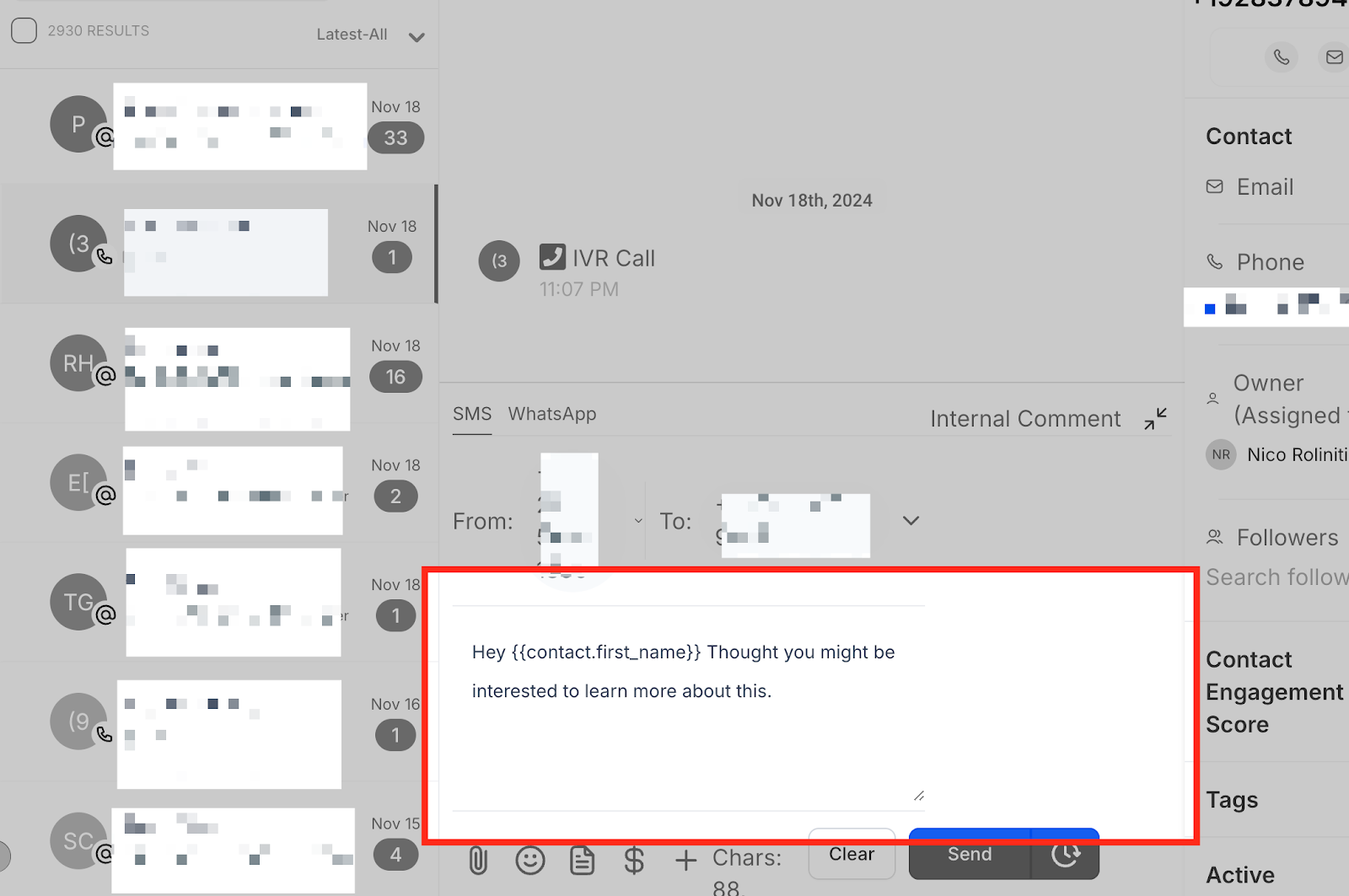
- Click the snippet, and it will populate in the text box, ready to send or edit further.
Keep learning