
How to Use Activity Cards in GoHighLevel Conversations
Updated February 18, 2025
Managing opportunities, appointments, and invoices across multiple screens slows down your team and increases the risk of missed updates. This guide covers how GoHighLevel activity cards work in the Conversations panel, so you can handle every key action from a single view.
These cards put everything at your fingertips, allowing you to respond, update, and handle opportunities, appointments, contact preferences, and invoices—all without the frustration of switching between screens. The outcome? A smoother, more efficient, and seamless user experience.
Option 1 – Opportunities
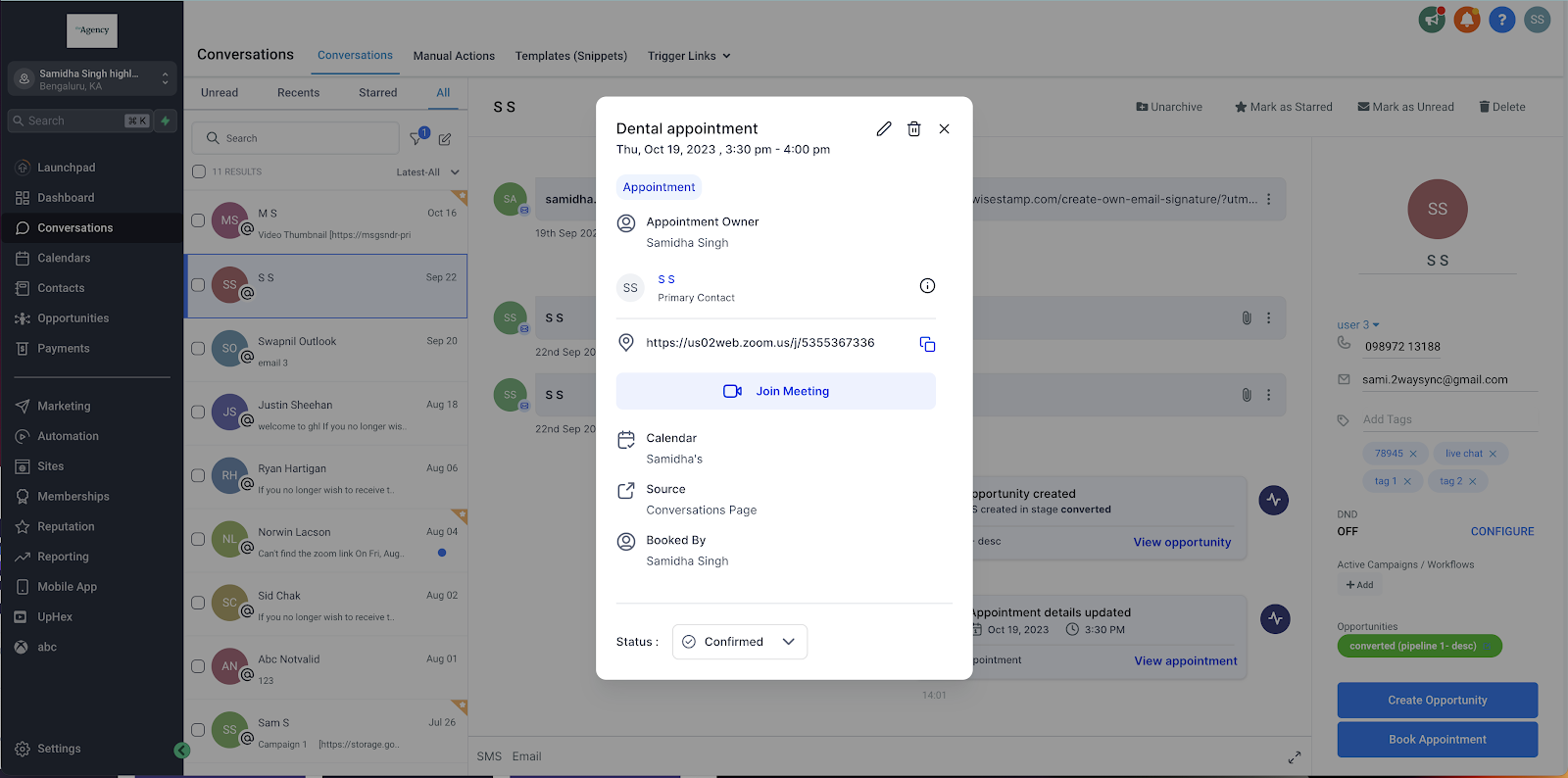
Activity cards instantly update whenever a new opportunity is created, modified, or removed. This keeps you informed of potential leads from the very start, ensuring you never miss a beat. With a quick click on ‘View Opportunity’ within the card, you can seamlessly access and edit details in real time, without leaving your current view.

Option 2 – Appointments
Anytime an appointment is created, rescheduled, or even canceled, you’ll find an activity card in the conversation panel. This feature is designed to keep you perpetually updated without the need to juggle multiple screens. By clicking ‘View Appointment’ within the card, you can seamlessly edit the appointment details, all while staying rooted in the conversation panel.
Option 3 – Do Not Disturb (DND)
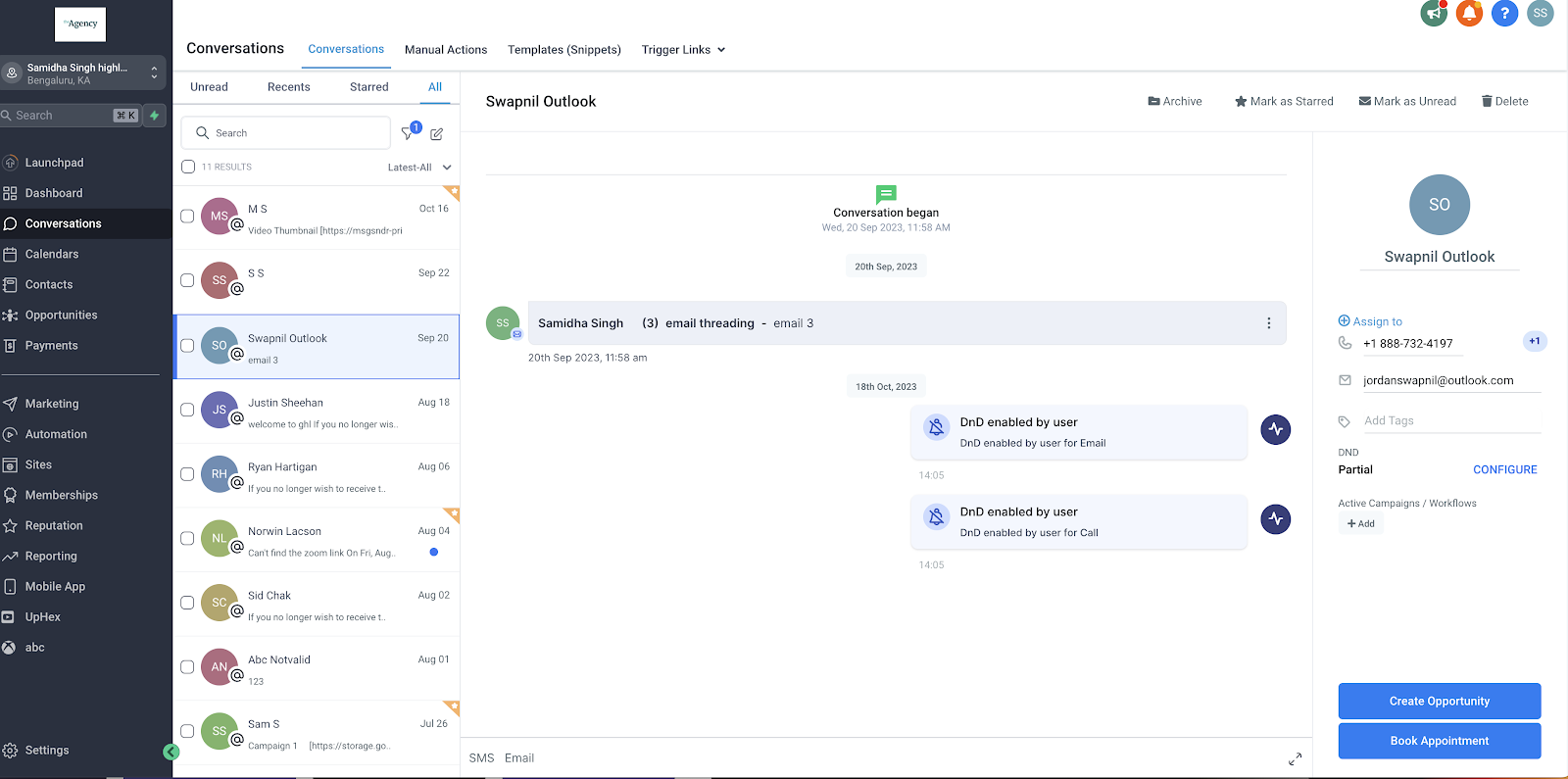
Activity cards alert you as soon as a contact is added to or removed from the “Do Not Disturb” list. They offer clear updates and ensure you stay informed about the contact’s current preference.
Option 4 – Invoices
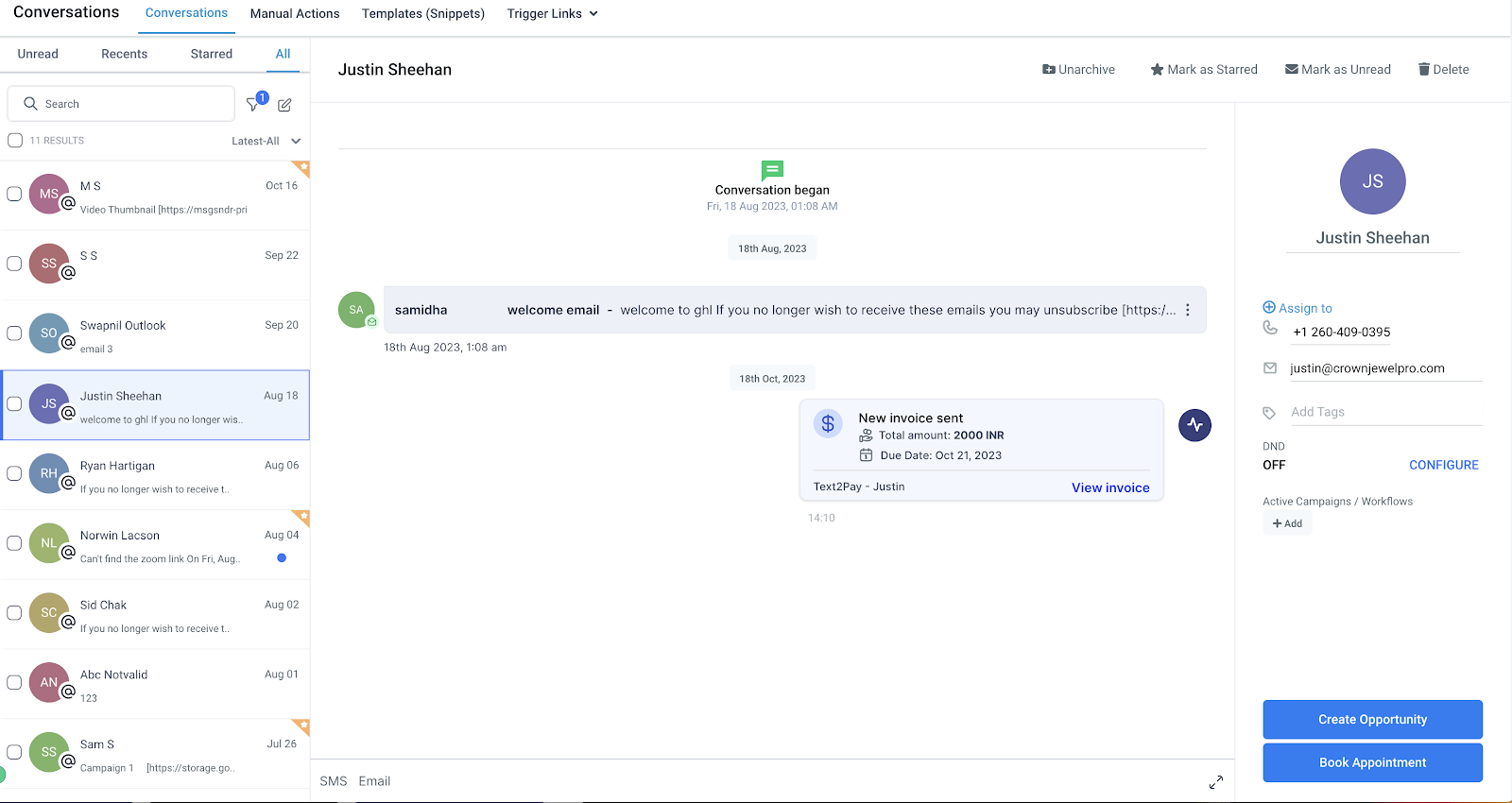
Whether an invoice is sent to a contact or payment is received, the relevant activity card will pop up. With a simple click on ‘View Invoice,’ you’ll be seamlessly redirected to a new tab where you can explore the detailed invoice.
Keep learning