
How to Import Your Stripe Products Directly into GoHighLevel
Updated November 21, 2022
Recreating products you already have in Stripe wastes time and risks pricing inconsistencies across your GoHighLevel sub-accounts. By using the built-in Stripe import tool, you can pull your live-mode products and prices directly into GoHighLevel Payments in just two steps.
If you have one or more products already set up in your Stripe account and want to import them into your system, you can do so with a few easy steps. This will allow you to save time building products to price if you already have them setup within your Stripe account. Follow along below to learn how to import them:
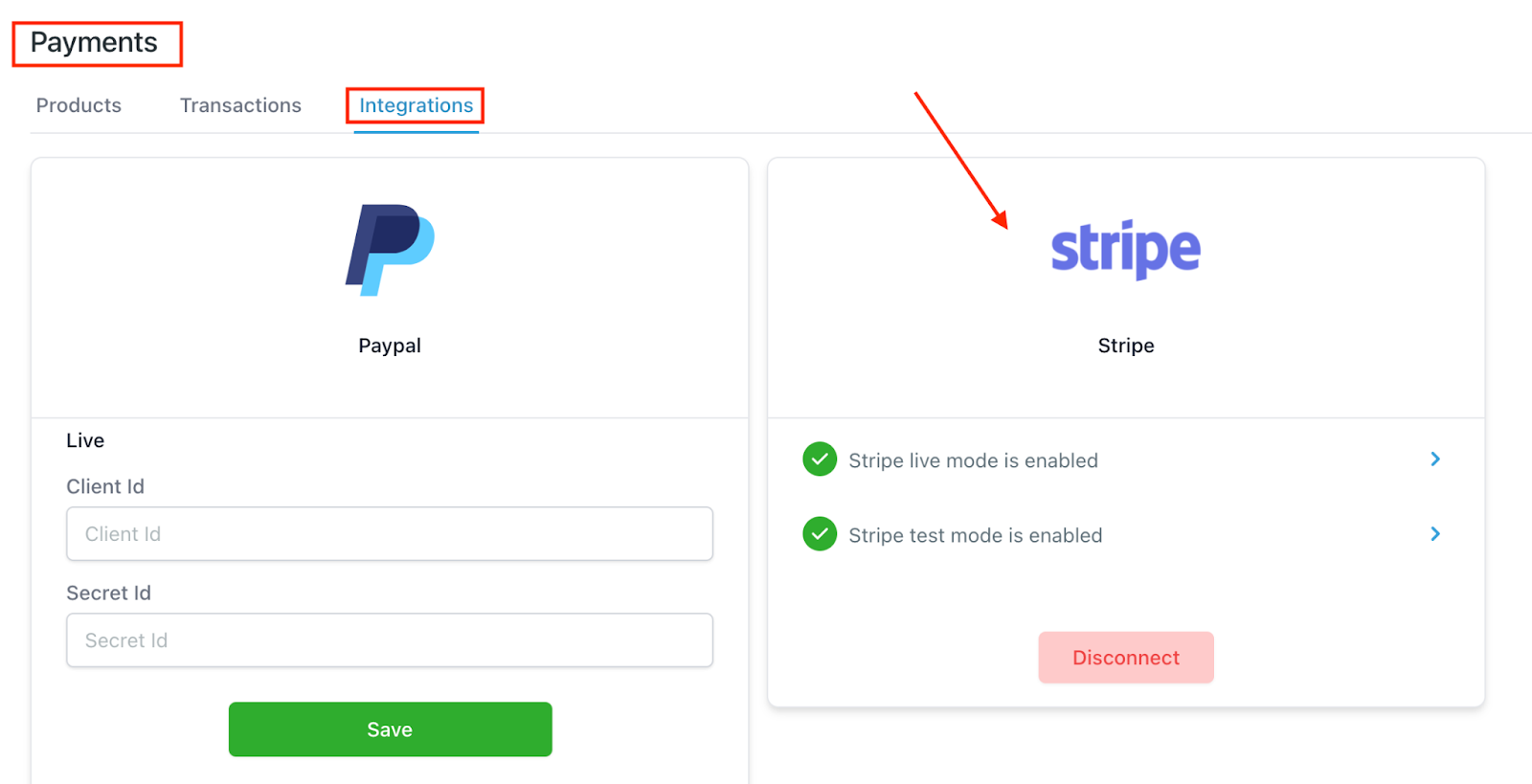
Step 1: Ensure your Stripe account is integrated.
- Navigate to Payments > Integrations and ensure that your Stripe account is connected. (If not, follow our Stripe Integration tutorial to learn how.)
Step 2: Import the Product from Stripe
- Under Payments > Products you’ll see a blue “Import from Stripe” button.
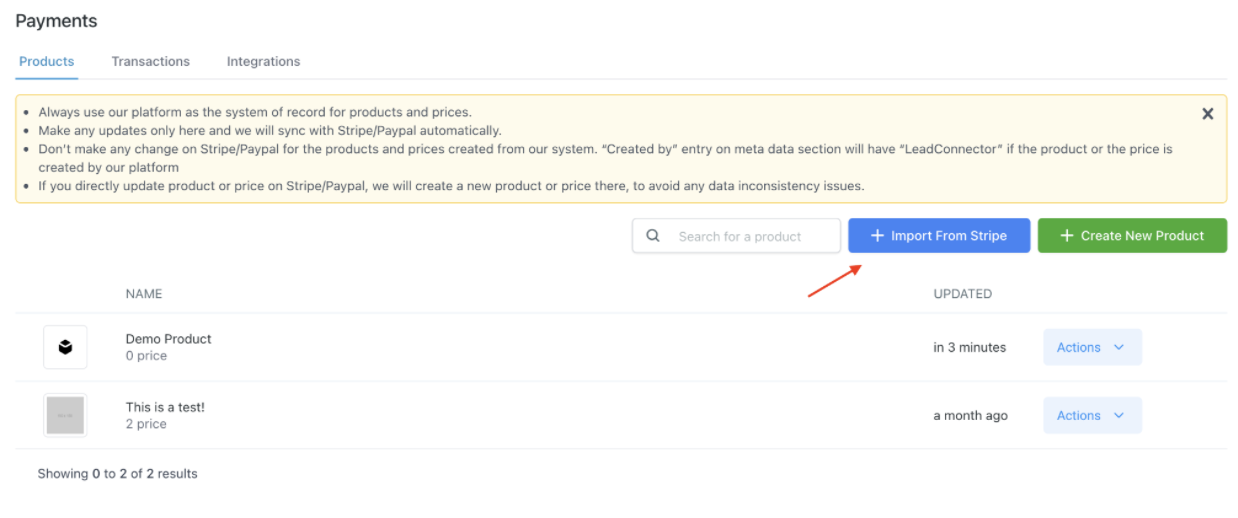
- Click to open a new window.
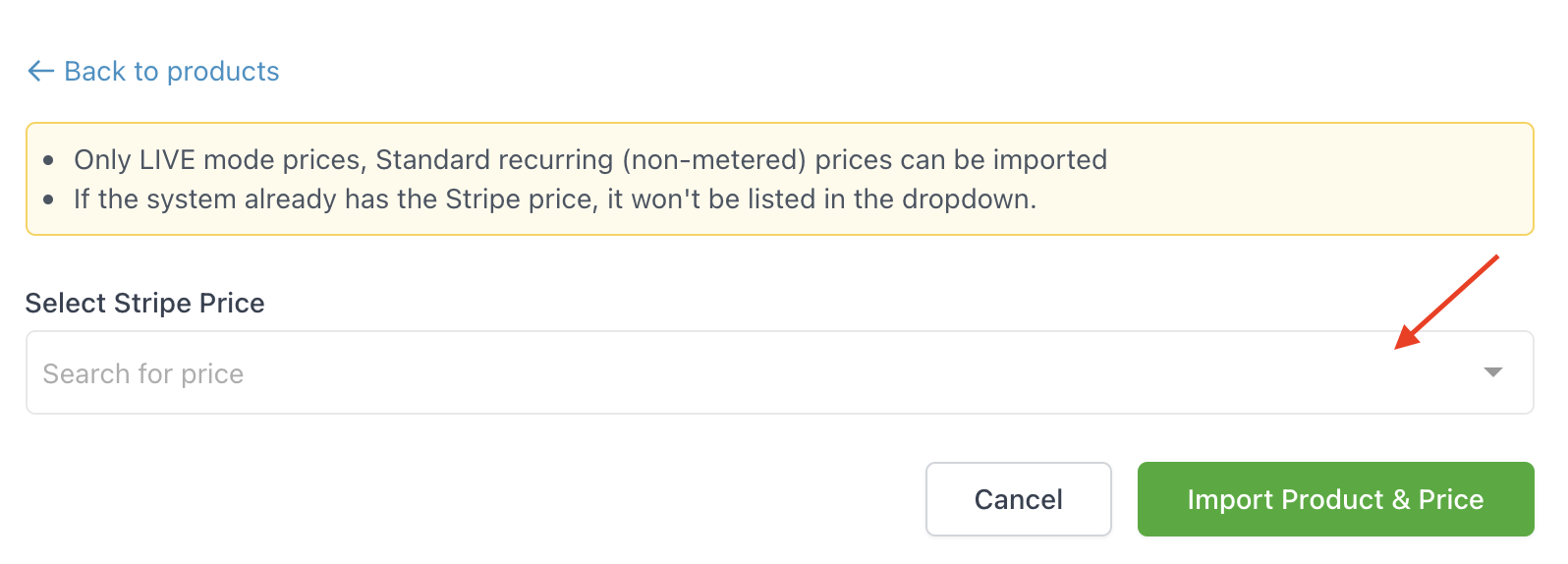
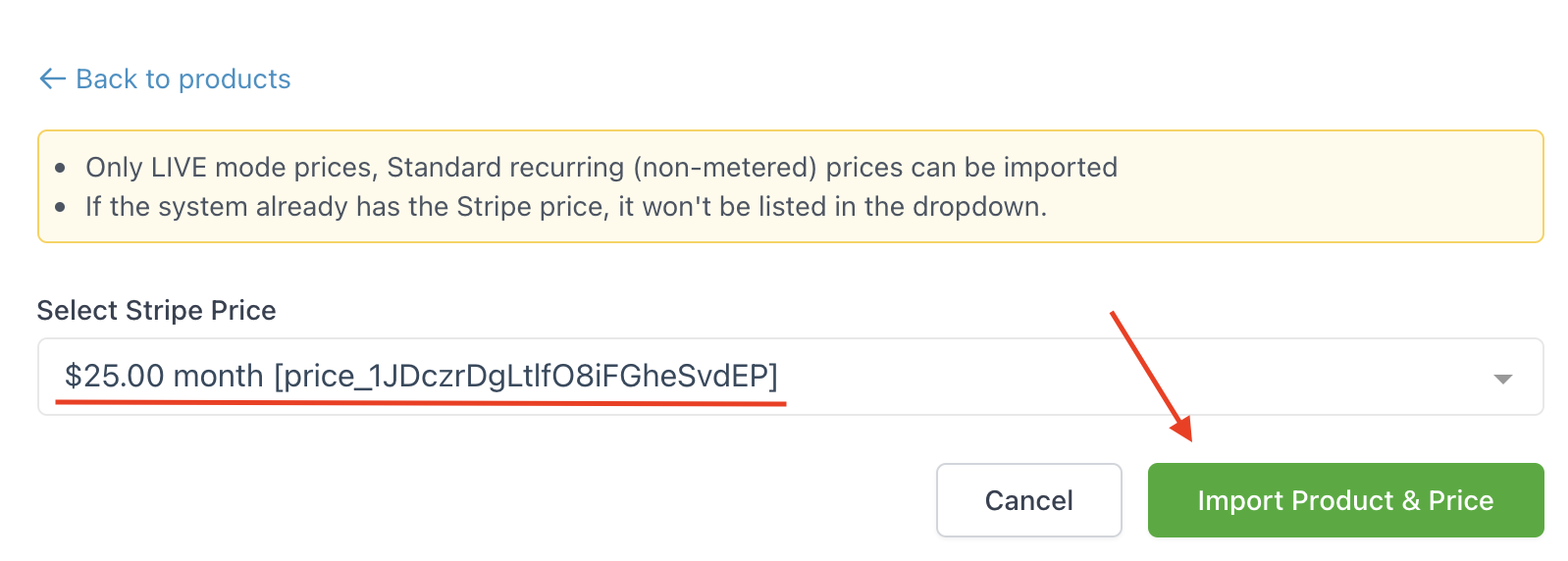
- From the dropdown, select the product you wish to import and click “Import Product & Price”.
- NOTE: Only LIVE mode prices can be imported. Also, if the system already has the Stripe price, it won’t appear in the import dropdown.
- You’ll be redirected to a view of the newly imported product. You can view the details, add another price, edit the product, or delete the product.
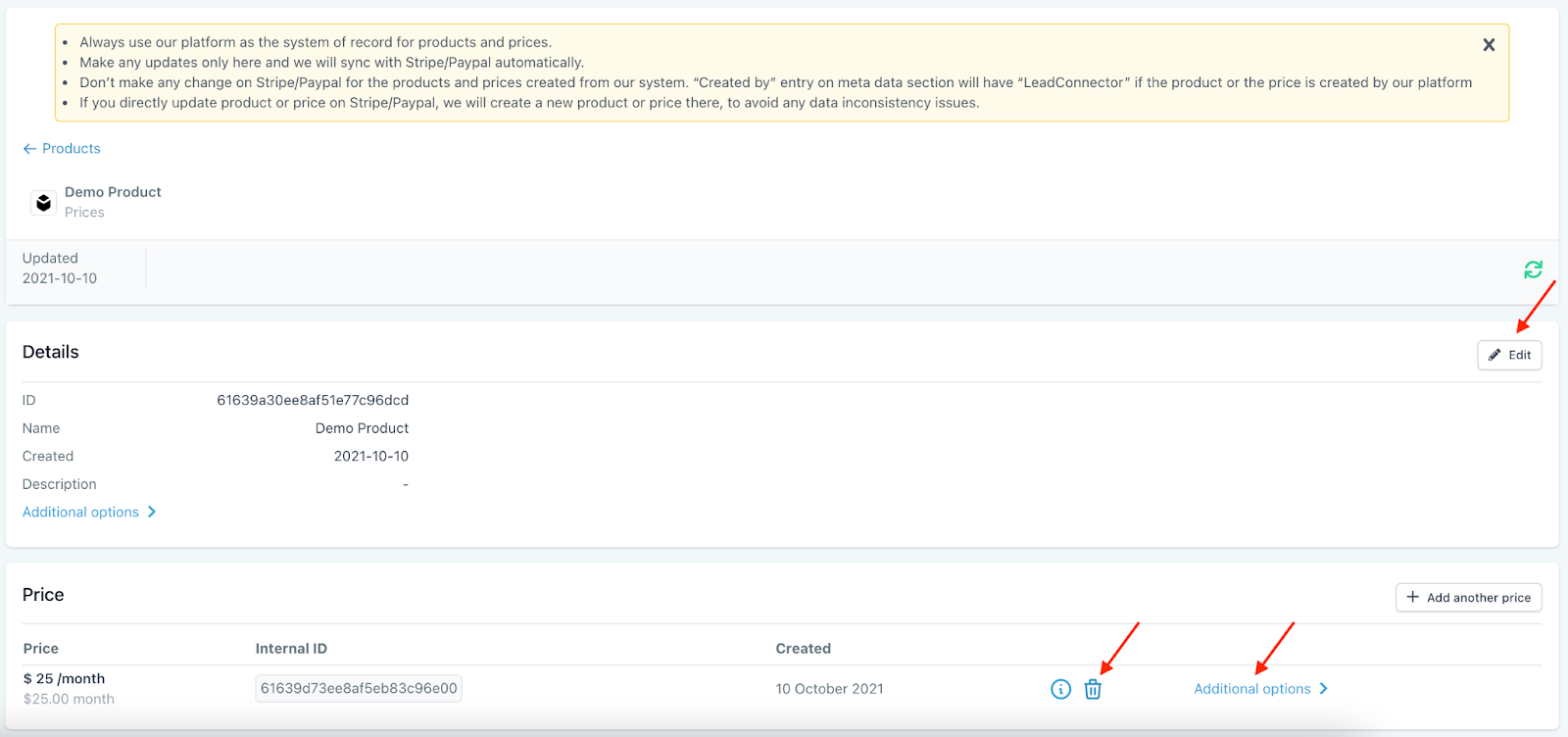
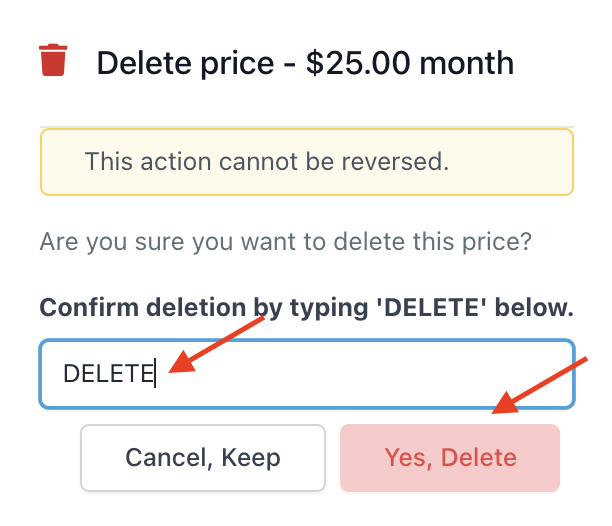
- NOTE: If you click the trashcan icon to delete the product, a popup window will appear and you’ll need to type in DELETE to confirm you wish to proceed, as the action cannot be undone.
Keep learning