Growthable

Set Up an Appointment Reminder Workflow with Zoom in GHL

Updated March 10, 2025

Without a one-minute processing wait after the Zoom location trigger, appointment reminder workflows in GoHighLevel can fail to populate the meeting link correctly. This guide walks you through building a complete reminder sequence — from the confirmed appointment trigger to multi-day email and SMS reminders before the event.

When setting up the appointment reminder campaign, be sure to include a one-minute wait step to allow time for processing the location value when using Zoom integration.


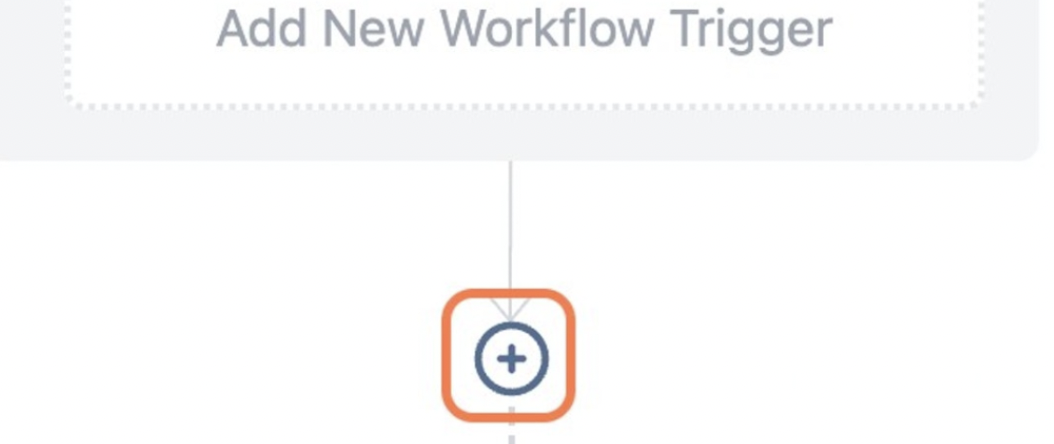
Click on Add New Workflow Trigger
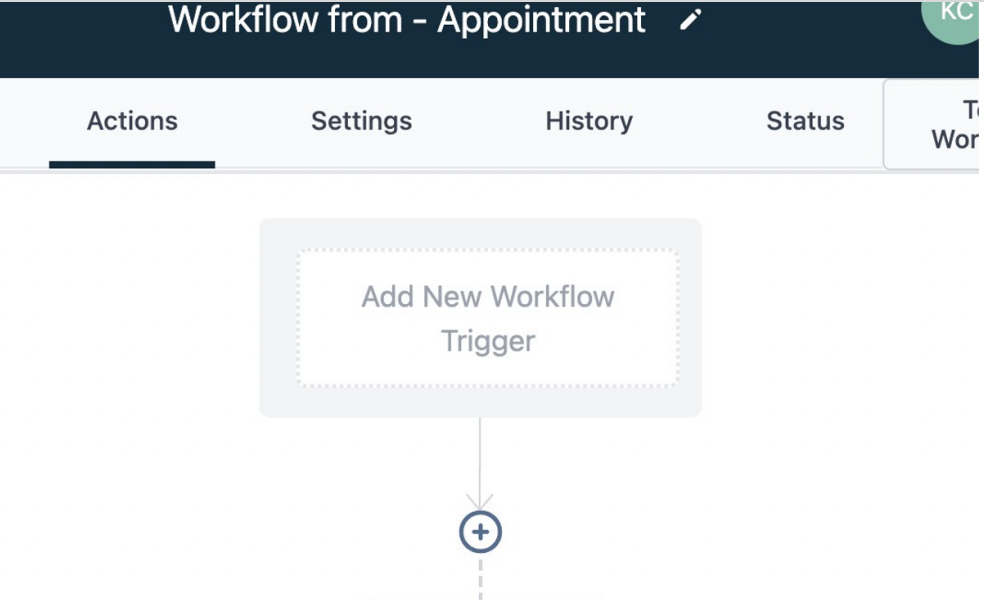
GoHighLevel Appointment Reminder Workflow with Zoom — screenshot 1

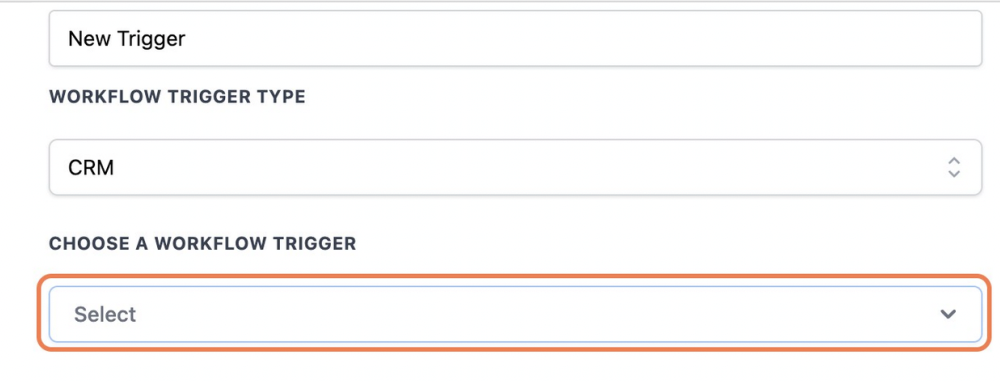
Click on Select

GoHighLevel Appointment Reminder Workflow with Zoom — screenshot 2

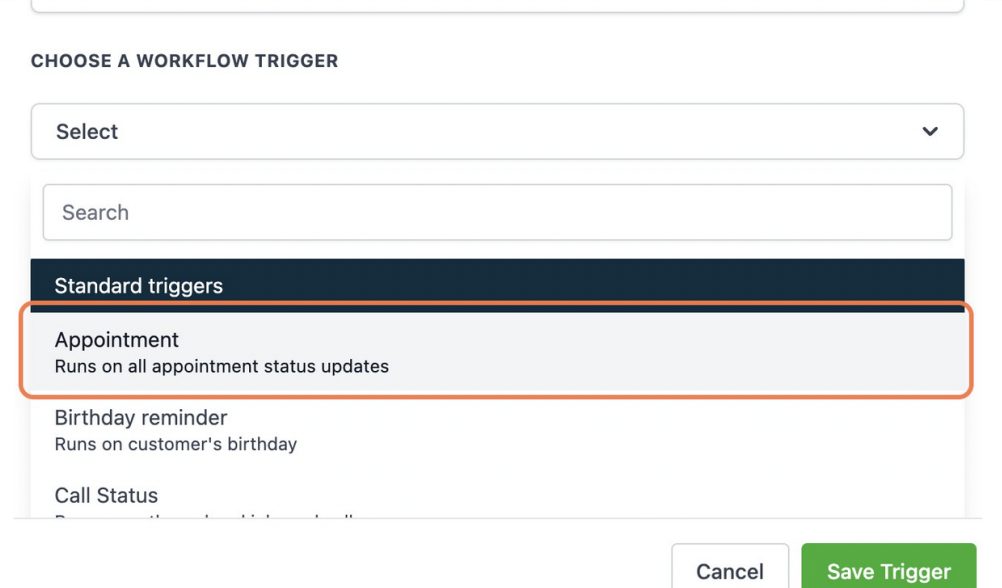
Click on Appointment…

GoHighLevel Appointment Reminder Workflow with Zoom — screenshot 3

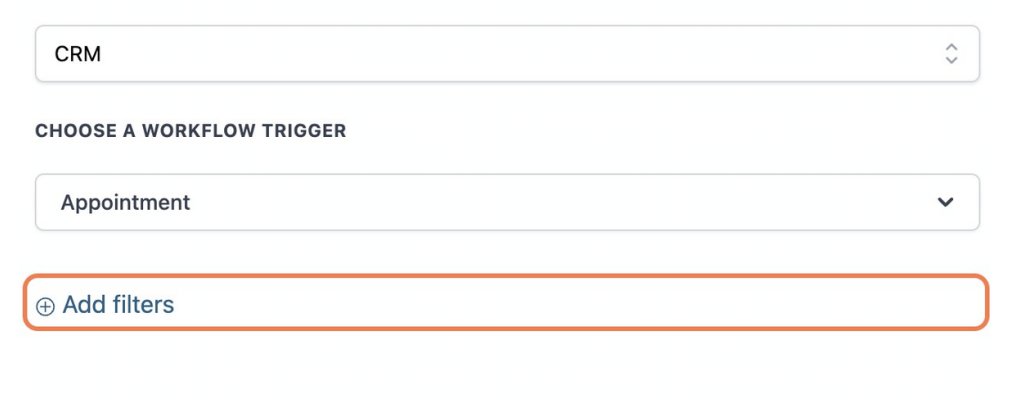
Click on Add filters

GoHighLevel Appointment Reminder Workflow with Zoom — screenshot 4

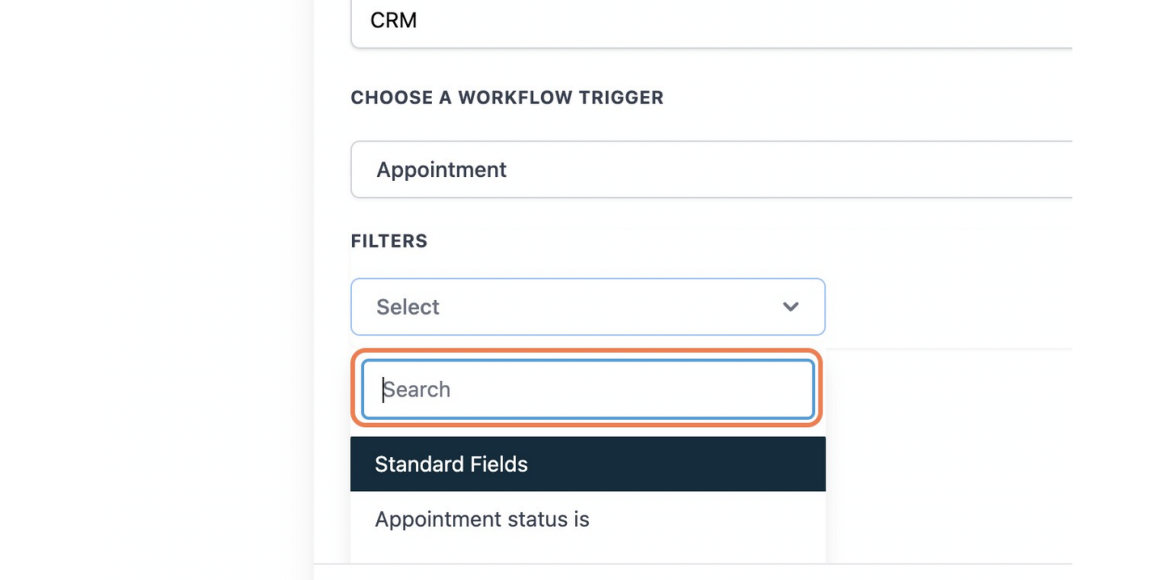
Click on Select

GoHighLevel Appointment Reminder Workflow with Zoom — screenshot 5

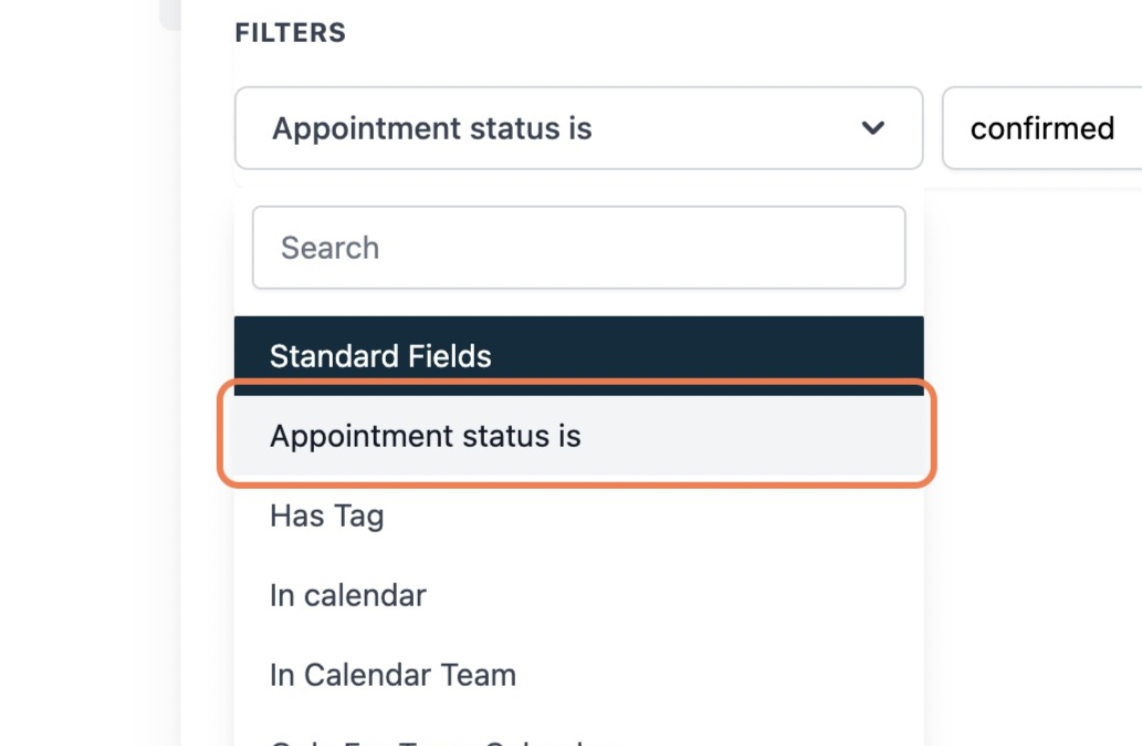
Click on Appointment status is

GoHighLevel Appointment Reminder Workflow with Zoom — screenshot 6

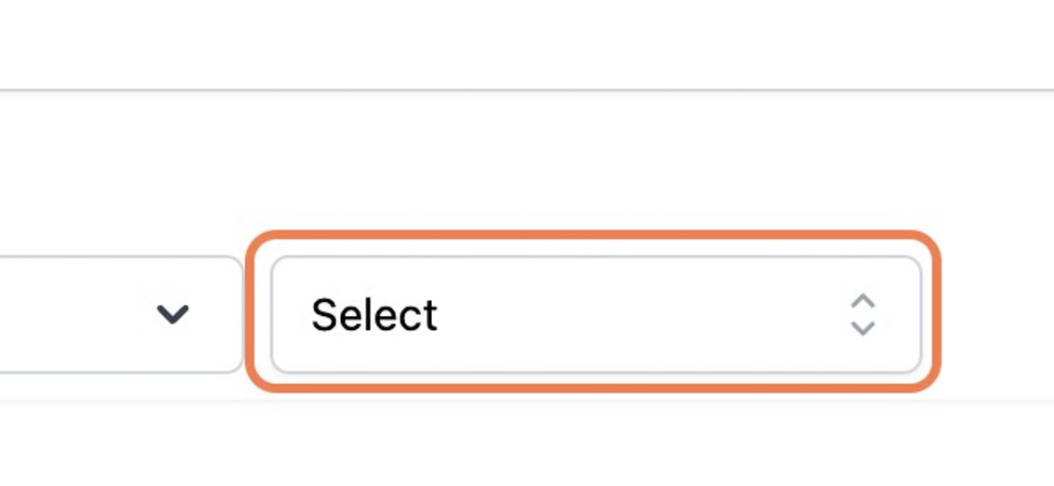
Click on Select

GoHighLevel Appointment Reminder Workflow with Zoom — screenshot 7

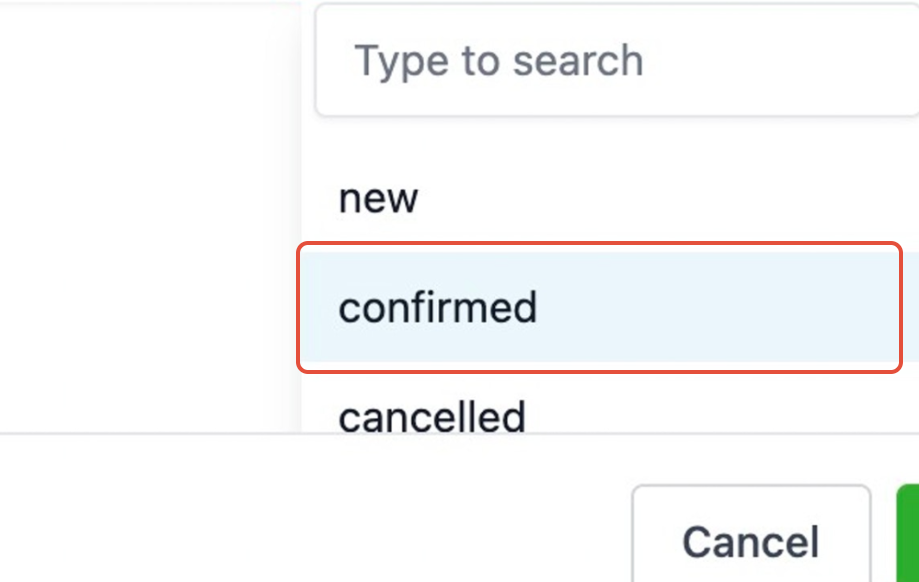
Click on confirmed

GoHighLevel Appointment Reminder Workflow with Zoom — screenshot 8

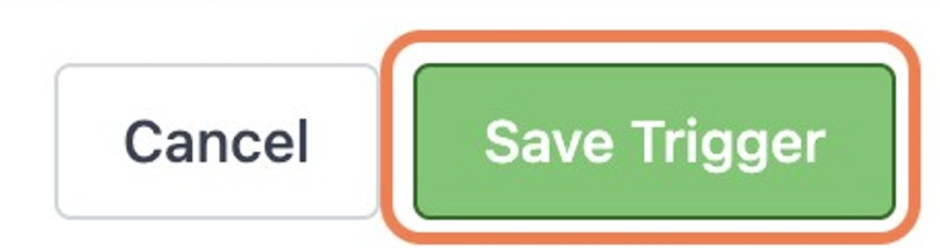
Save Trigger

GoHighLevel Appointment Reminder Workflow with Zoom — screenshot 9

Click on +

GoHighLevel Appointment Reminder Workflow with Zoom — screenshot 10

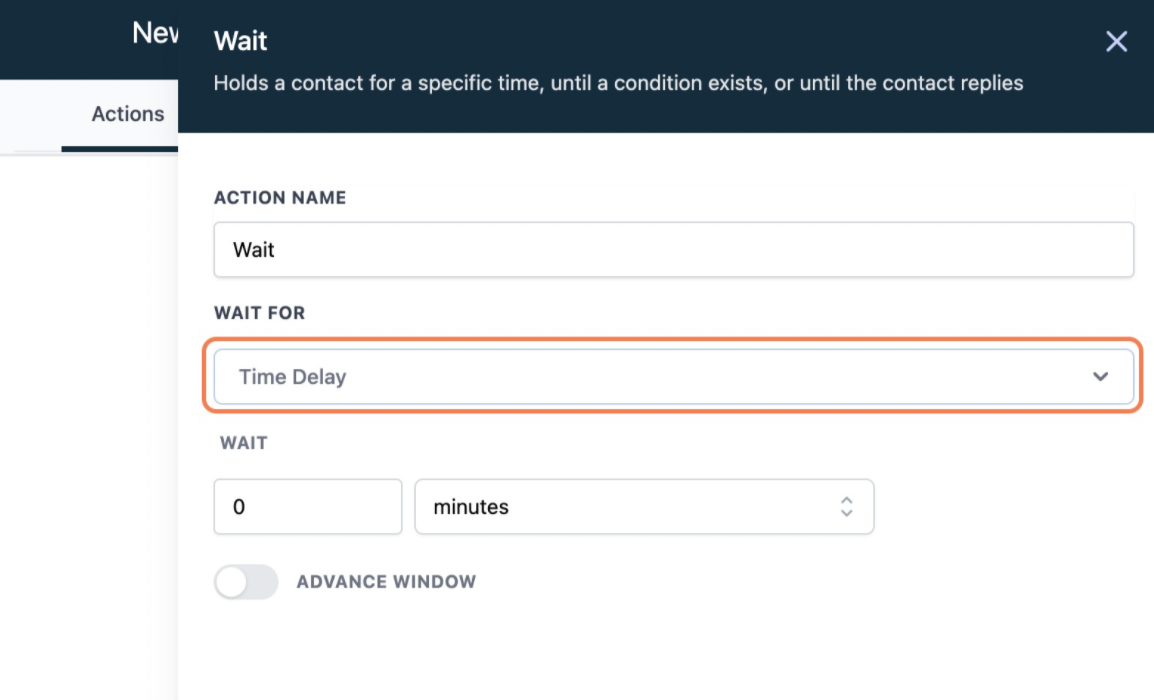
Scroll down to the bottom and click on Wait
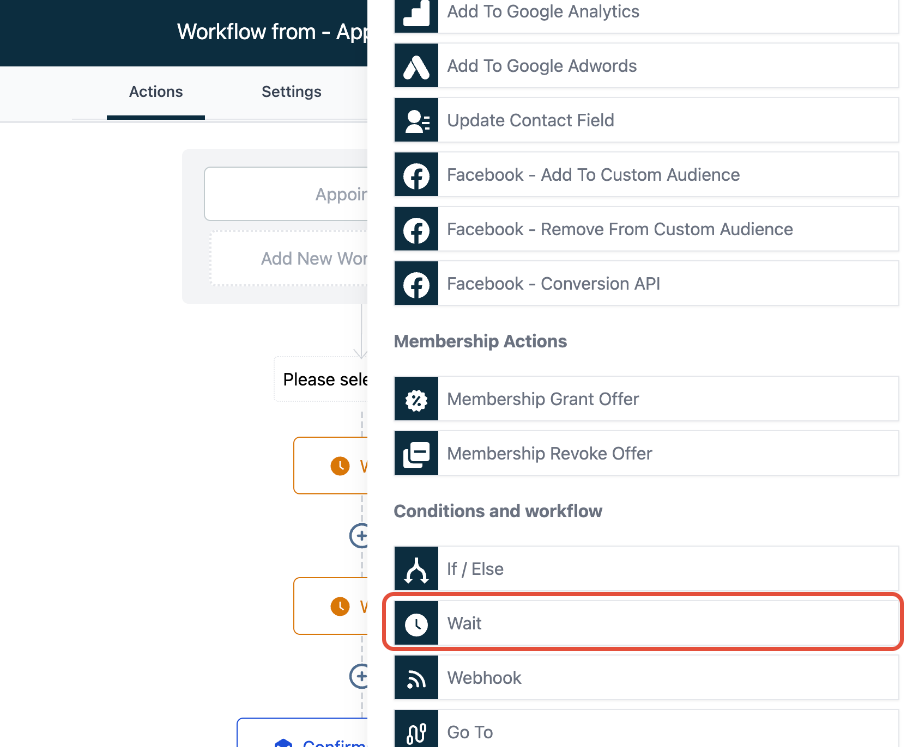
GoHighLevel Appointment Reminder Workflow with Zoom — screenshot 11

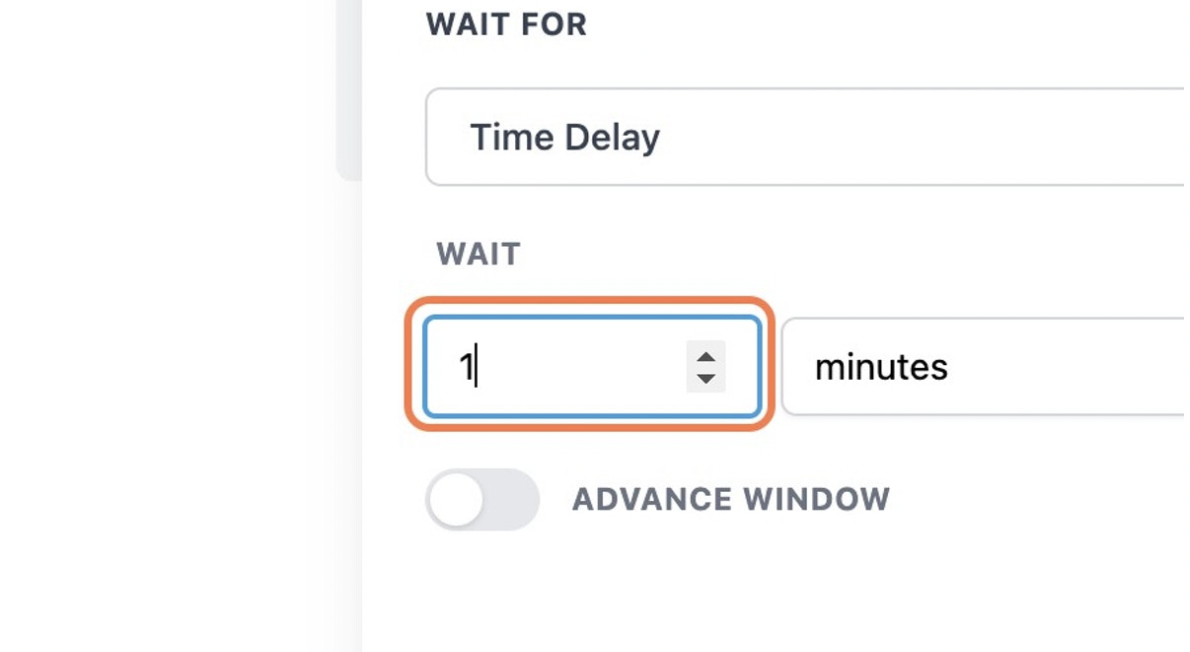
Set Wait Delay for 1 minute

GoHighLevel Appointment Reminder Workflow with Zoom — screenshot 12

Save Action and continue to build the rest of the appointment reminder workflow

Click on + after the wait step
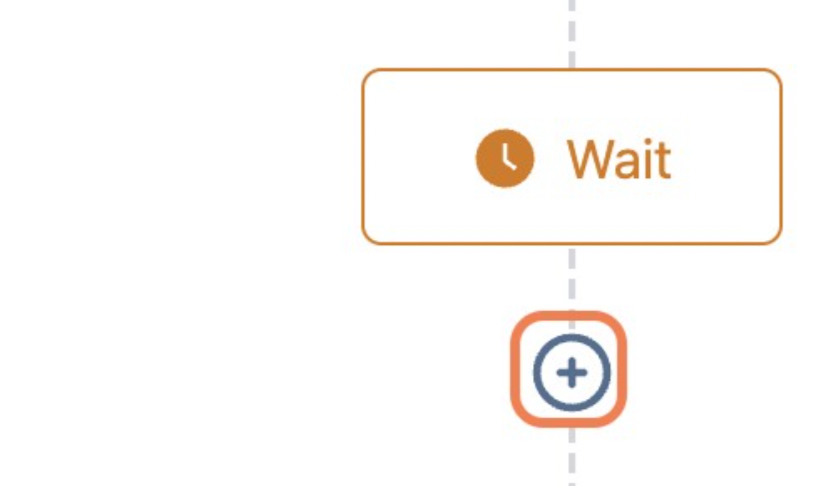
GoHighLevel Appointment Reminder Workflow with Zoom — screenshot 13

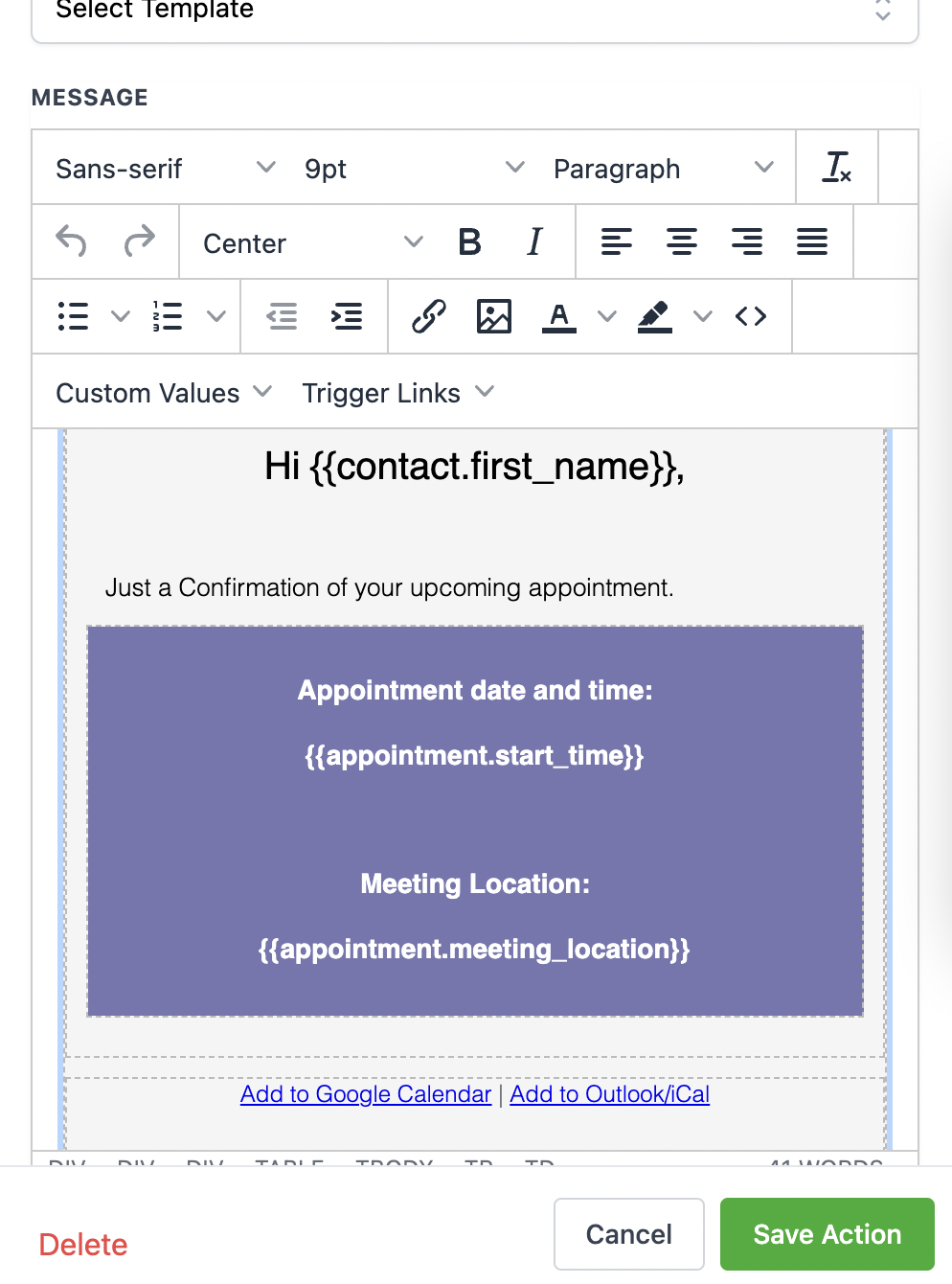
Choose to send Email/SMS to send the appointment confirmation to the lead
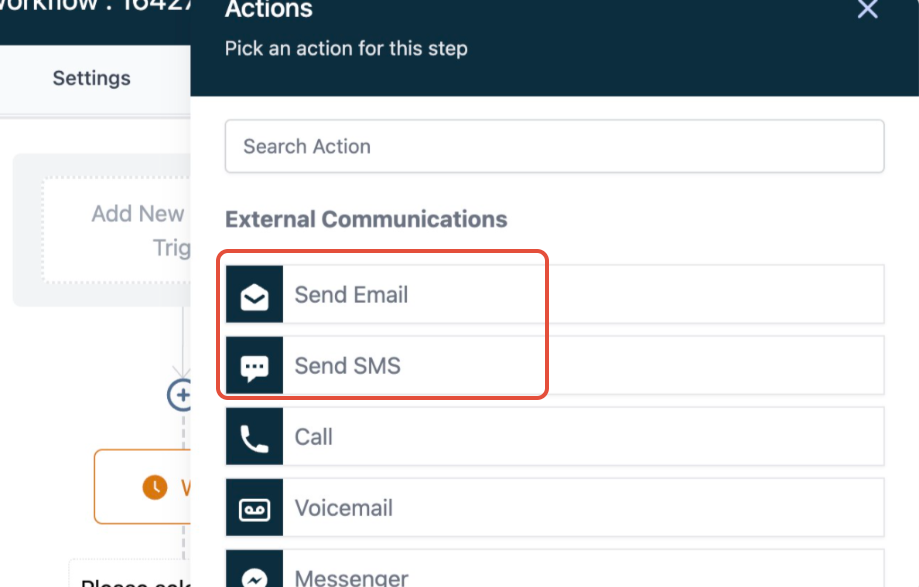
GoHighLevel Appointment Reminder Workflow with Zoom — screenshot 14

Click on Save action:

GoHighLevel Appointment Reminder Workflow with Zoom — screenshot 15

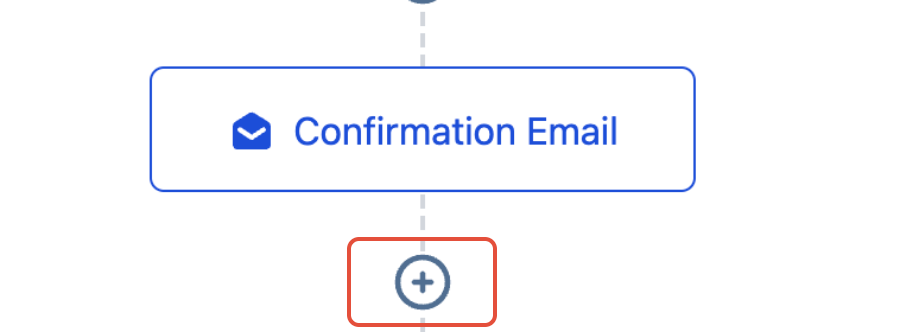
Click + to add another step:

GoHighLevel Appointment Reminder Workflow with Zoom — screenshot 16

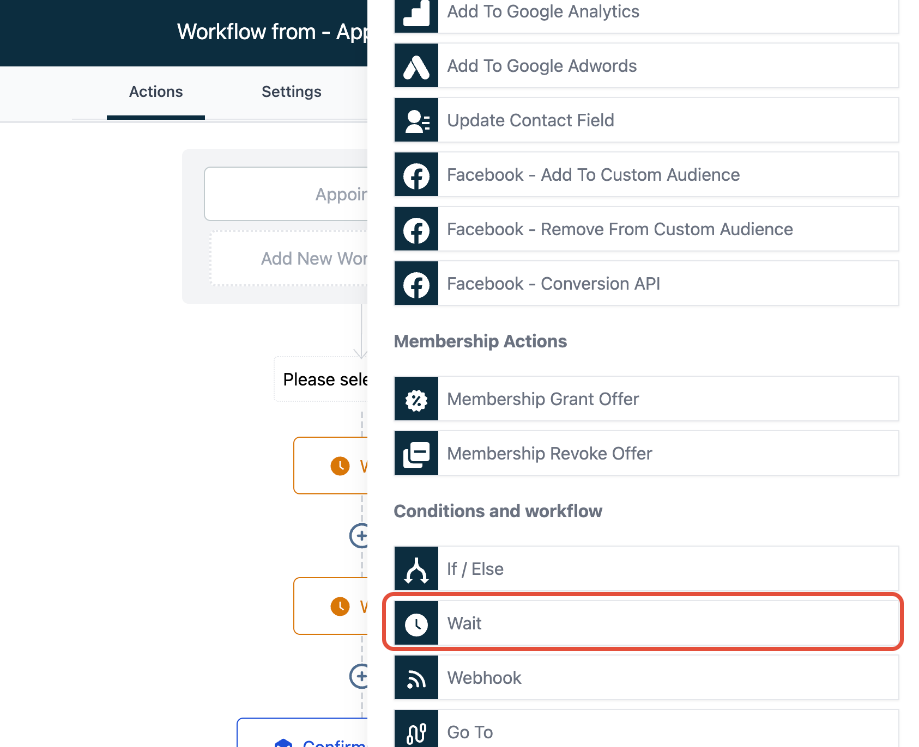
Scroll down to the bottom and click on Wait
GoHighLevel Appointment Reminder Workflow with Zoom — screenshot 17

Click on Time Delay

GoHighLevel Appointment Reminder Workflow with Zoom — screenshot 18

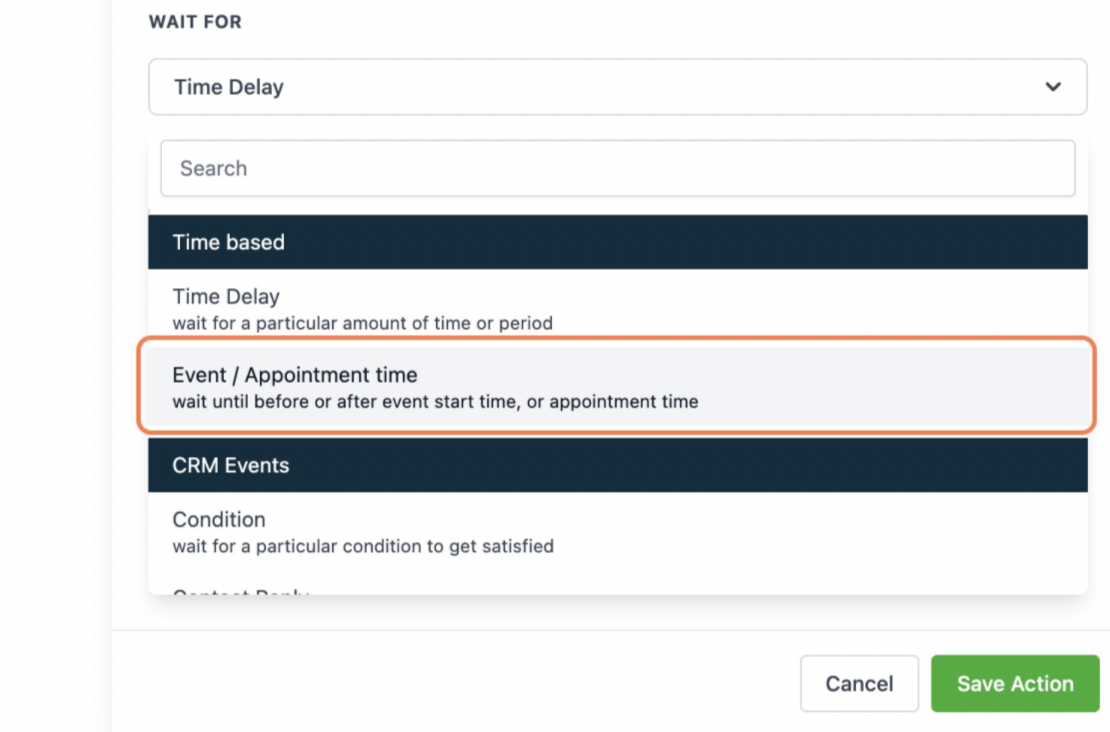
Click on Event / Appointment time

GoHighLevel Appointment Reminder Workflow with Zoom — screenshot 19

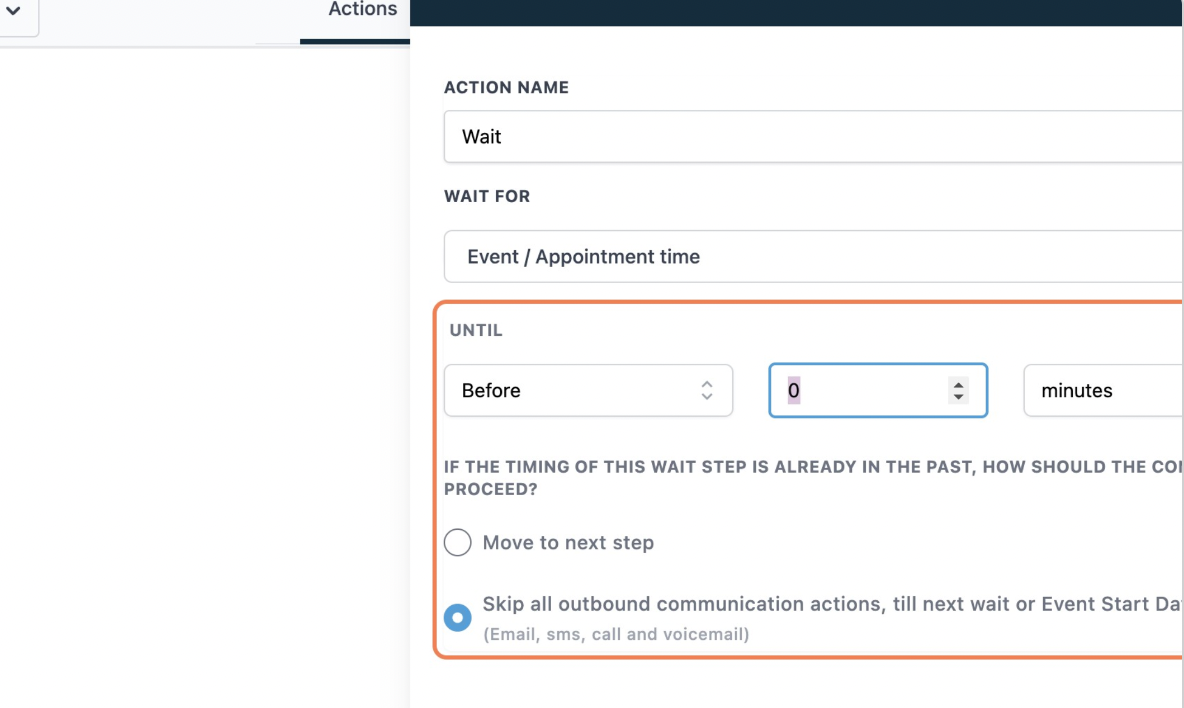
If you want to send a reminder before 4 days:

Type 4 here
GoHighLevel Appointment Reminder Workflow with Zoom — screenshot 20

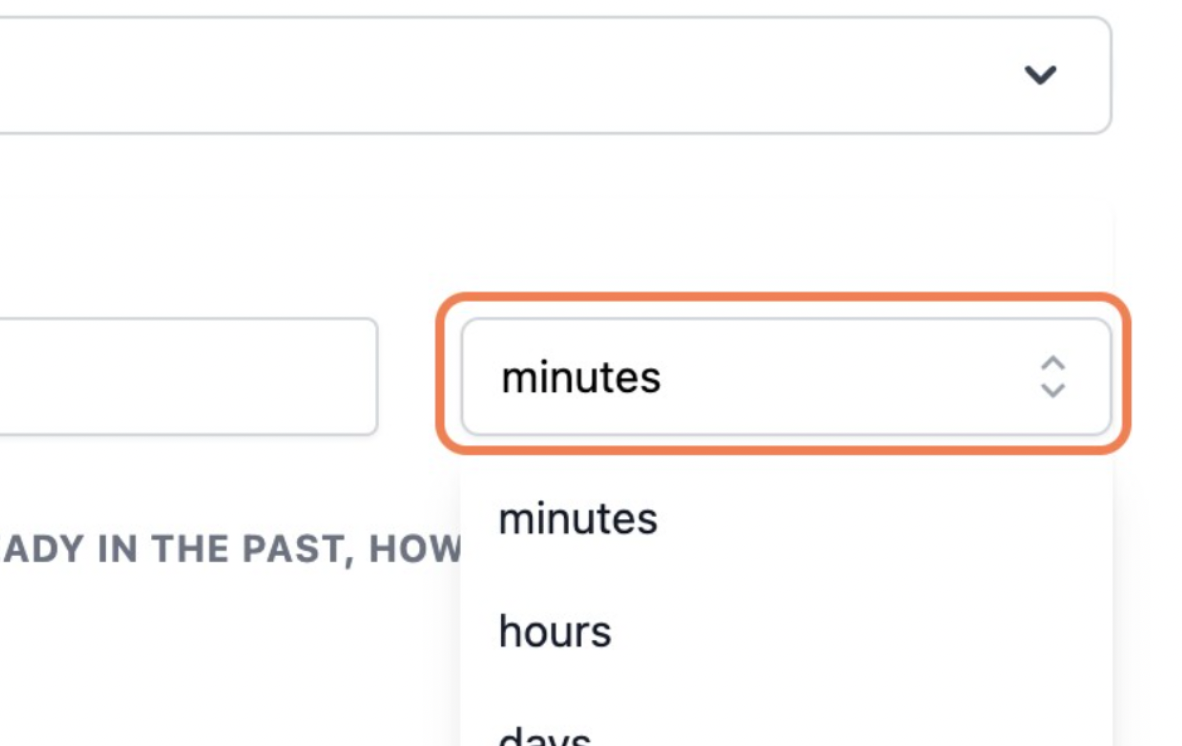
Switch minutes to days

GoHighLevel Appointment Reminder Workflow with Zoom — screenshot 21

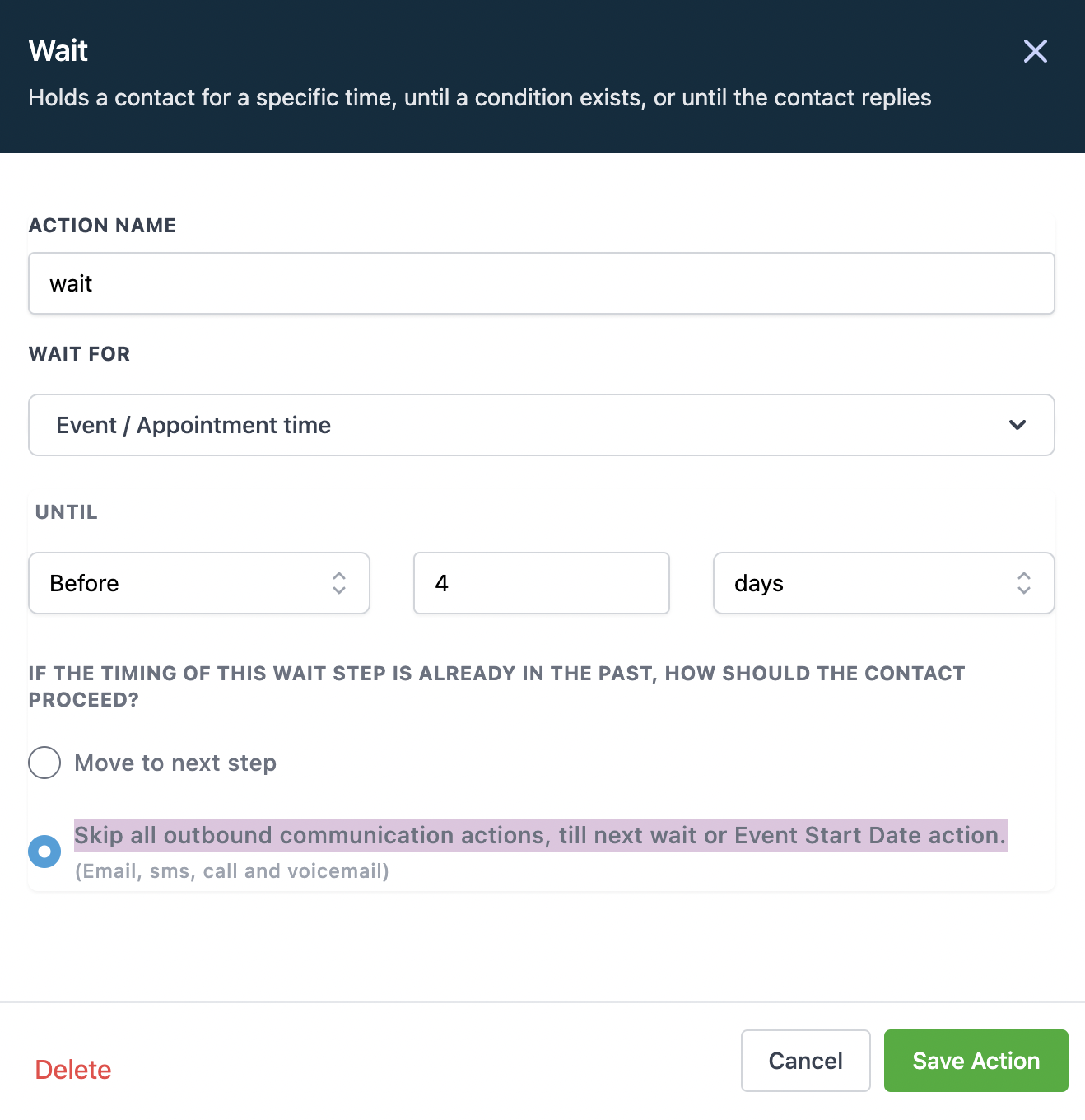
Select Skip all outbound communication actions, till next wait or Event Start Date action.
GoHighLevel Appointment Reminder Workflow with Zoom — screenshot 22

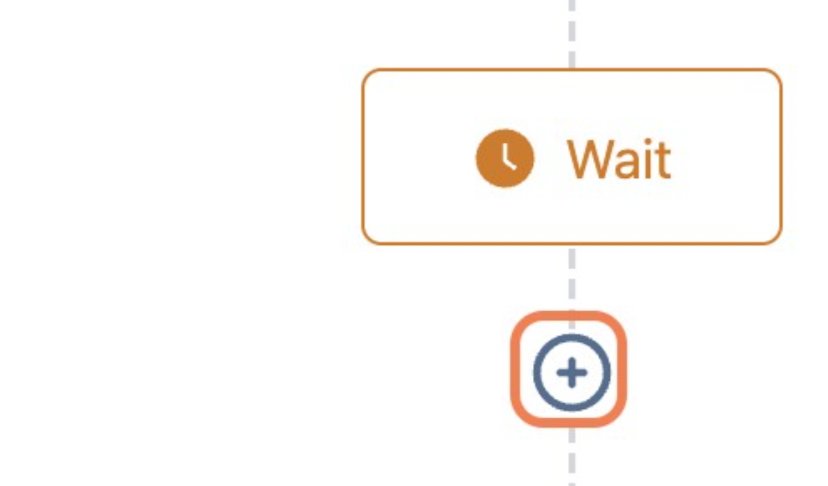
Click on + after the wait step

GoHighLevel Appointment Reminder Workflow with Zoom — screenshot 23

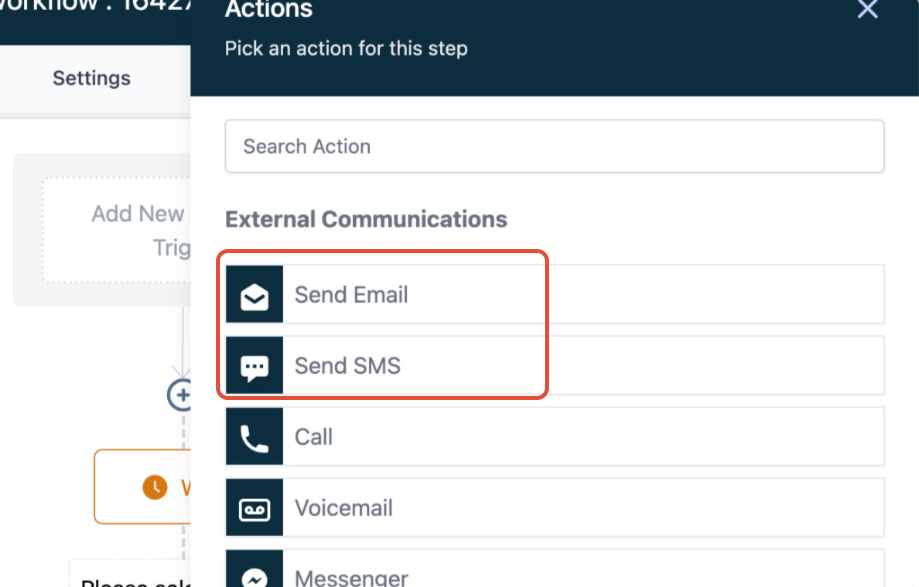
Choose to send Email/SMS to send the appointment reminders to the lead
GoHighLevel Appointment Reminder Workflow with Zoom — screenshot 24

You can continue to add another wait step for another appointment reminder message to go out

Keep learning