
How to Trigger a Workflow When a Contact Clicks or Opens an Email
Updated February 12, 2025
Most agencies miss revenue because they send emails without automating what happens after a contact opens or clicks. By adding email event triggers to your GoHighLevel workflows, you can fire targeted follow-up actions the moment a lead engages with your message.
How To Add an Email Event Trigger (Clicked/Opened) to a Workflow:
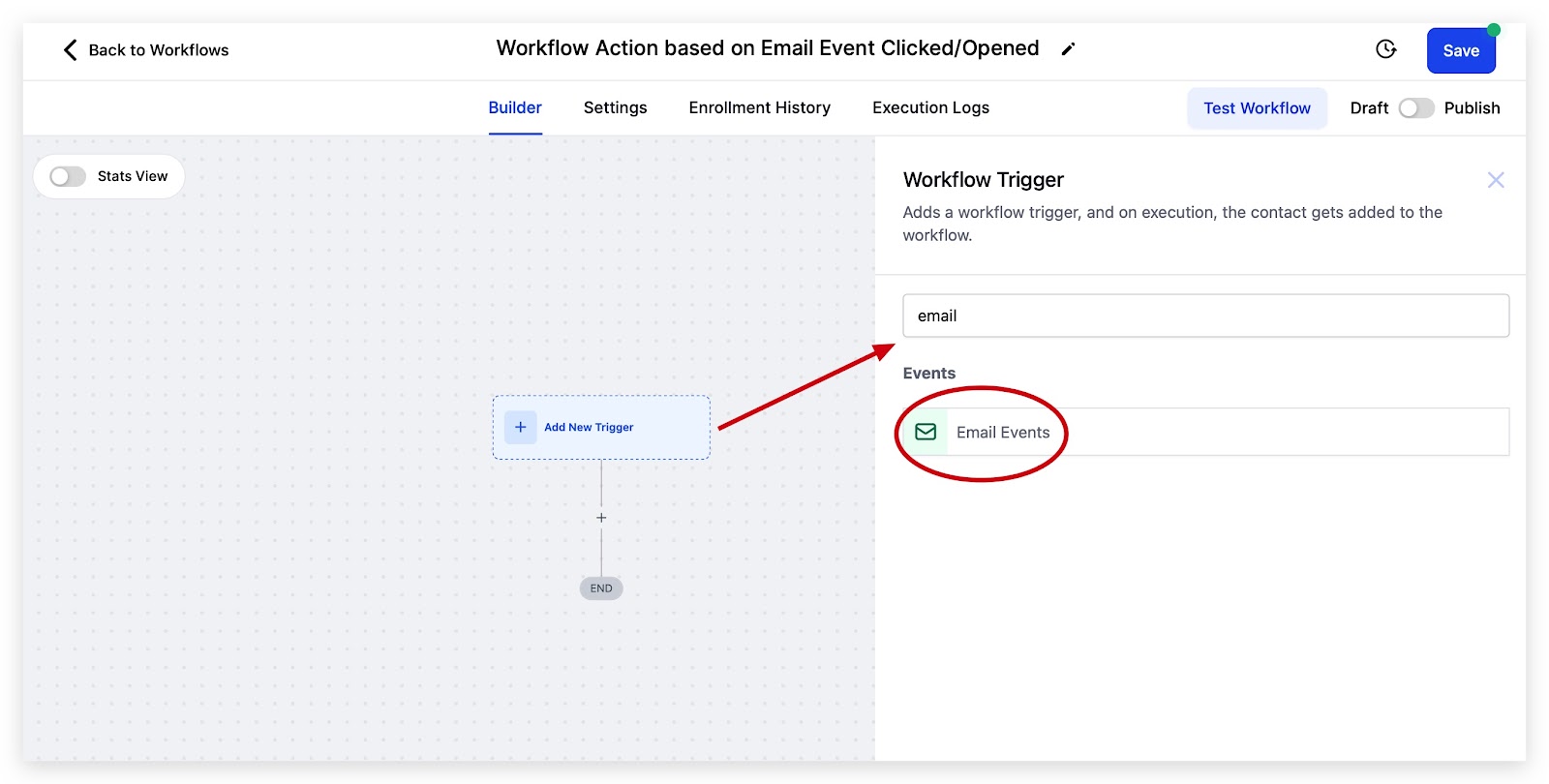
Step 1: Select the initial trigger within your workflow and search email
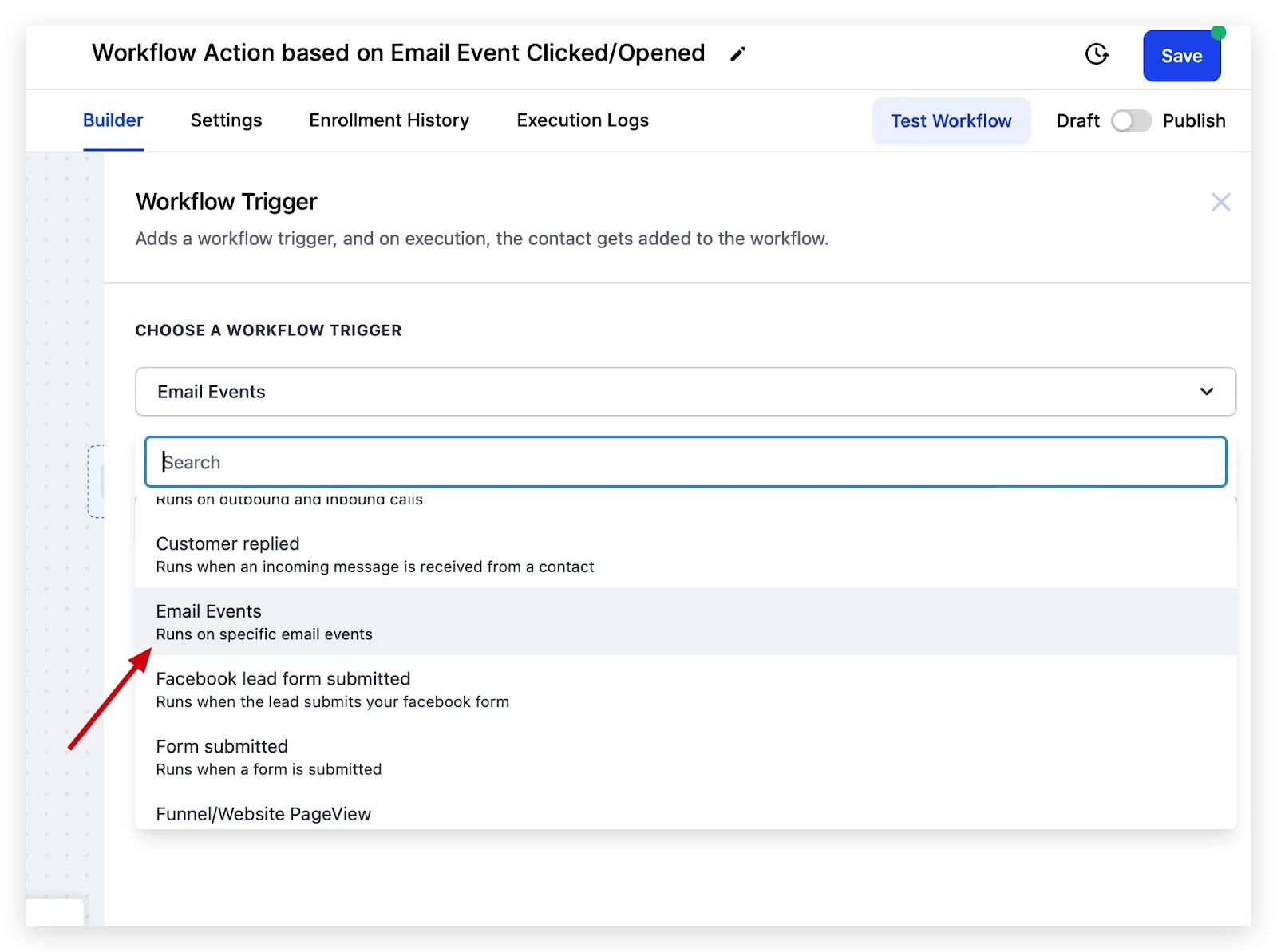
Step 2: Select Email Events from the dropdown
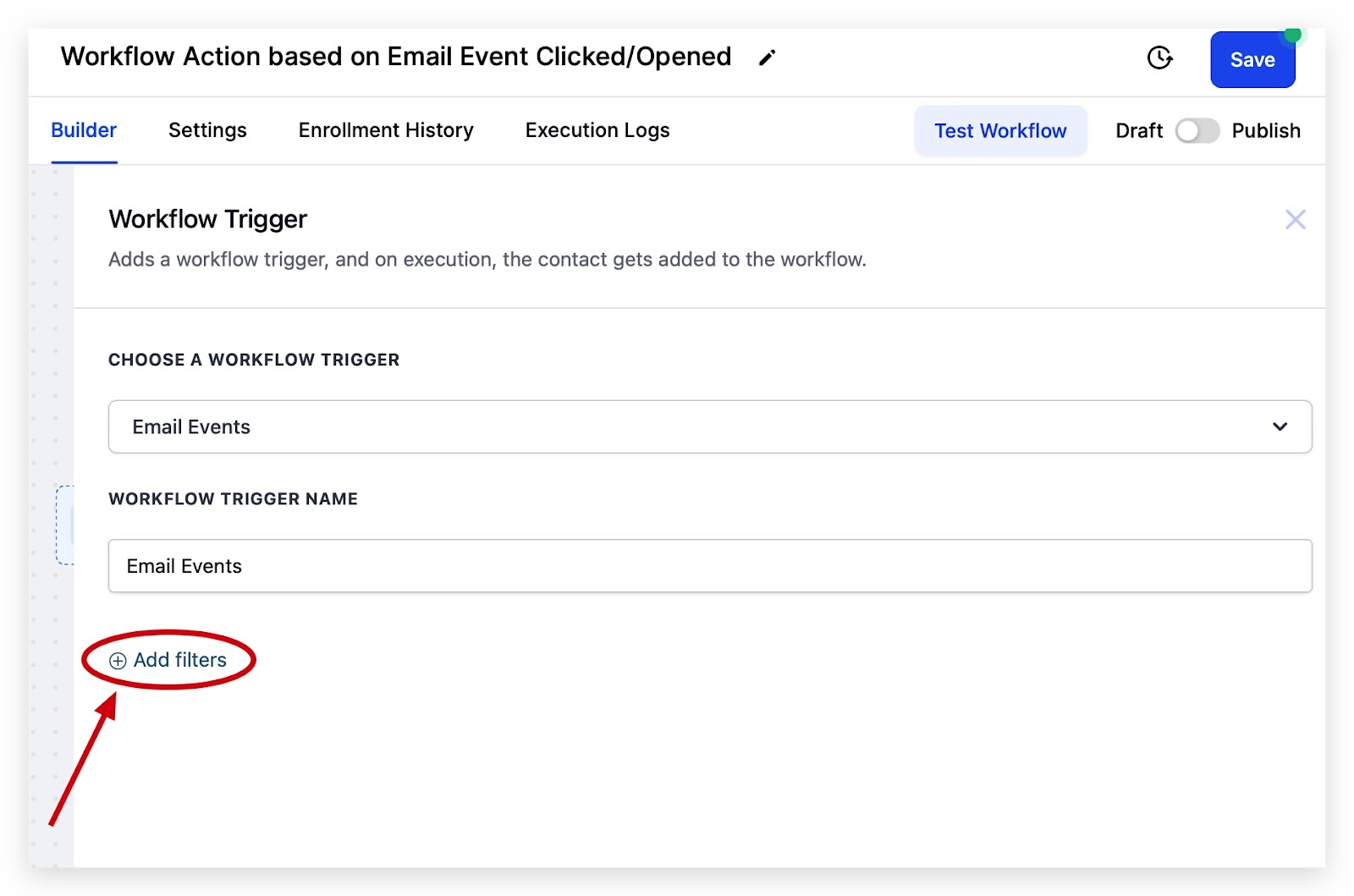
Step 3: Click Add filters
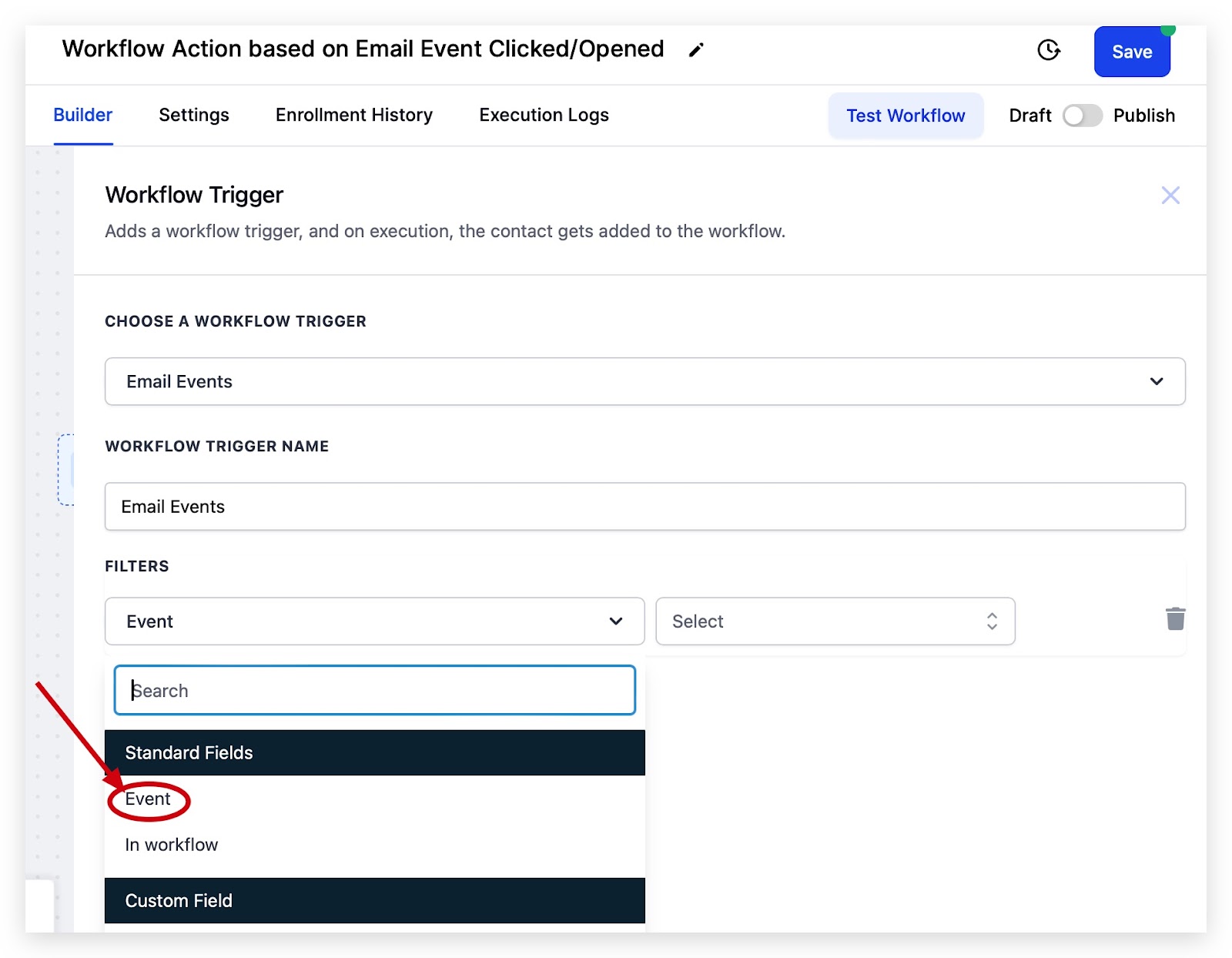
Step 4: Select Email Events from filter options, then Event
Step 5: Select the appropriate action – Clicked or Opened
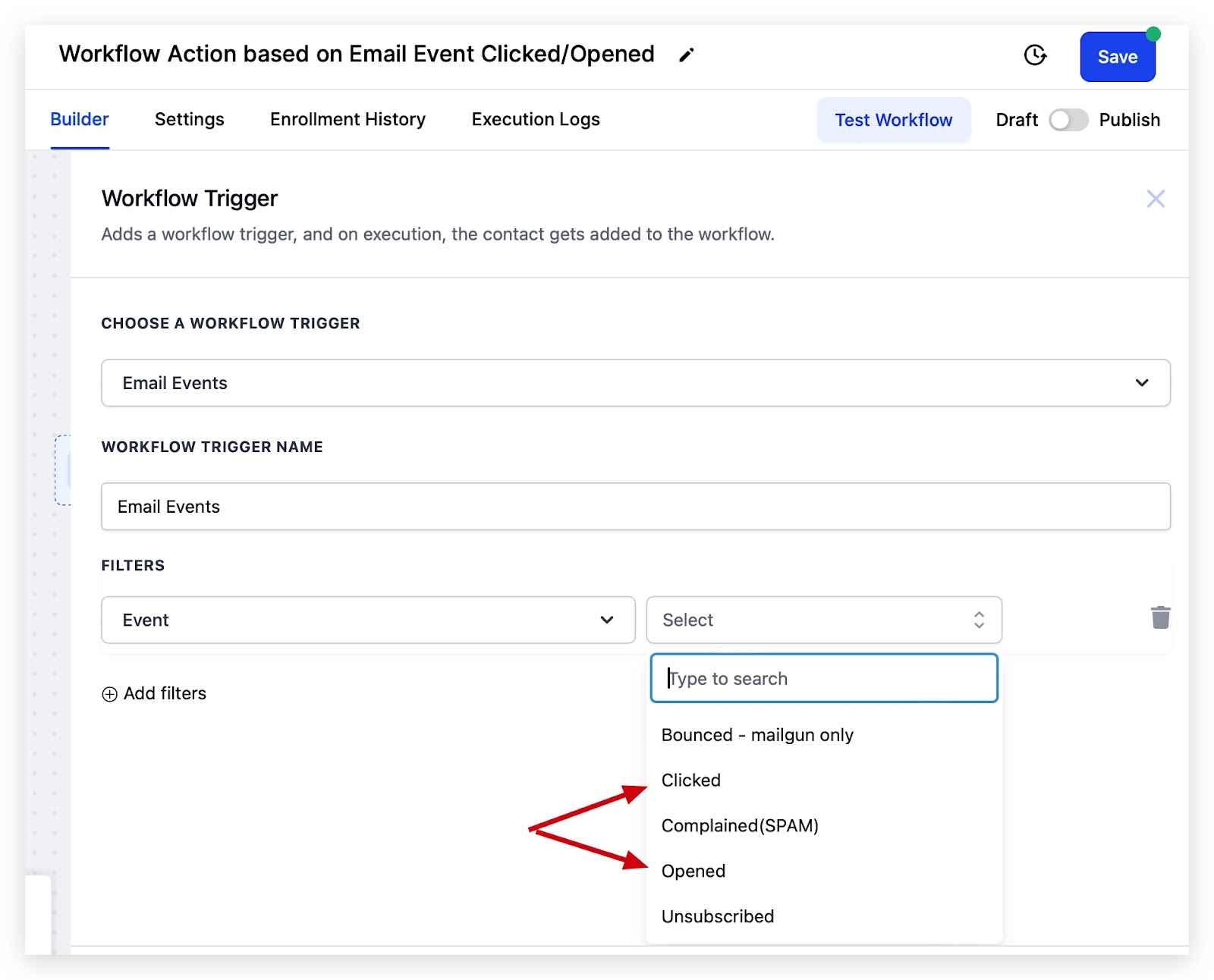
Your new Trigger is now within your Workflow!
How To Add an Email Event Trigger (Clicked/Opened) to a Workflow:
Step 1: Select the initial trigger within your workflow and search email
Step 2: Select Email Events from the dropdown
Step 3: Click Add filters
Step 4: Select Email Events from filter options, then Event
Step 5: Select the appropriate action – Clicked or Opened
Your new Trigger is now within your Workflow!
Keep learning