
How to Preview and Test Email Campaigns Before Sending
Updated February 20, 2025
Inconsistent email rendering across providers can break layouts and undermine campaign performance before a single contact opens your message. This guide walks you through previewing and sending test emails for both campaigns and templates inside GoHighLevel.
Recommendation:
Email providers render your messages differently based on their specific protocols. To ensure your campaign appears as intended, we recommend previewing and testing your content before sending.
Test the Email Campaign/ Template
- Go to Email > Campaign or Template
- Click the Campaign or Template which you would like to send for the test
- On the right-hand side corner beside the Save option, there is the three-dot icon. Click the icon.

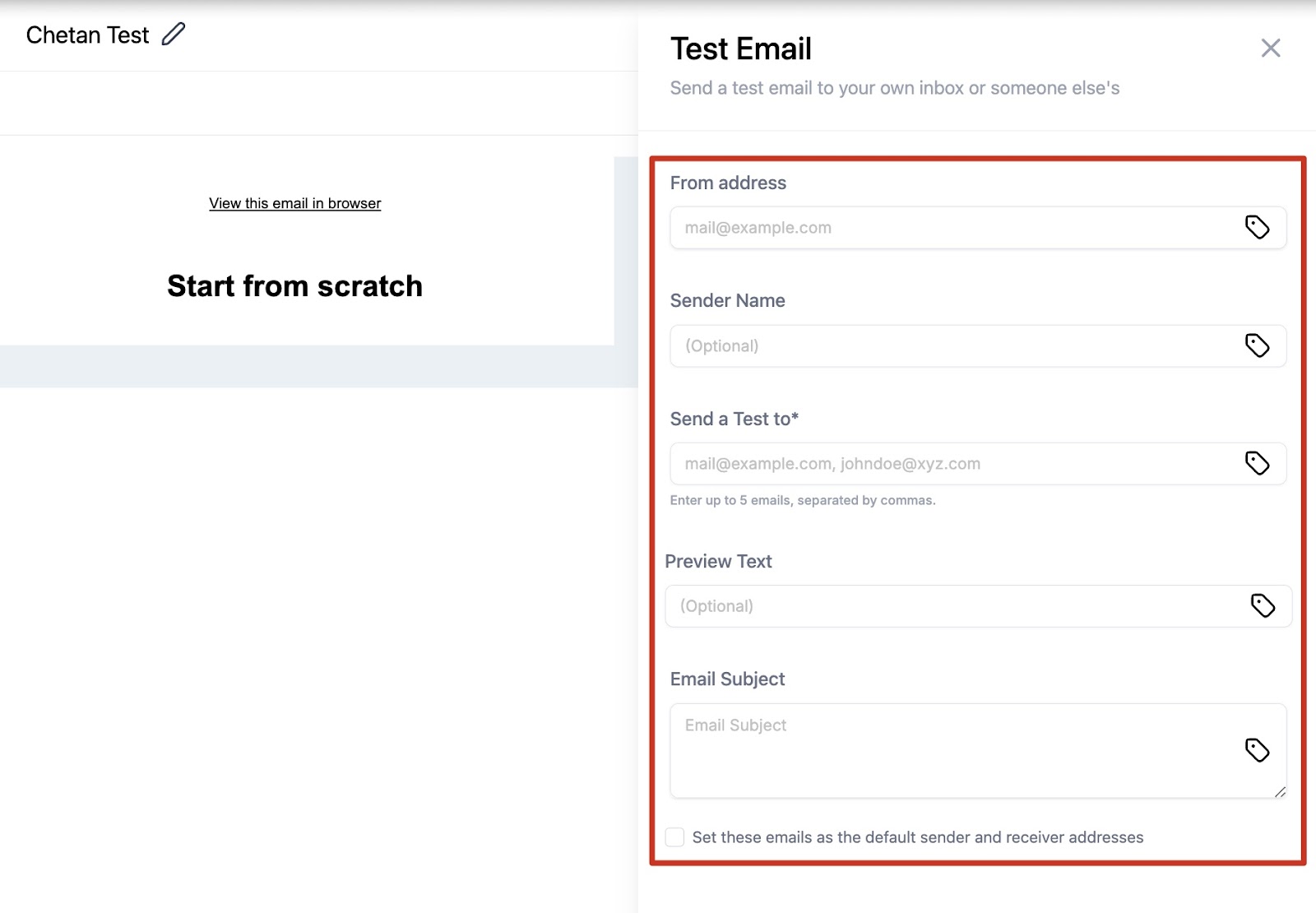
4. There will be a dropdown of the test email.
5. In the test email, Add the emails of the sender, receipt, and email subject.
Note: The unsubscribe link will not work for test emails
Preview the Email Campaign/ Template
1. Go to Email > Campaign or Template
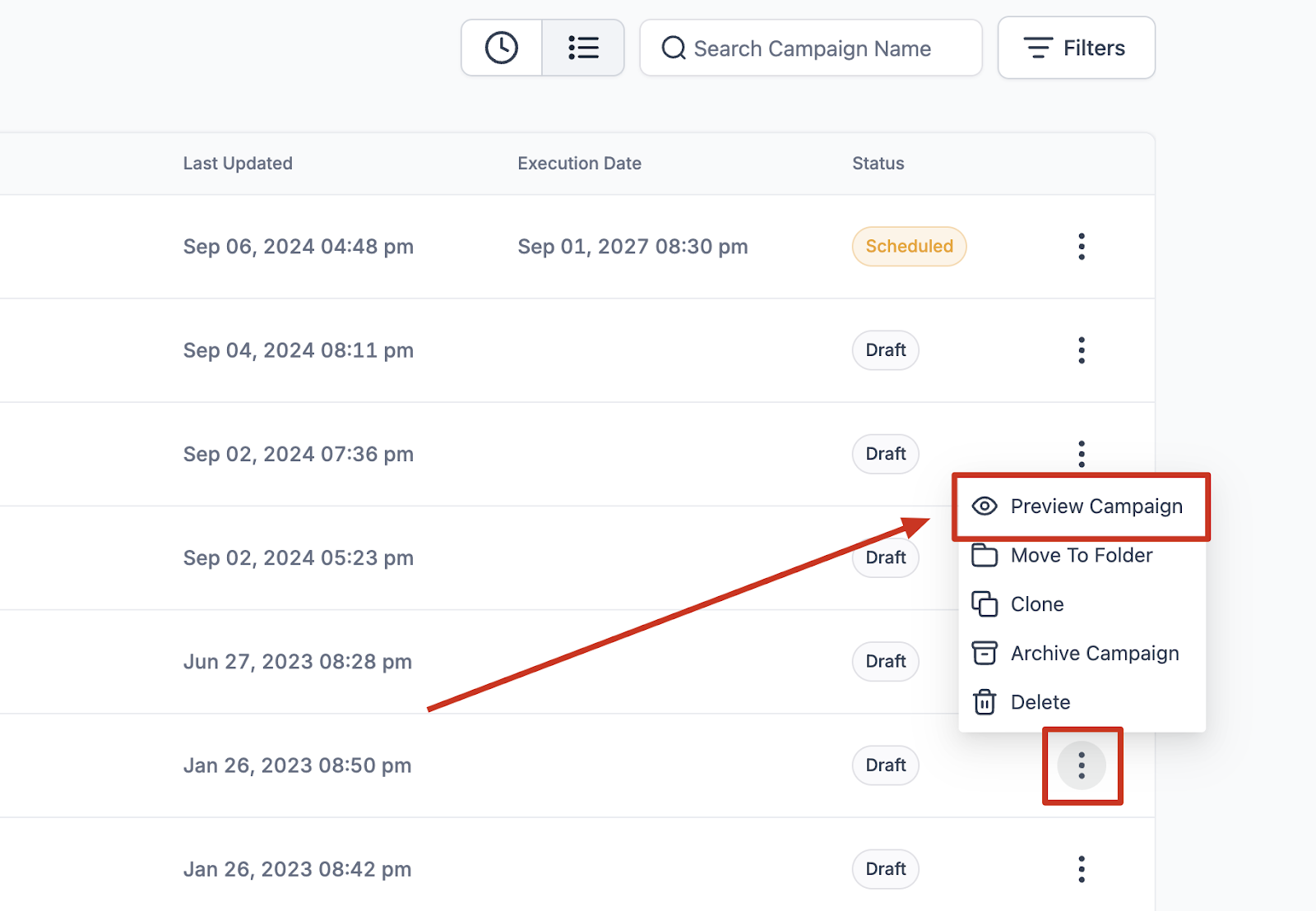
2. Click the Template which you would like to preview or in the list view, there is an action dropdown of the preview template. For Campaign, Click the action menu with the dropdown of Statistics will have the preview of Email.
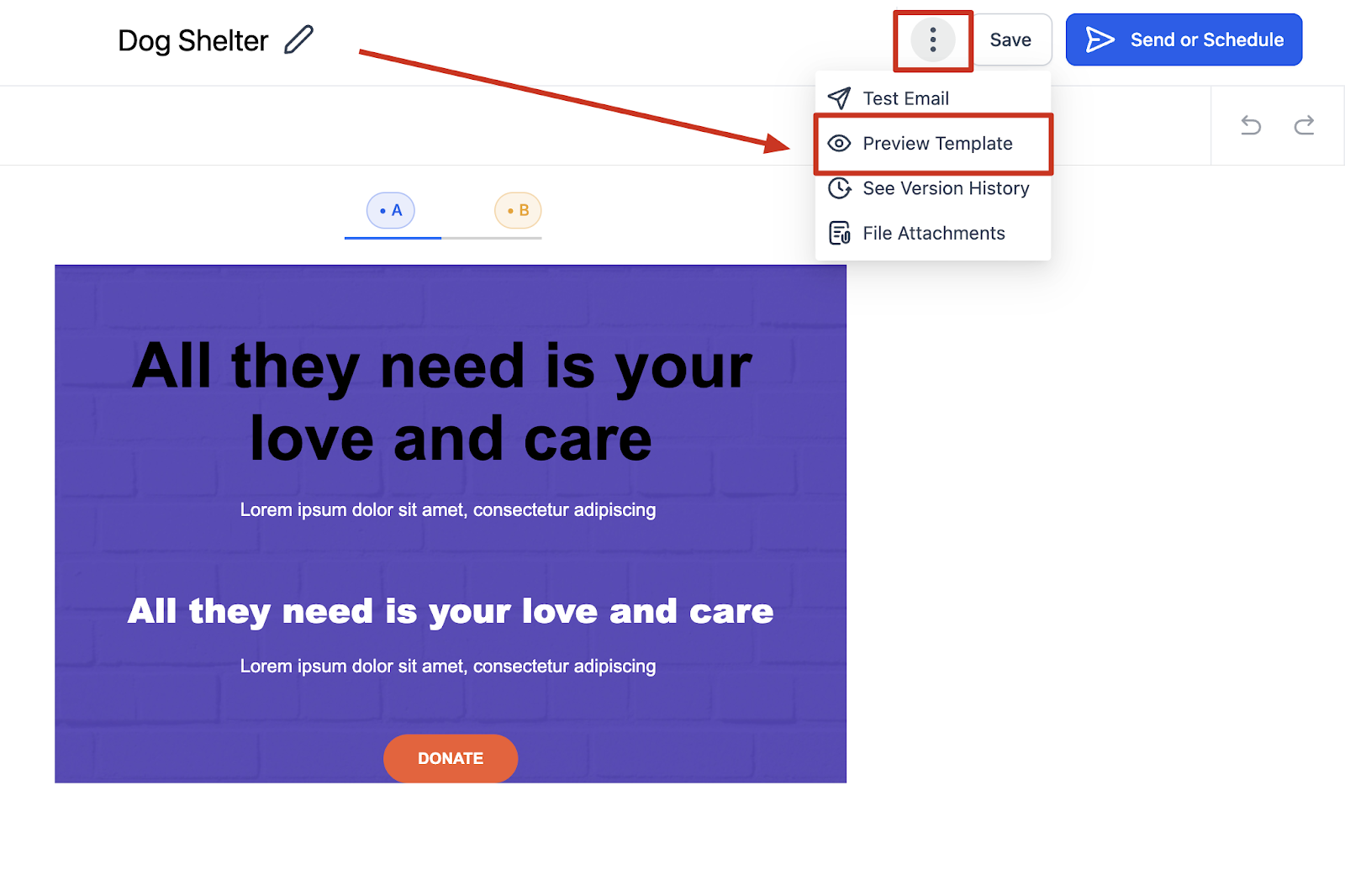
3. Once the Campaign/Template edit, on the right-hand side corner beside the Save option, there is the three-dot icon. Click the icon.
4. There will be a dropdown of Preview options available.
For Template –
For Campaign –
Keep learning