
How to Reschedule a GoHighLevel Email Campaign Before It Sends
Updated February 20, 2025
Missing the window to adjust a scheduled email campaign can mean sending the wrong message at the wrong time to your entire list. This guide walks you through rescheduling a Simple, Batch, or RSS email campaign in GoHighLevel before the 60-minute cutoff.
Email campaigns scheduled using Simple Schedule, Batch Schedule, or RSS Schedule can be rescheduled up to one hour (60 minutes) before their execution date and time.
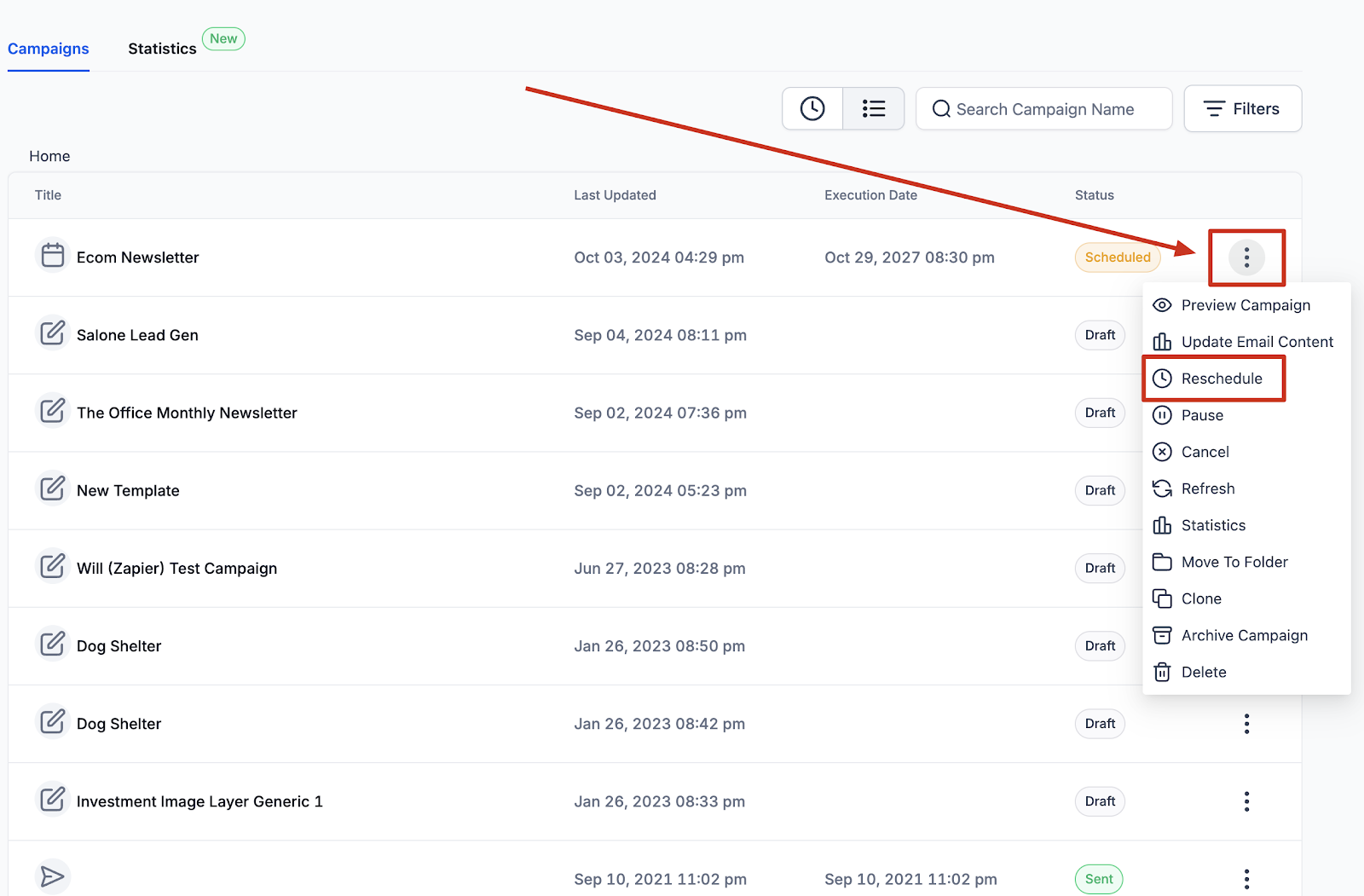
To make changes, navigate to Marketing > Email and go to the Email Campaign tab. There, you’ll find a list of email campaigns under Simple Schedule, RSS Schedule, and Batch Schedule that are eligible for rescheduling within the allowed timeframe.
Steps to Reschedule an Email Campaign
1. Under the action button drop-down, select Reschedule Campaign.
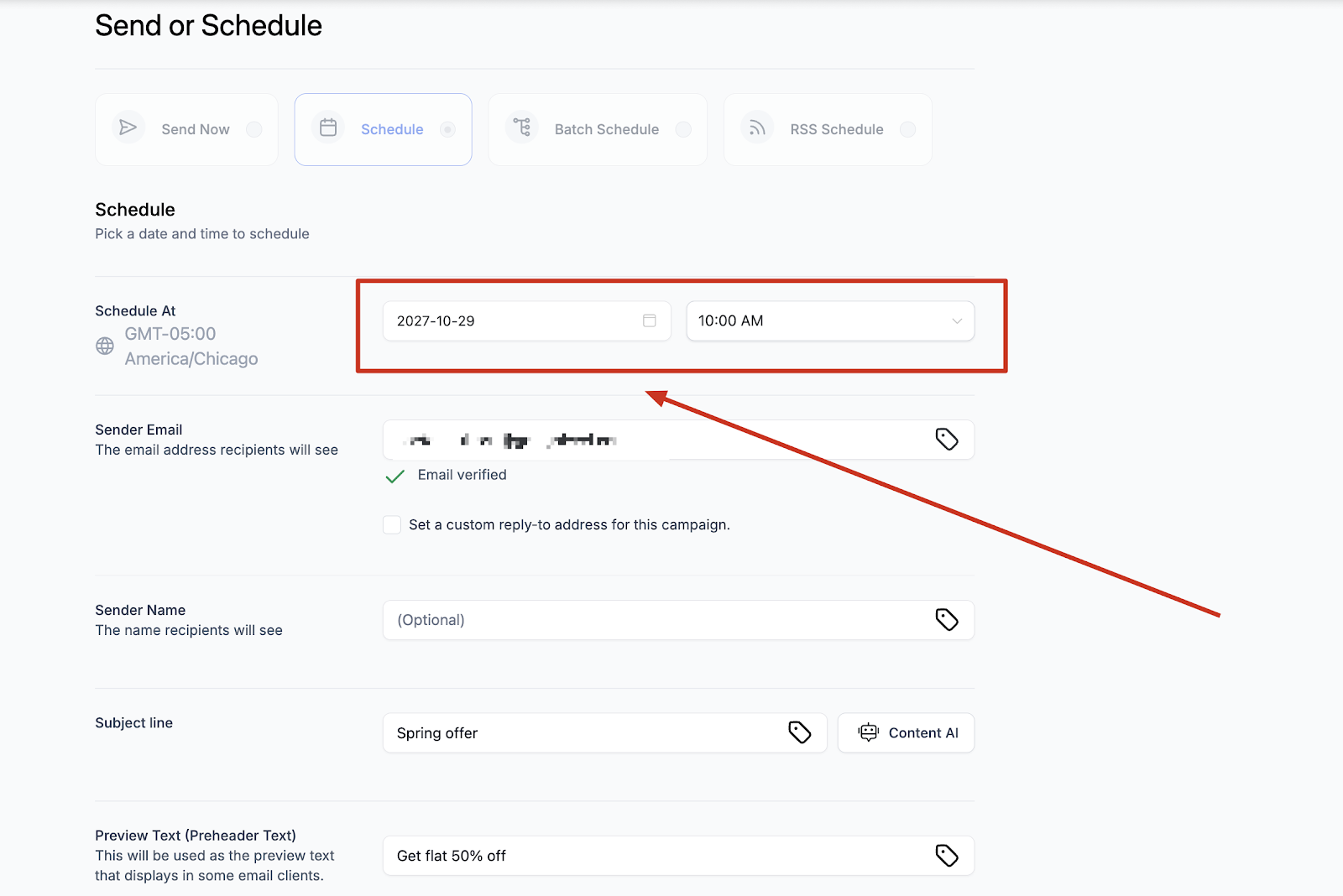
2. The user can change the Schedule’s details and change the delivery model. Once the changes are done, the user must mark it as the rescheduled campaign to save the settings.
Keep learning