
How to Import HTML Email Templates into GoHighLevel's Email Builder
Updated February 20, 2025
Rebuilding email templates from scratch in a new platform wastes time and risks losing your best-performing designs. This tutorial shows you how to import HTML email templates and campaigns directly into GoHighLevel's Email Builder using the Code Editor for both templates and campaigns.
Struggling with manually creating email templates across multiple platforms or juggling several favorite templates?
With the HTML Email Builder, you can easily import your existing templates from different systems. This powerful feature streamlines your workflow, allowing you to manage all your email campaigns in one place while leveraging your best-performing designs.
Steps to Use HTML Email Templates/ Campaigns
The user will be required to visit the Marketing > Email Builder.
For Templates
- The user needs to click Create New Template.
- In the dropdown, there are 3 options. Select the option of Blank Template from the three options.
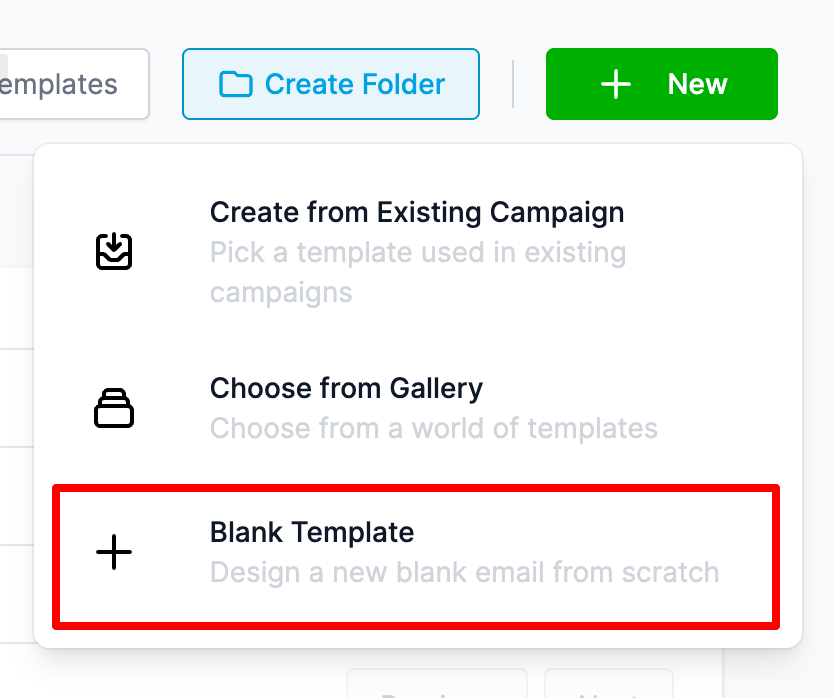
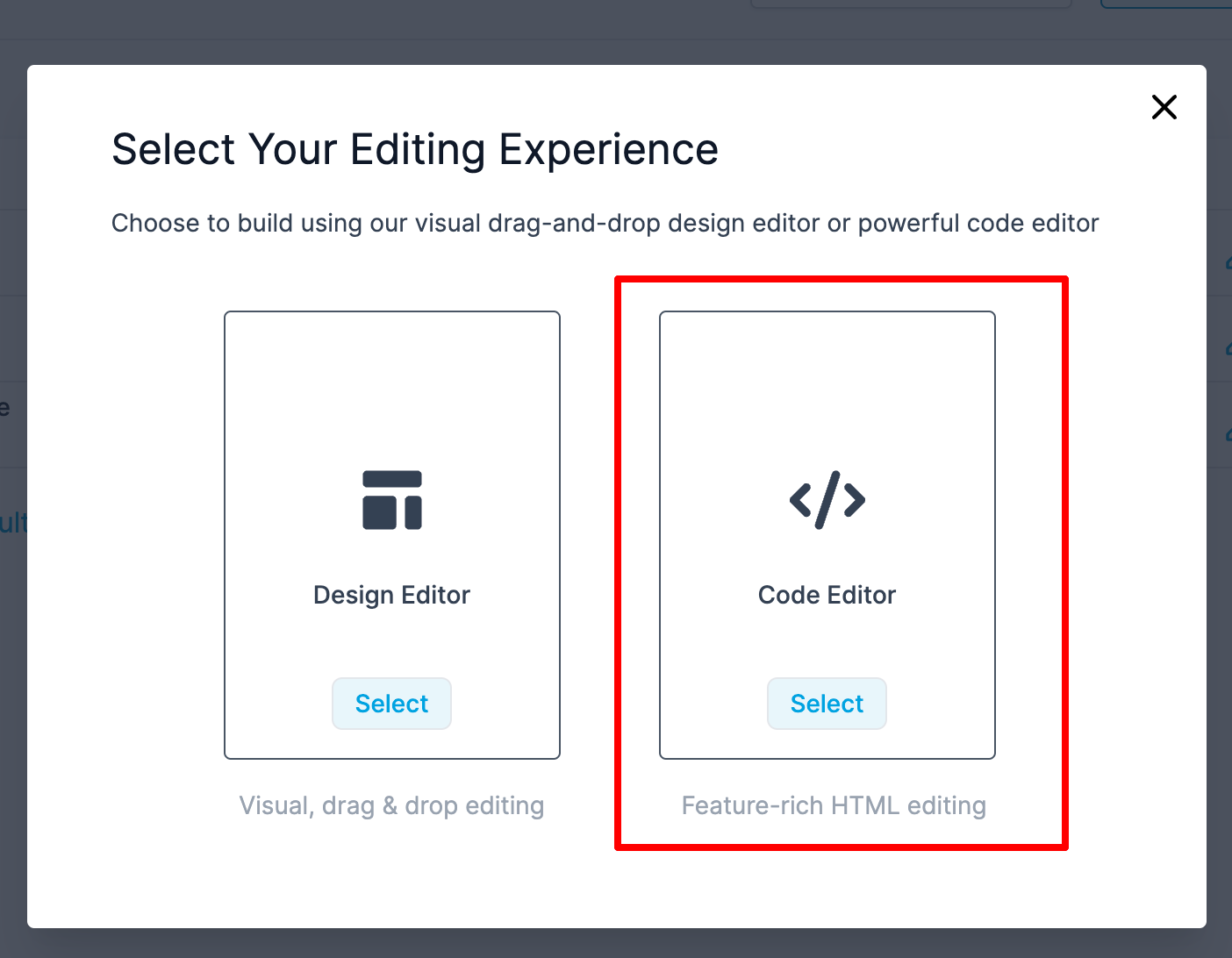
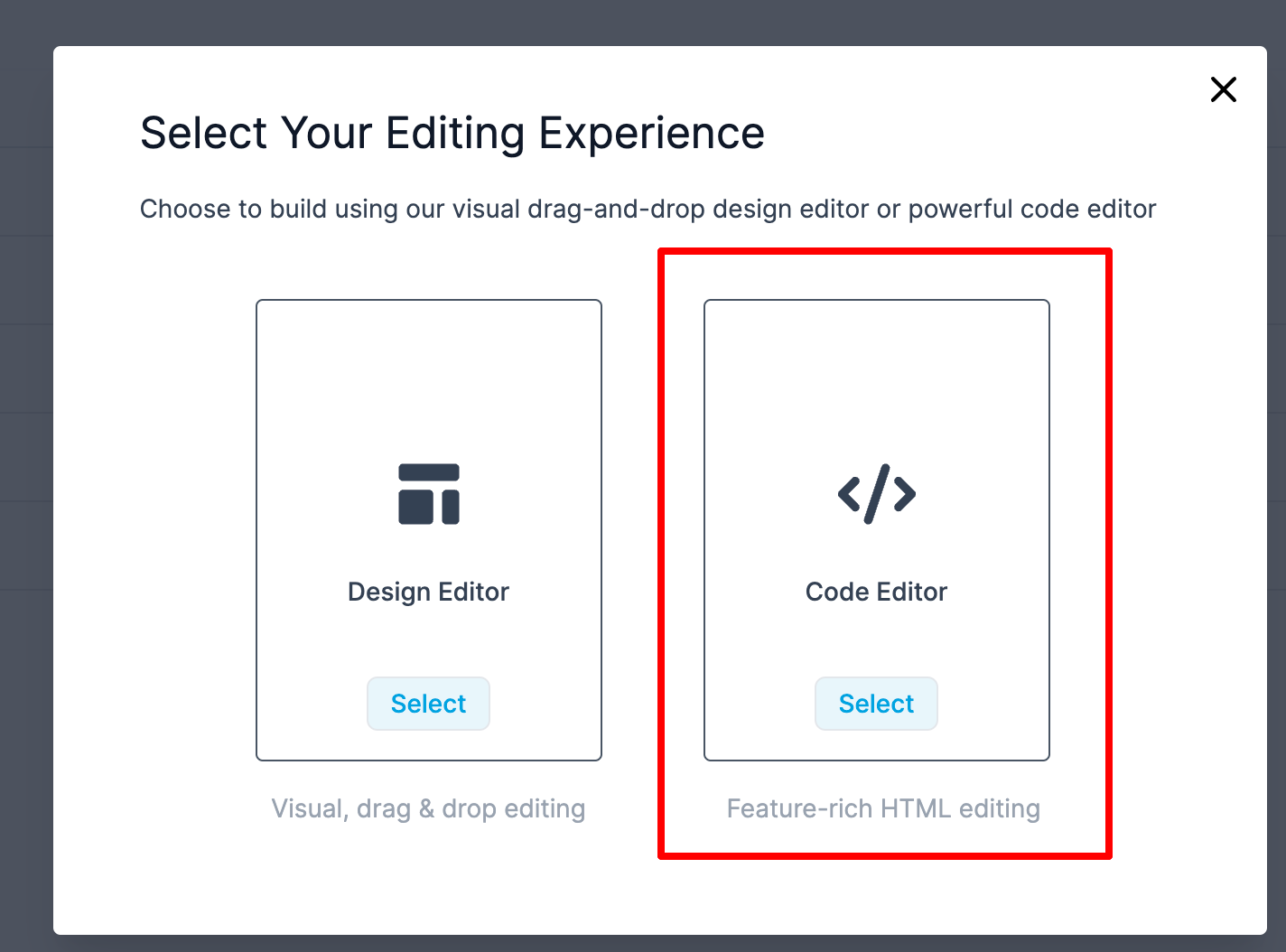
3. There will be a popup window with the option of Design Editor (drag and drop builder) and Code Editor (HTML builder). The user needs to select the Code Editor.
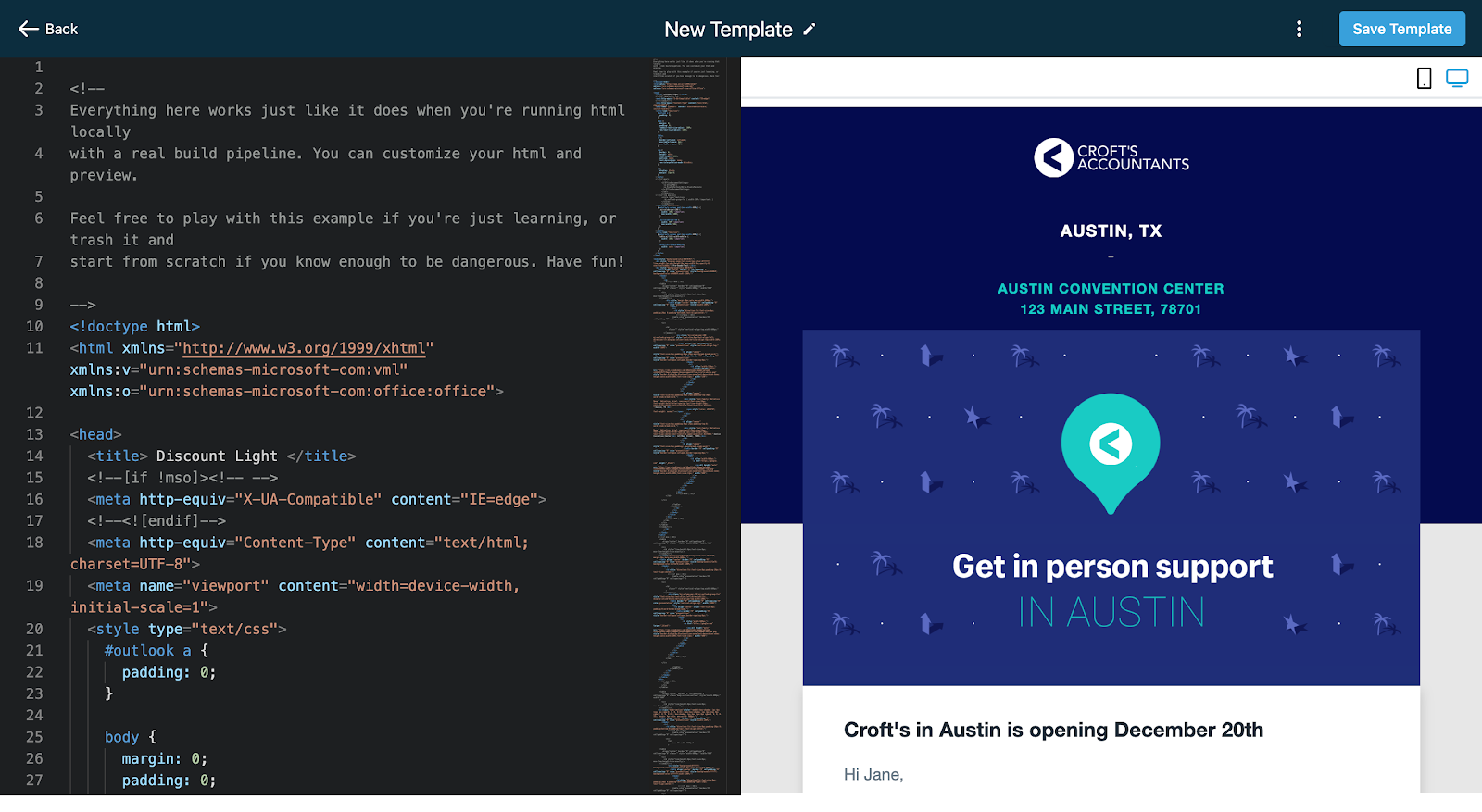
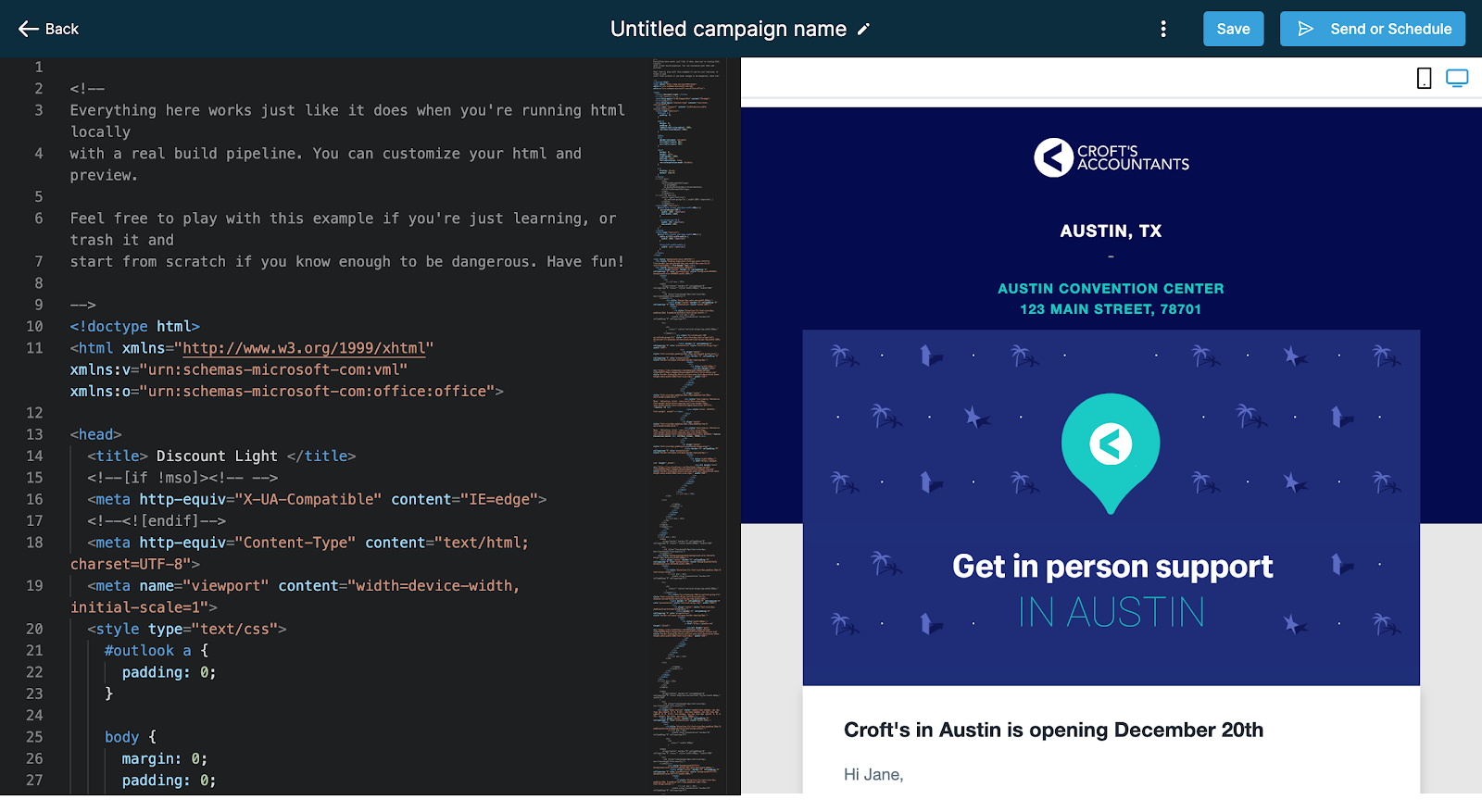
4. Once the Code Editor opens, please paste HTML in the Editor area to get the preview.
For Campaigns
- The user needs to click Create Campaign.
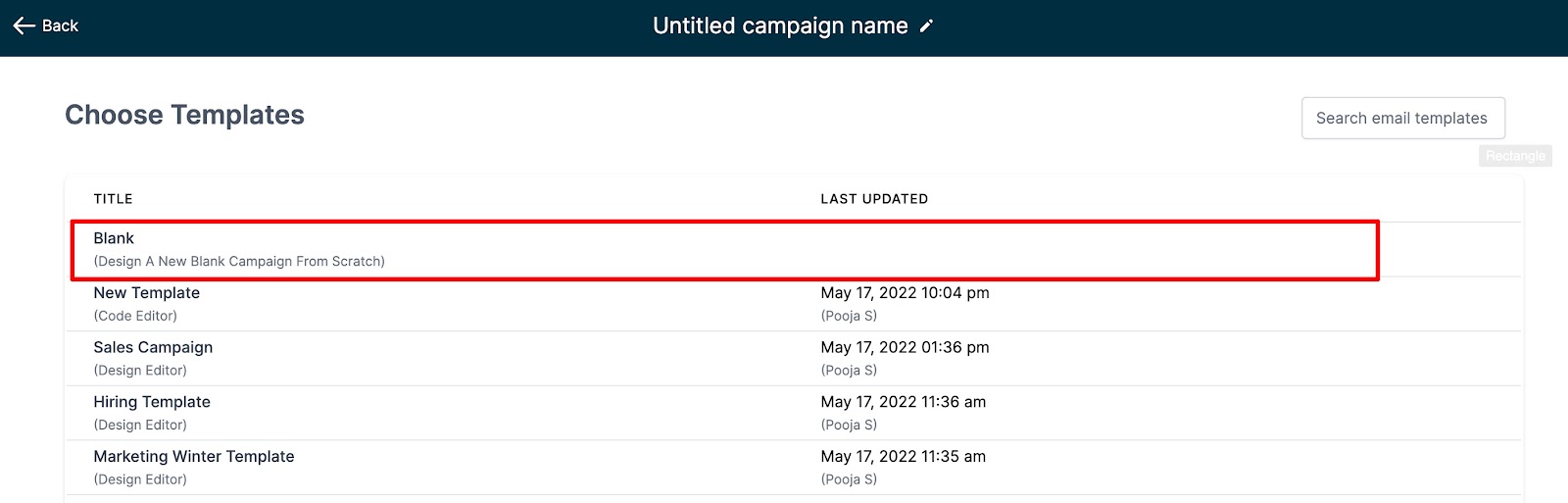
2. A screen will display a list of all available templates and blank campaigns. To proceed, choose the Blank Campaign option.
3. There will be a popup window with the option of Design Editor (drag and drop builder) and Code Editor (HTML builder). The user needs to select the Code Editor.
4. Once the Code Editor opens, please paste HTML in the Editor area to get the preview.
Keep learning