
How to Use Bulk Actions on Contacts in GoHighLevel
Updated November 18, 2022
Managing large contact lists one record at a time creates bottlenecks that slow down agency operations and campaign execution. Using GoHighLevel bulk actions, you'll learn how to apply mass updates — from pipeline changes to SMS blasts — across your entire contact database in minutes.
Using the Bulk Actions features in your Contacts/Smart Lists section, you can perform multiple one-off actions to selected or all contacts. From sending an email or SMS to updating the pipeline stage and more, follow the steps below to learn how to use this feature.

Part 1: What Actions Are Available
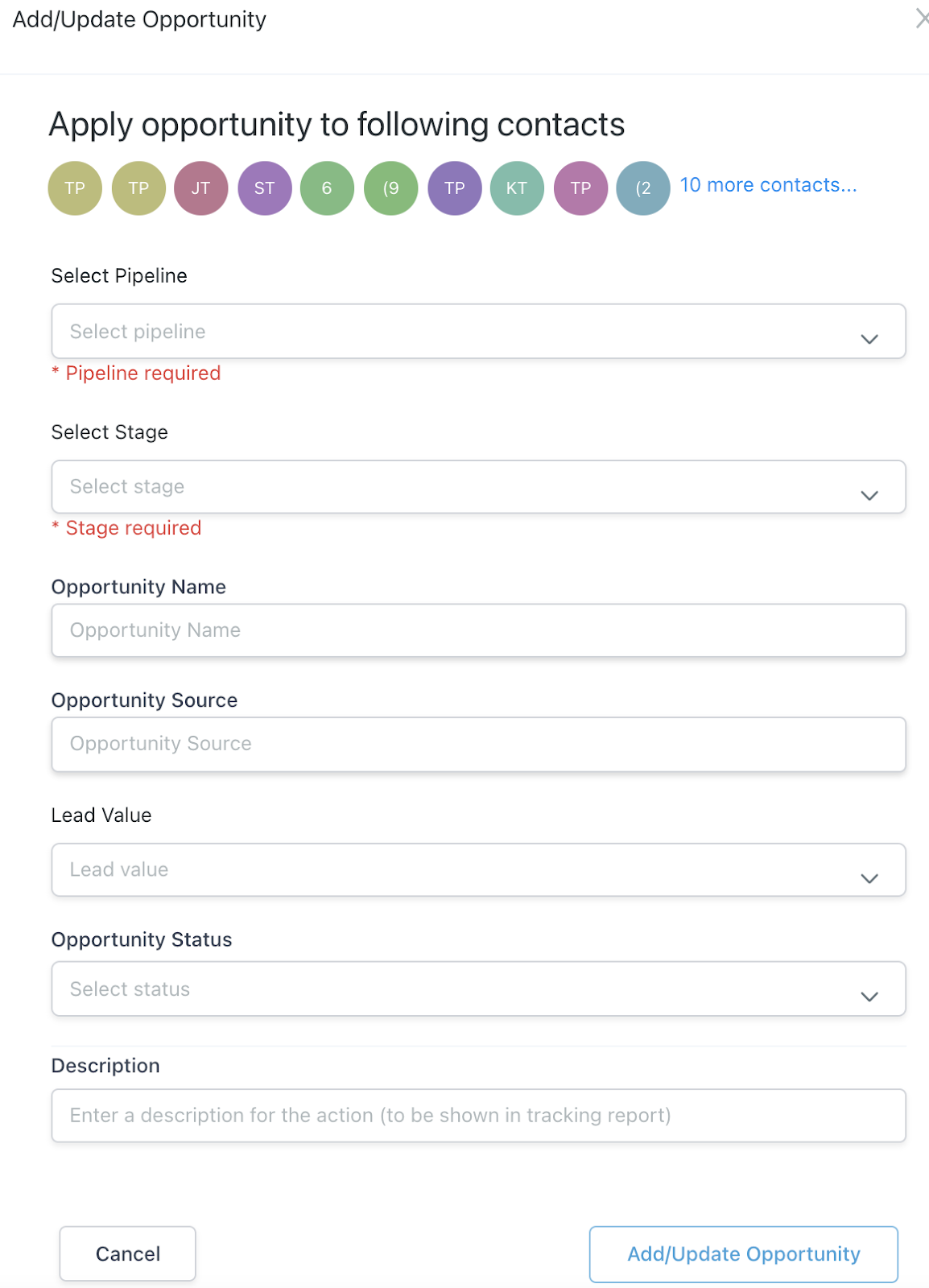
- Pipeline Change: Add/Update the Opportunity for multiple Contacts. Choose a pipeline, stage, opportunity, lead value, and more.

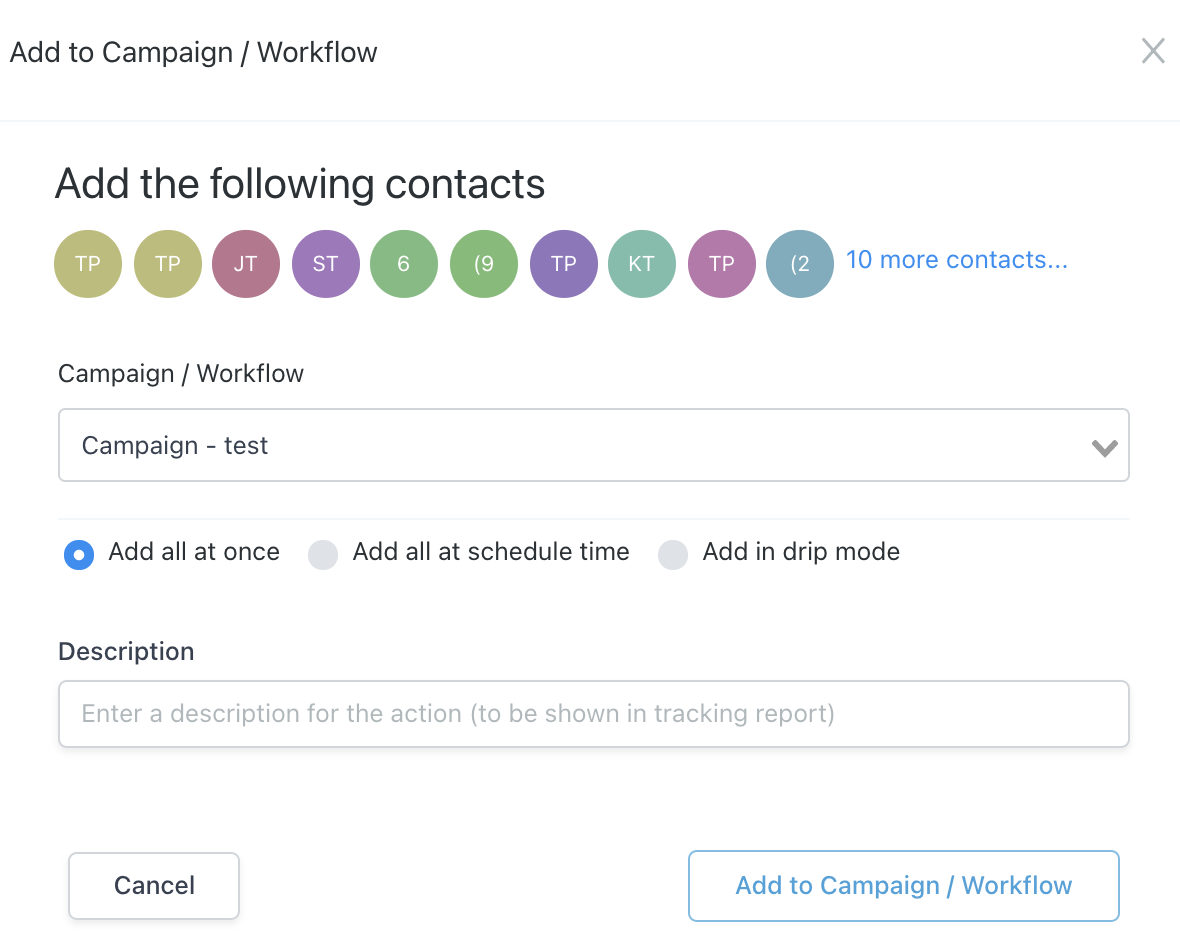
- Add to Campaign/Workflow: Choose a campaign or workflow to bulk-add contacts into:

- Send SMS: Type out a one-time SMS or select from your templates.


- Send Email: Type out a one-time email or select from your templates.


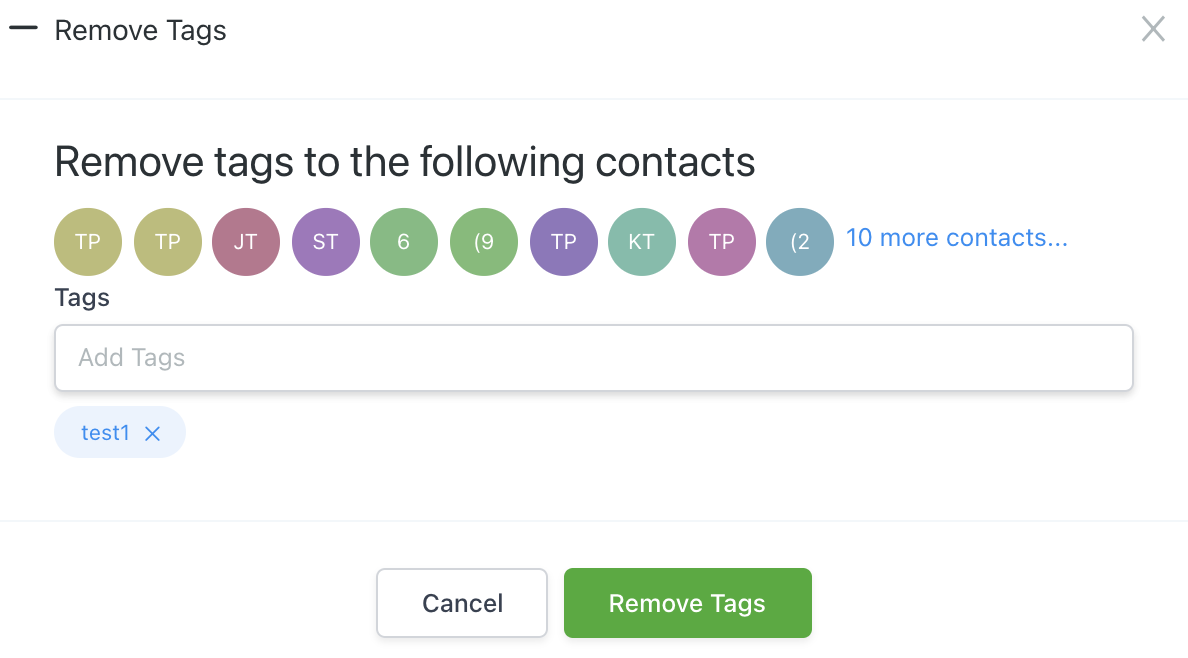
- Add/Remove Tag: Apply or remove one or multiple tags from the selected contacts.


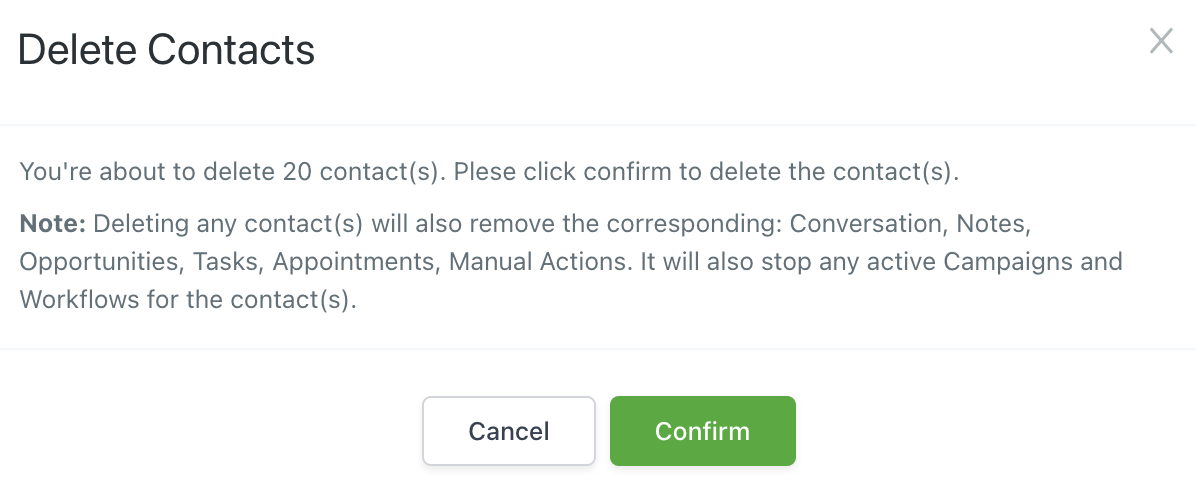
- Delete Contacts: Delete the selected contacts from your system. Please note: deleting any contact will also remove them from Conversation, Notes, Opportunities, Tasks, Appointments, Manual Actions and Campaigns.

- Export Contacts: Export a list of selected contact records from the system into a .csv file that will save to your computer.
- Import Contacts: Please refer to our article on How to Import Contacts for a full tutorial.



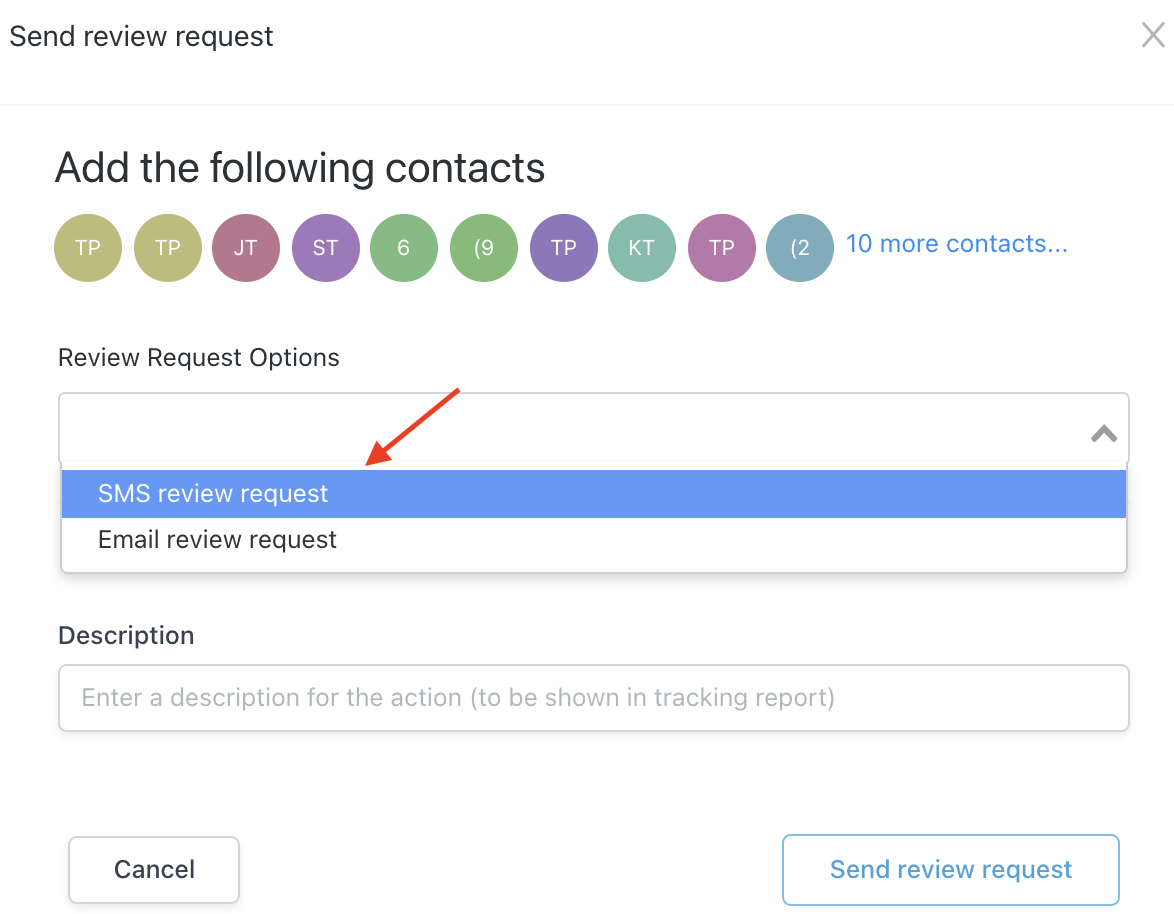
- Send Review Requests: Here you can send a review request to multiple contacts at once. (Be sure you have your “Reputation” section set up for reviews.)

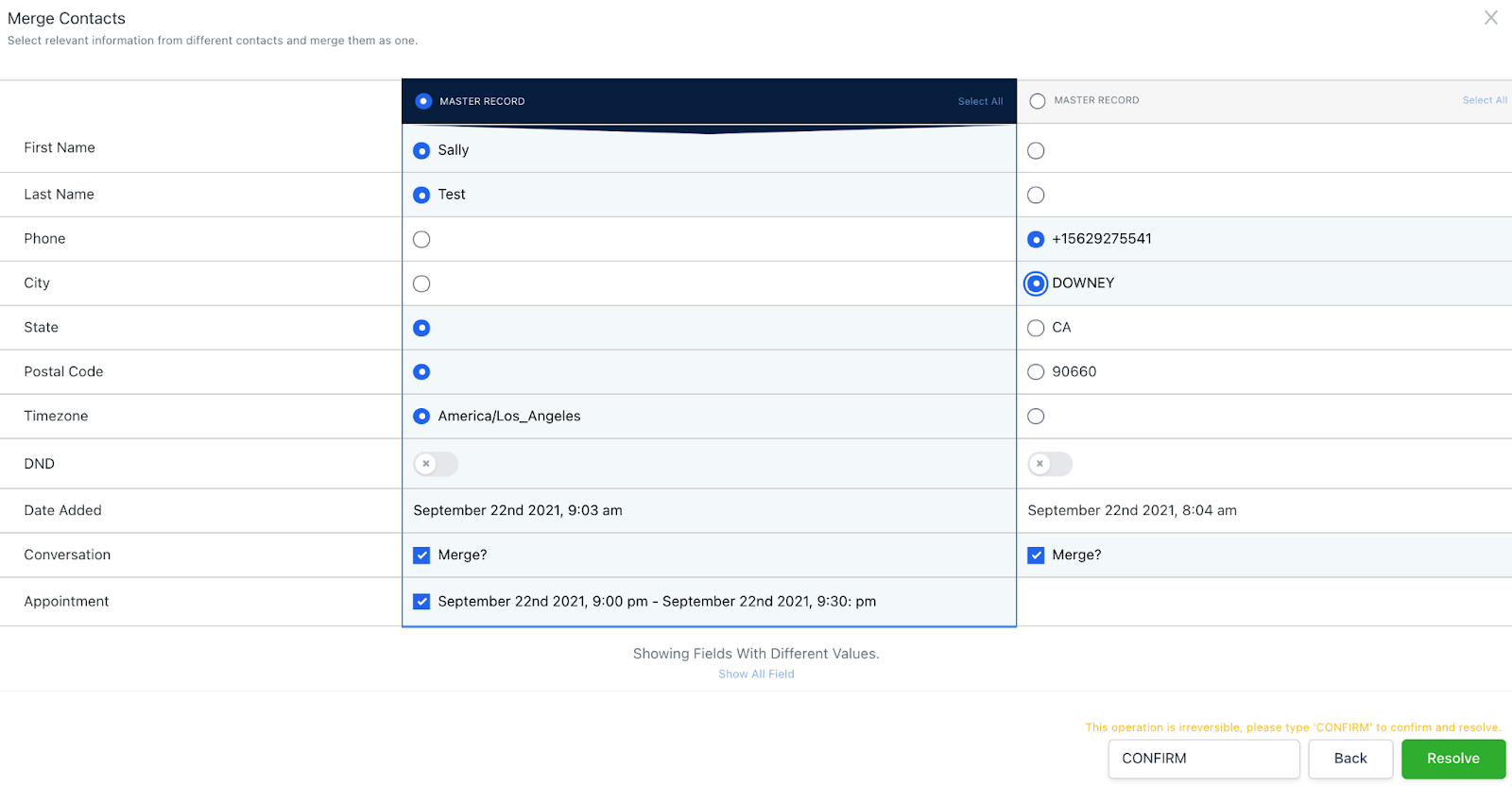
- Merge Duplicate Contacts: Merge up to 10 duplicate contacts (Please refer to our article on merging duplicates for a full walk-through).

Part 2: How To Use The Actions
Step 1: Navigate to Contacts > Contacts/Smart Lists.
Step 2: Select the contact records you want to use a bulk action for. You can individually click through and select specific contacts, or you can check the box at the top to select all.
Step 3: Choose the action you want to apply.
Step 4: Follow the steps for the specific action in the pop-up window.
Part 3: View a list of your pending and current bulk actions in the Contact Request Page.
Step 1: Navigate to Contacts > Bulk Actions. Here you can view a list of all your pending Bulk Actions.
Step 2: Cancel or edit a pending action.
- You can cancel or edit a pending bulk action. You can also toggle to “Completed” in the top right to view a list of completed Bulk Actions in your system.
NOTE: When scheduling a bulk action in drip mode, the “repeat after” does not repeat the entire process. Instead, it can be viewed as “run every”. As shown in the example below, 100 contacts would be processed per every 5 hours. This process would repeat until all selected contacts received the drip communication. (If you had 780 contacts selected, there would be a total of 8 batches – 7 x 100 and 1 x 80).

Keep learning