
How to Delete Contacts and Their Data in GoHighLevel
Updated February 14, 2025
Deleting outdated or duplicate contacts in GoHighLevel requires Admin-level access, and removing them incorrectly can leave behind orphaned data. Follow these steps to bulk-delete contacts and their associated data, confirm the deletion, and monitor progress through the Bulk Actions page.
This guide walks you through selecting multiple contacts for deletion. Keep in mind that only Admins have the ability to remove contacts and their associated data. To maintain data security, Account Users currently do not have this permission.
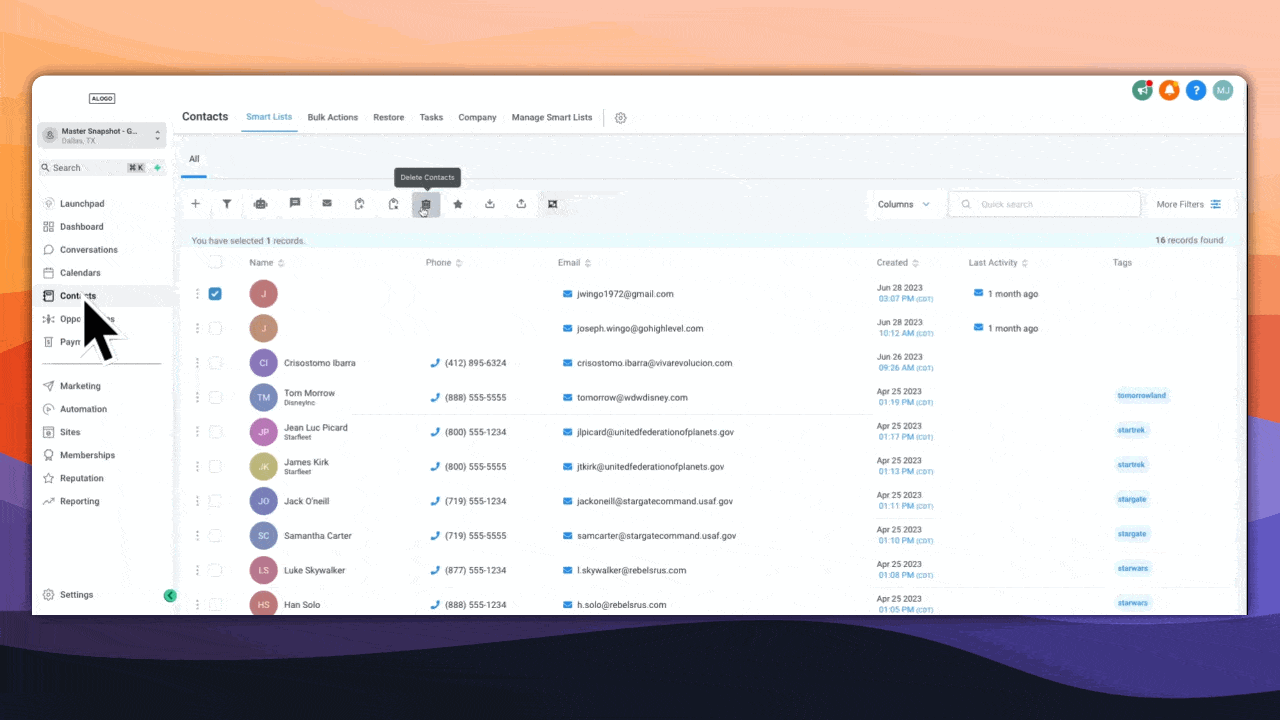
Step 1: To delete a contact, please head into your ‘Sub-account’ > Click on ‘Contacts’ > Select or search for the contact(s) that you wish to delete > Click on ‘Trashcan” icon
Step 2: Confirm the contacts being deleted and enter “DELETE” in the text box
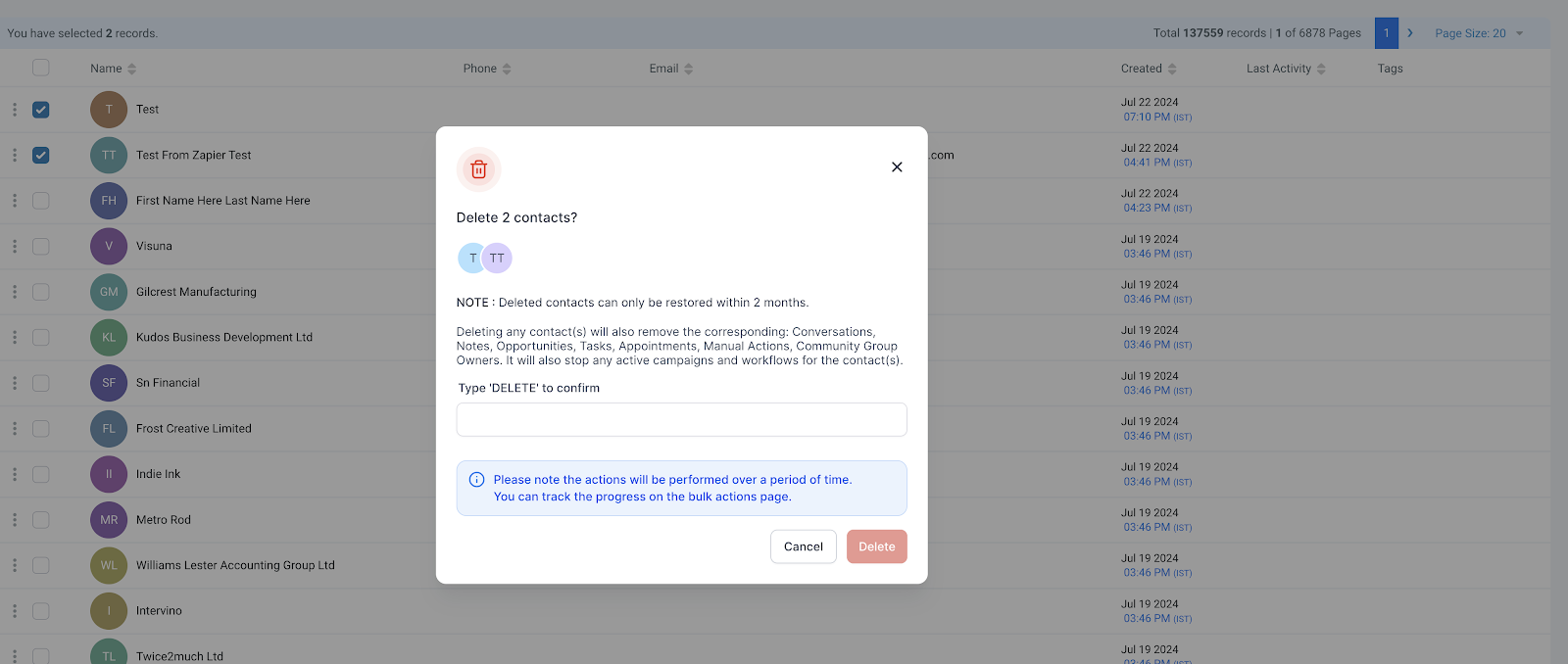
Deleted contacts can only be restored within 2 months
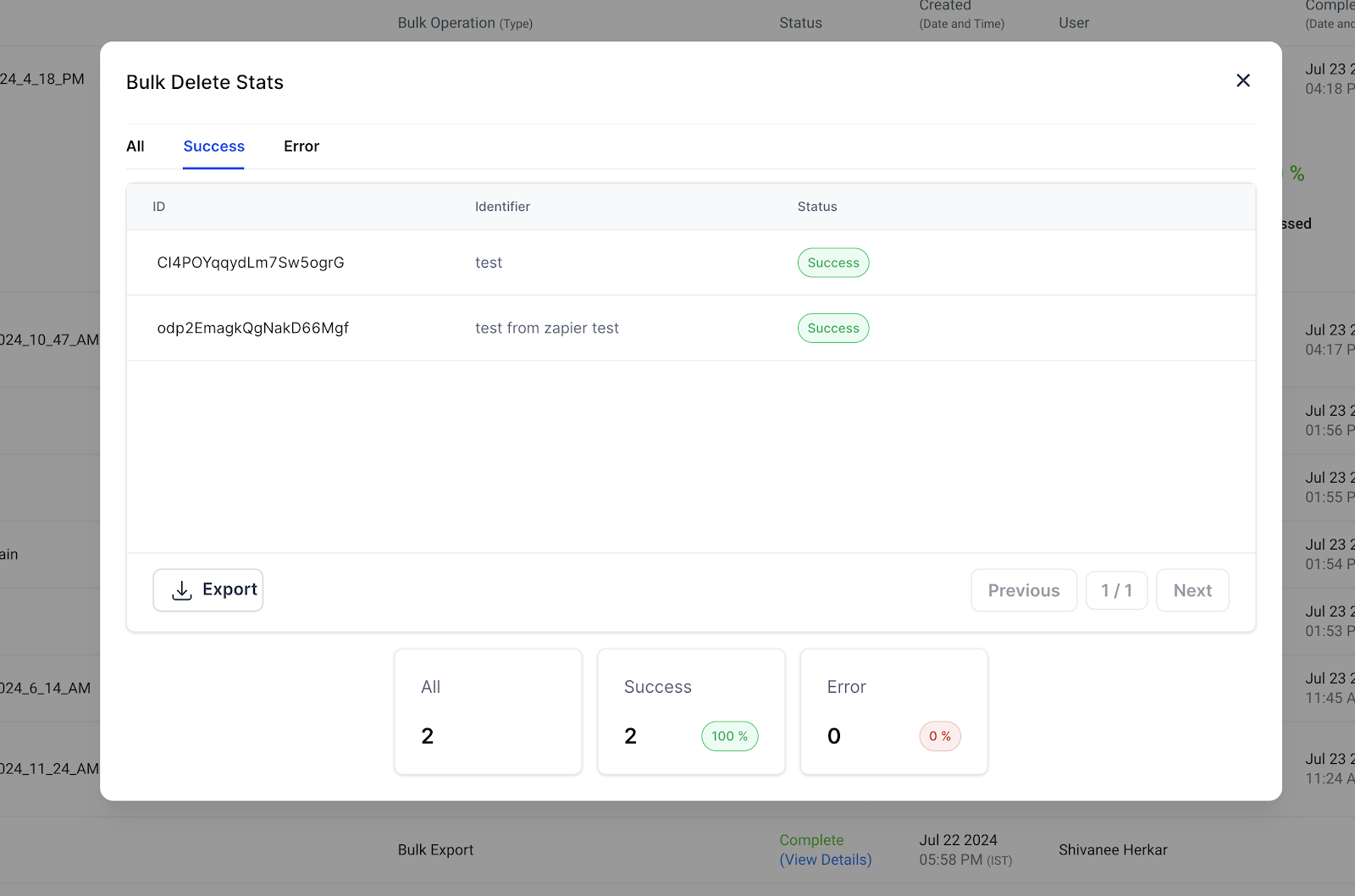
Step 3: Check the Stats of the Bulk Delete in the “Bulk Actions” page
Keep learning