
Sticky Contact in GoHighLevel: How to Save and Sync Lead Data
Updated November 18, 2022
When leads move through multi-step funnels, re-entering their details on every form creates friction and risks data loss. By enabling Sticky Contact in GoHighLevel, you can automatically carry saved cookie data across forms, surveys, and appointment pages without asking leads to repeat themselves.
Sticky Contact allows you to save cookie/s from a lead and sync all the information across multiple forms/surveys that they had previously entered. This is especially useful if you have an initial opt-in leading to a calendar/appointment page or a 2 Step Order Form
Step 1: How to Toggle Sticky Contact On and Off
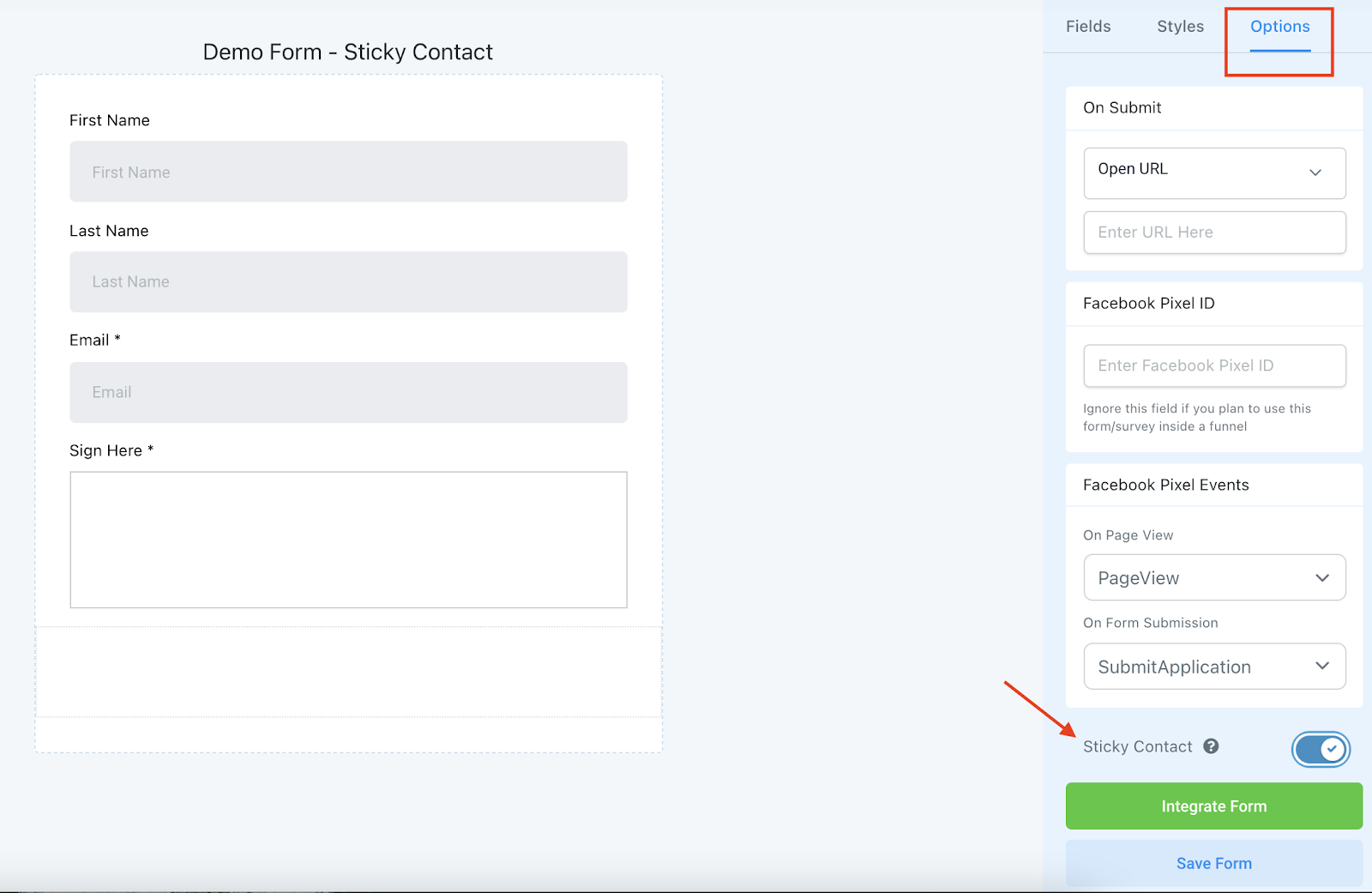
- Open up an existing form/survey or create a new one.
- Navigate to Options, scroll to the bottom, toggle on/off Sticky Contact
NOTE: If you are filling out a form for a lead (e.g. if you’re texting with them or on the phone with them) that has sticky contact enabled, ensure that you use incognito mode in your browser. If you do not, every time you open that form/survey (until you clear your cache), the previous lead’s information will populate and the software will think that lead is trying to enter the system again.
Keep learning