
How to Import and Export Contacts Using GHL Bulk Actions
Updated November 18, 2022
Managing large contact lists in GoHighLevel requires a fast, reliable method for moving data in and out of your CRM without manual entry. Using the Bulk Actions feature in your Contacts and Smart Lists section, you'll learn how to export selected contacts to a CSV file and import new records at scale.
Using the Bulk Actions features in your Contacts/Smart Lists section, you can perform multiple one-off actions to selected or all contacts. Here’s how to export contacts using the bulk action feature:
Step 1: Choose Your Contacts
- Navigate to your contacts.
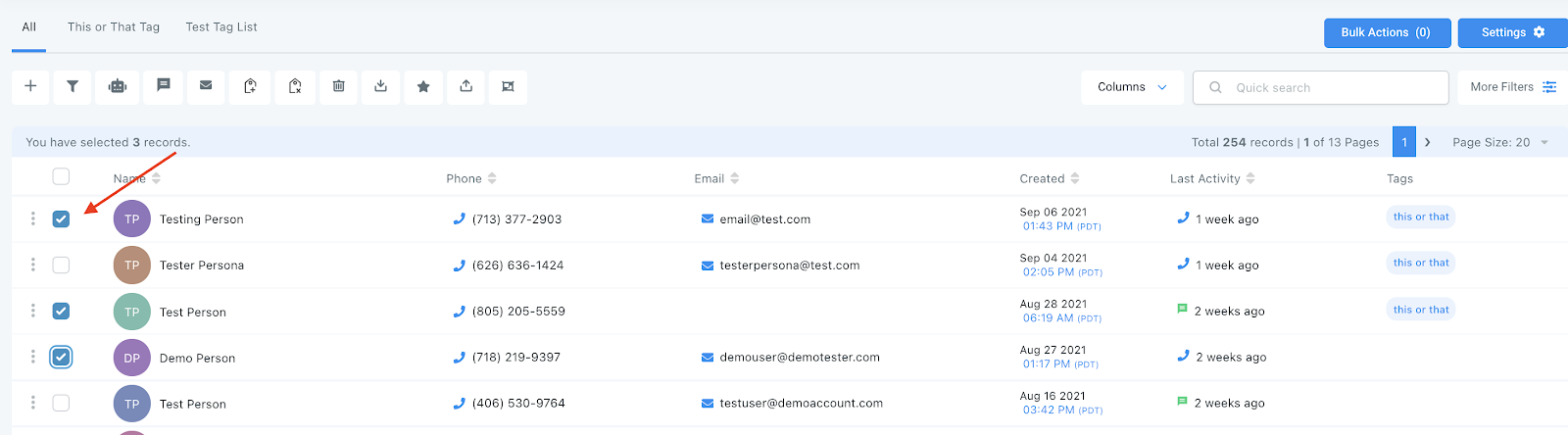
- Check the box to select contact records.
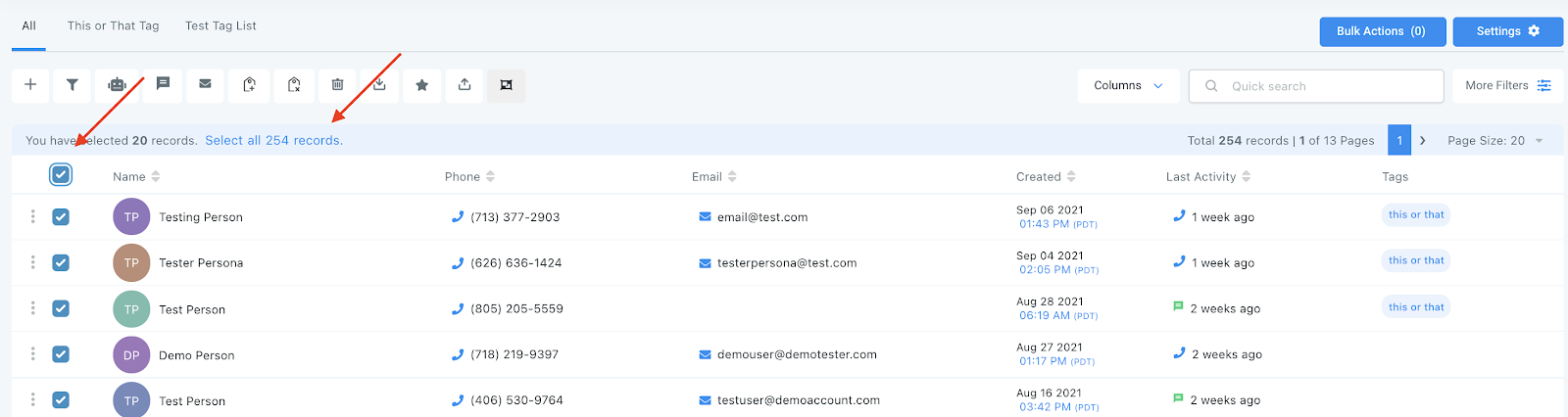
- You can also check the box at the top to select all on that page, and you can click the hyperlink to select all contacts in your system.
Step 2: Choose Your Action
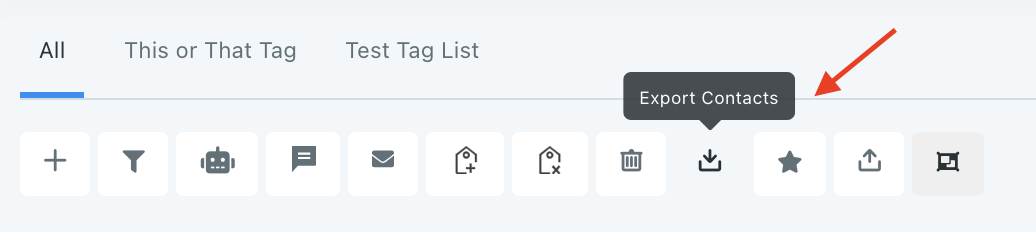
- Choose the icon for “Export Contacts”
- This will export a list of selected contact records from the system into a .csv file that will save to your computer.
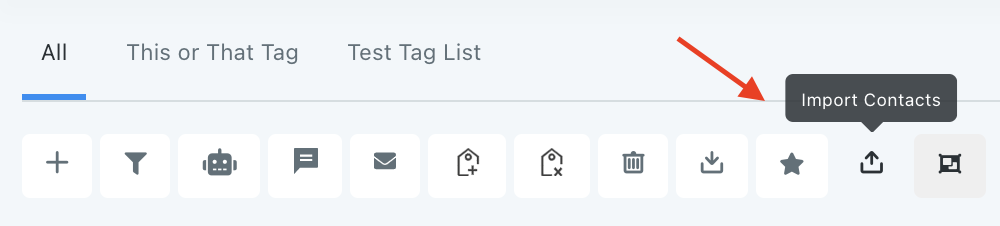
NOTE: If you wish to import contacts, you may use the bulk action icon here. Please refer to our “How to Import Contacts” tutorial for step-by-step guidance.
NOTE: If you cannot see the import and export options, please contact your account admin regarding your permissions.
NOTE: All contact records must have a phone number and/or email address in order to import.
Keep learning