
How to Add Inline Forms and Surveys to Email Campaigns in GoHighLevel
Updated February 20, 2025
Collecting meaningful subscriber feedback inside email campaigns is often overlooked, leaving agencies with limited data on customer satisfaction and service quality. This tutorial walks you through adding and configuring inline forms and survey elements — including 1-10 NPS scoring, 5-star ratings, and like/dislike options — directly inside a GoHighLevel email campaign.
What Are Forms/ Surveys Elements?
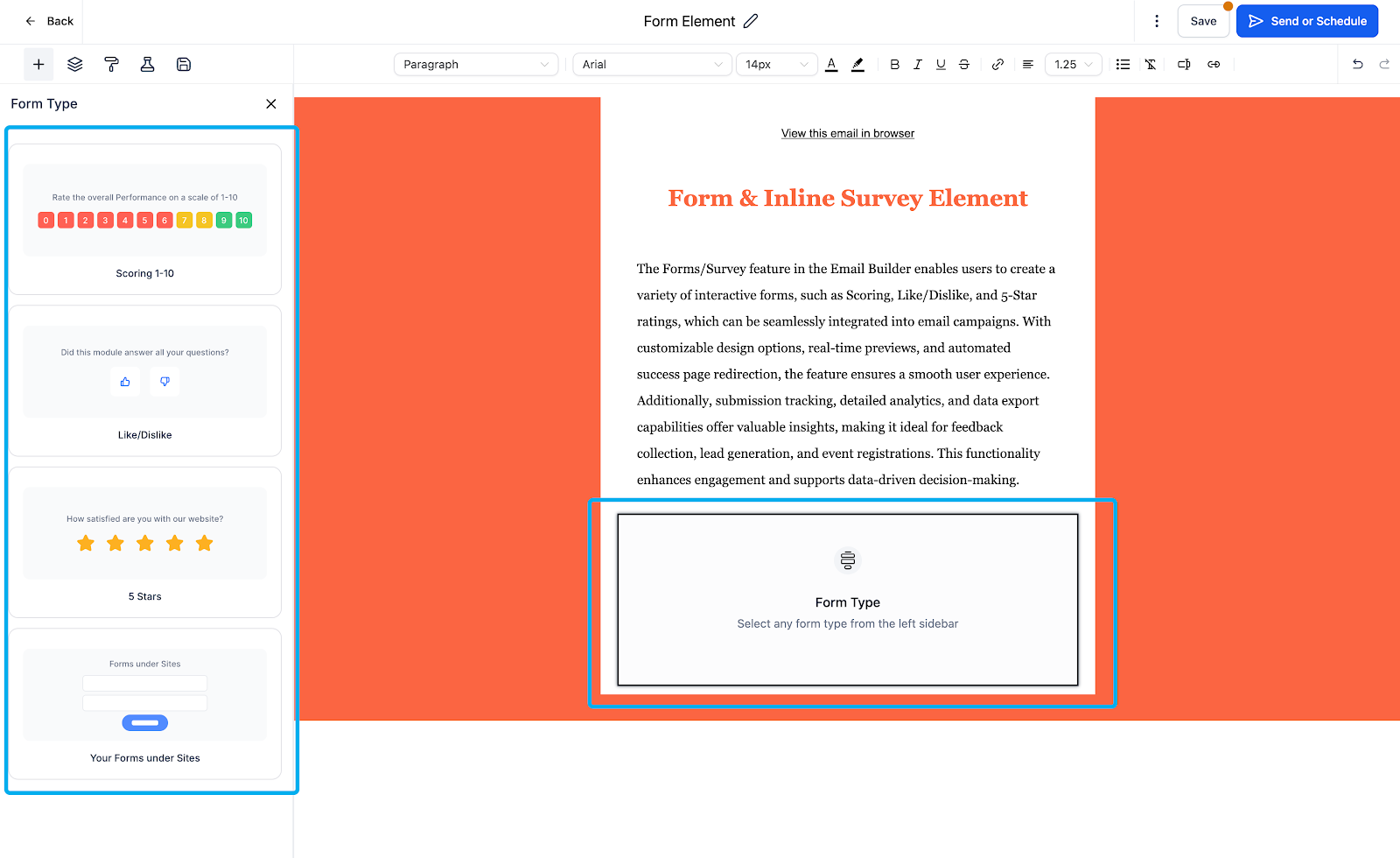
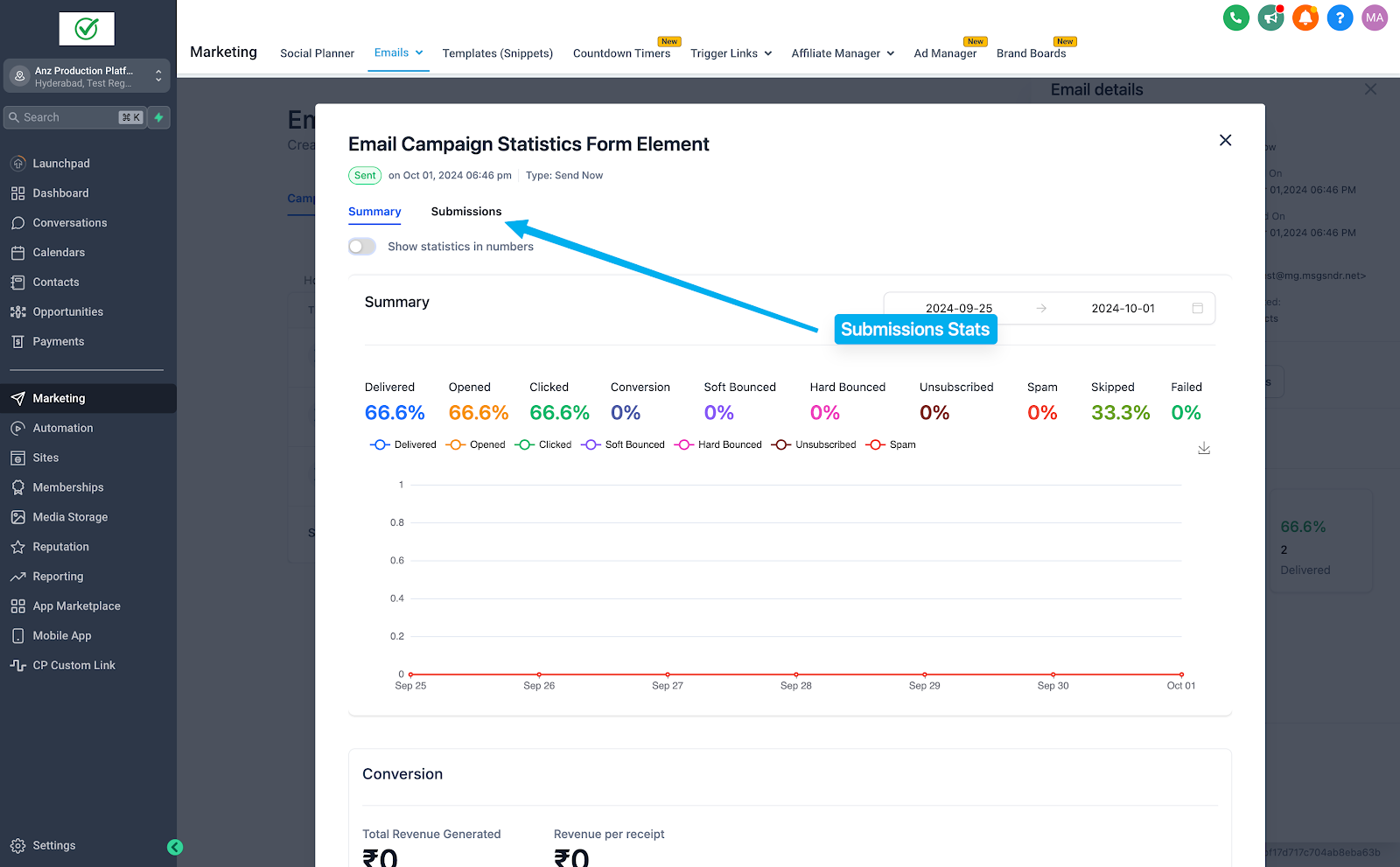
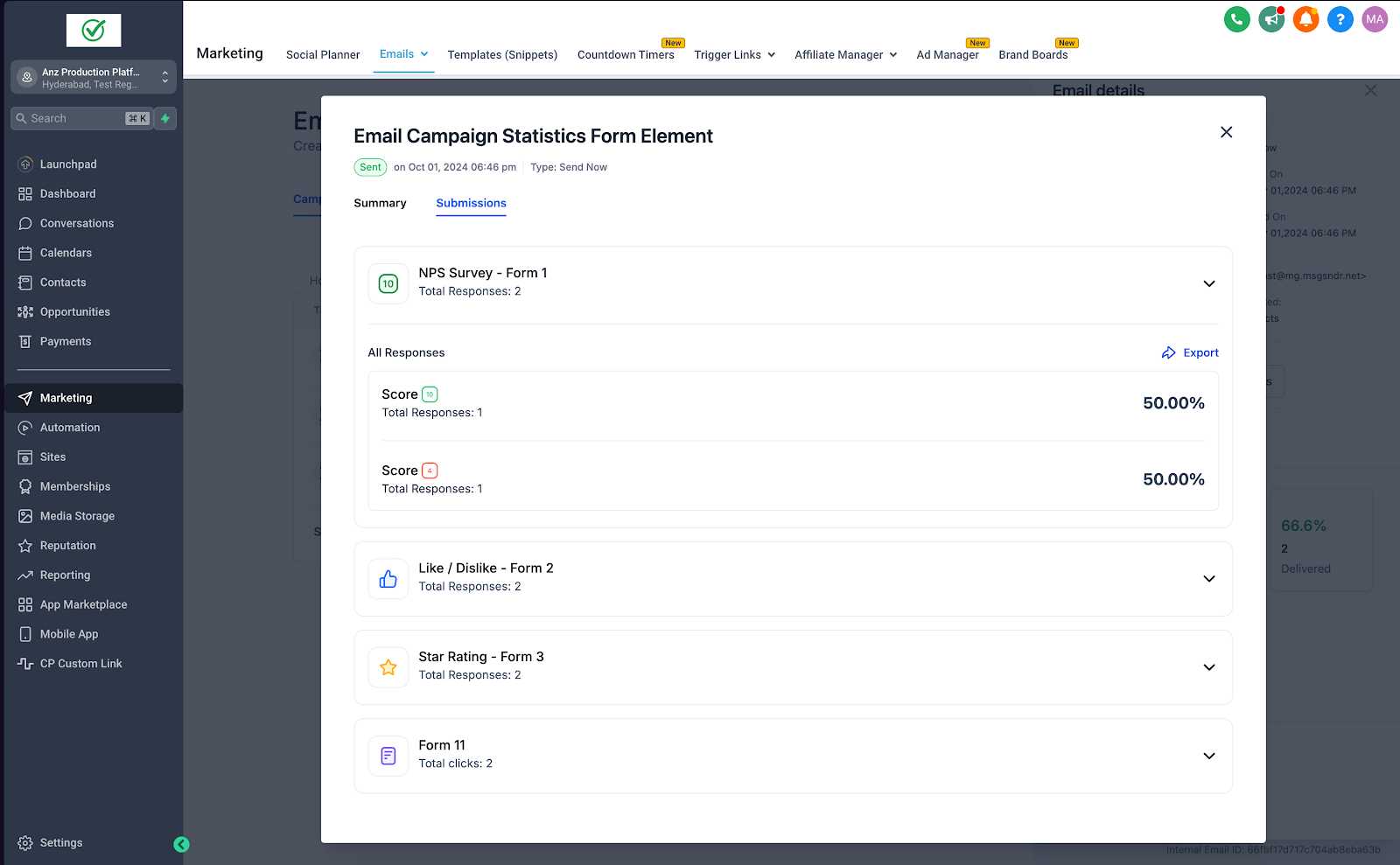
The Forms/Surveys element enables you to incorporate both pre-designed and custom feedback forms, including 1-10 scoring, like/dislike options, and 5-star ratings. This feature streamlines response collection and analysis, accessible through the Submissions tab within campaign statistics.
When to Use It:
- Collect product feedback (1-10 scale).
- Gather service reviews (5-star ratings).
- Use Like/Dislike forms for simple feedback.
- Export data for users with low ratings.
How to Use:
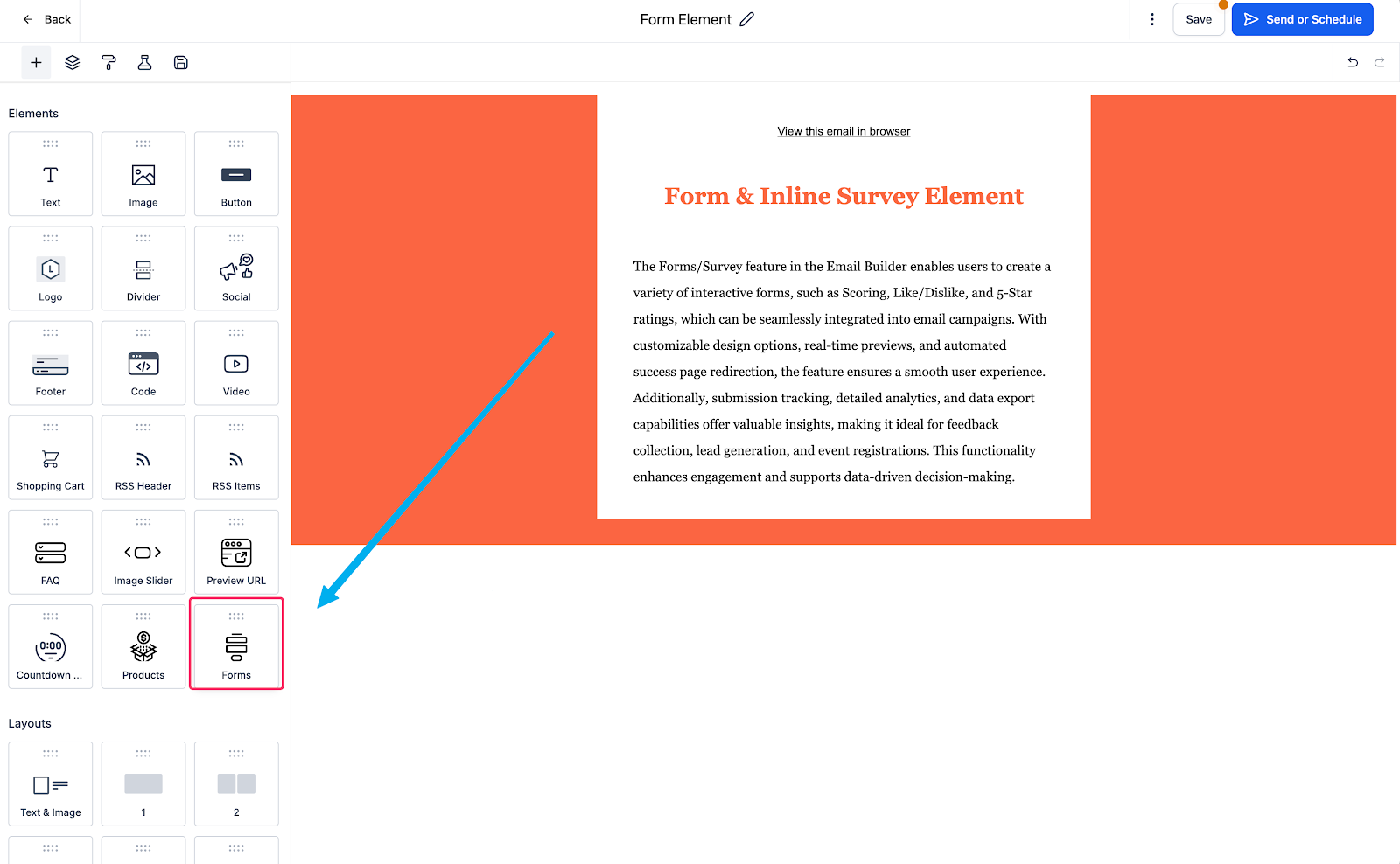
- Go to Email Marketing and create a new campaign.
- Add the Form Element.
- Choose the feedback type (NPS, ratings, etc.).
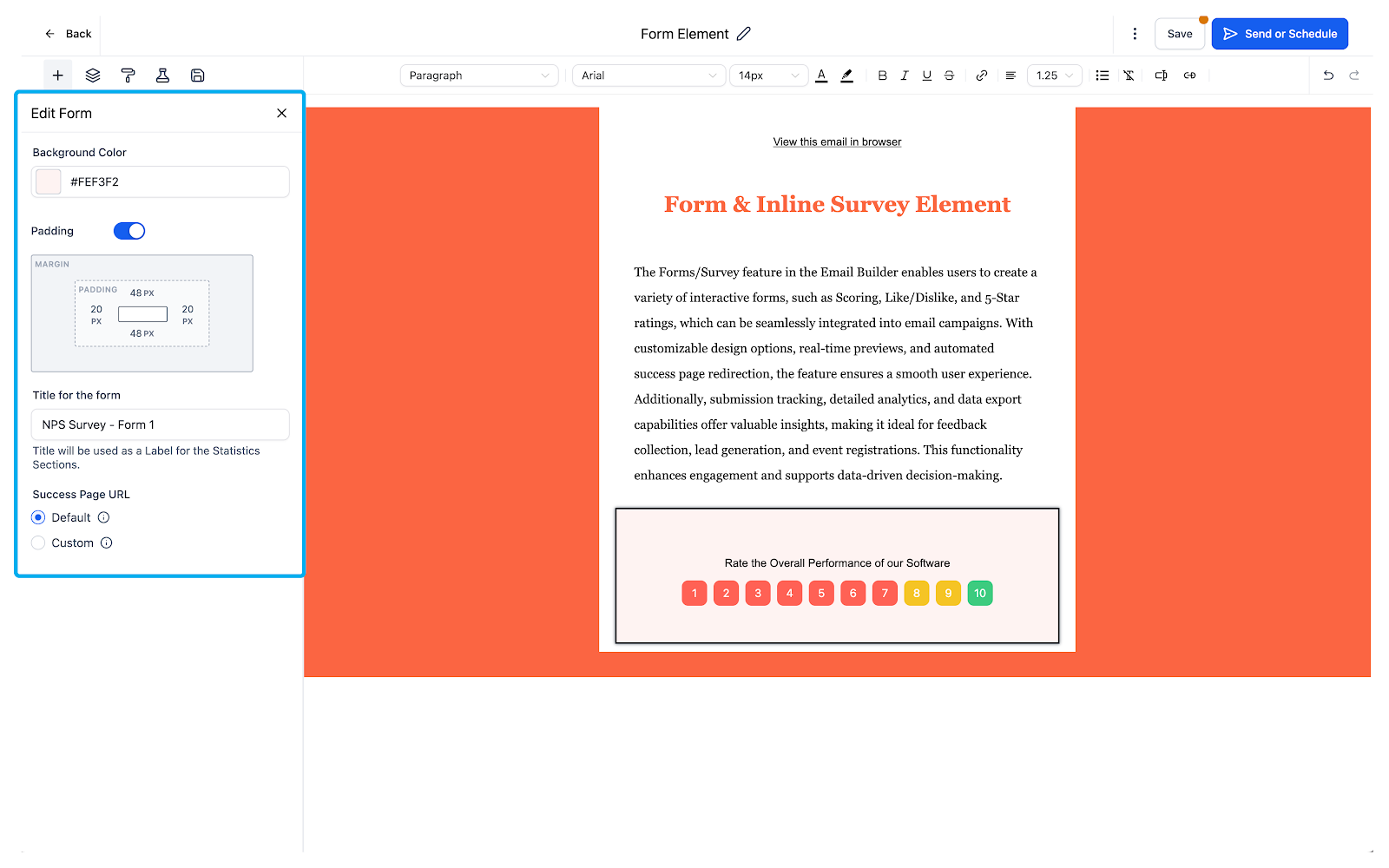
- Customize the form design and settings.
- Name the form in the Title field.
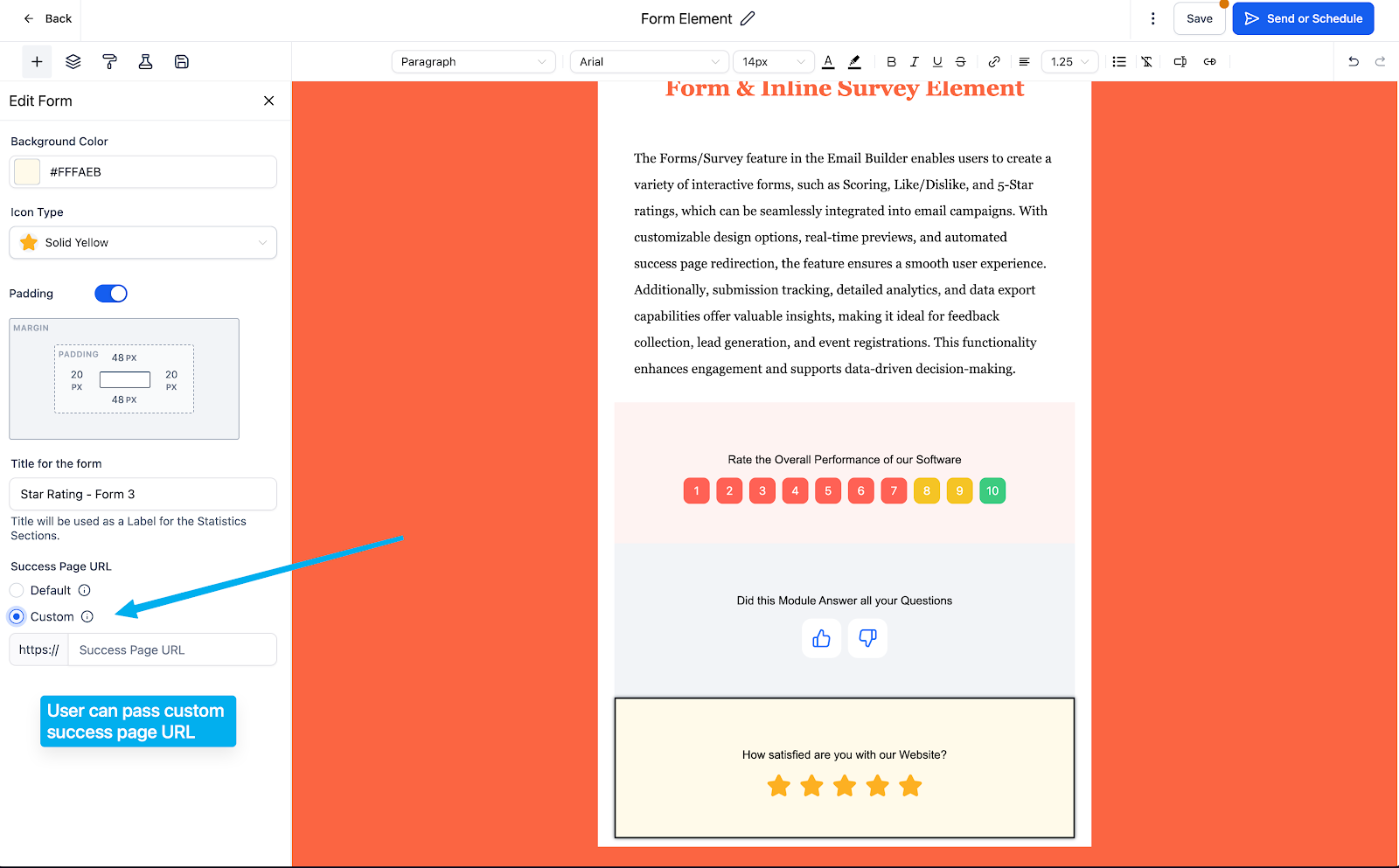
- Set a custom success page.
- Send your campaign and monitor responses via Campaign Statistics > Submissions.
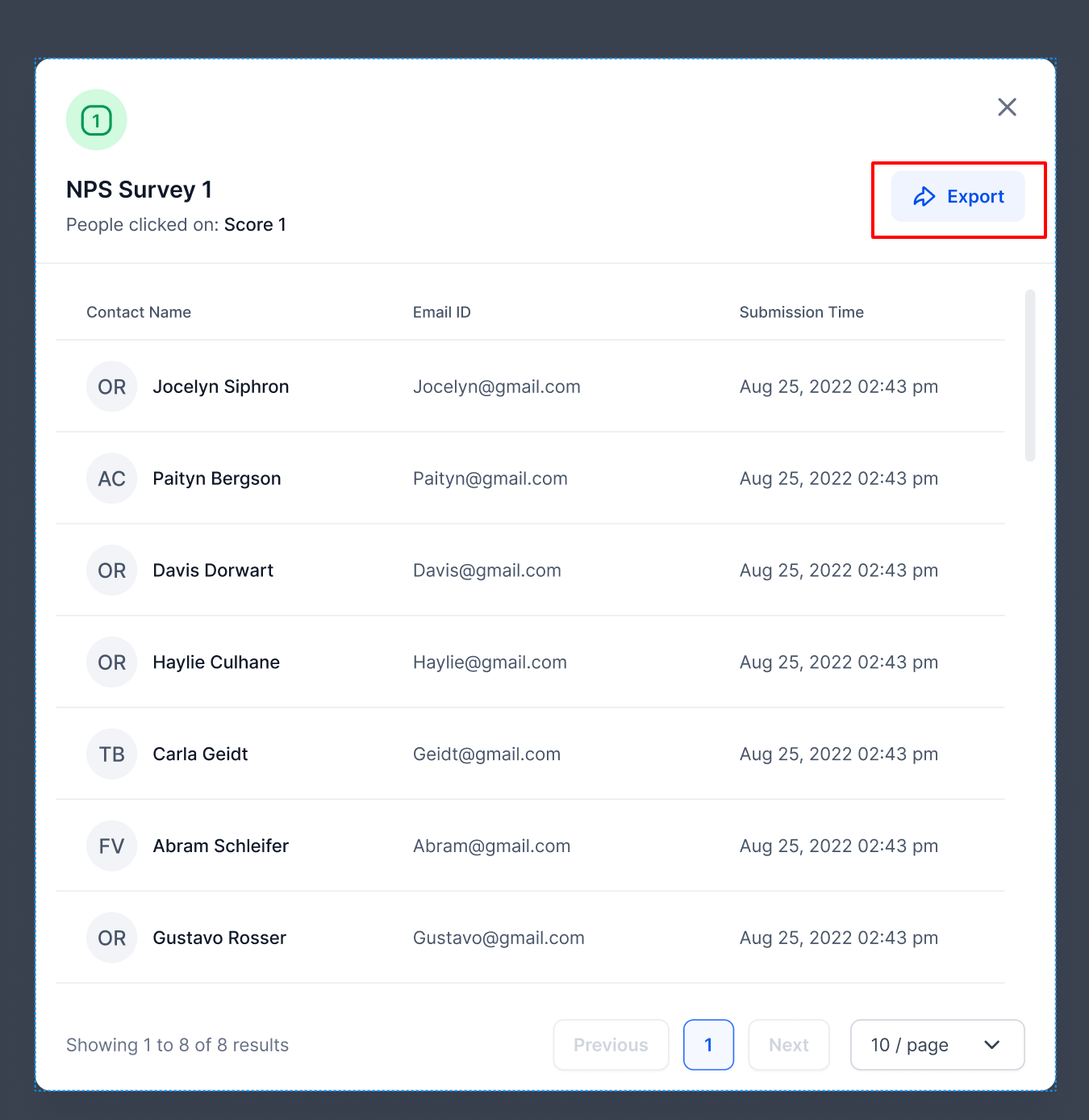
- Export the list of respondents if needed.
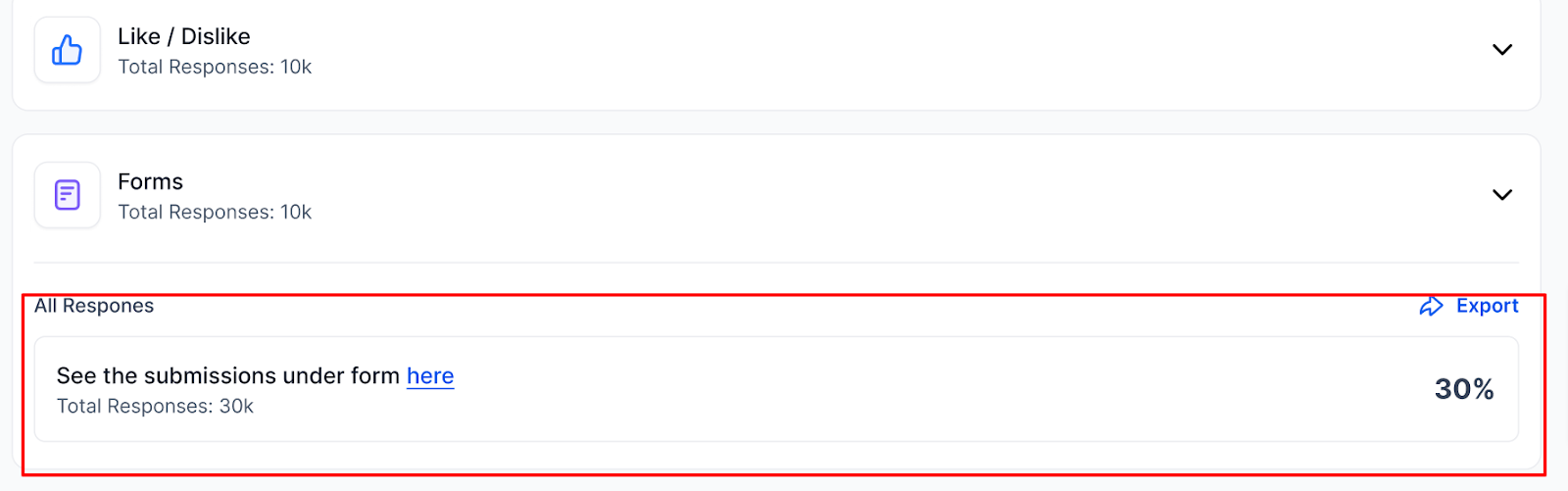
- For pre-built forms, navigate directly to the submission page.
Keep learning