
How to Personalize GoHighLevel Campaigns with Conditional Elements
Updated February 20, 2025
Managing multiple campaign variations for different audience segments wastes time and increases the risk of errors. With conditional elements in GoHighLevel, you can display location-based images, field-specific text, and tailored offers — all from within a single campaign.
What is a Conditional Element?
A conditional element lets you show specific content, like images or text, only when a contact meets certain criteria. This helps you personalize your messaging automatically for each individual.
When Can You Use Them?
- Location-based content: Display different images or offers depending on a contact’s geographic location.
- Field-based text: Change a text element based on specific contact fields, like their job title or interests.
Benefits
- Personalization: Make your campaigns more relevant by showing customized content to each contact.
- Time-Saving: Avoid the need to create smart lists and separate campaigns—use one campaign with conditional elements instead.
- Increased Engagement: Showing content that’s personalized to each recipient increases the likelihood of higher click-through rates, responses, and conversions.
- Simplified Campaign Management: Instead of juggling various lists and campaigns, manage all variations of content in one place, reducing complexity and chances for error.
How to Use Conditional Elements:
- Go to Marketing > Email Marketing.
- Create an email campaign or template.
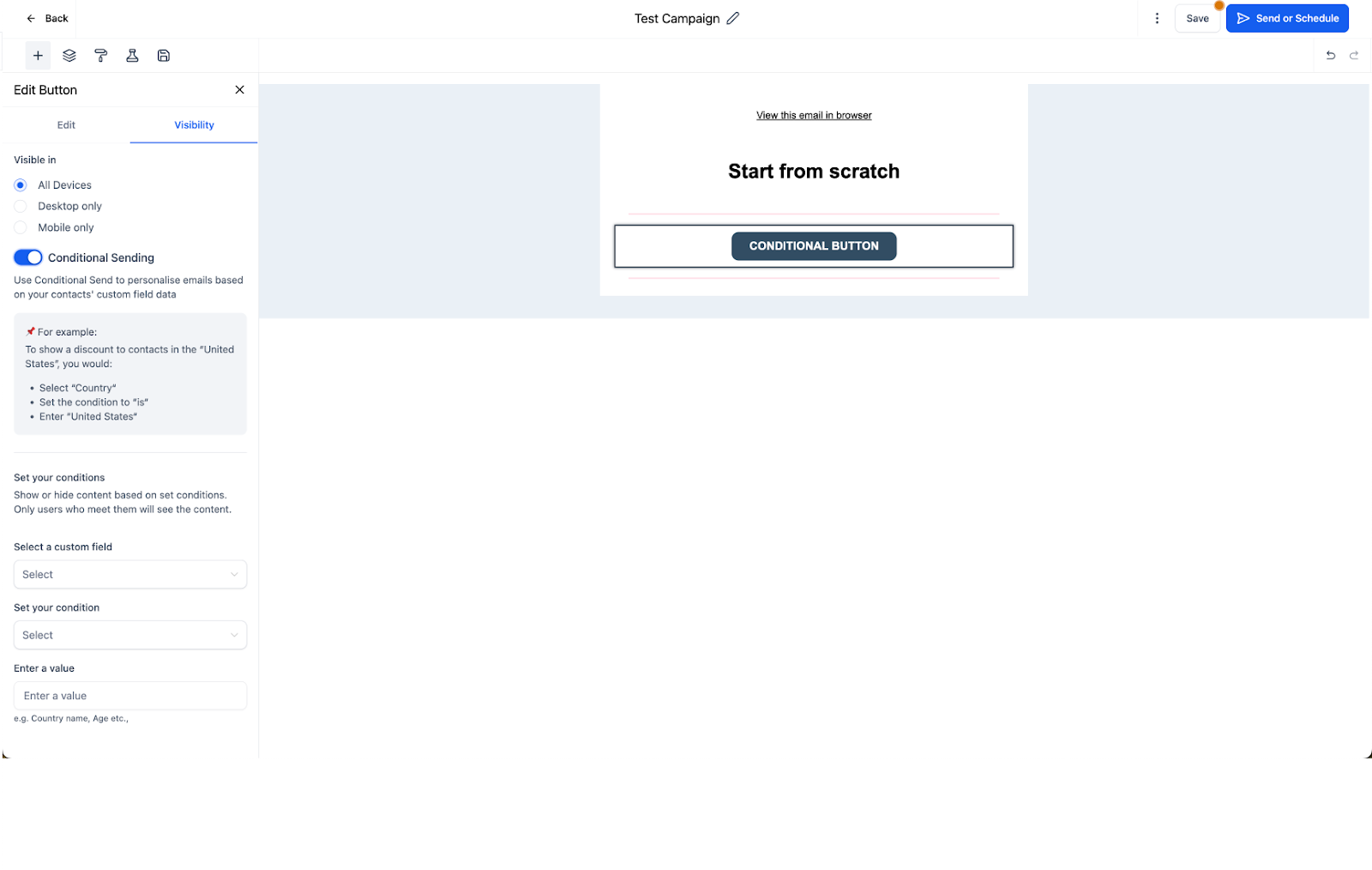
- Select any element and go to the Visibility tab.
- Enable the Conditional Element toggle.
- Set the conditions based on contact fields.
- You can also add conditions effortlessly by clicking on the Conditional Element icon within the element overlay action.

Keep learning