
How to Bulk Edit Opportunities in GoHighLevel's List View
Updated February 18, 2025
Updating CRM records one by one in GoHighLevel wastes time and creates inconsistency across your pipeline. This guide walks you through selecting multiple opportunities, editing fields in bulk, and monitoring results on the Bulk Actions page.
Step 1: Navigate to Opportunities > List View.
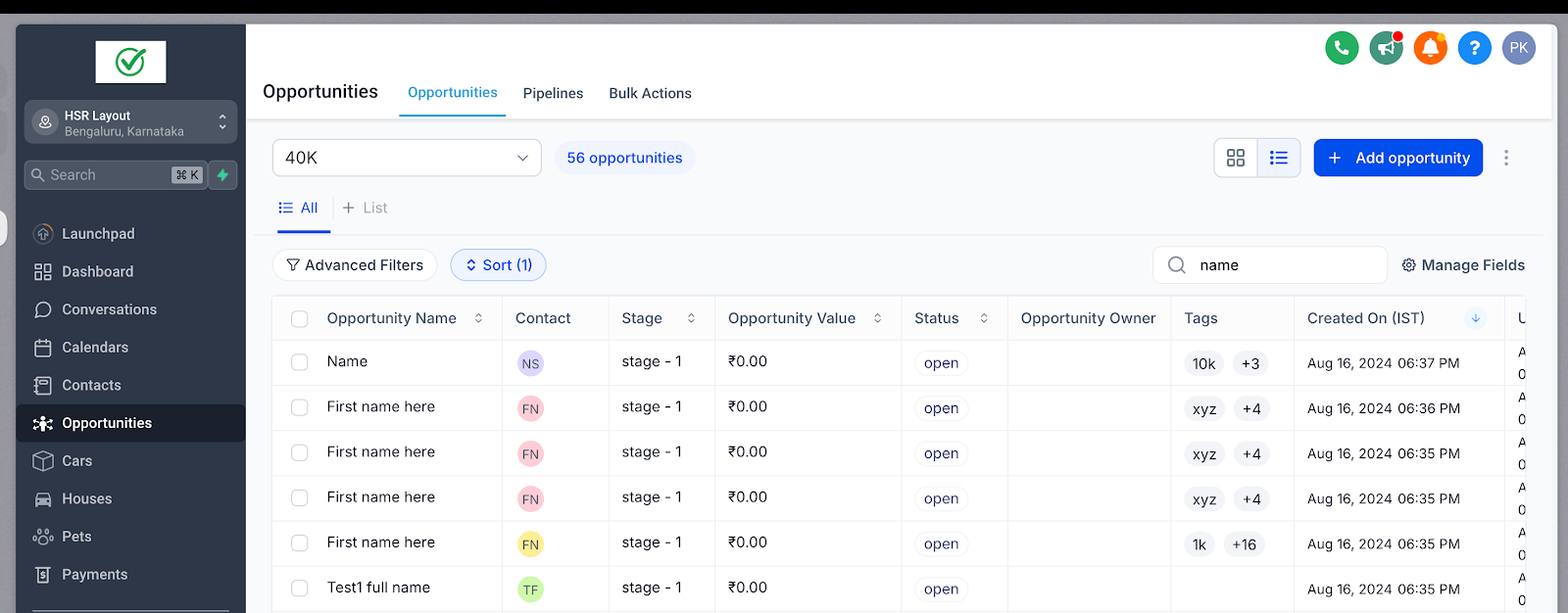
Step 2: Select Opportunities
- Select several opportunities you’d like to modify and click the Edit button at the top.
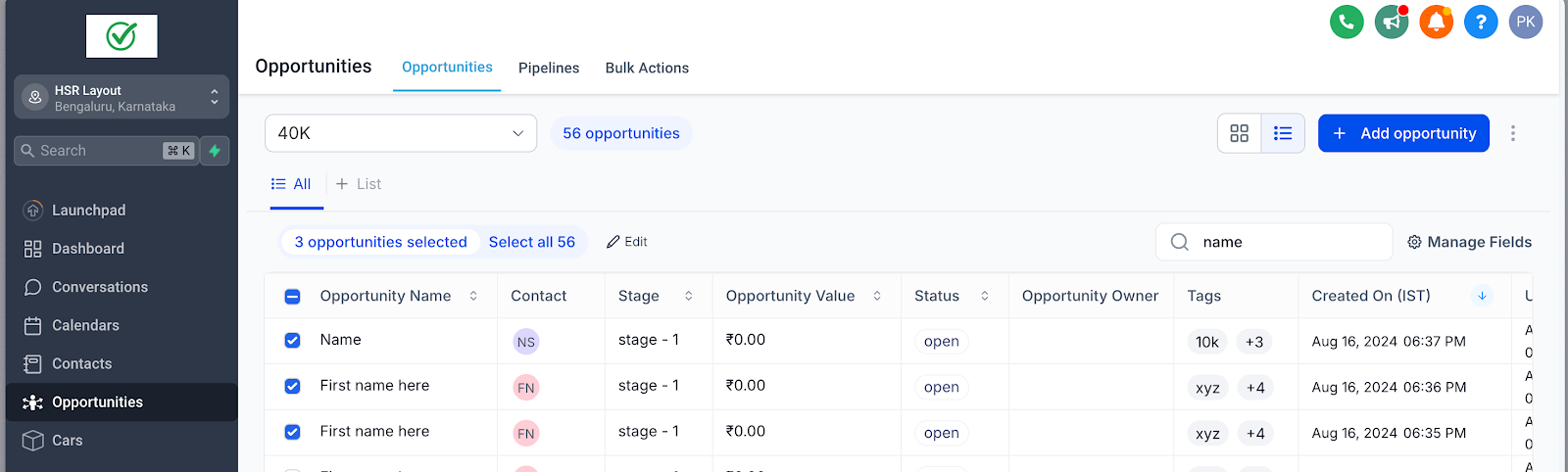
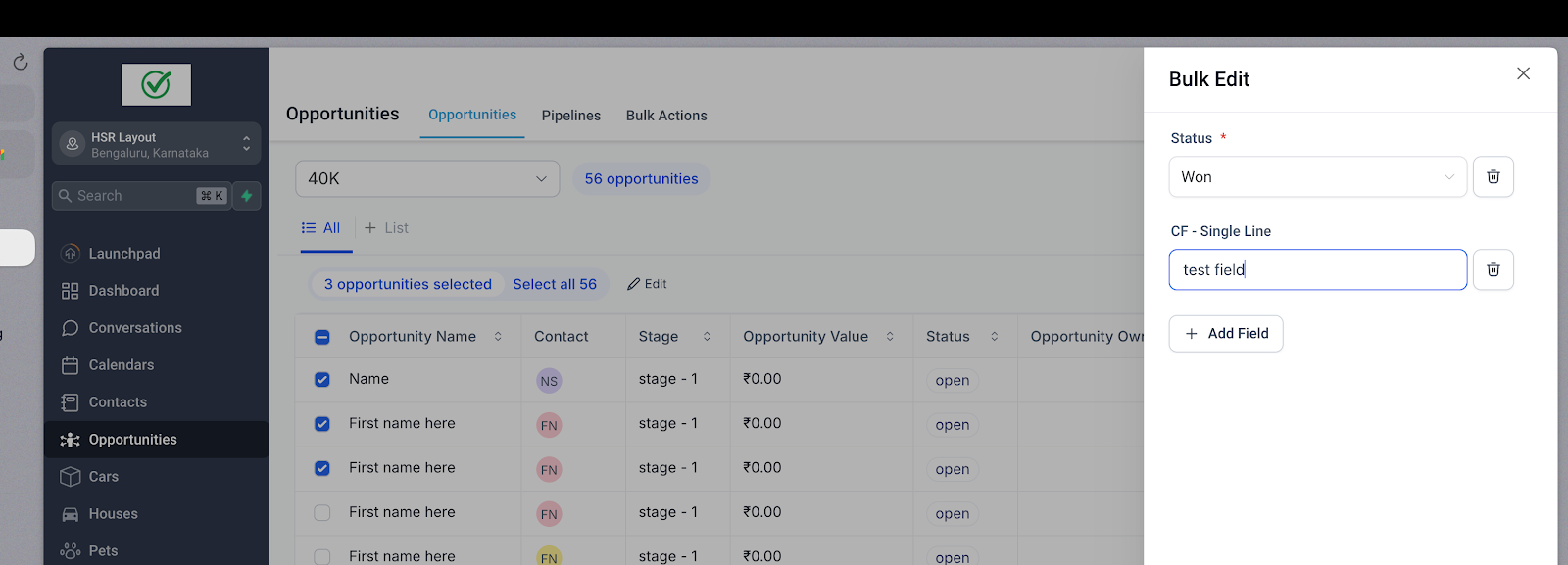
Step 3: Update Fields
Select the fields you want to update and enter the new information
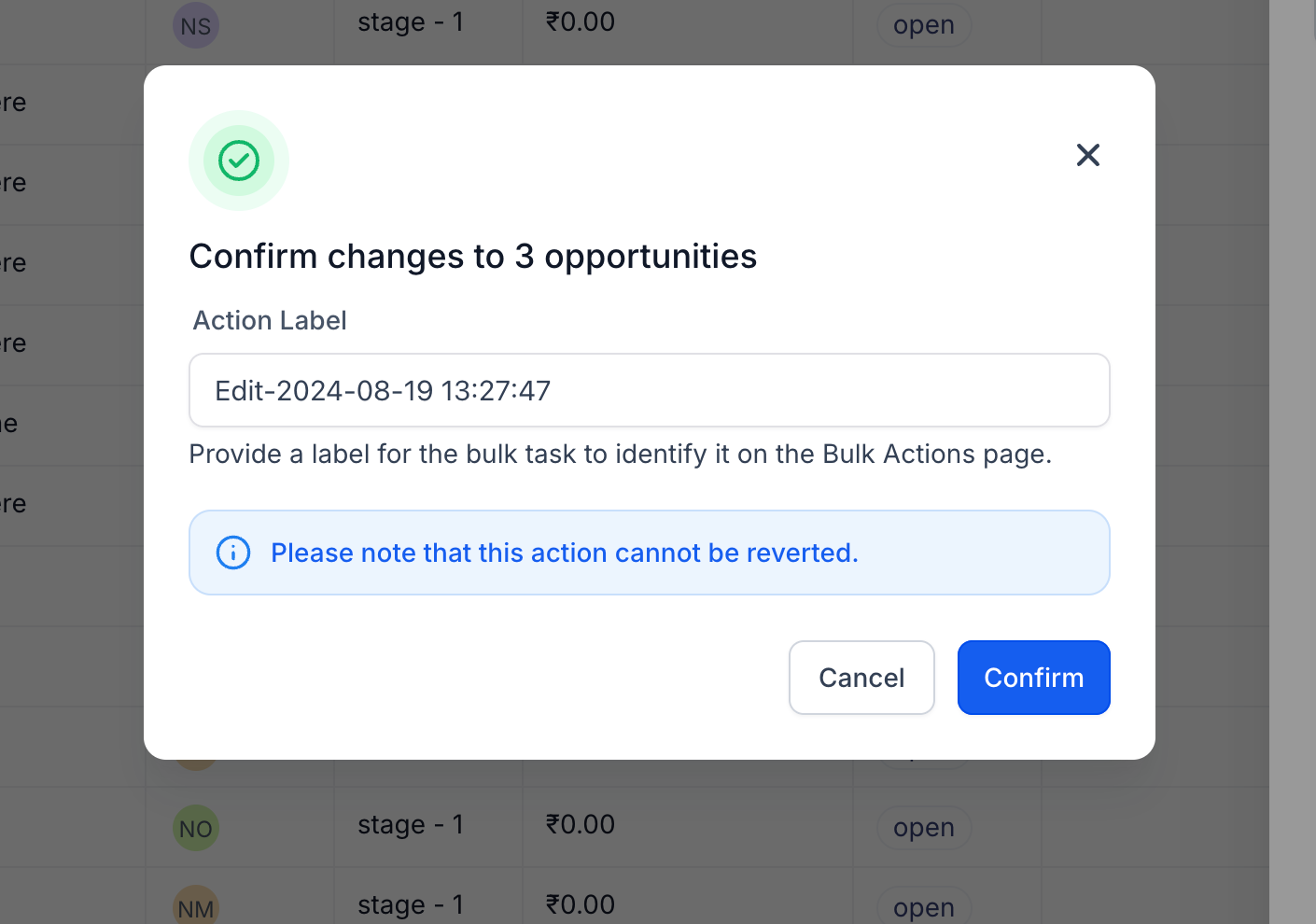
Step 4: Apply Updates
Click on Confirm to apply your changes.
Step 5: Monitor Progress
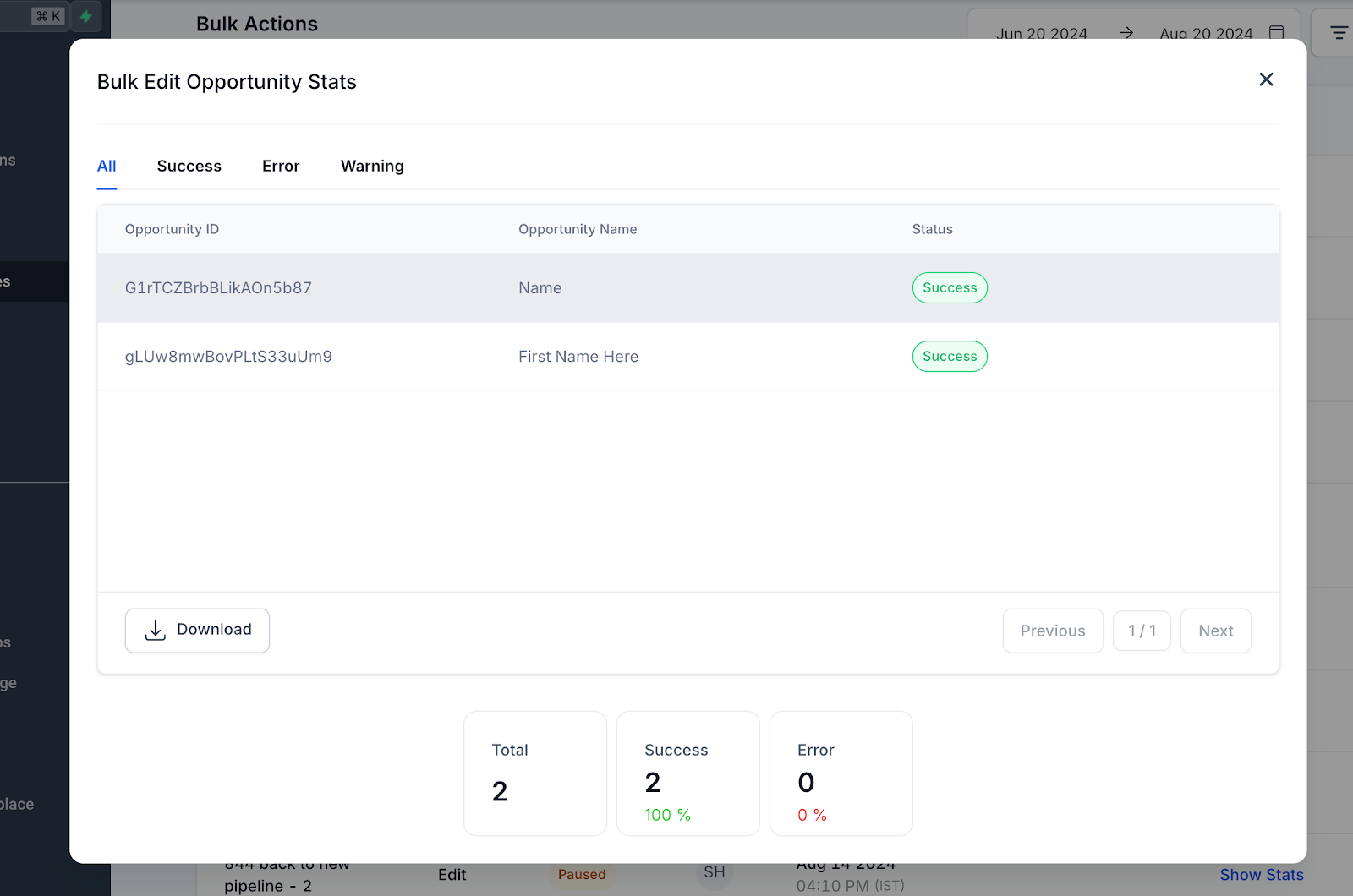
Head over to the Bulk Actions page to monitor the progress, review successes, and identify any errors.
Keep learning