
How to Connect a 3rd Party SMTP Account in GoHighLevel
Updated November 17, 2022
Relying on a non-Mailgun email provider means configuring a 3rd party SMTP account correctly in GoHighLevel to ensure reliable outbound delivery. This guide walks you through adding your SMTP service, selecting the right port settings, and resolving the most common verification errors.
In this article, you will learn how to add a 3rd party SMTP user to your system. This will allow you to send emails, notifications, and updates to your Leads.
Step 1: Adding the 3rd Party
- Navigate to Settings and select SMTP and MailGun Services.
- Click Add Service.
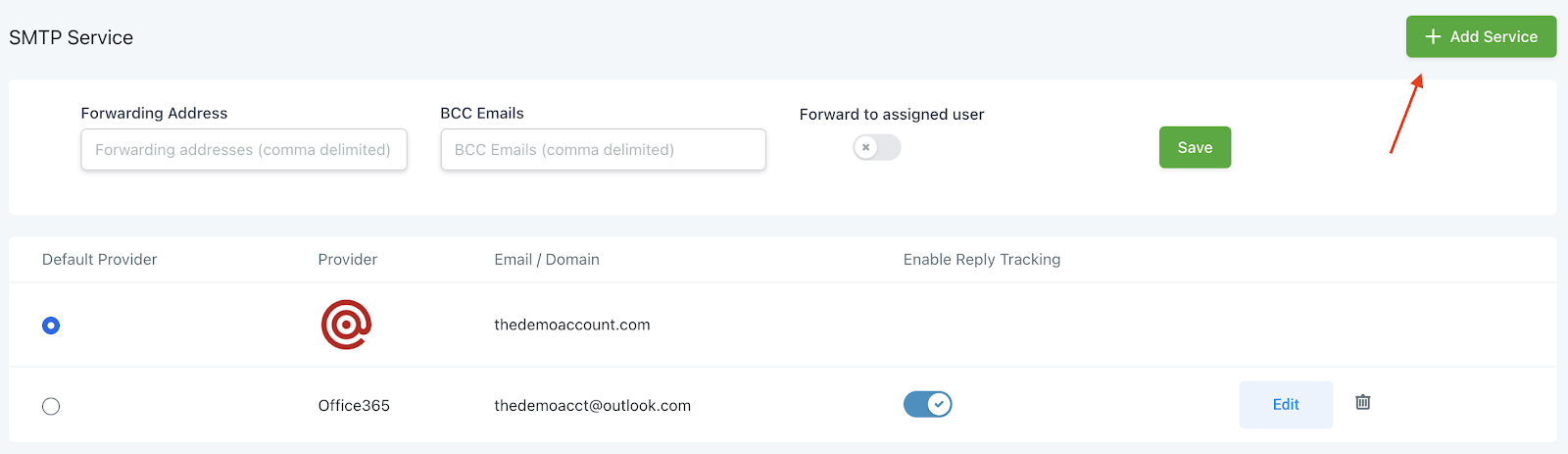
- Choose Other.
- Fill out items in the pop-up.
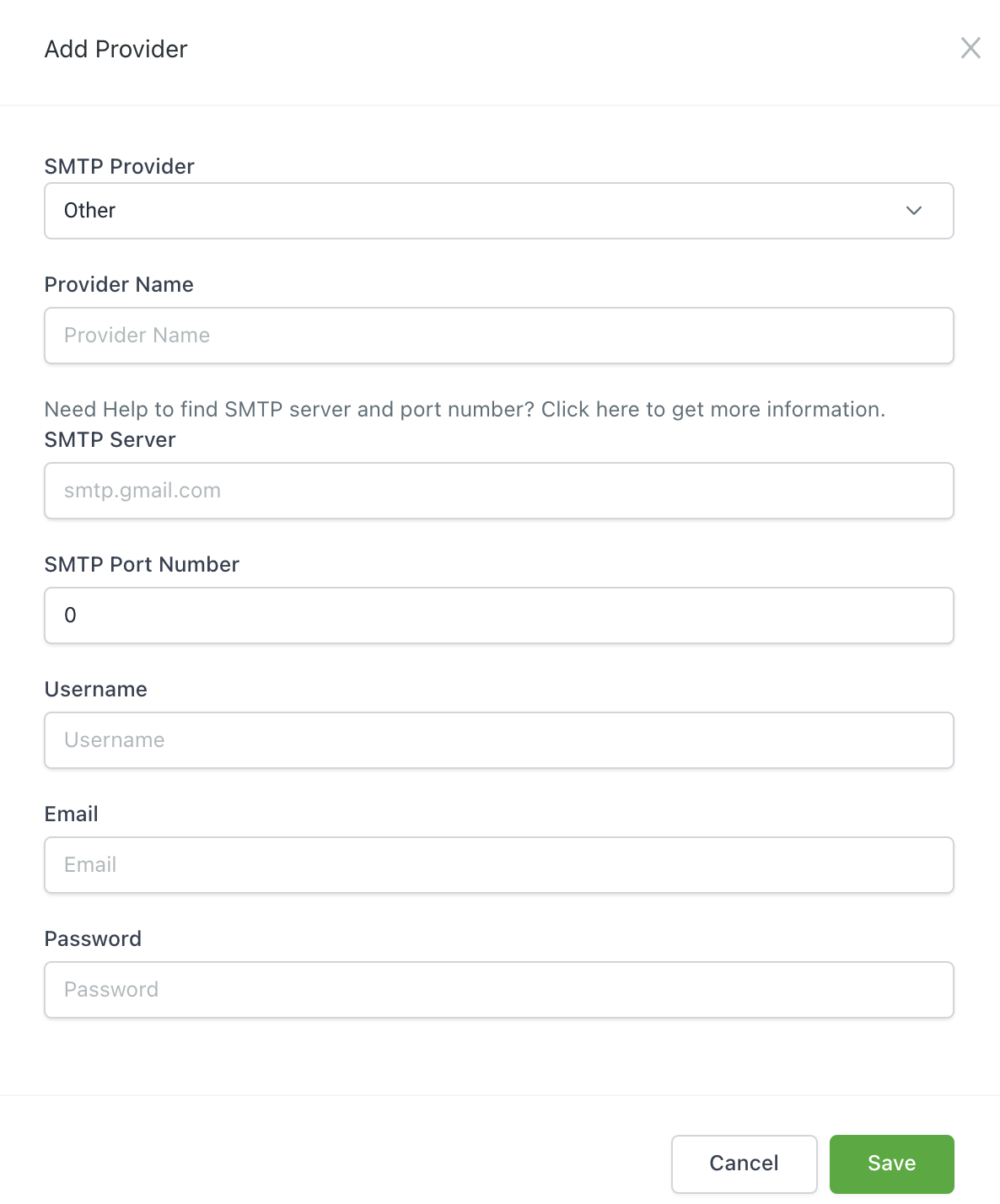
- Use the following link to determine the SMTP Provider and SMTP Port Number specific to the service you are integrating. Use outbound options (not inbound): https://www.arclab.com/en/kb/email/list-of-smtp-and-imap-servers-mailserver-list.html
- Save.
Troubleshooting Tip: Ensure that you approve any verification emails that are sent to your inbox as the system attempts to integrate with your email platform. If you are receiving an error message, this is often the cause.
NOTE: Only Mailgun reports stats back to the system. Other SMTP providers currently do not report some or all stats back into the system.
Keep learning