
How to Use Time Delay Elements in GoHighLevel's Funnel Builder
Updated November 21, 2022
Controlling when elements appear on your funnel or website pages is a powerful way to guide visitor attention and improve conversions. Using GoHighLevel's built-in minute timer and visibility settings, you'll learn to hide elements on load, trigger them after a set delay, and keep the timer itself invisible on the page.
You may want to delay the appearance of certain elements in your funnels or website. This can be done using the Countdown timer, or time delay feature, within the builder.
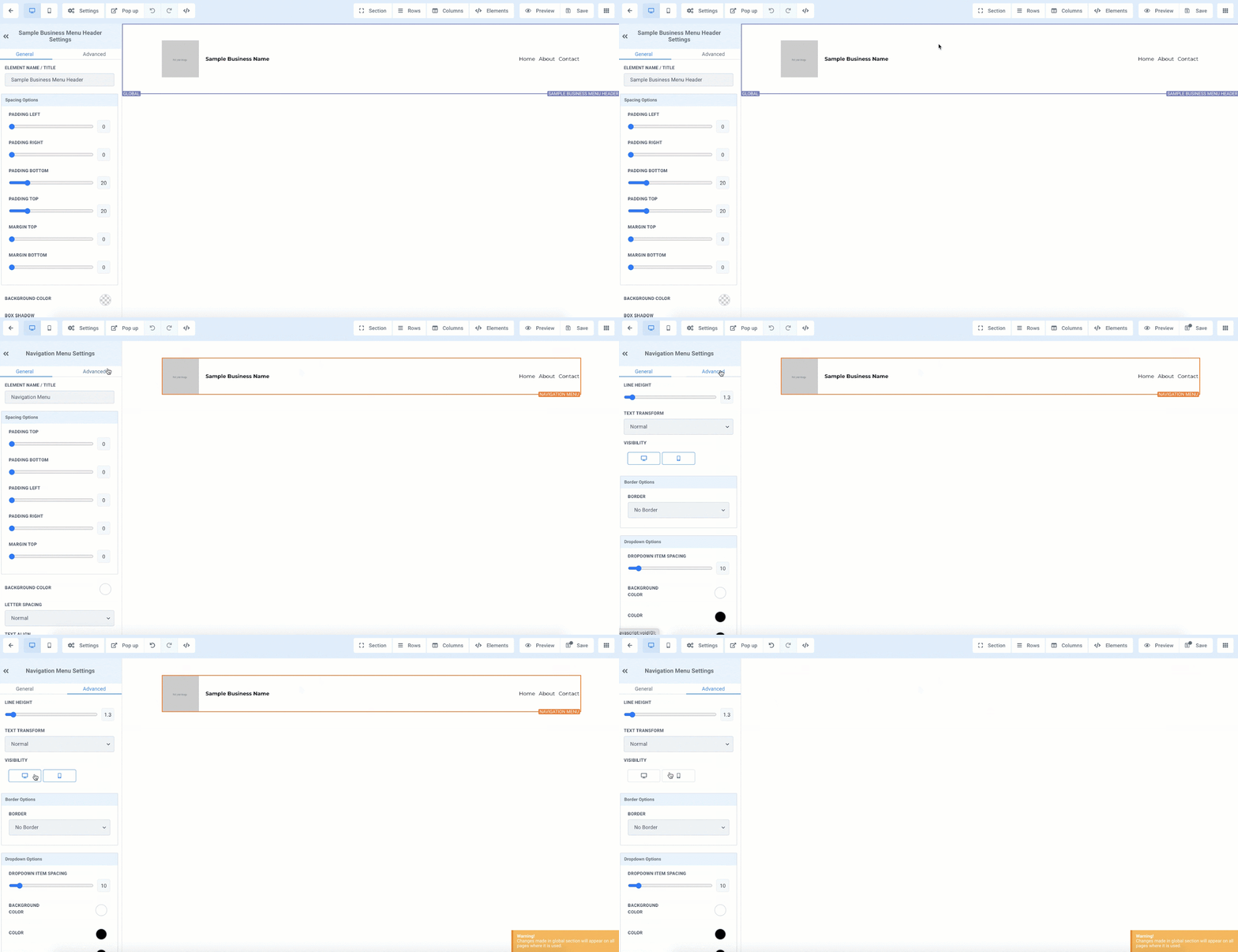
Step 1: Hiding initial visibility.
- To have something pop up after a time delay, you’ll need to hide the visibility first.
- Select the element you wish to hide.
- Under the settings on the left hand side, go to Advanced Settings.
- Under Visibility, uncheck both desktop and mobile.

Step 2: Add your time-delayed elements to the corresponding timer you’ve set up.
- In the top right menu, select Elements > Add Element > Countdown. From the three options within Countdown, choose “Minute Timer”. This will appear in the top center of the page.
- On the Minute Timer Settings (left hand side) navigate to Minute Settings, then update the hour, minute, or second field for the length of the timer you wish to use.
- NOTE: If you accidentally hid something you didn’t want to hide, you can find it by going to Elements > Manage > click the eyeball icon to unhide (or re-hide) an element.
- Scroll down to Expire Actions > Choose “Show & Hide Element” from the dropdown.
- Click Show Elements and check the box for the elements you want to show with the timer feature.
- Click Save to confirm these changes.
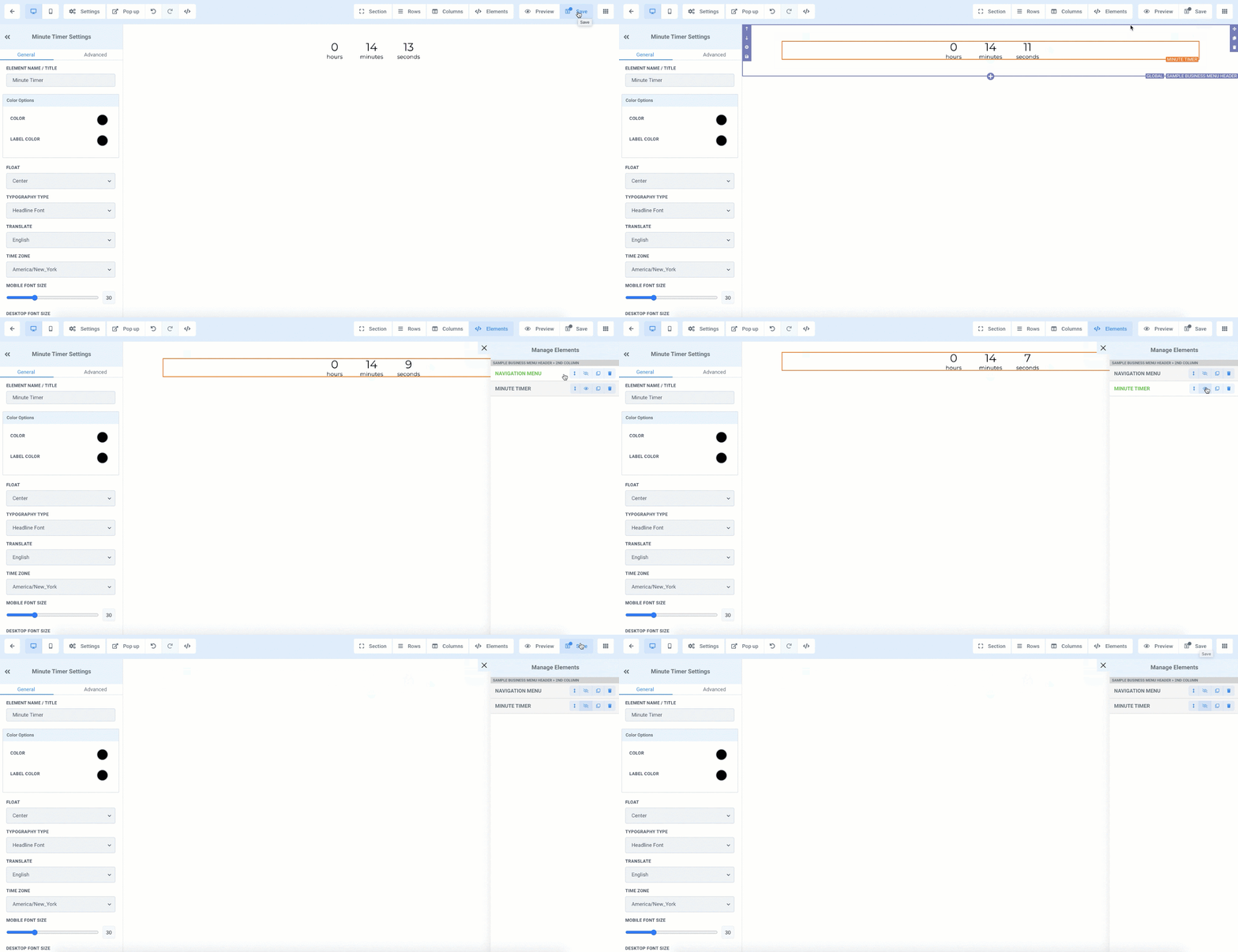
Step 3: Hiding the Timer
- If you don’t want the timer to actually display on the page, click it.
- On the left under “Minute Timer Settings” navigate to “Advanced”
- Then uncheck both desktop and mobile
- Save.
- Now the timer will work invisibly.
Keep learning