
How to Set Up Call Tracking Number Pools in GoHighLevel
Updated February 10, 2025
Without proper call tracking, paid campaign attribution is guesswork — you lose visibility into which ads are actually driving phone calls. Follow this guide to configure a GoHighLevel number pool that dynamically swaps tracking numbers on your landing pages and ties every inbound call to the right campaign source.
Number pools are an effective method for tracking calls generated through paid campaigns. By utilizing number pools, you can assign call-tracking conversations to specific phone numbers displayed to leads who visit designated landing pages or websites. These numbers appear only on selected pages and are shown exclusively to leads who follow a particular path of engagement. While often referred to as “call tracking codes,” we identify them as “number pools.”
In this article, we’ll go over how to set up number pools so you can start collecting data about your visitors.
How to set up number pools for call tracking
Update: We can’t enter gclid in the URL to imitate Google ads now. It should be from the actual Google ads.
Please Note:
Update (July 29, 2020)
For US Numbers (10-digit local numbers), you can now put the number in any one of these three formats 111-222-3333, 111.222.3333, or (111) 222-3333, and the swap script will recognize and swap the number.
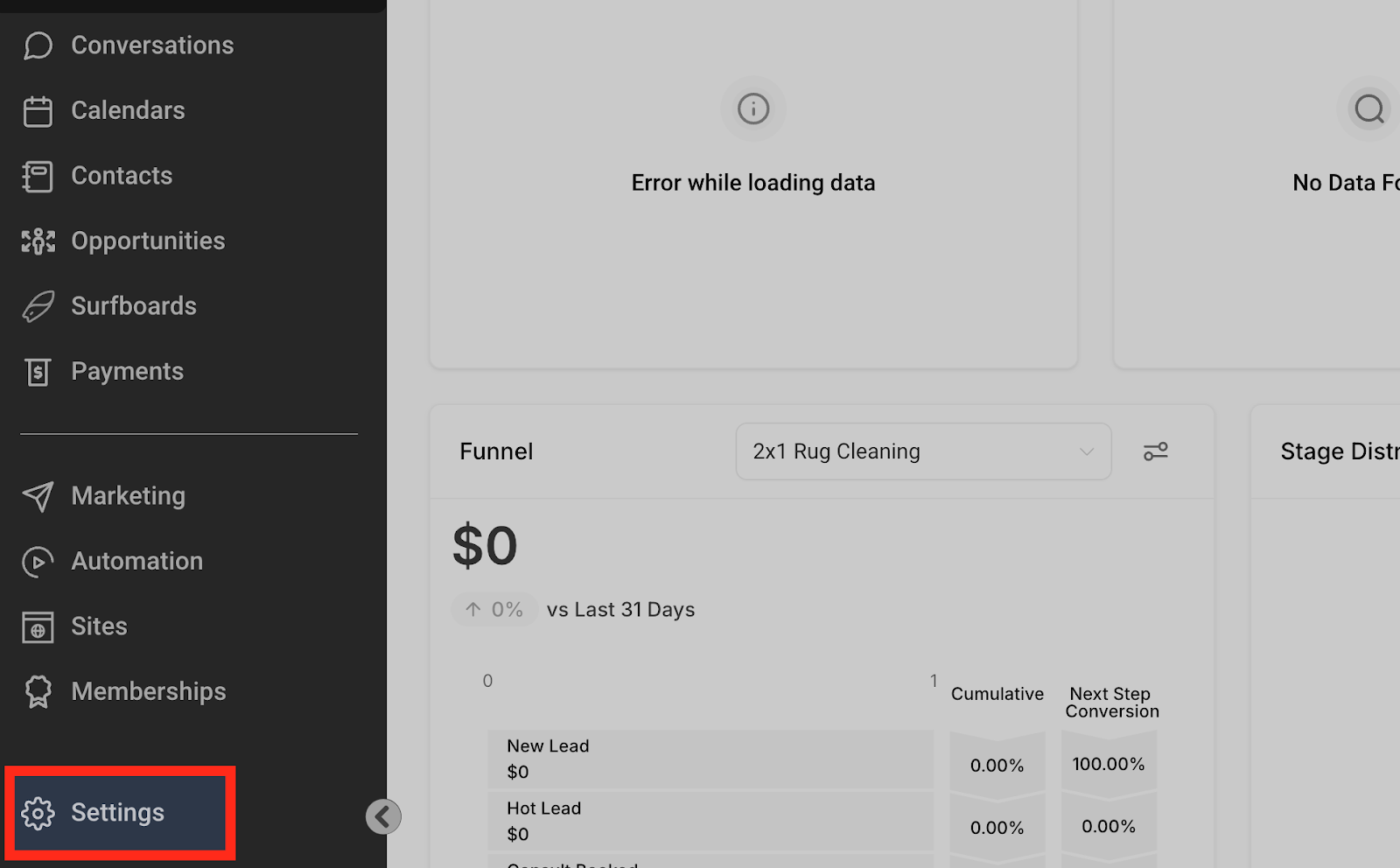
Click on Settings.
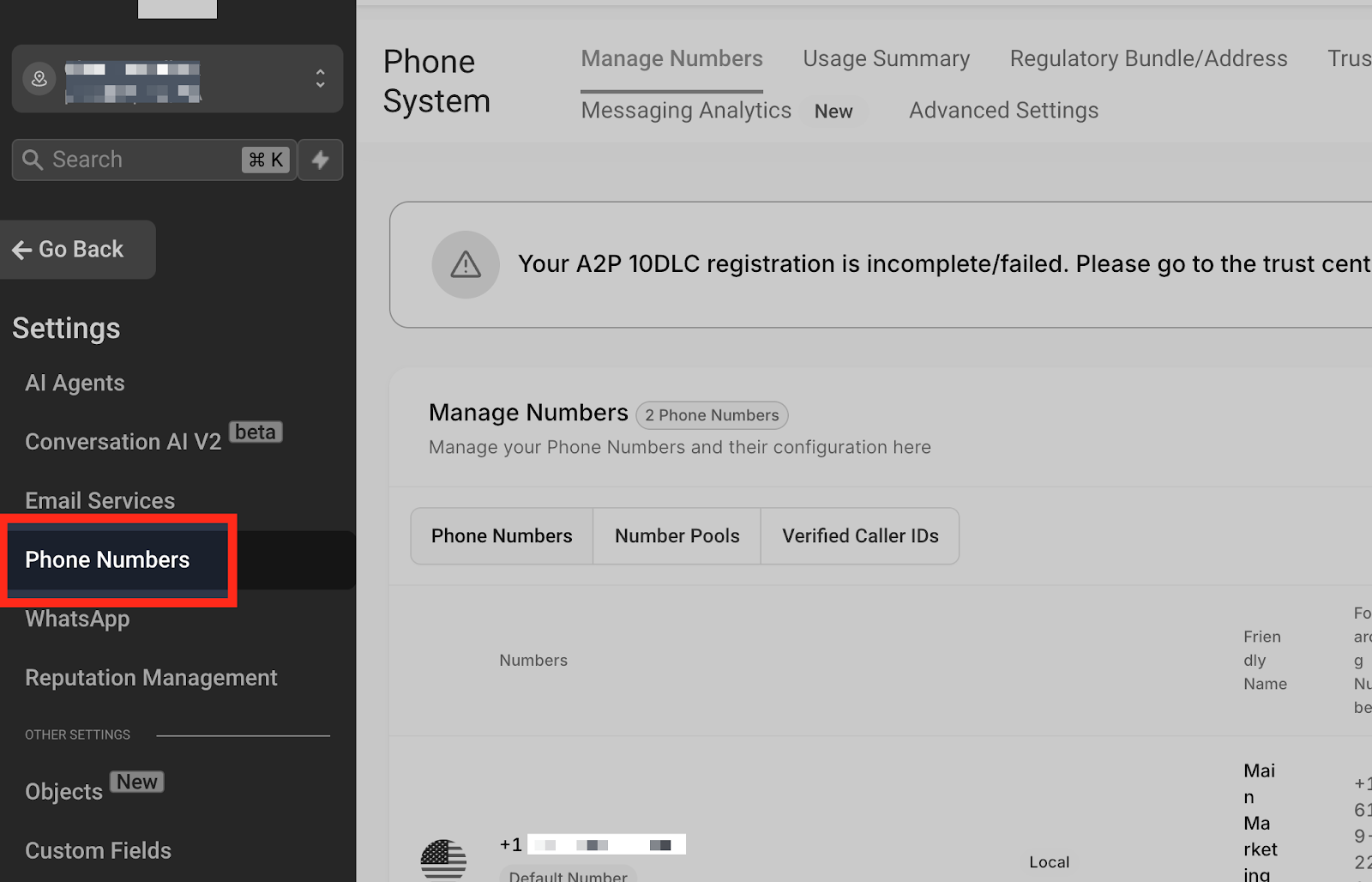
Click on Phone Numbers.
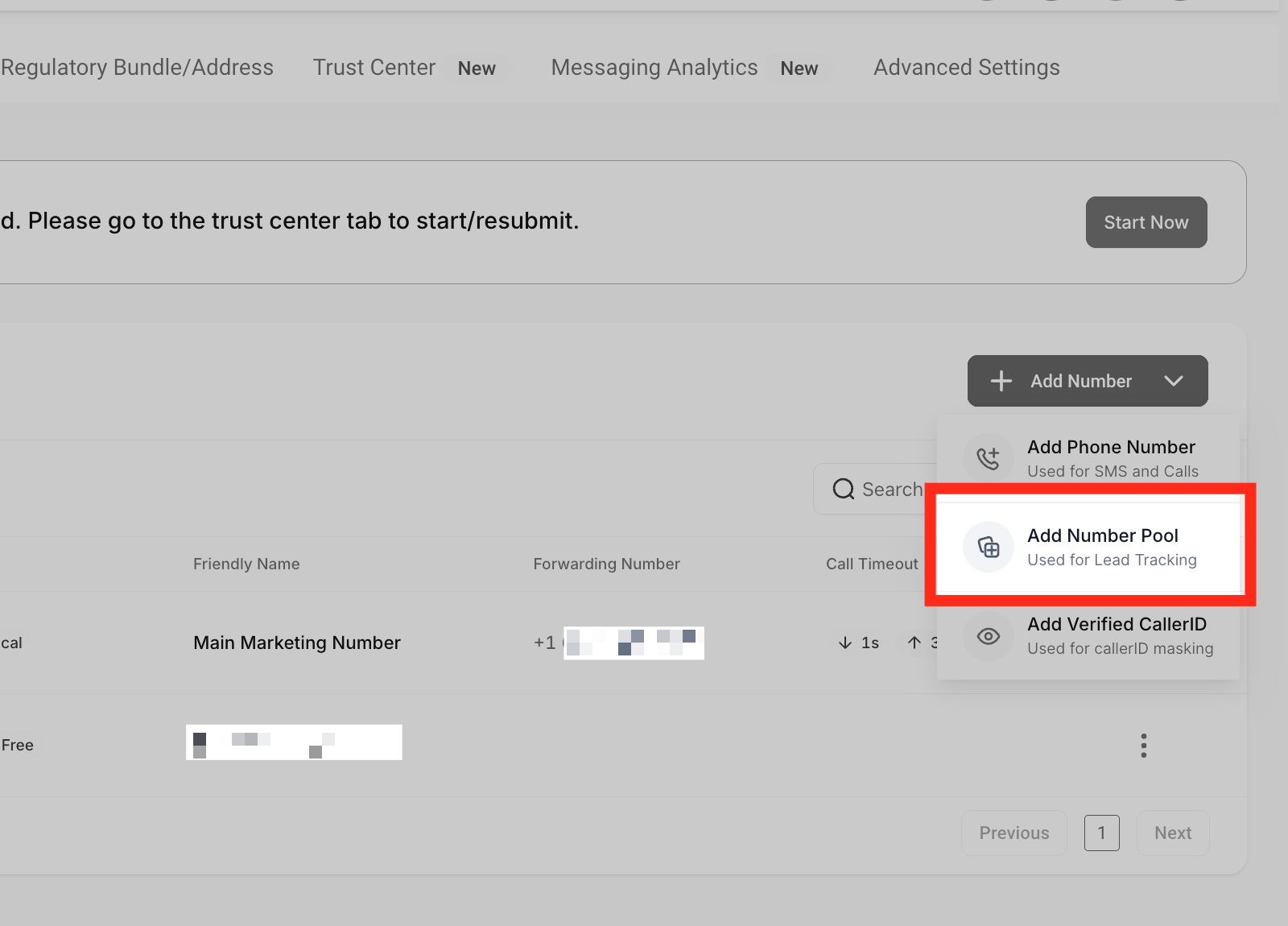
Add Number Pool
Click “Add Number Pool.” You can find it under the “+ Add Number” dropdown menu located at the right side of the page.
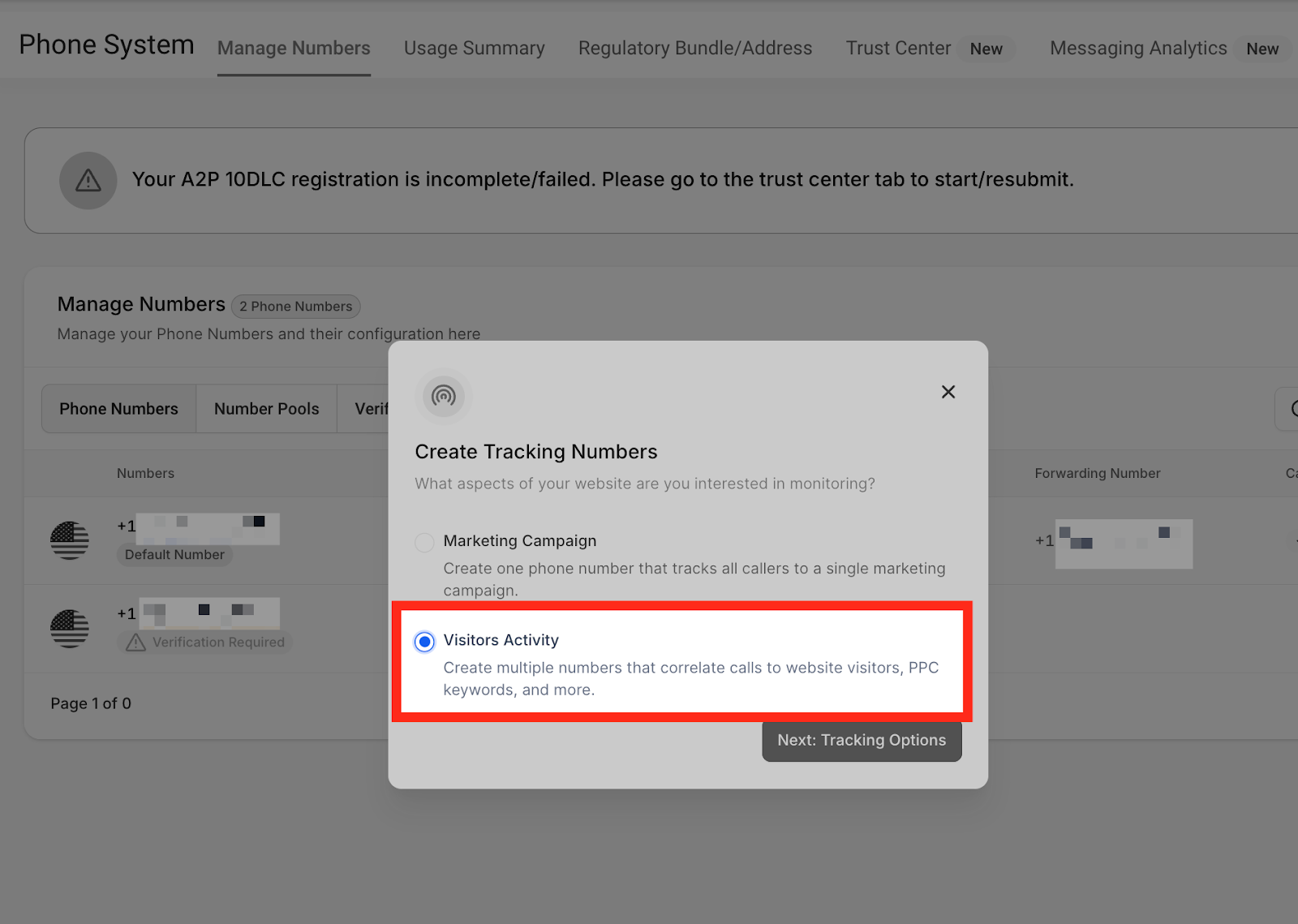
Visitors Activity
Since we are creating a number pool for call tracking purposes, we will select the “Visitors Activity” option.
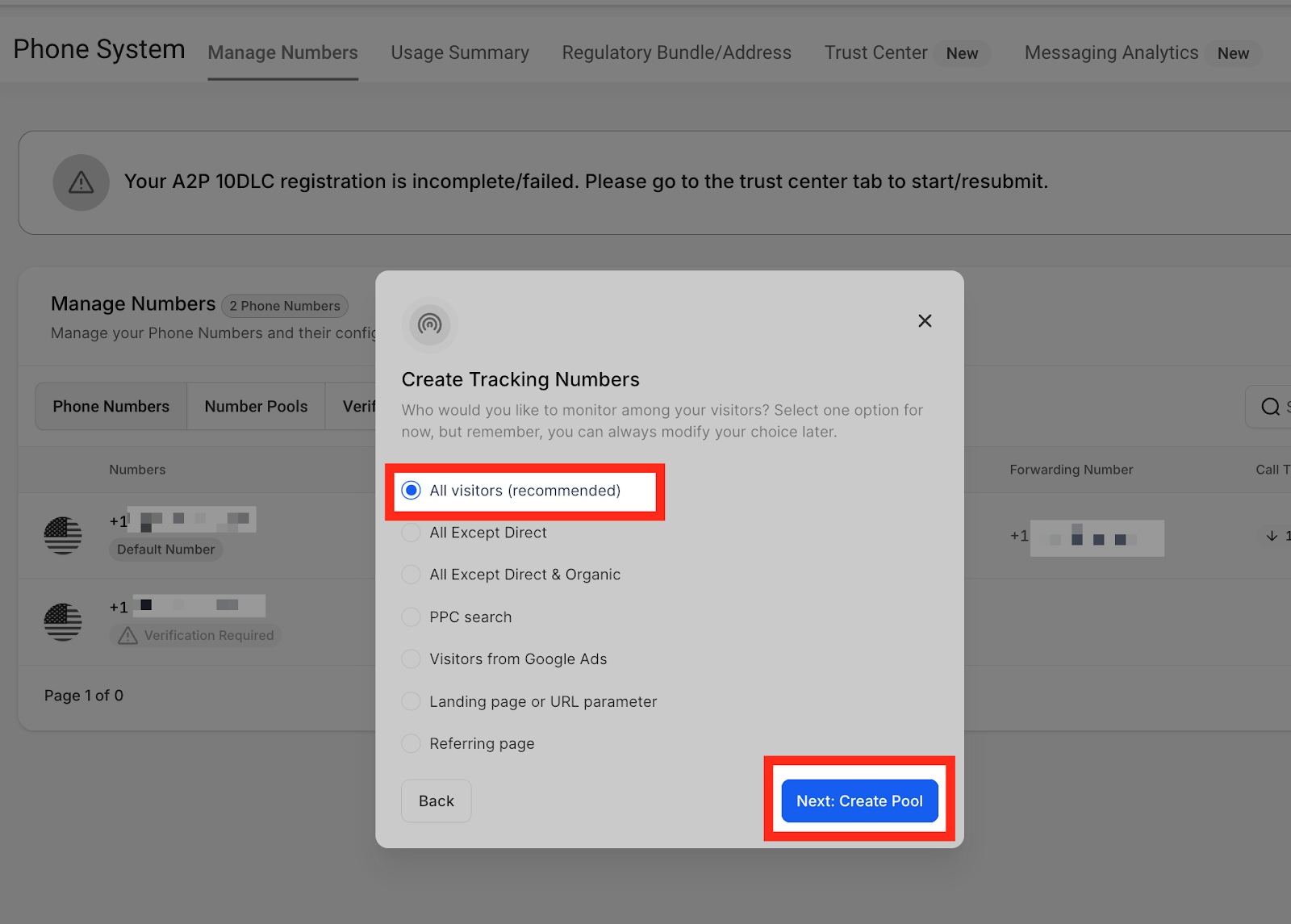
From this list, Select which visitors you want to track. Once you pick, Click on Next: Create Pool
We recommend tracking all visitors.
Note : If you select PPC search, the number on the website will only switch when the visitors are landing from a paid ad.
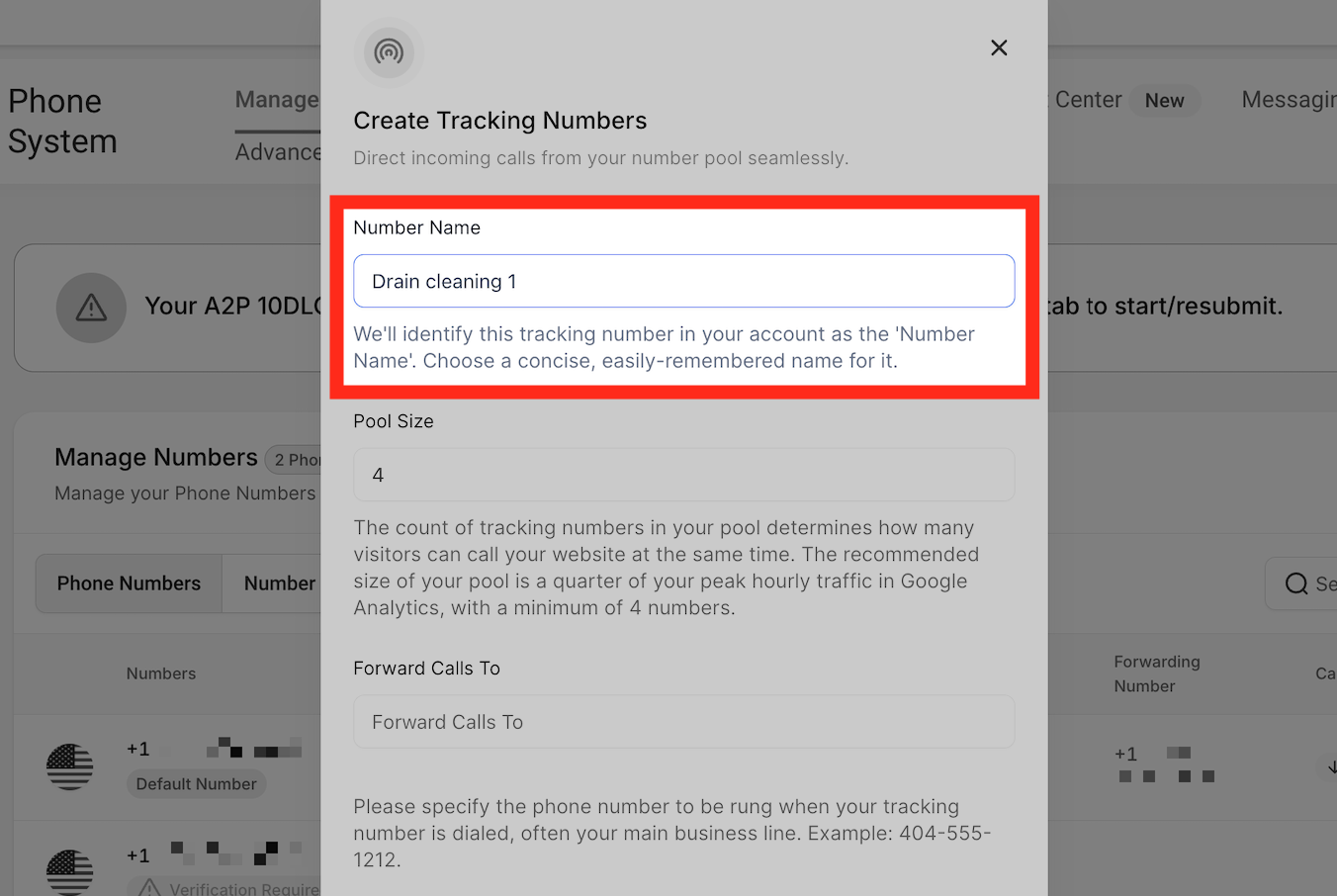
Number Name
In this field, you can name your tracking number.
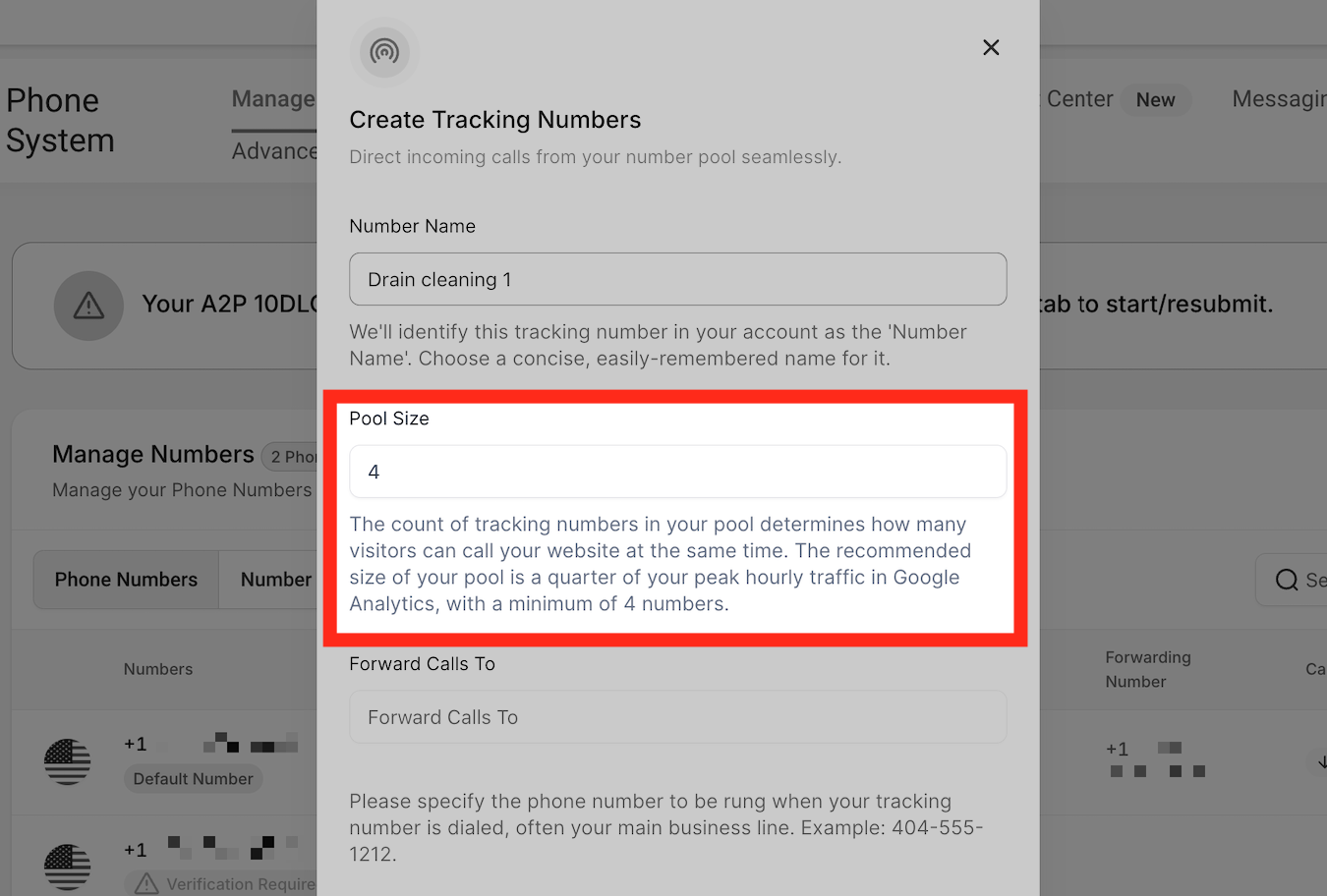
Pool Size
Each number pool has 4 tracking numbers in it. You can decide the size of the pool depending on the volume of your calls. More the volume, more tracking numbers will be needed.
Forwarding Number
Here you can enter the main business number or the number where you would like to receive calls whenever the callers dial the tracking number.

Swapping Number
Input the phone number you would like the system to update on your website. It can either be the same number as the forwarding number you have set in the previous step or you can uncheck the box to provide a different number.
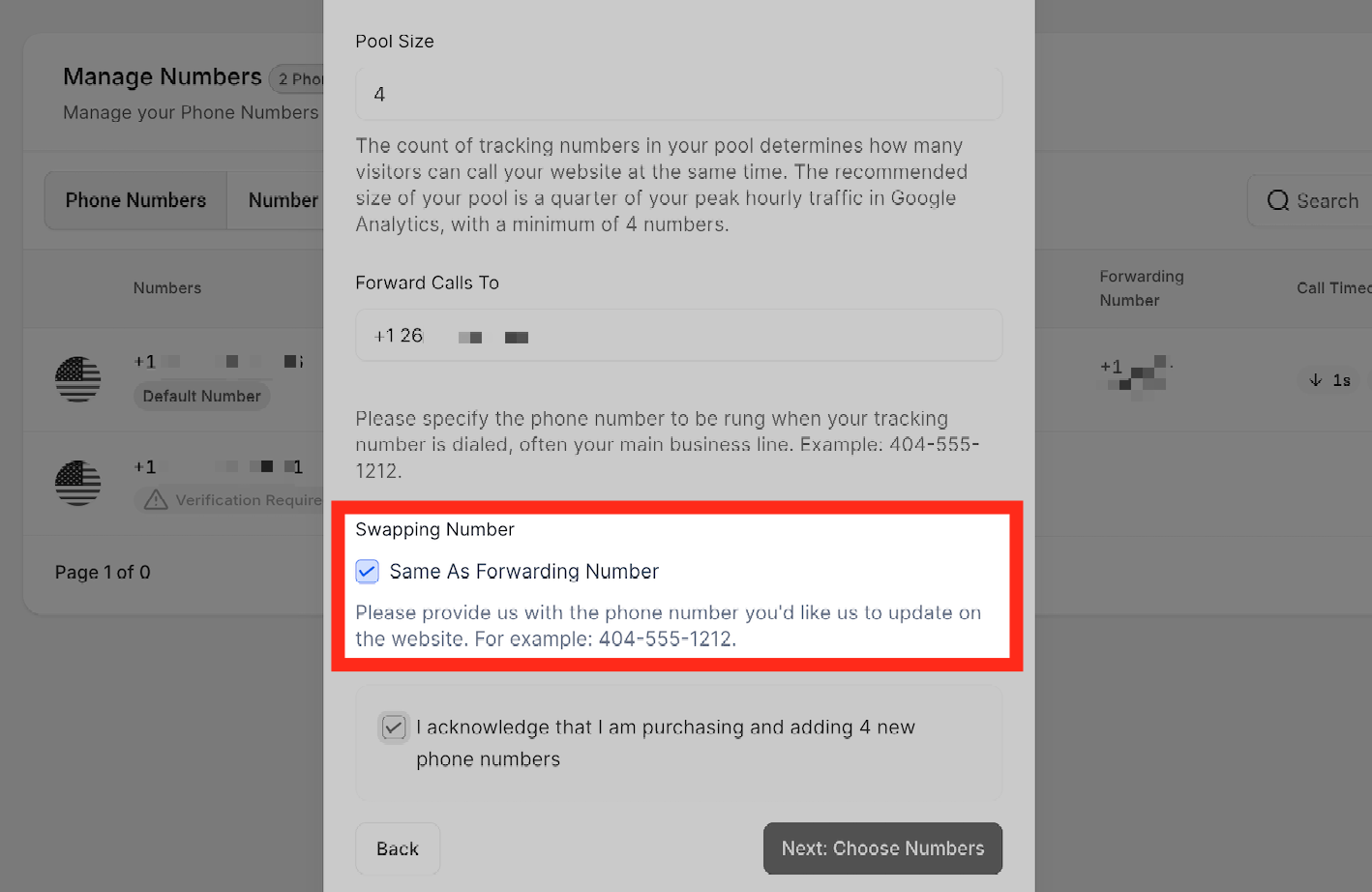
By checking this box, you acknowledge that you are purchasing 4 new phone number to add to your number pool.
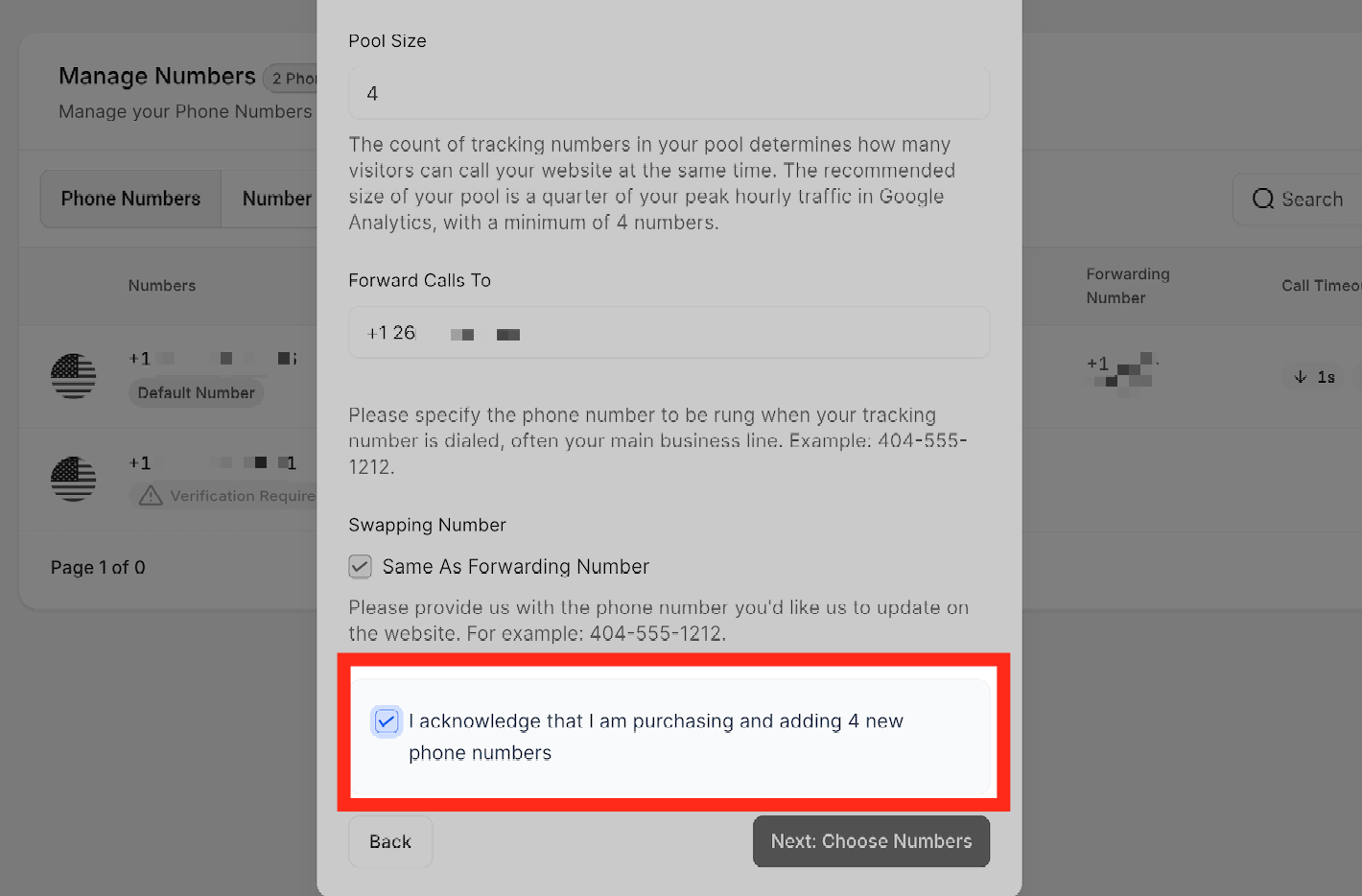
Once you fill out all information, Click on Next: Choose Numbers.
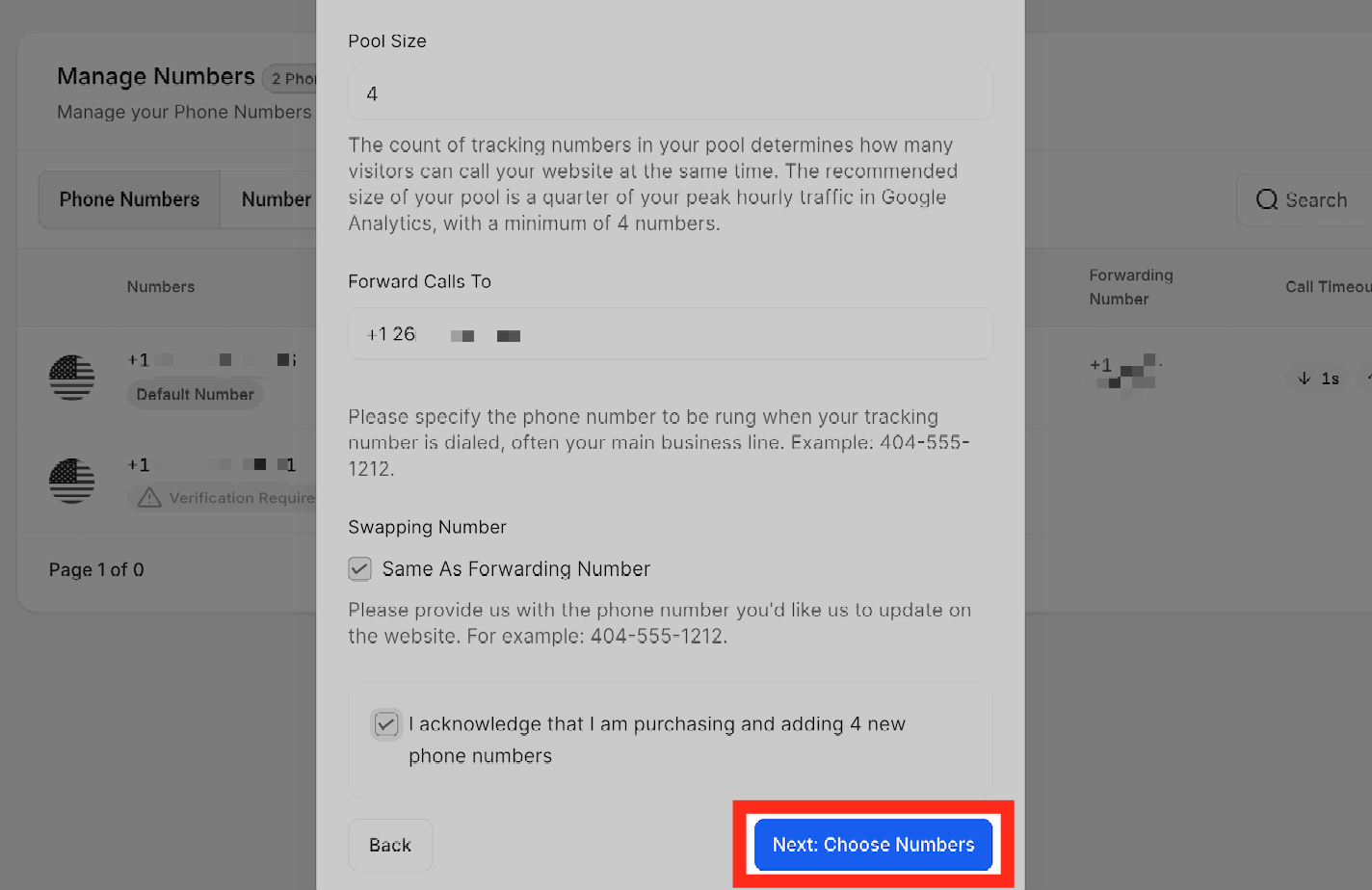
When creating a tracking number, You have the option to choose Phone number(s) local to the area code, a toll free number or numbers from any given area code.
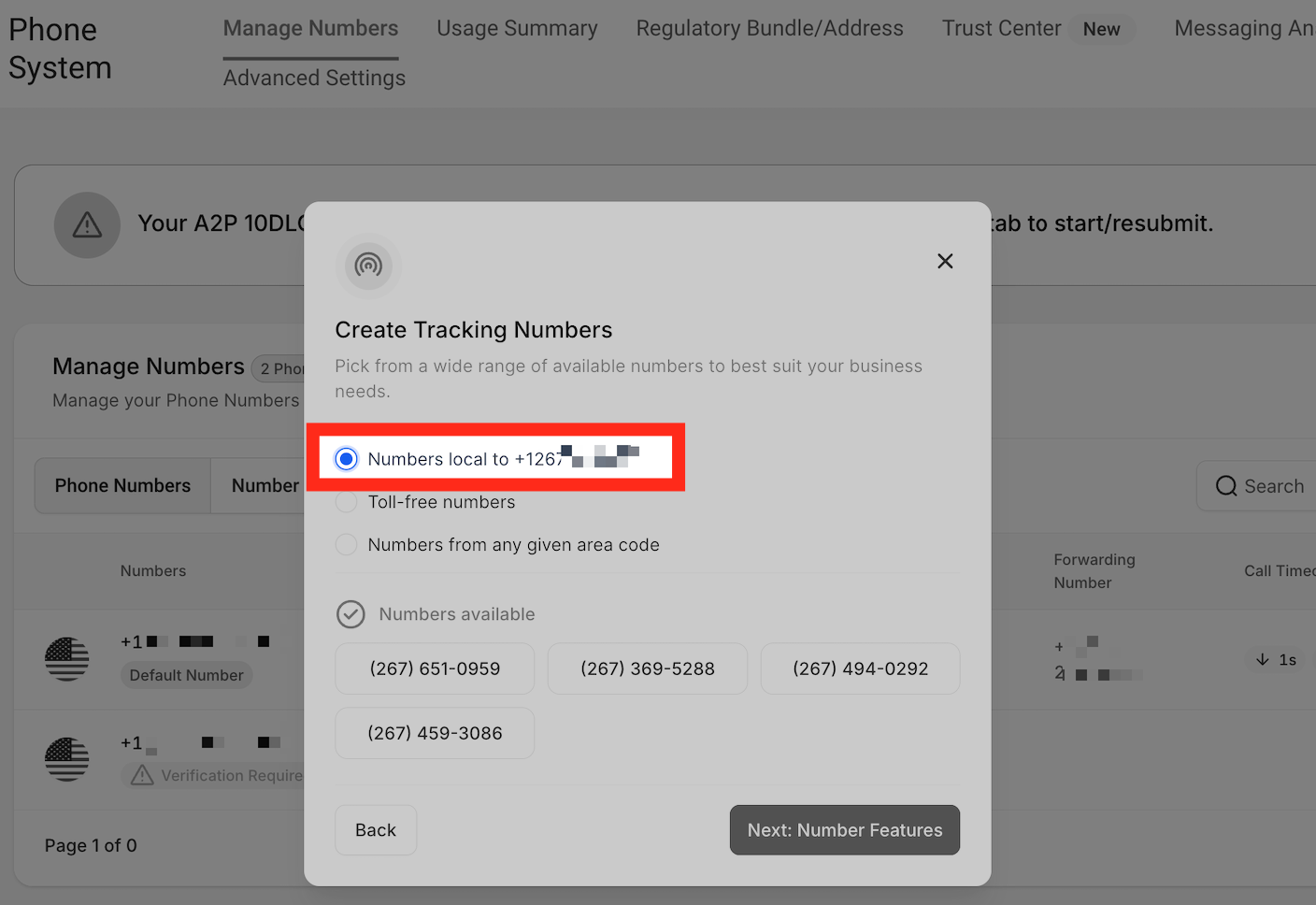
Local Number
When you select a local number, you will be shown 4 different phone numbers local to the phone number you have set as a “Forwarding Number” in the beginning of this process.
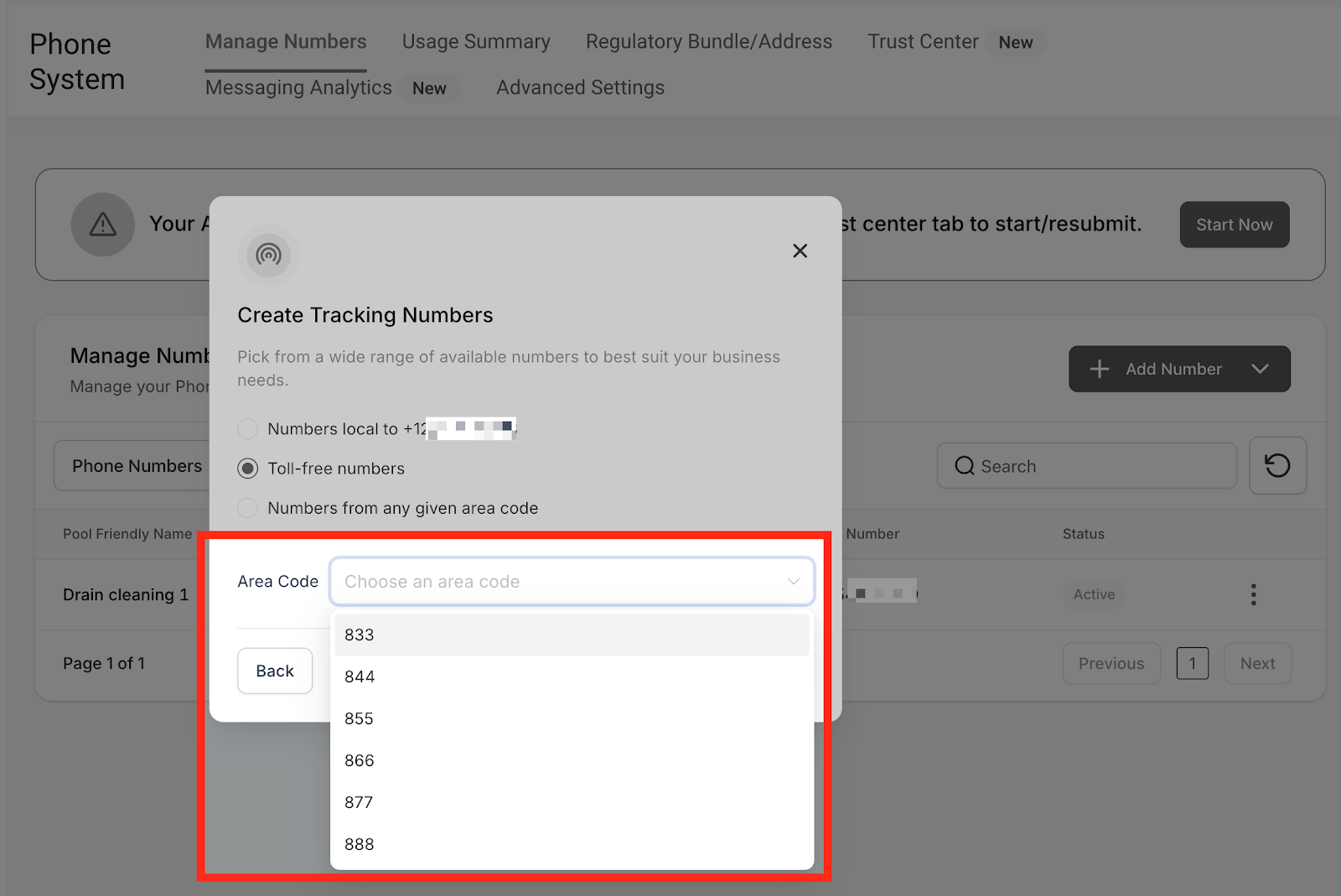
Toll-free numbers
The second option gives you the ability to choose toll free numbers for your number pool. you can go for this option when there are no numbers available in your desired area code.
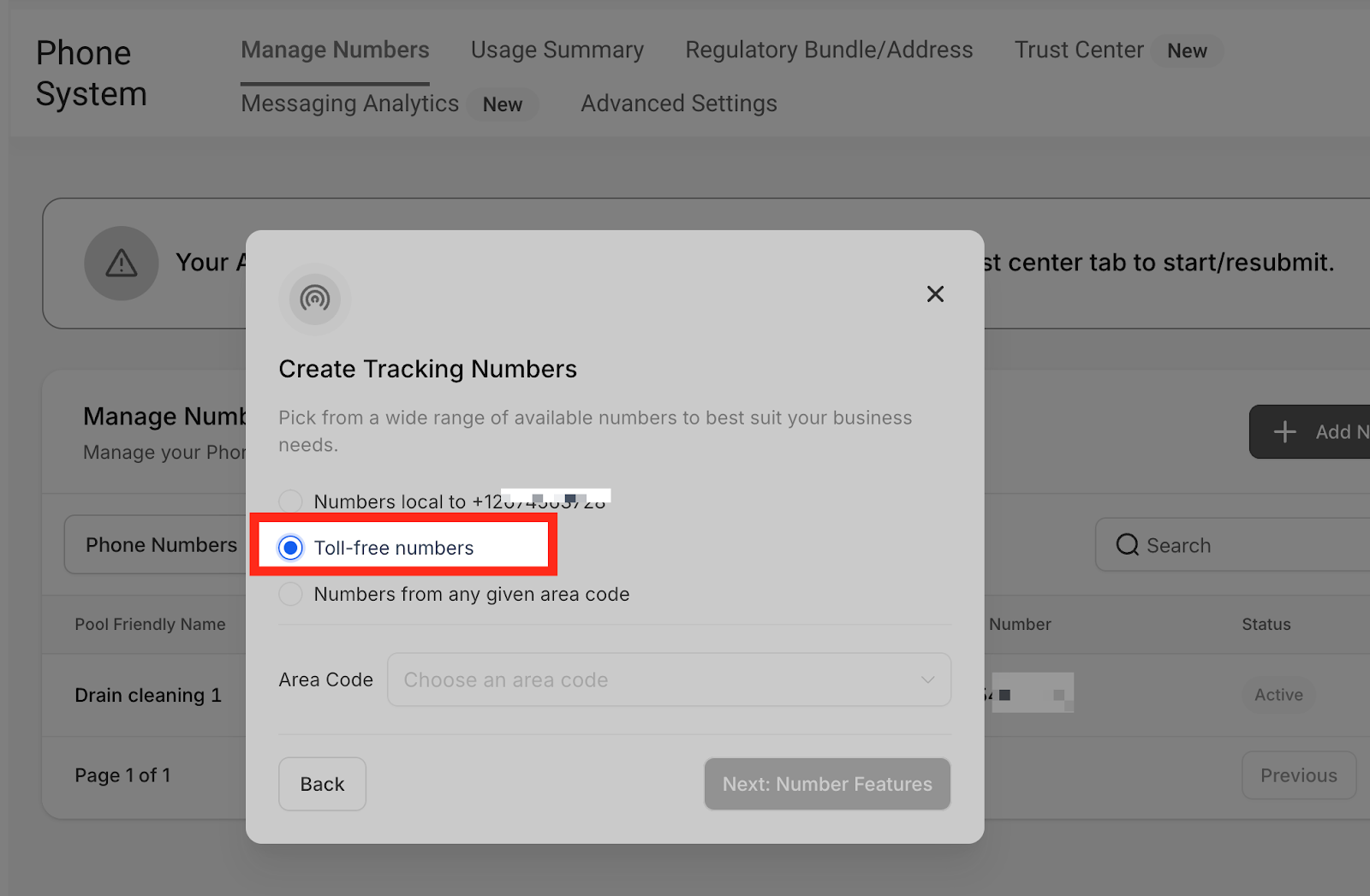
To see the available toll-free numbers, Choose the area code from the dropdown menu.
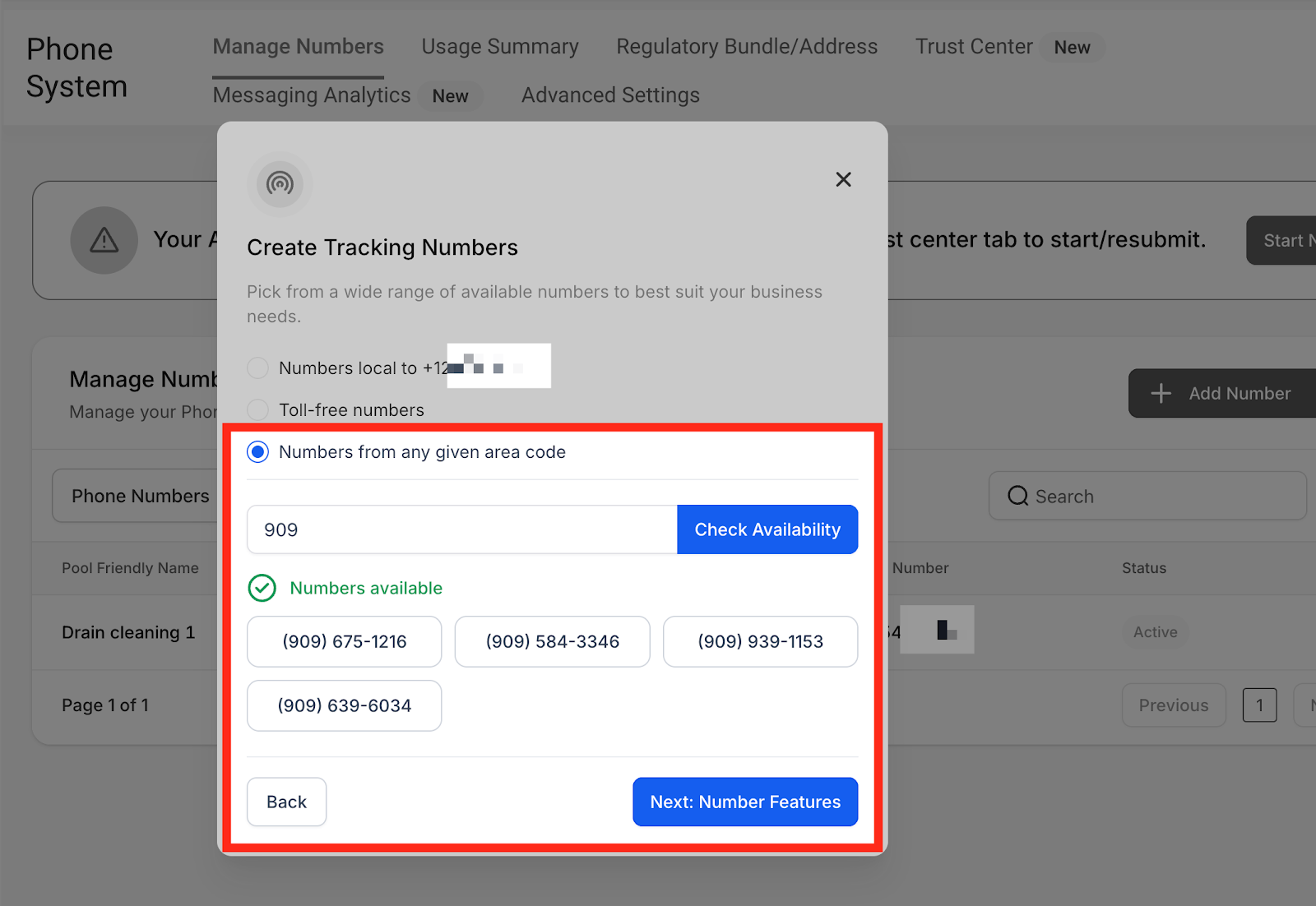
Numbers from any given area code
If you are open to choose a phone number from a different region, just type the area code and click “Check Availability” and you will see the available phone numbers in a few seconds.
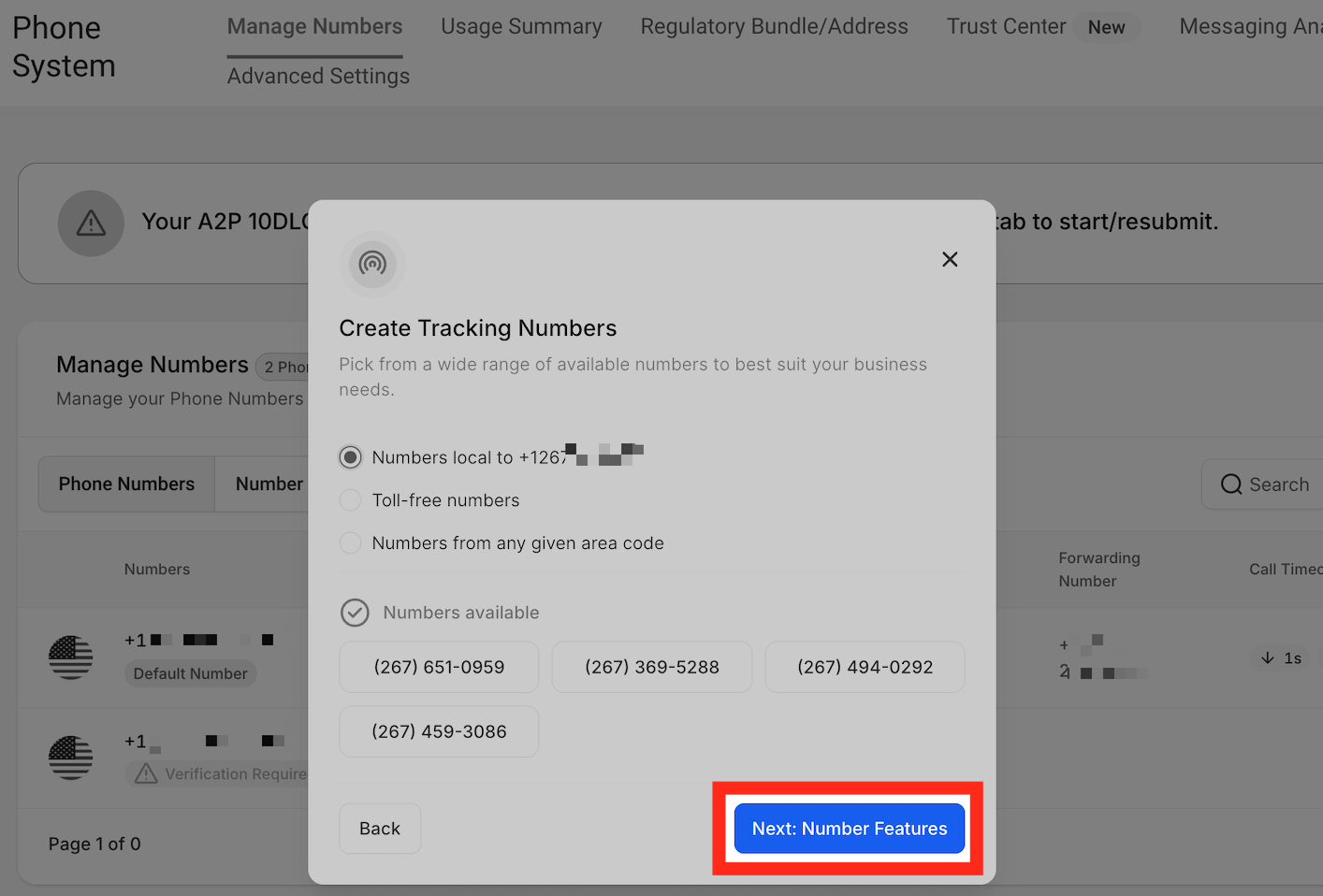
If you have created a tracking number from any of the 3 methods above, Lets go to the next steps. Click “Next : Number Features.”
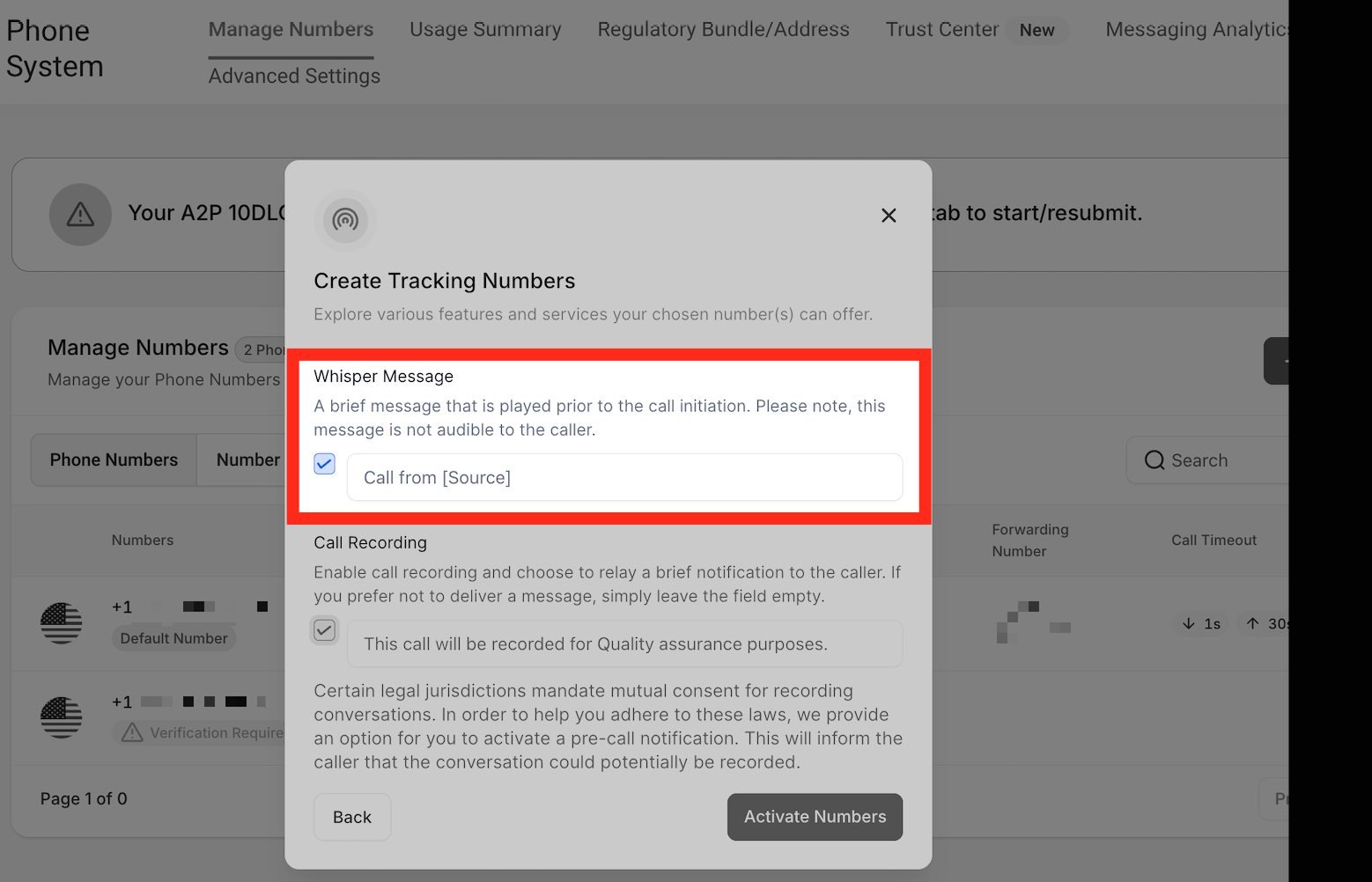
Whisper Message
When you receive a call, you will hear this message. If you set the whisper message as “Call from (Source)” then the whisper message will be something like “Call from an ad campaign.” The caller cannot hear this message. This is only for you as a CRM user to hear.
Call recording
Here you can use the check box to allow the system to record the calls and also customize the message the caller should hear such as “This call will be recorded for quality assurance purposes.”
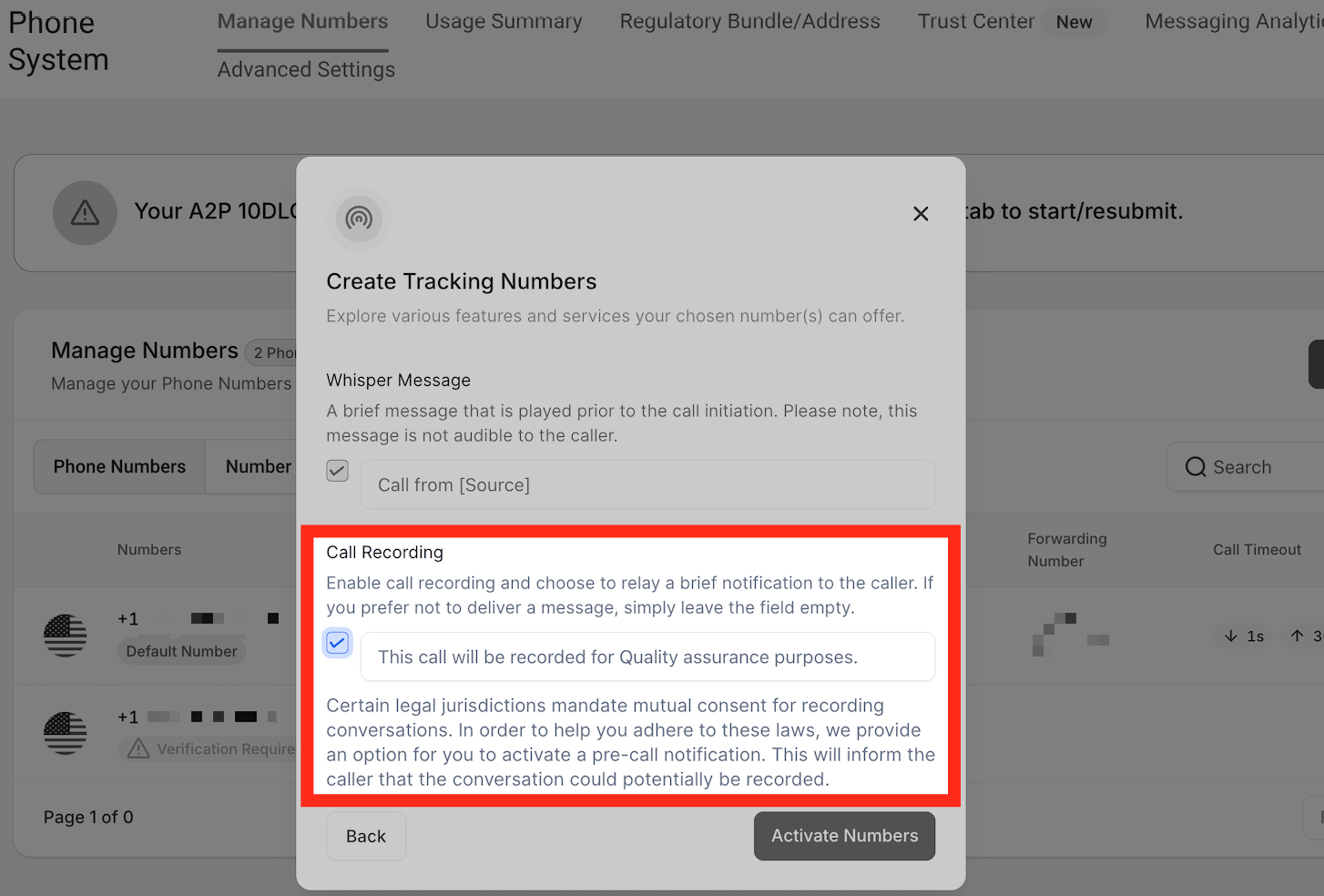
Click on Activate Number
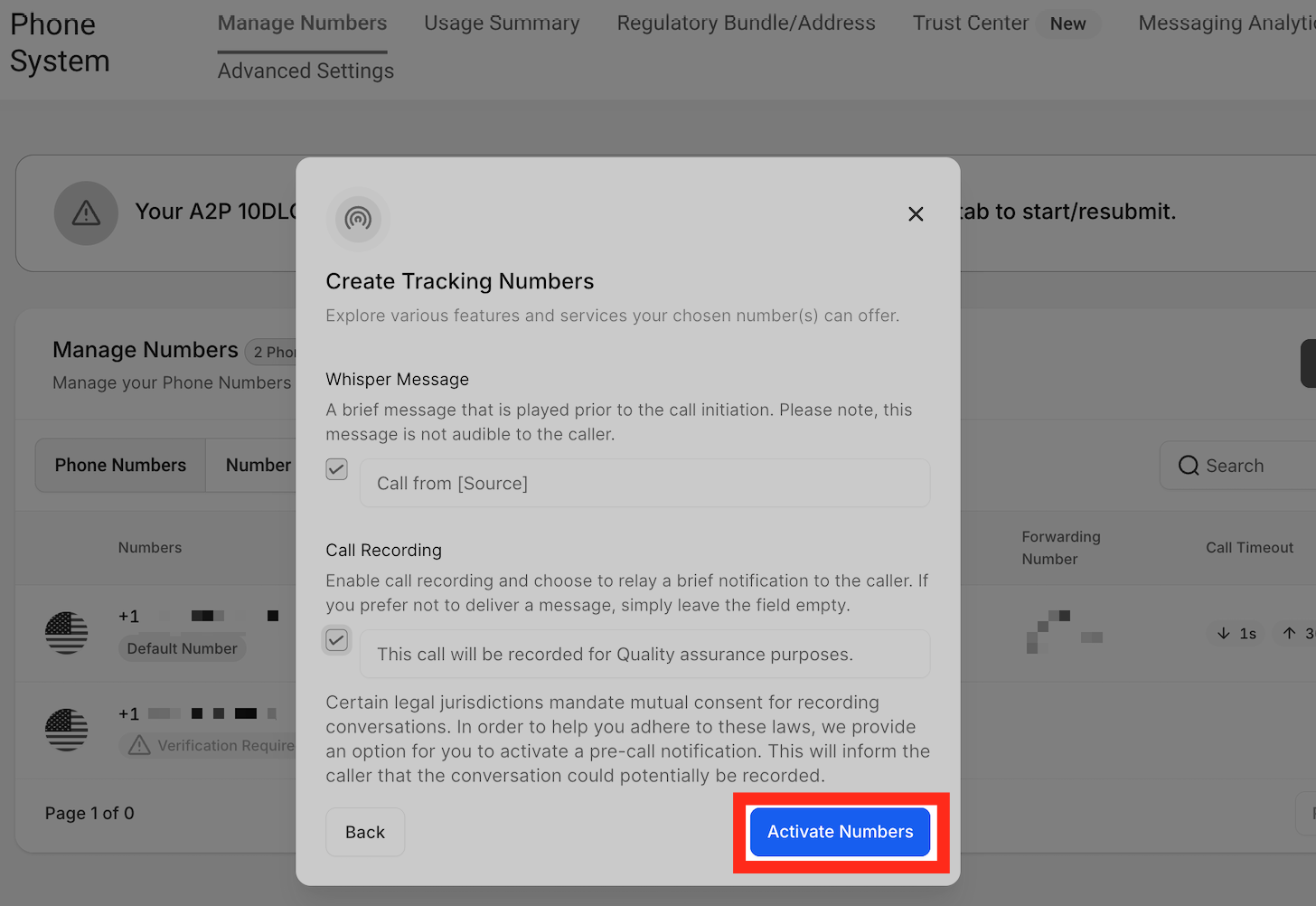
Integrating the Snippet
Once you set up the number pool, you will need to integrate the snippet on your website. below is the step by step process :
Go to Number Pools option.
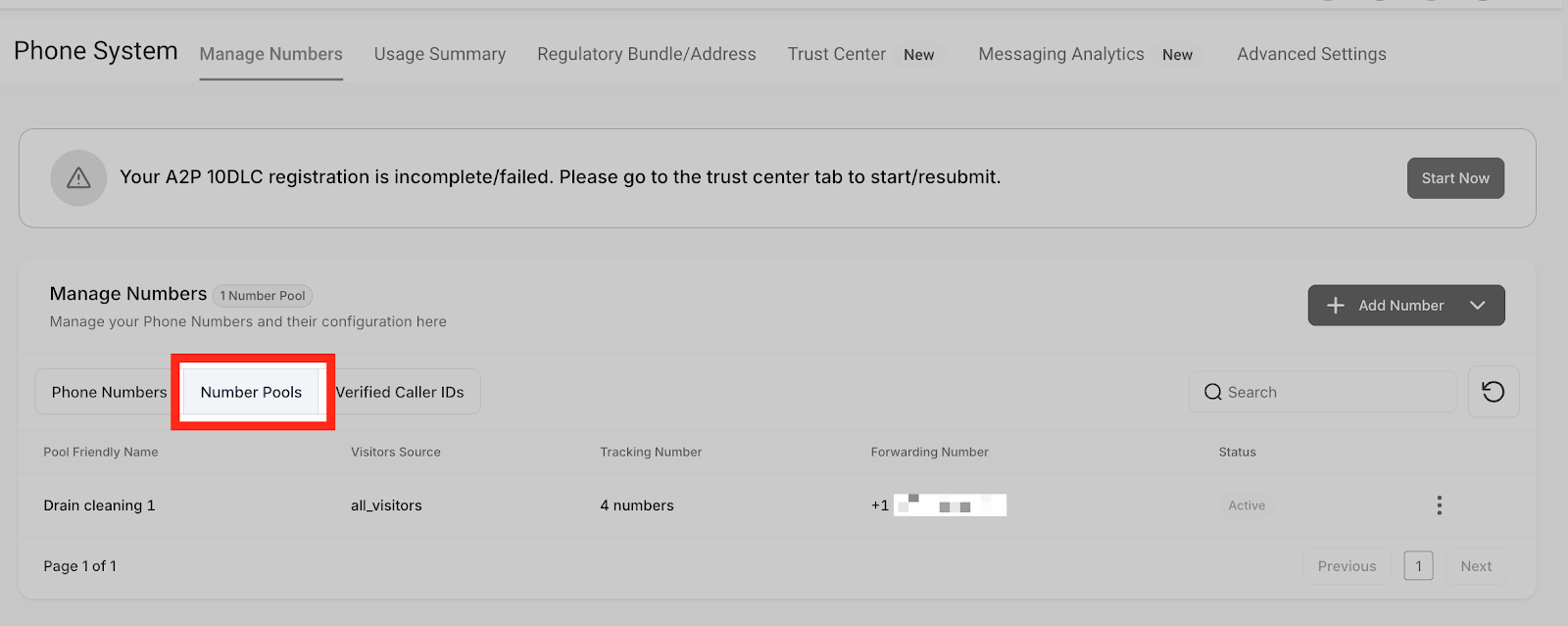
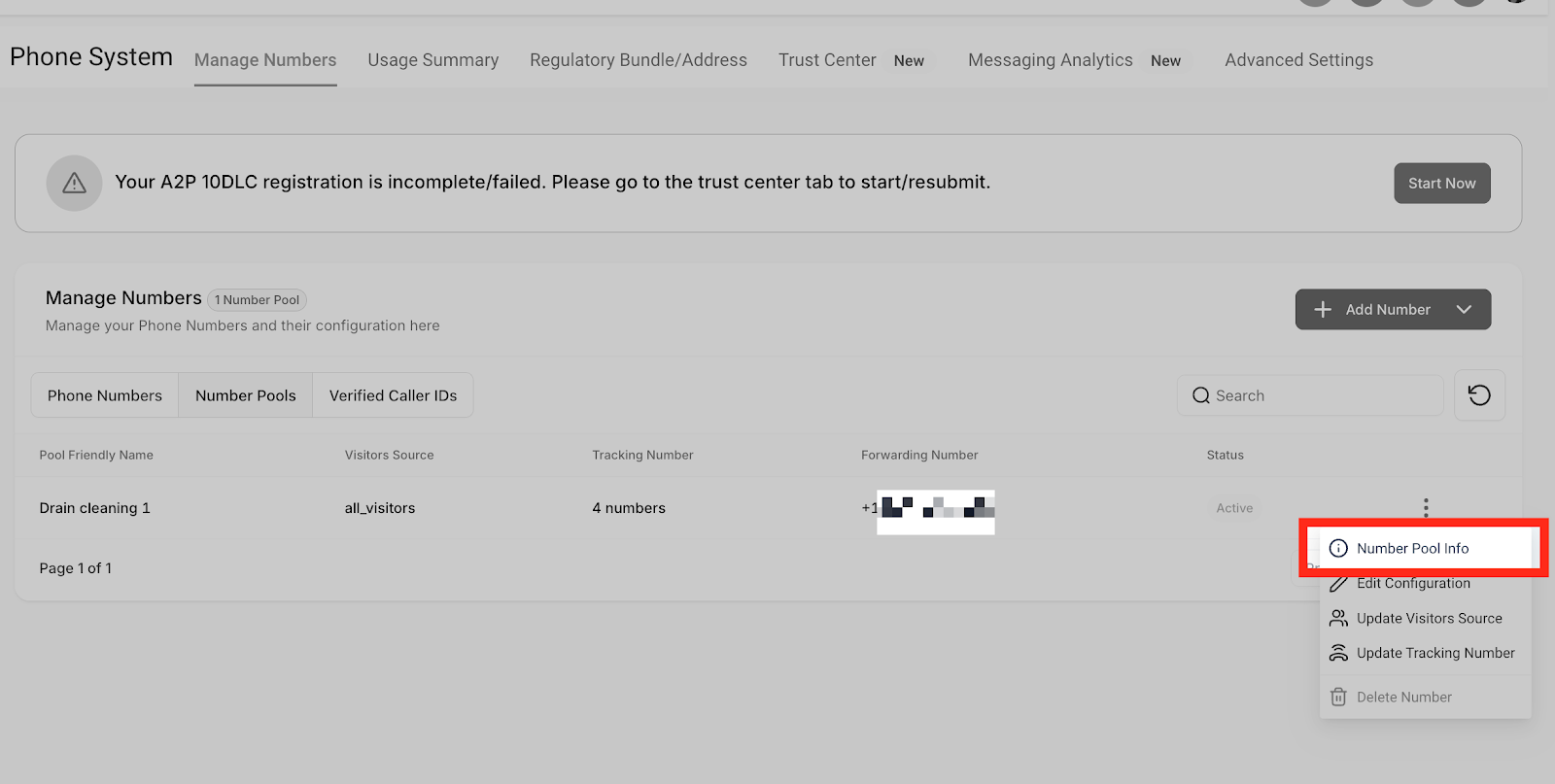
Go to the number pool you want to use. Click three dots.
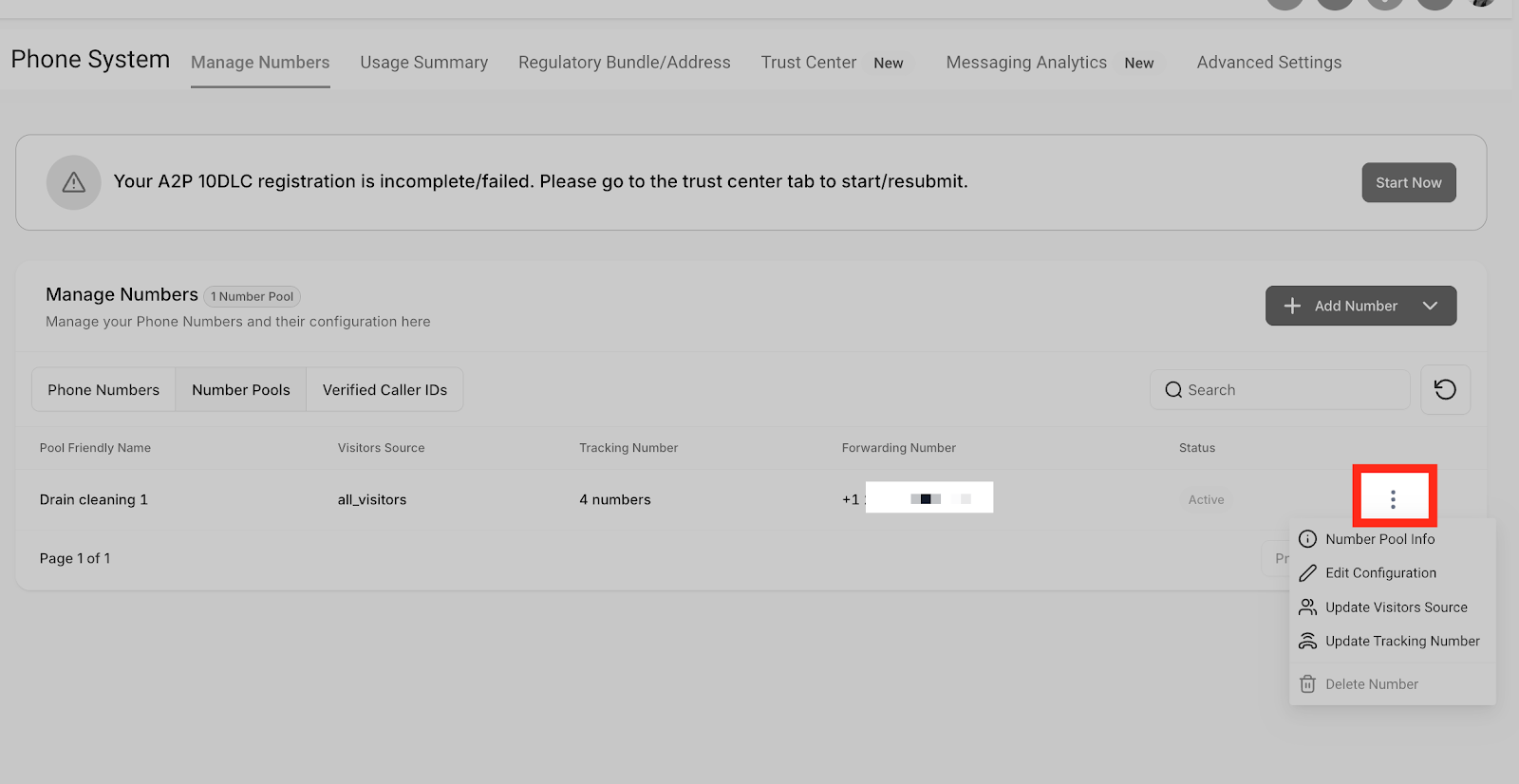
Click “Number Pool Info”
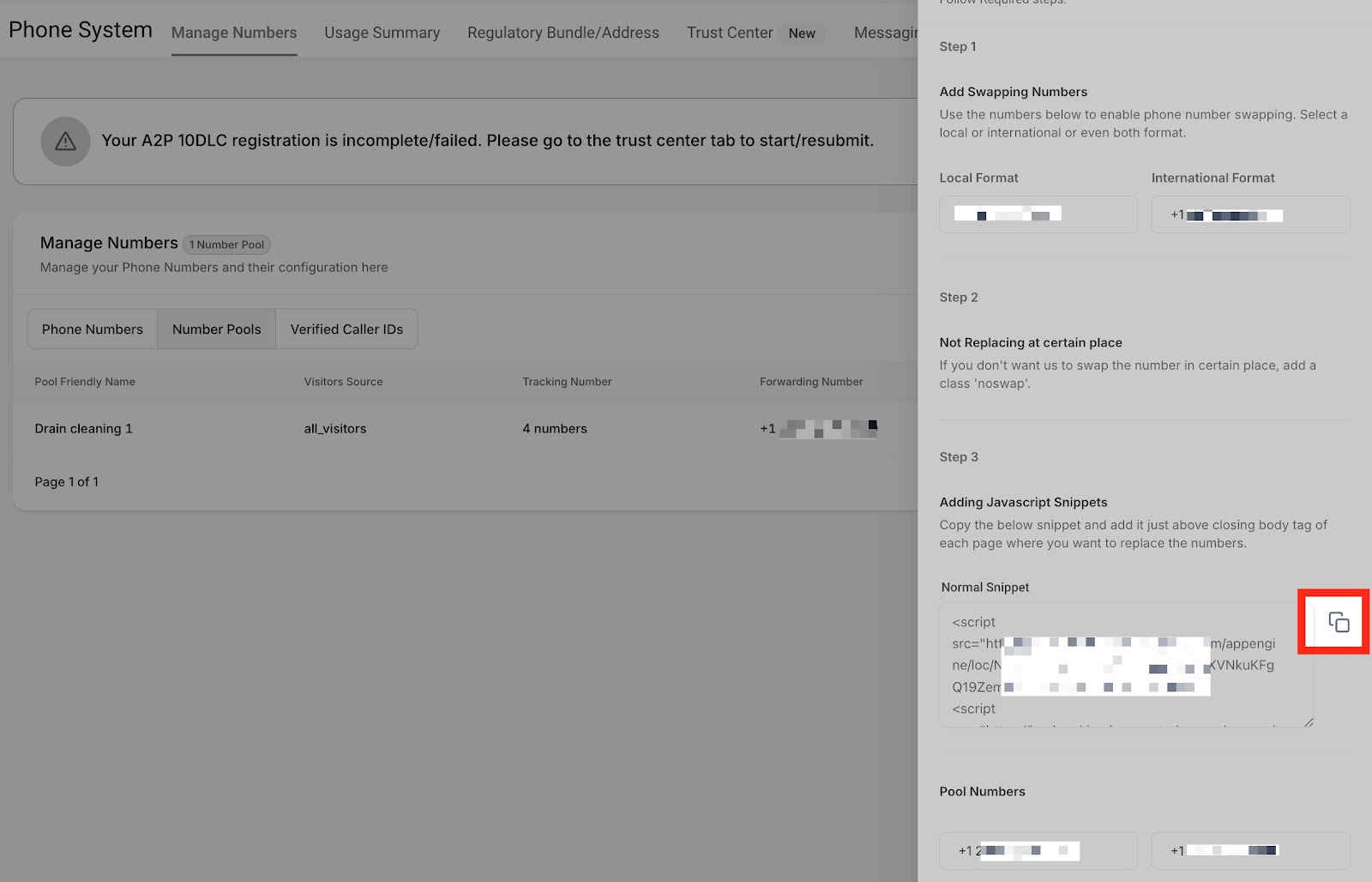
Copy the “Normal Snippet Code.” This is the code we need to paste onto the Website/Funnel.
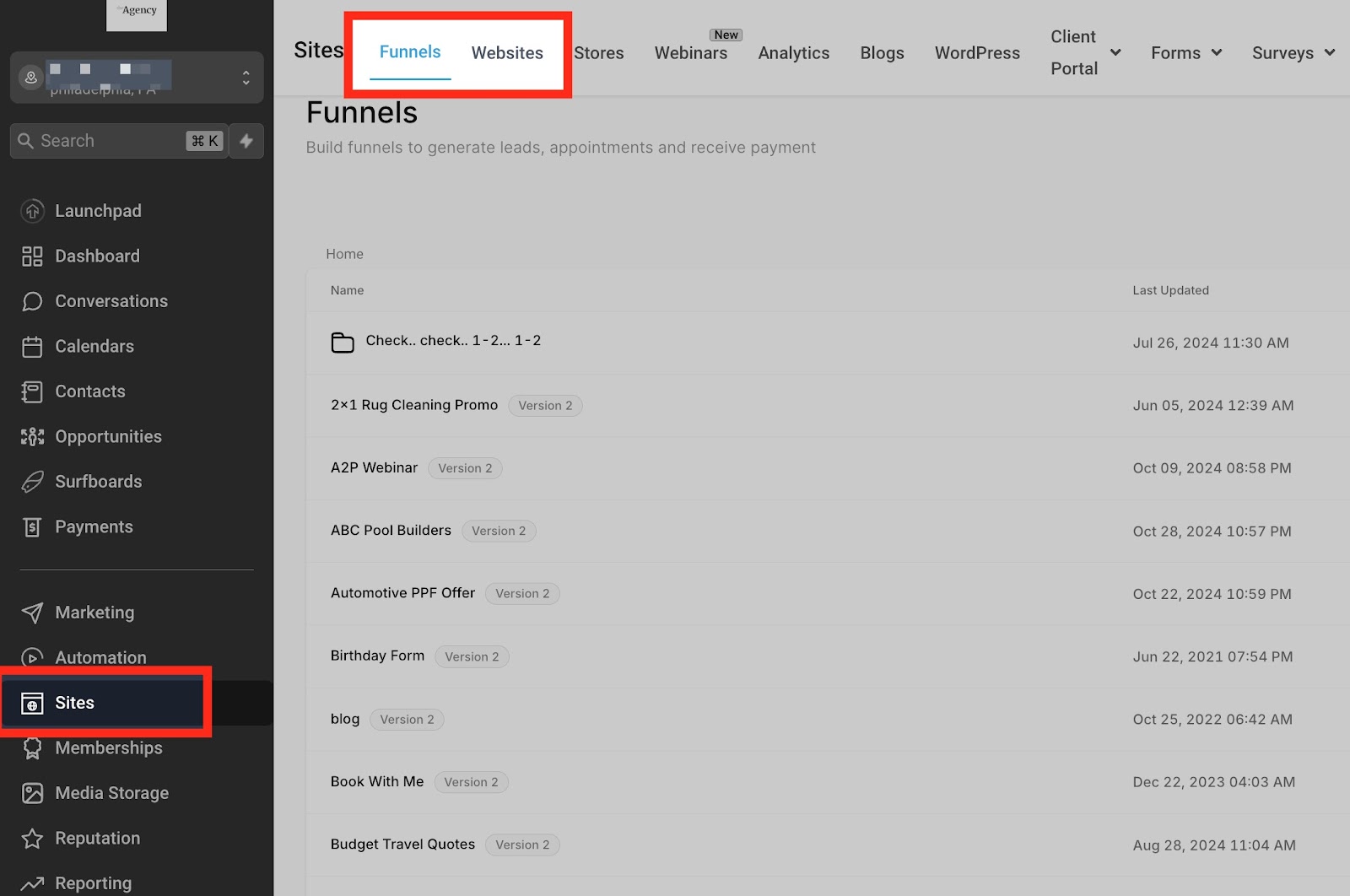
Head over to the “Sites” section. Click on Funnels or Websites.
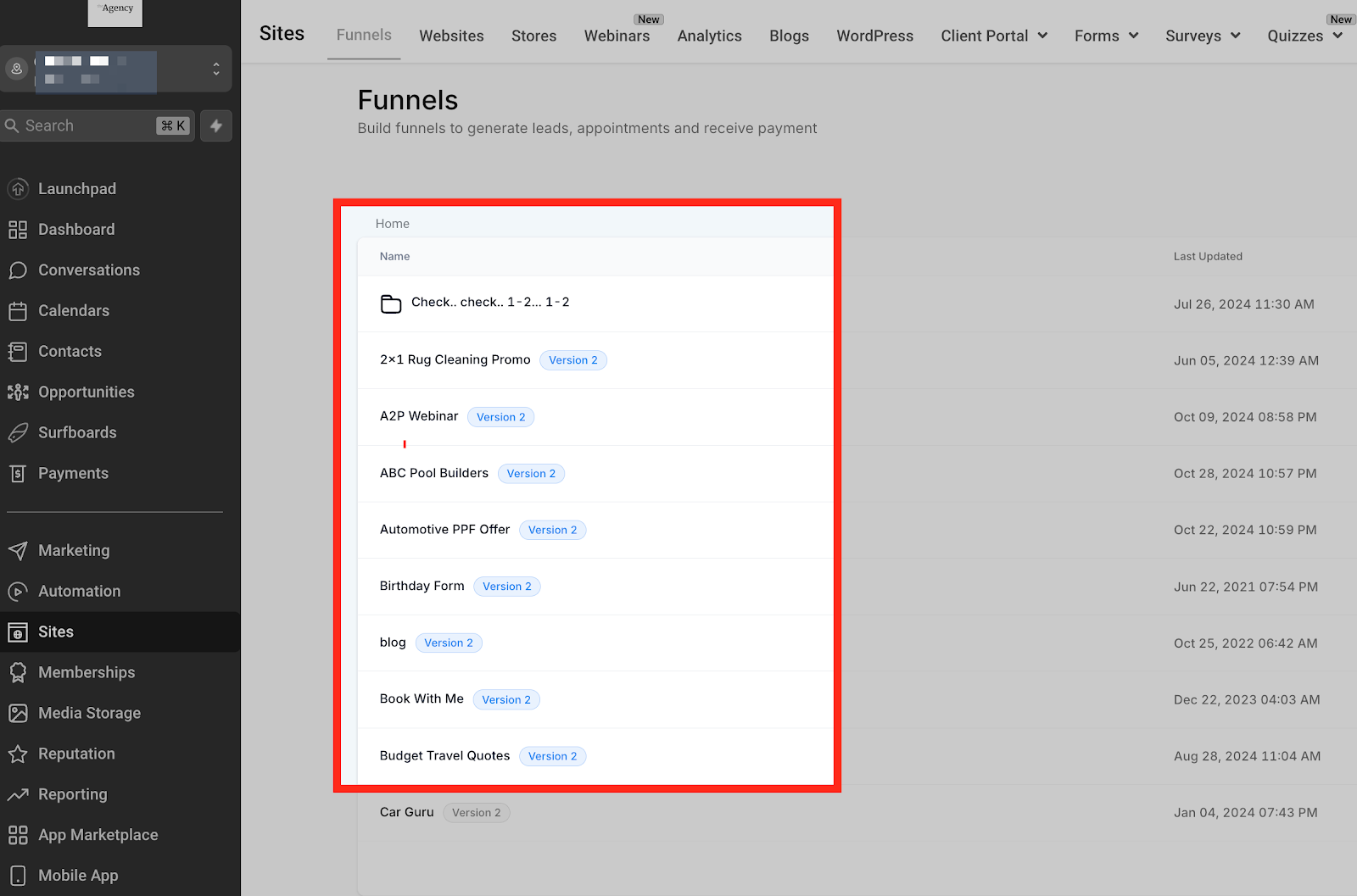
Click the funnel where you want to use the number pool.
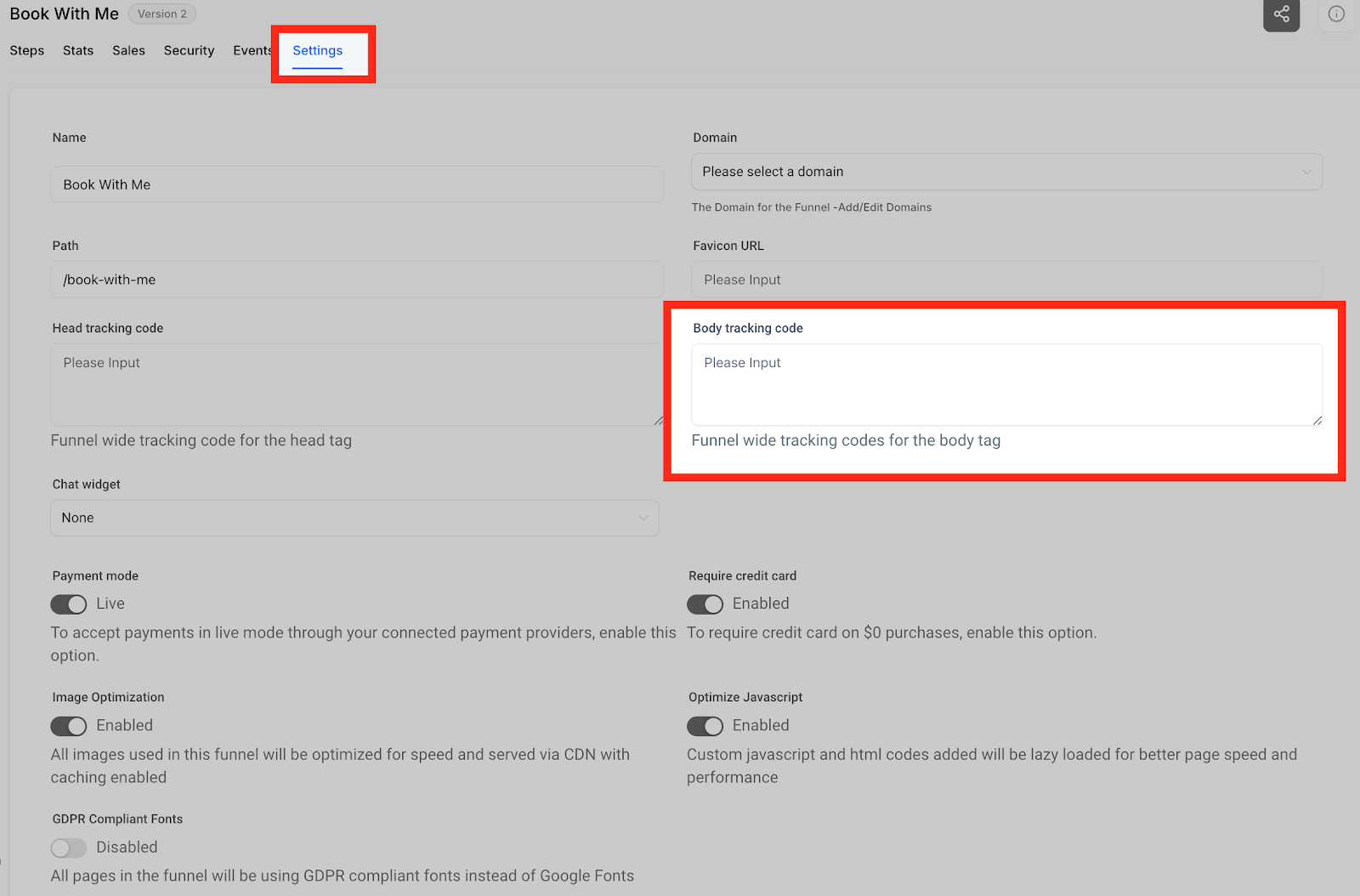
Once you are inside the funnel/website, click the “Settings” tab. Now Paste the copied Normal snippet at the bottom of your Body Tracking code field.
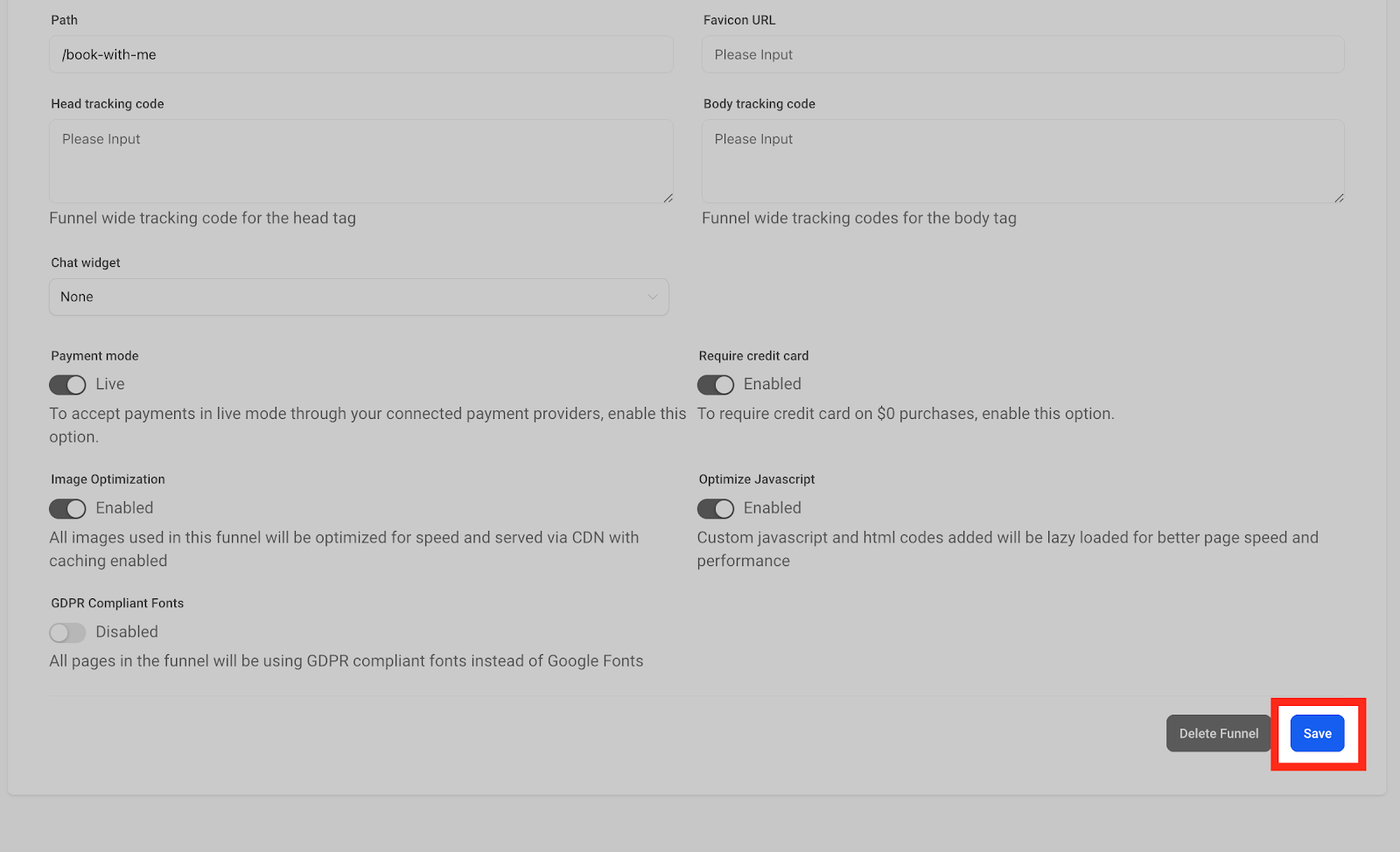
Click Save. This will swap the number within the entire Funnels/Websites.
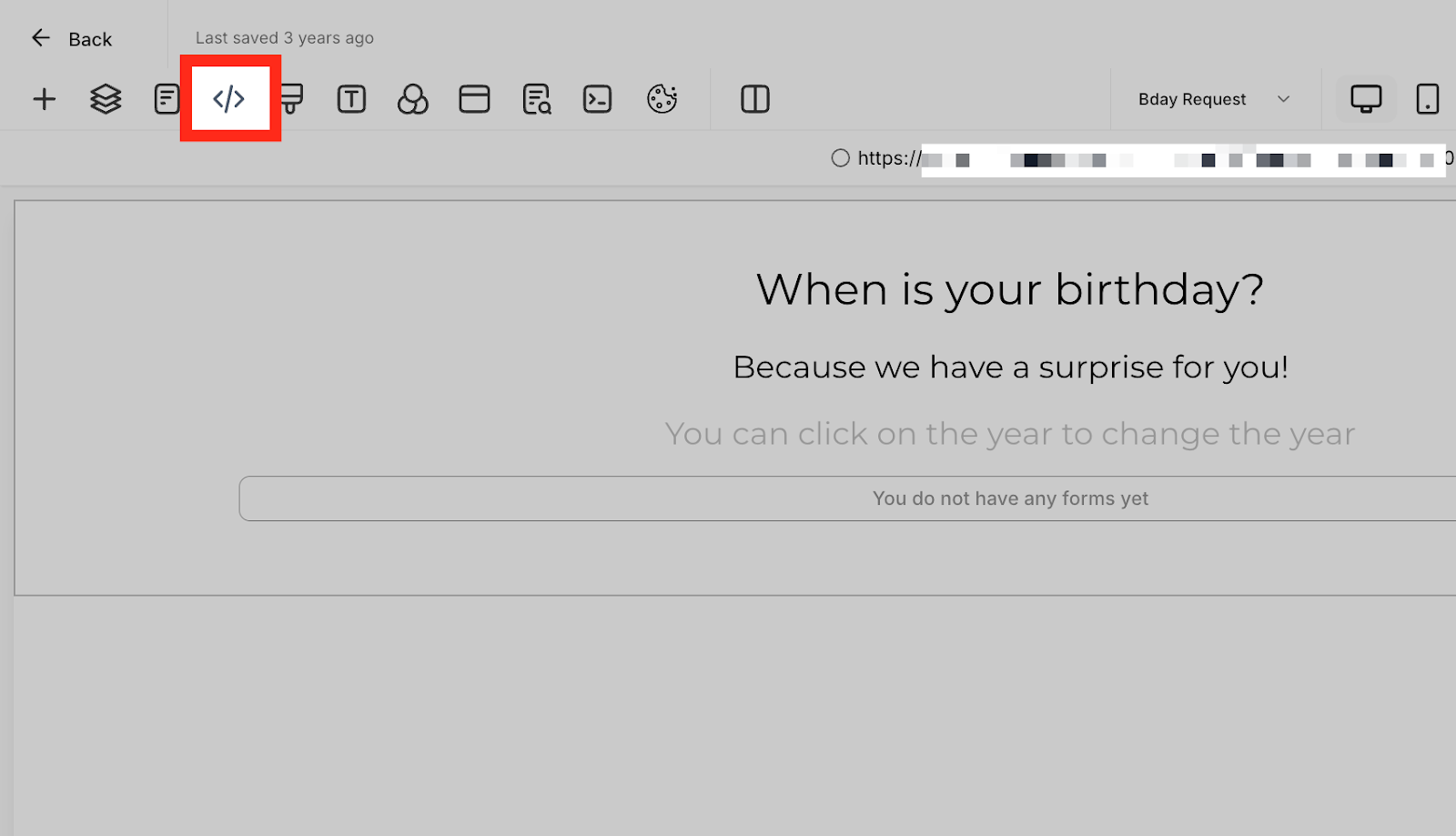
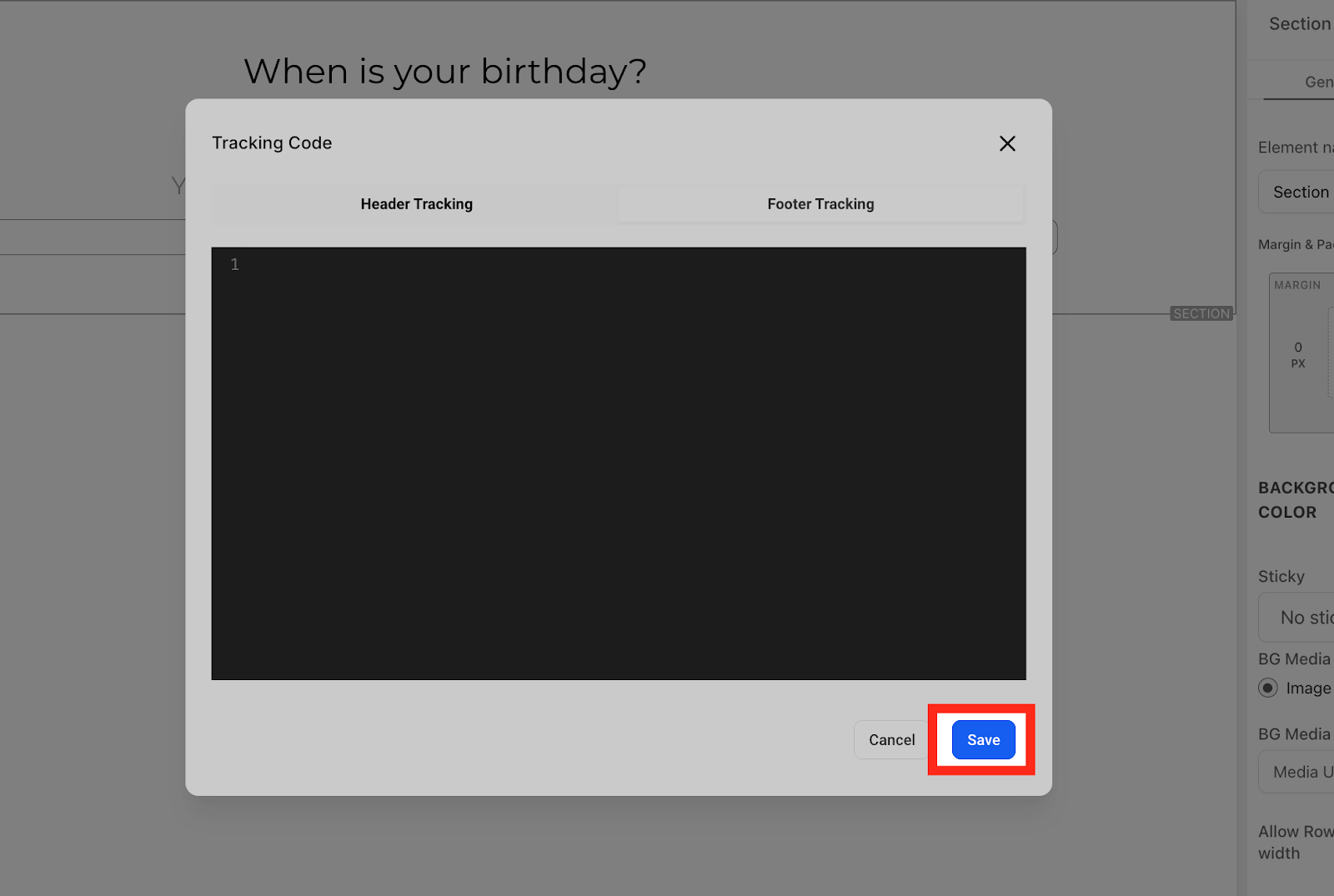
If you want the number to swap on one single funnel/website page, click the Tracking Code icon at the top left side.
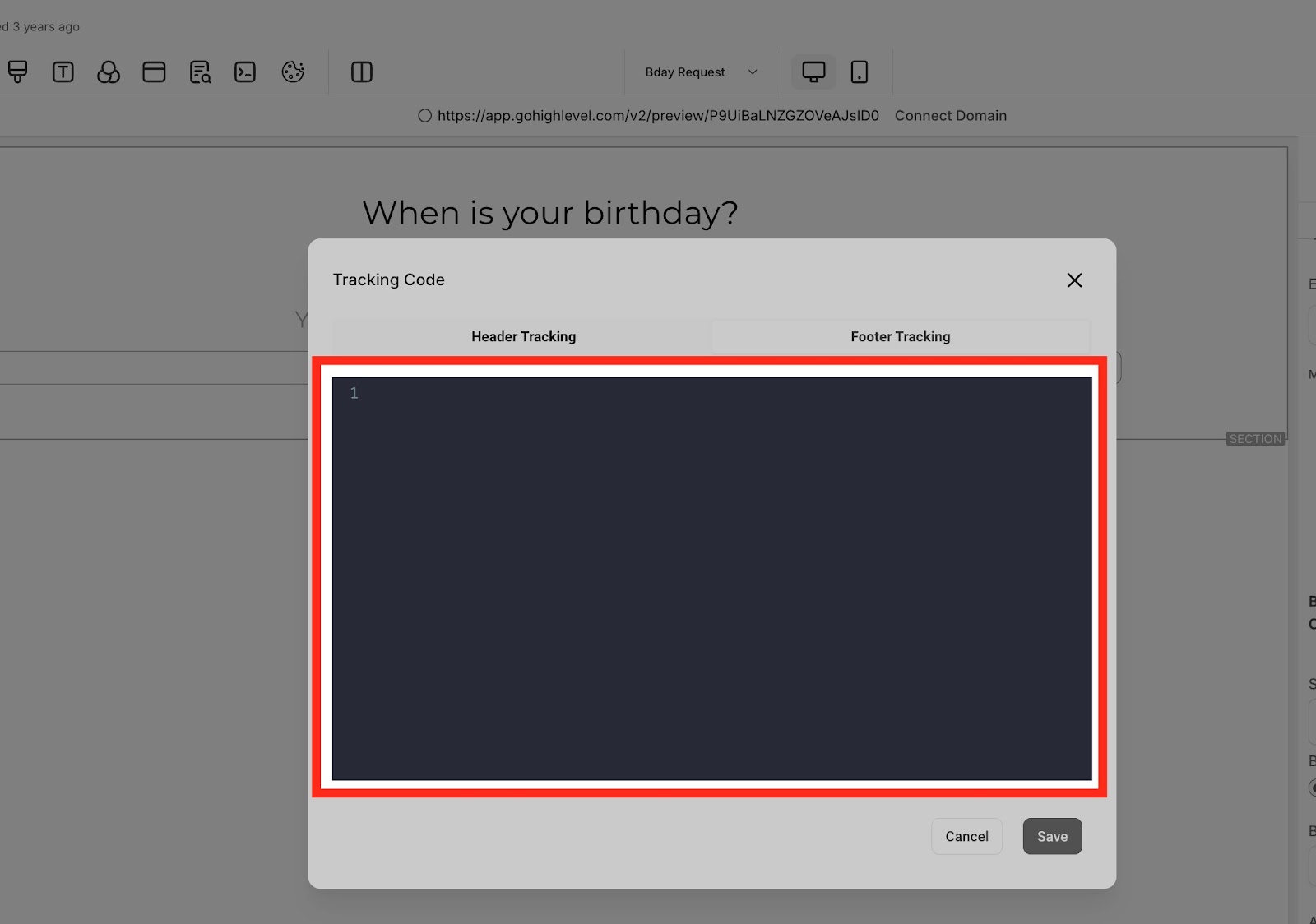
Click the “Footer Tracking” option at the right side.

Now paste the code in the code editor.
Click “Save” to proceed ahead.
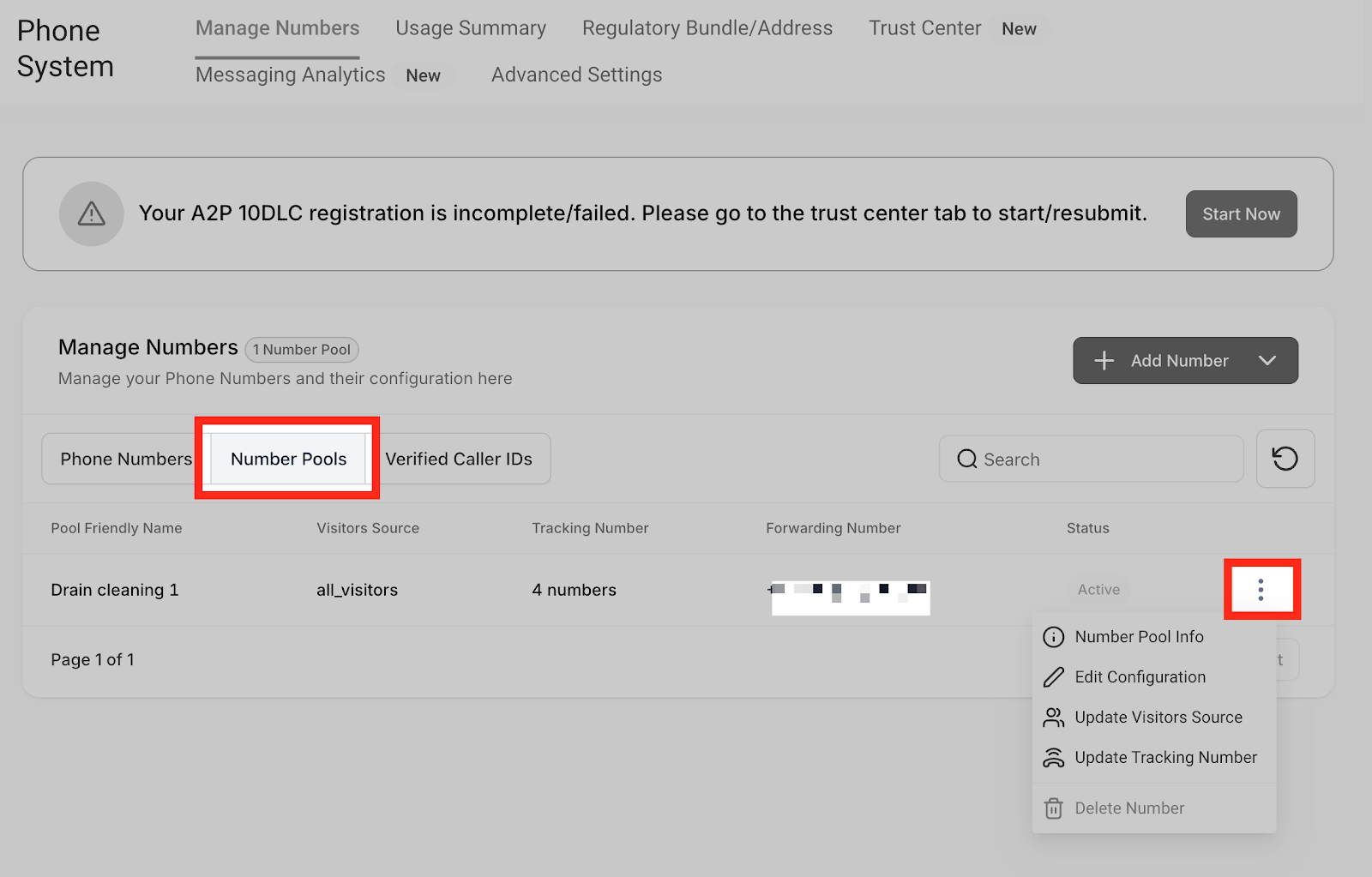
Go back to our number pool setup. Hover over the number pool you just created and Click the three dots menu.
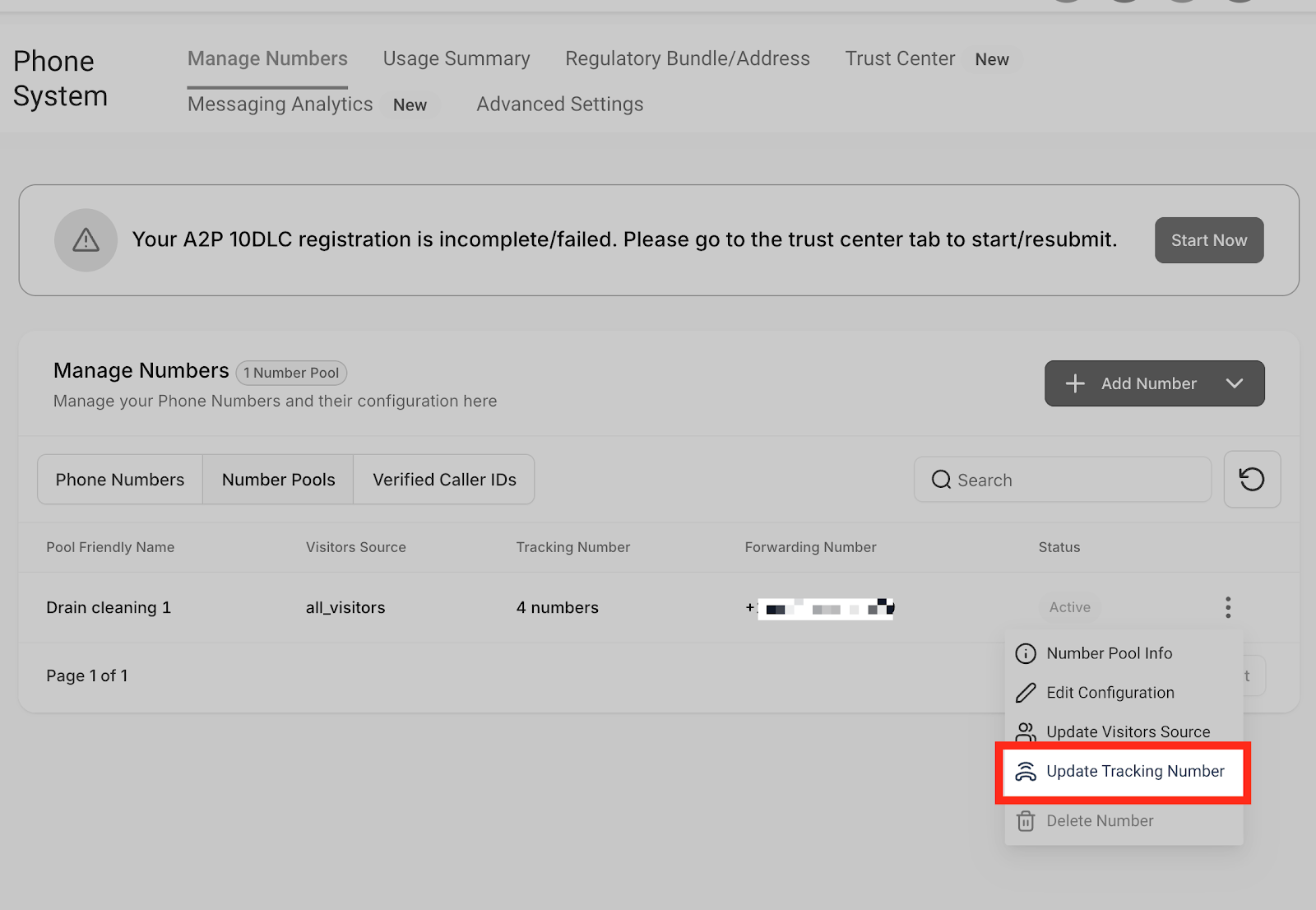
Click on “Update Tracking Number.”
Copy the swapping Number and paste it on the Funnels/websites.
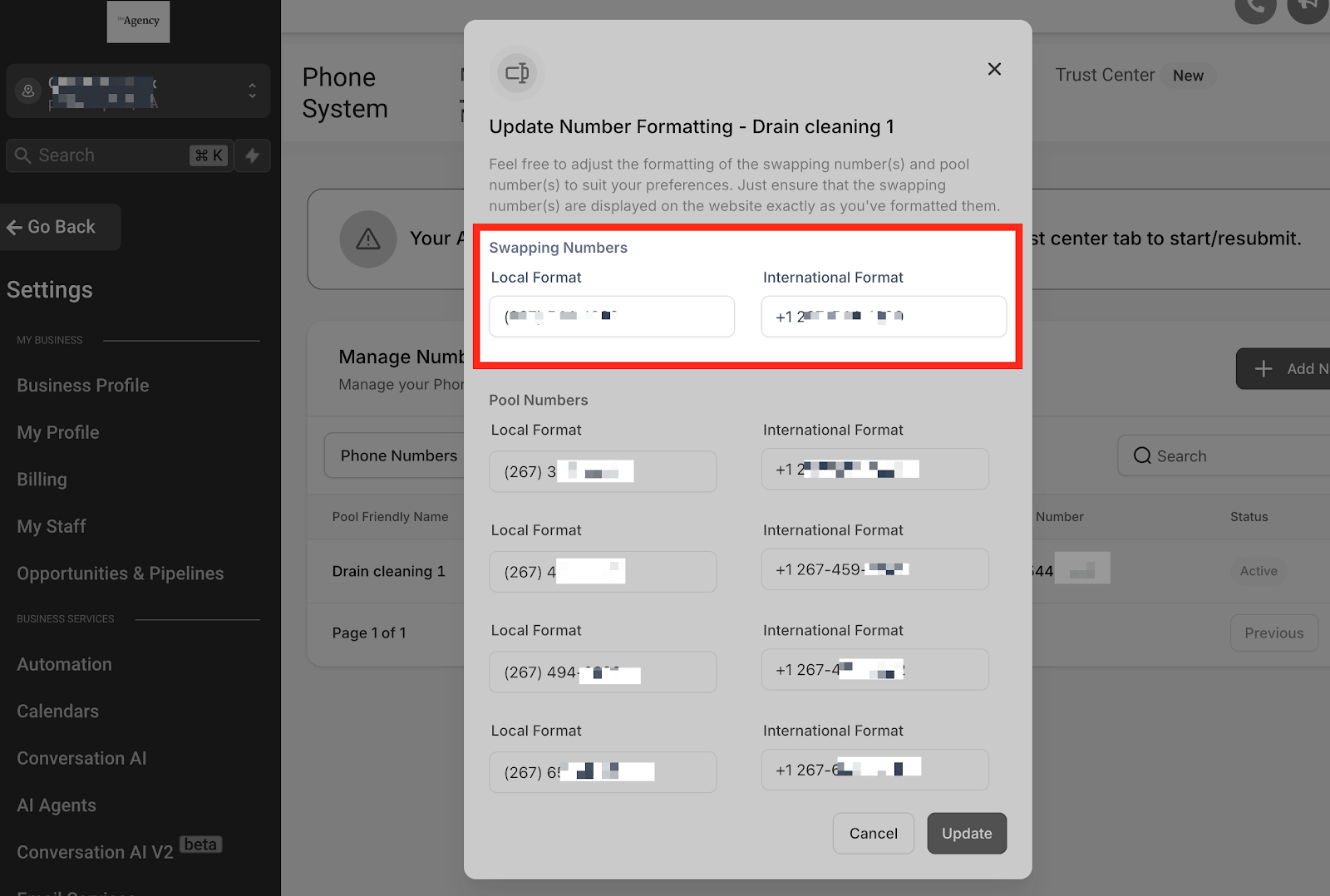
In order to update the swapping number, Follow these steps :
Click the three dots menu.

Click “Edit Configuration.”
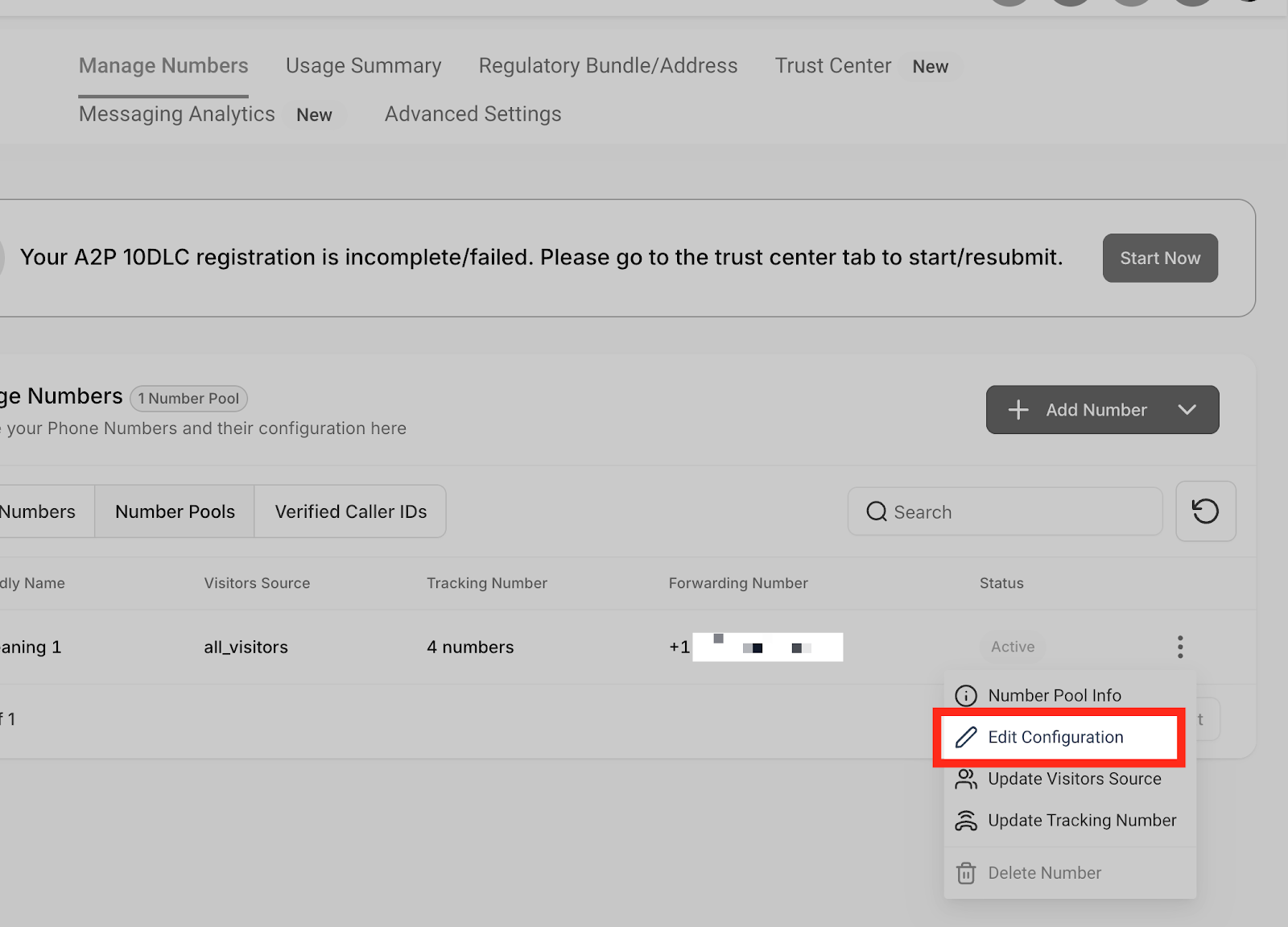
Uncheck the option “Swapping number(s) same as forwarding number” and set your own swapping number. Enter the swapping number in the respective field and Click on the “Add” button.
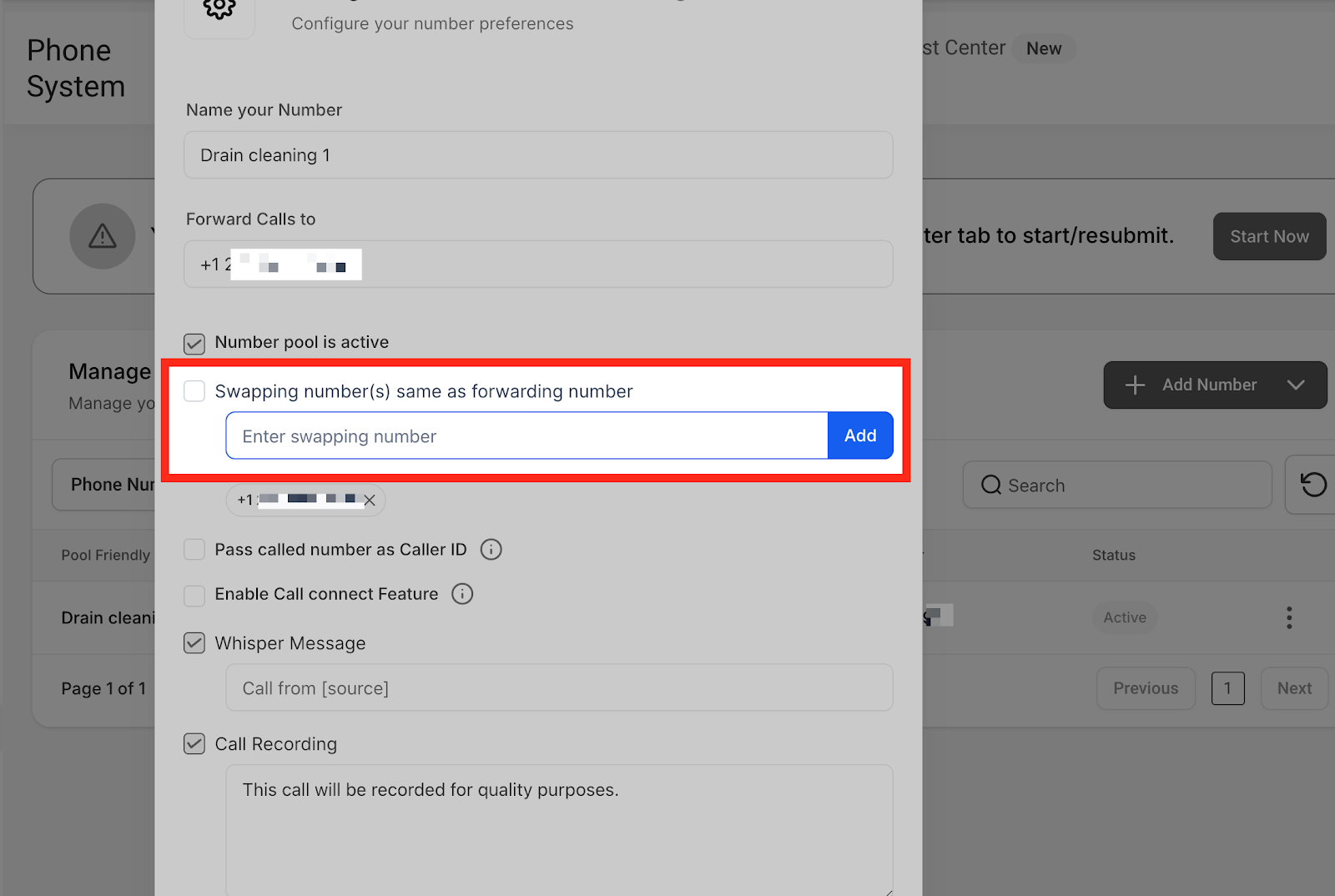
Now you can paste the swapping number on the website.
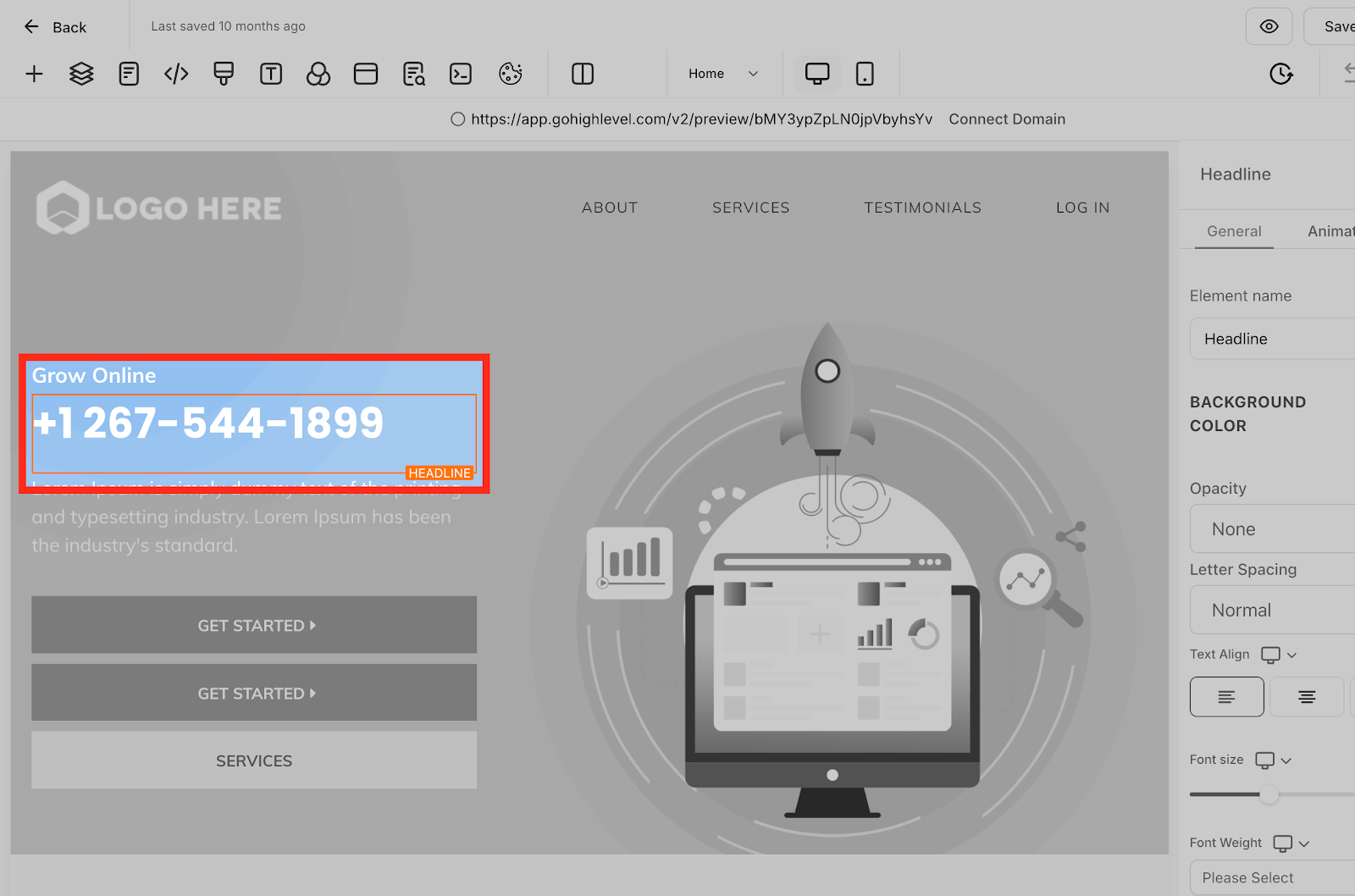
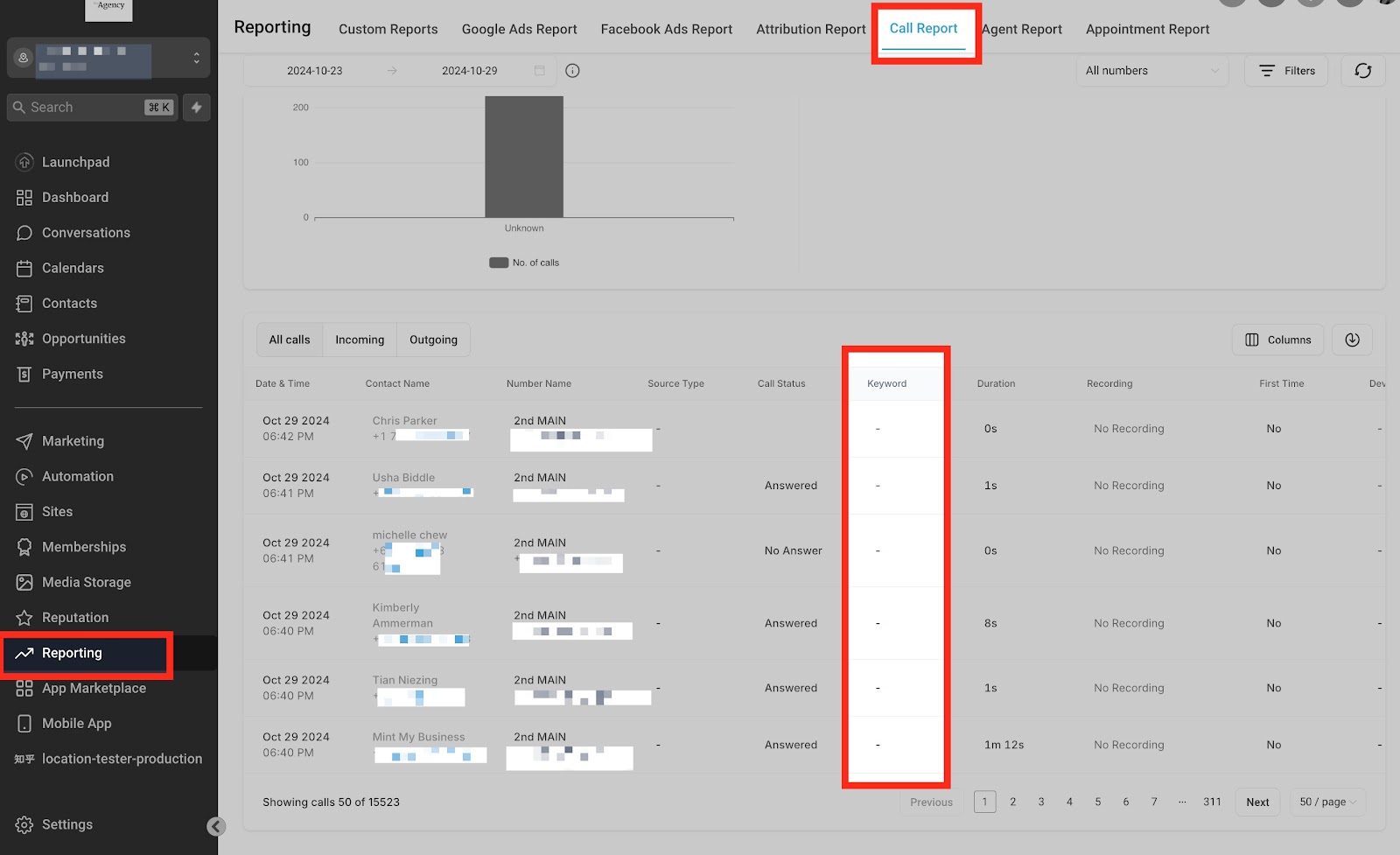
Once the number pool is set up and running, you can view the Keyword column under Reporting in the “Call Report.”
Your website visitors search the keywords, then they land on your website and call the tracking number, we will be able to attribute the source, and keyword in the call reporting tab.
After you scroll to the right and click the arrow down button here, you can also look at the link the contact was visiting. You can also click the contact’s name to view their activities:

How To Test Number Swapping
Once you’ve added the tracking script to the Body of your webpage, you can test that the number swap is working by opening an incognito browser.
You would enter the following into your incognito browser yourwebsite.com/landing-page then hit enter.
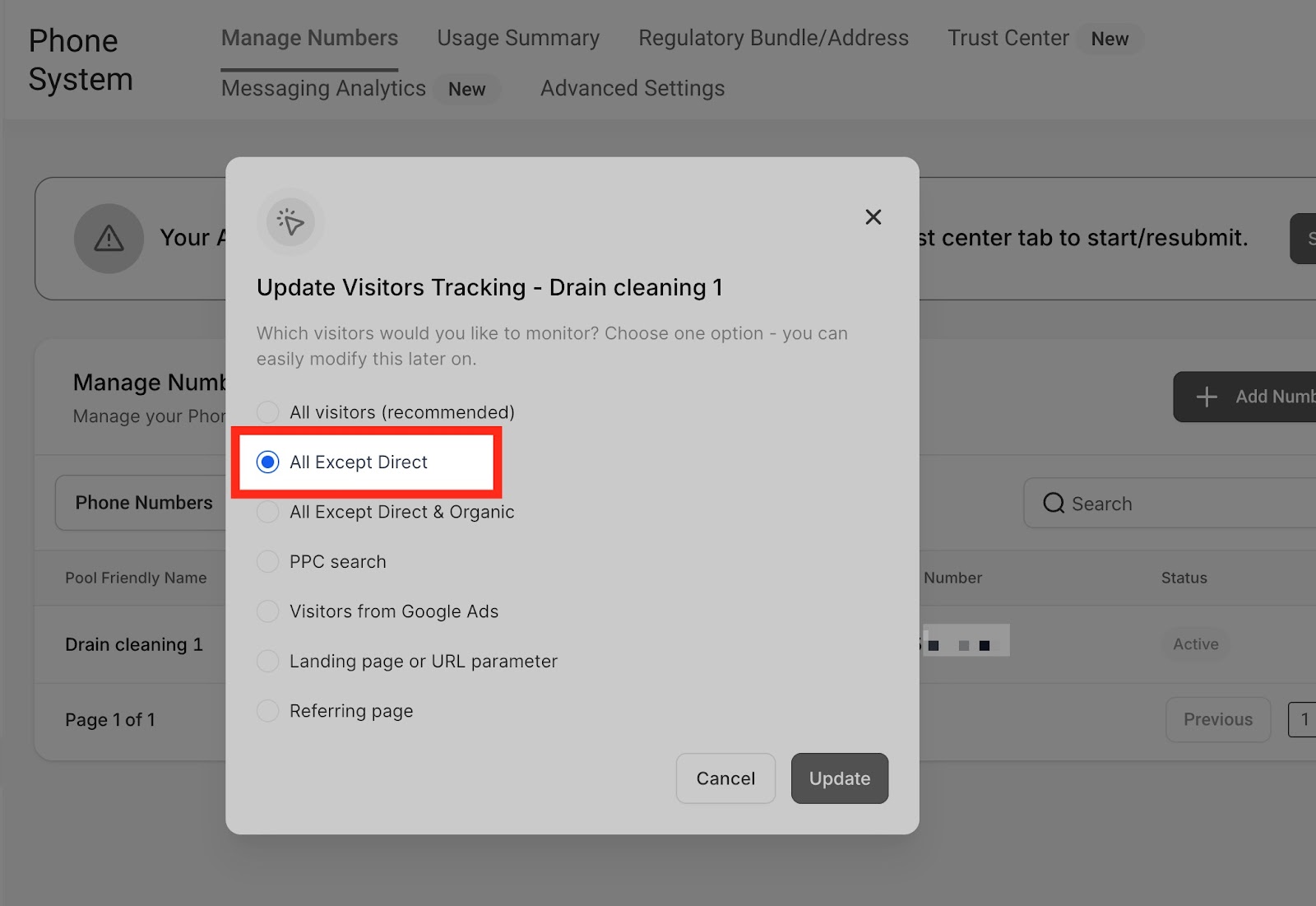
If the Tracking Option All Except Direct is selected, we must link the landing page URL from another webpage instead of entering the link directly from the browser to test.
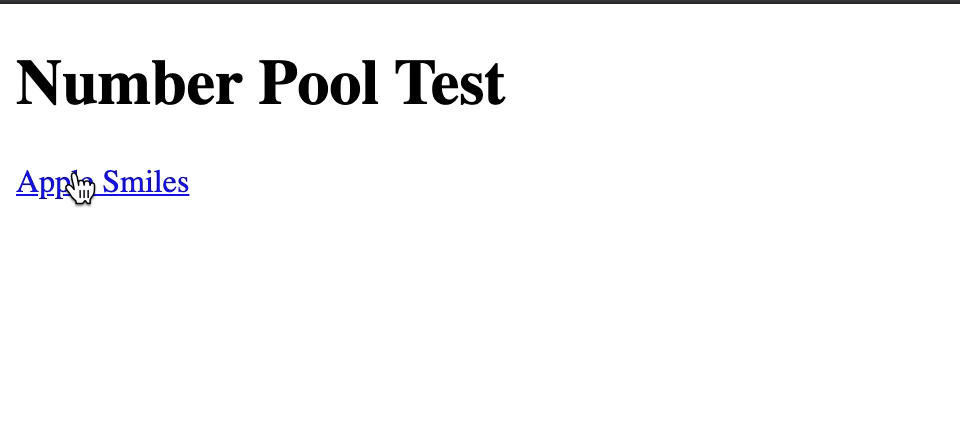
e.g. link Apple Smiles with yourwebsite.com/landing-page
How To Set Up Keyword Tracking
For CRM to display the keyword that was searched before the call was initiated, you’ll need to add the following parameter to the ad URL in Google Ads: ?keyword={keyword}
So if you have a Google Ad with a url like yourwebsite.com/landingpage you would update that url to be: yourwebsite.com/landingpage/?keyword={keyword}
To swap numbers in a button:
You can use an anchor tag and set href with the phone no and text as you want.
e.g. <a href=”tel:(972) 421-5139″ class=”btn btn-blue”>Call Us</a>
Group ID
It will help to swap only one number but not each and every number from different number pools. So it will find the best matching number pool and swap number.
Use-case Example:
If the user is running two ads. If the leads land on the first ad, the website will show a different number; if they land on the second ad, the website will show another different number.
Then they need to change the source according to the ad and set the group using a Group ID.
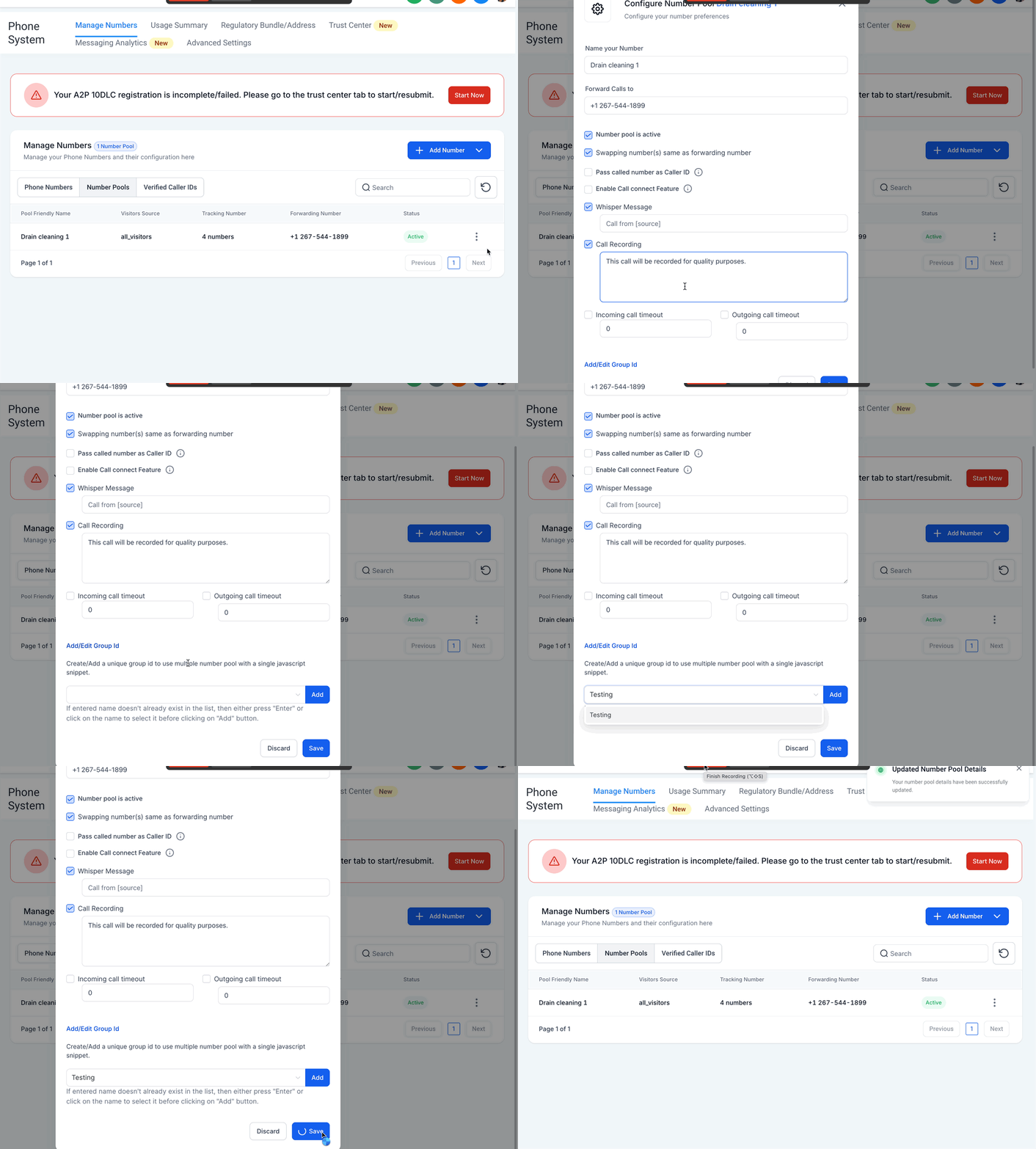
Edit the number pool > Click on Add/Edit Group Id > Name the group Id > Click Update.
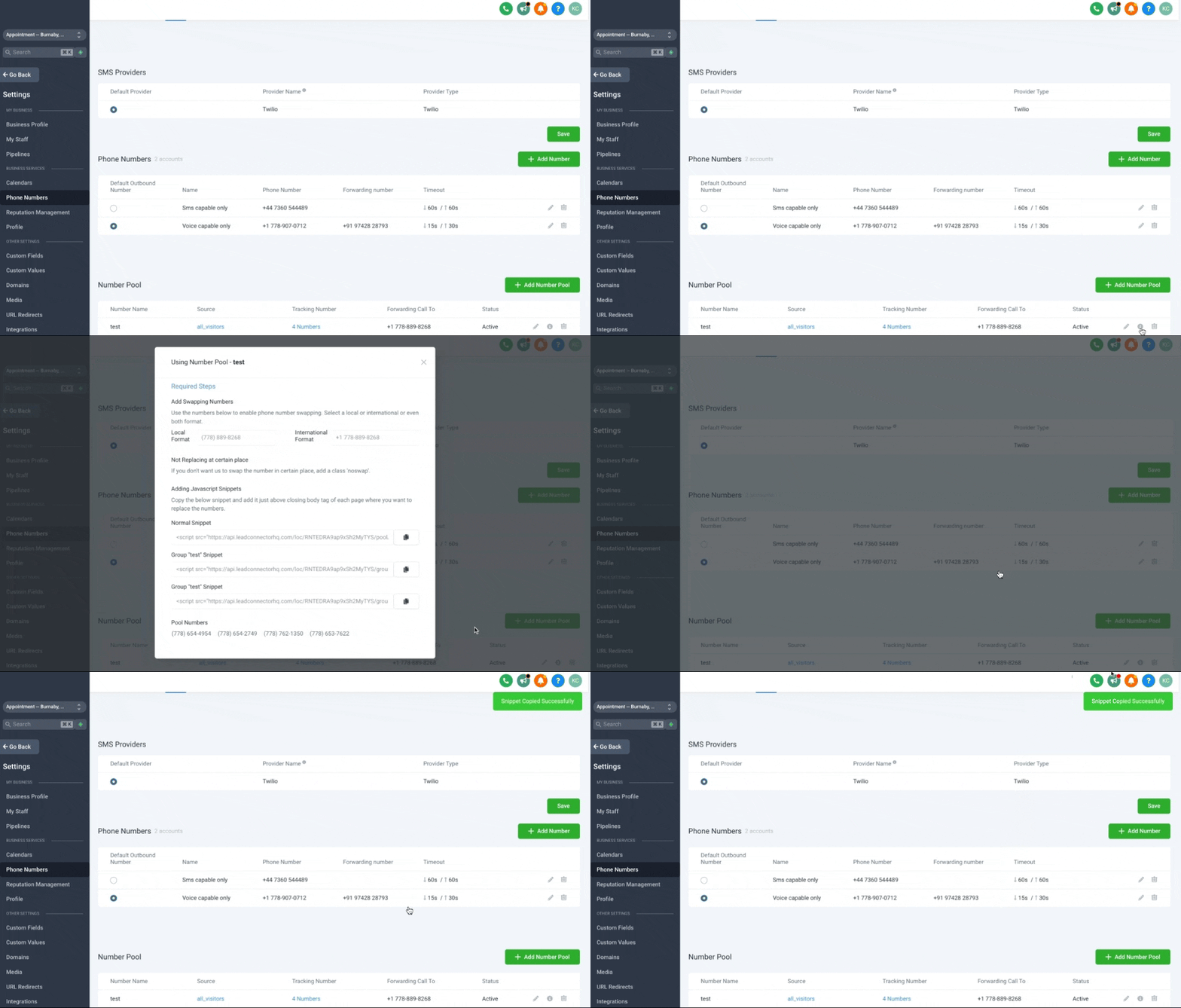
You can click on the information icon to copy the Group snippet to integrate it in the footer of your website:
FAQs
1. Why must we set up number pools to track calls?
We recommend setting up call tracking for all sources. We can determine how they arrive at your website by switching the phone number as soon as leads land from different sources. For example, for real live Google ads, there are &gclid parameters at the end of the landing URL. That’s how our code sees them and switches the number accordingly, so once they call that tracking number, we match up with the website cookies, link them, and attribute the source to the leads.
Once the website visitors call the tracking number, we can attribute keywords in the Call reporting tab. So this column keyword will be filled out with those data:
2. What is the cost/price for setting up a Number Pool?
The standard phone number monthly fee and usage charges apply to a number pool just like a standard phone number within CRM.
3. Can I direct calls from the Number Pool to the web app or the mobile app?
At the moment, this isn’t an option. Calls directed to the Number Pool can only be forwarded to the designated ‘Forward Calls to’ number.
Keep learning