
How to Create Invoice Templates and Automate Sending in GHL Workflows
Updated March 5, 2025
Manually creating invoices for every trigger event in GoHighLevel slows down billing and creates inconsistency across client accounts. This guide walks you through building reusable invoice templates and configuring the Send Invoice workflow action to automate delivery based on appointments, tags, pipeline changes, and more.
- Businesses can now generate invoice templates, making it faster and more convenient to create both one-time and recurring invoices. These templates can also be used within workflows to automate invoice sending seamlessly.
- This needs to be enabled at the sub-account level by heading under Settings -> Labs and turning the toggle on for the feature
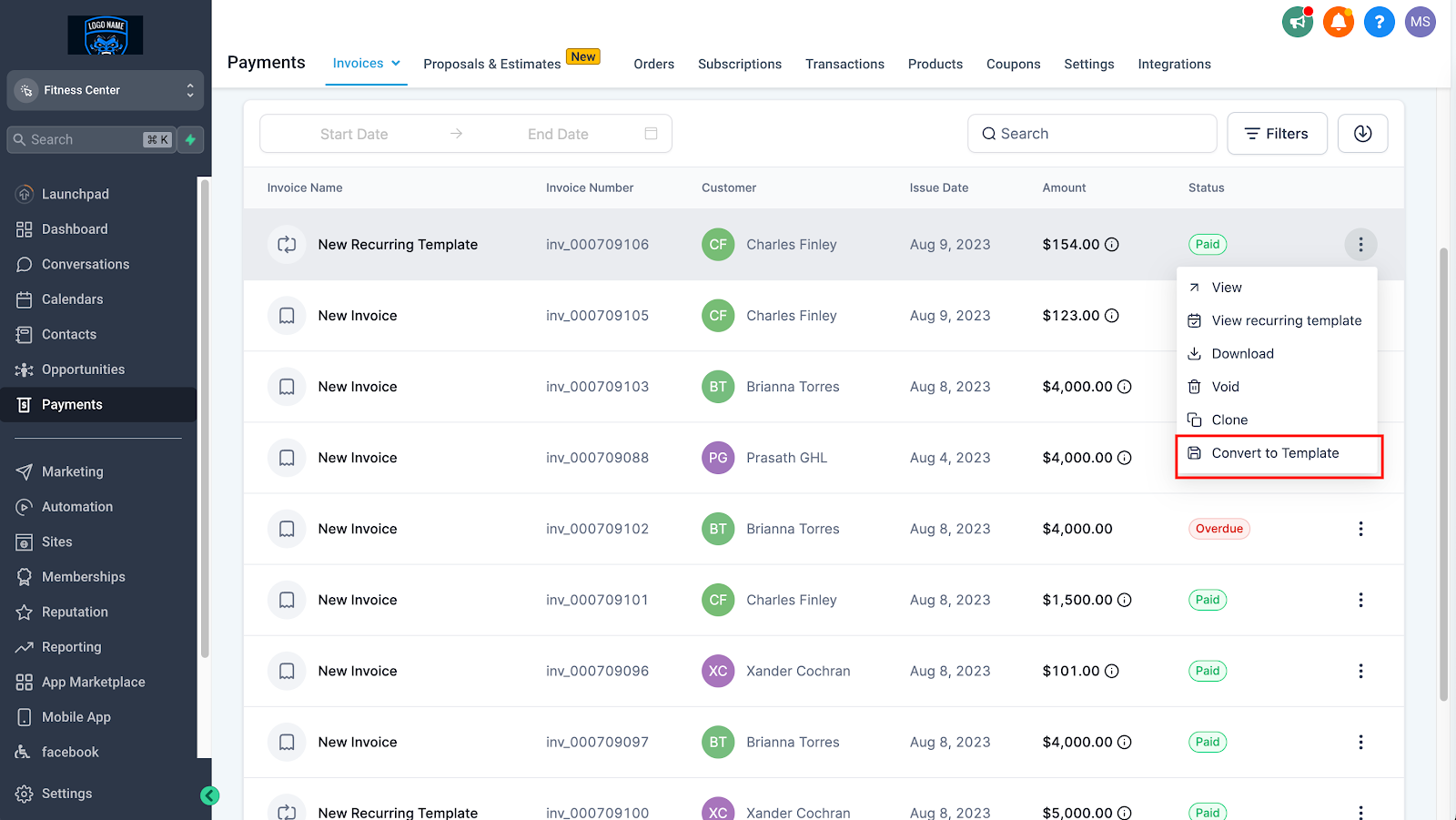
- Users will be able to convert any invoice created into a template using the Convert to Template action and give an appropriate name to it for future references
- Templates can contain all information related to business information, logo, invoice title, product line items, taxes, discounts, and terms. Customer information will be populated along with the issue date and due date while sending the invoice as per the invoice settings
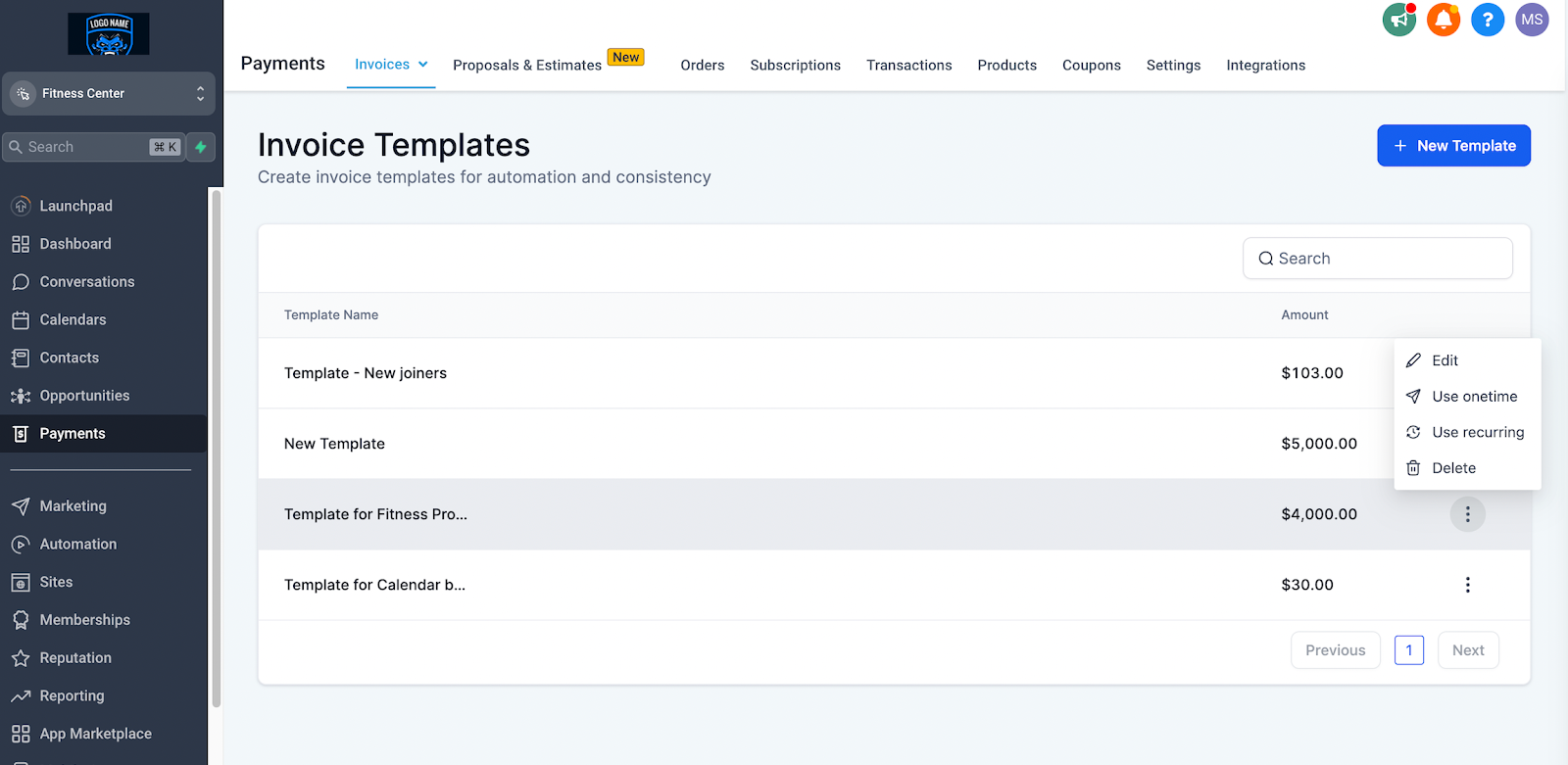
- You can find all templates on the Templates page within the Invoicing section. Convenient quick actions on this page allow you to use a template for either a one-time invoice or a recurring invoice with ease.
- Users will be able to modify, rename, or delete the templates at any point in time
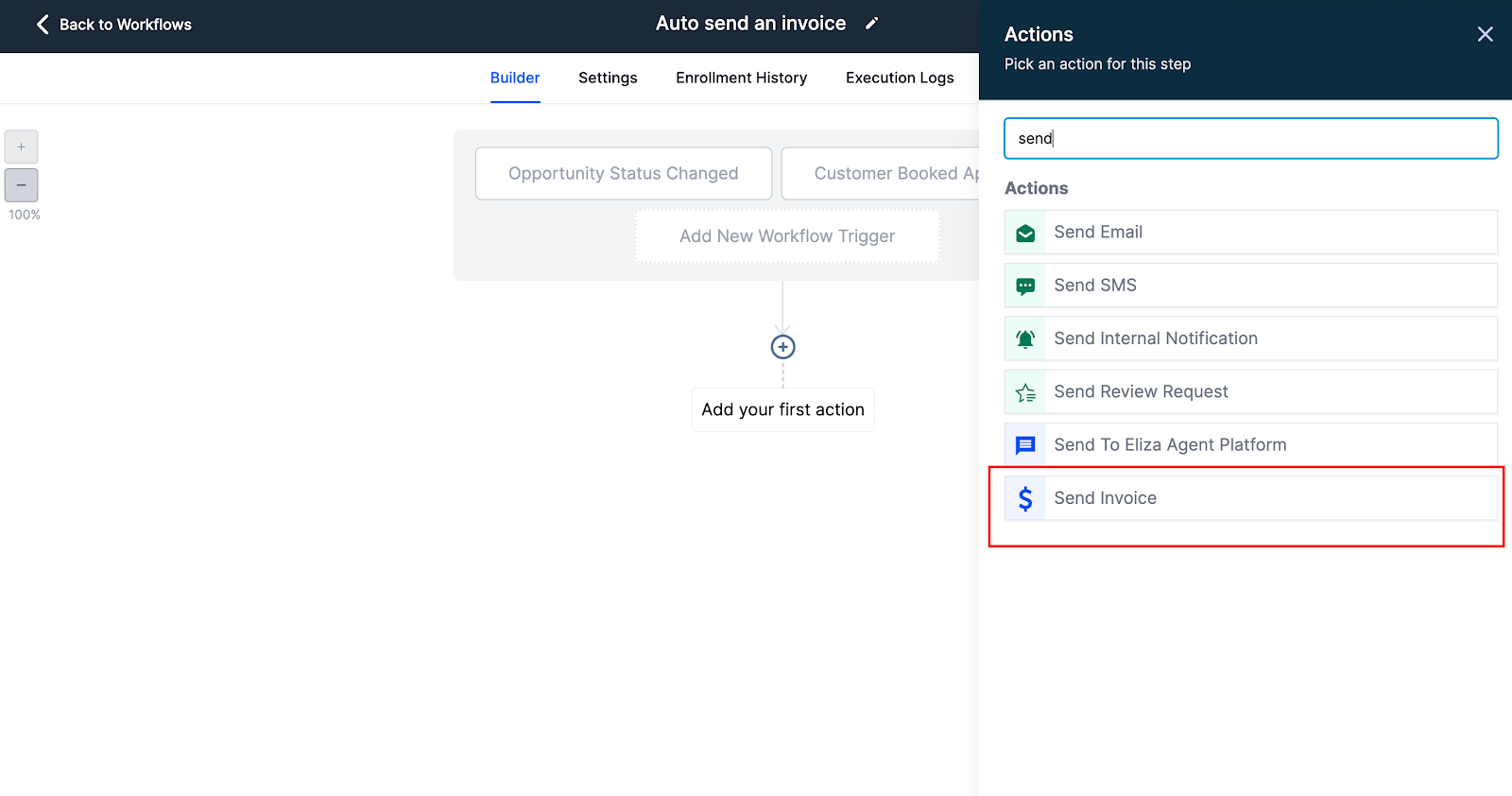
Business users will be able to make use of the same templates to send an invoice in a workflow using the Send Invoice action
- Users can utilize pre-designed templates within the invoice module to set up invoice details for customers seamlessly. To enable this feature, navigate to Labs under sub-account settings.
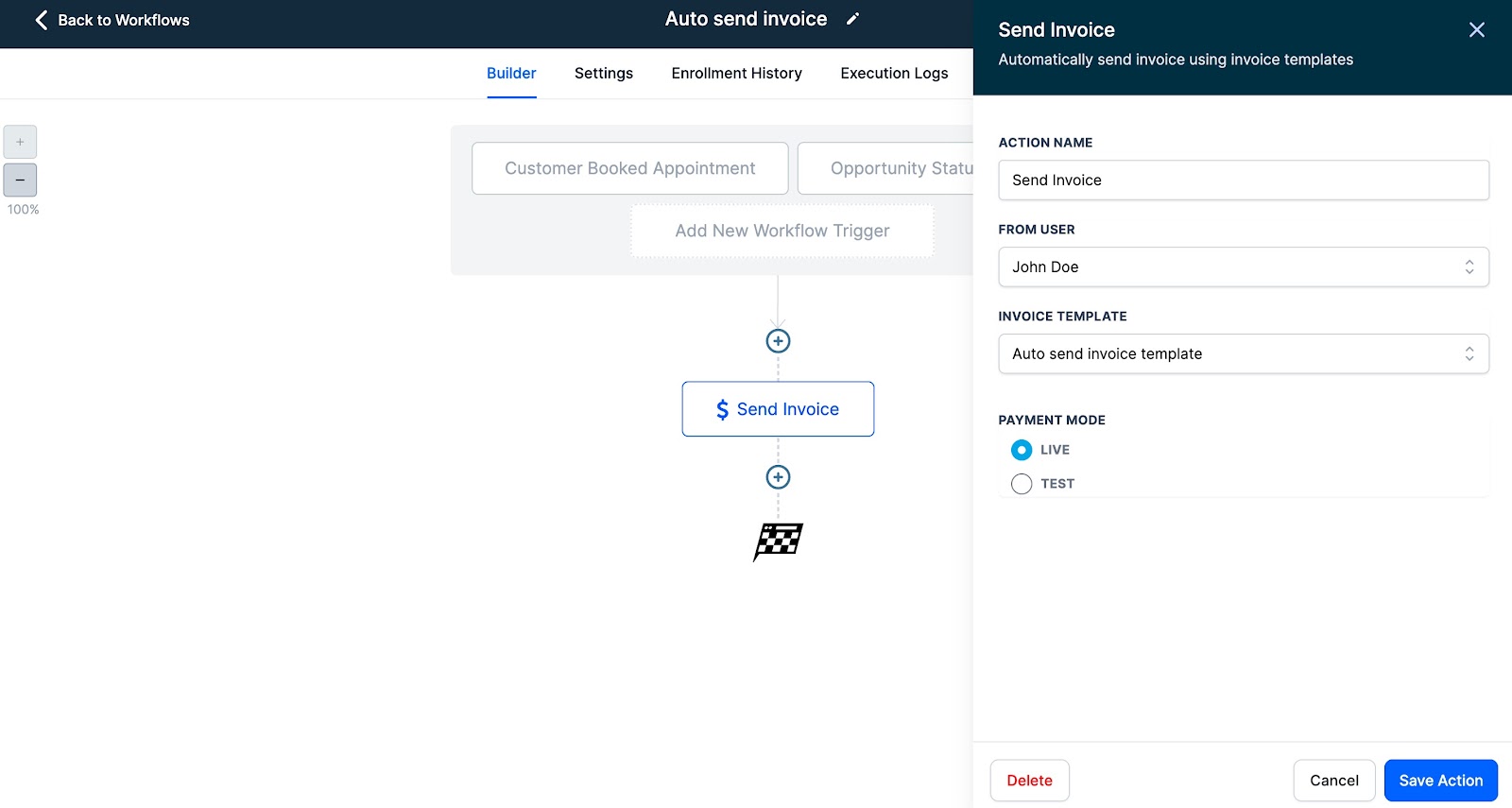
- Business users will be able to configure the action name, select the From User to define the sender details, and choose a template from one of the templates created inside invoices along with the payment mode.
- The default/custom template configured inside the invoice settings will be used automatically to send the invoice from workflows as well
- This fulfills a lot of use cases like sending an invoice after an appointment is booked, opportunity status is changed, tag is attached to a contact or any other trigger existing
Keep learning