
How to Set Up Automated Email Notifications for GHL Forms
Updated August 13, 2024
Without automated email notifications, form and survey submissions in GoHighLevel can go unacknowledged, losing leads and frustrating contacts. This guide walks you through enabling the auto-responder and team notification settings so every submission triggers the right email automatically.
When activated, this feature automatically sends a response to the individual who completes the form and provides an option to notify members of the internal team.
Please Note:
These options and settings are also available for Surveys.
How to Activate the Email Notifications
Choose the Sub-account > Sites > Forms > Form Builder and Add Form, or choose the Form from the list where you want to toggle the Auto-responder.
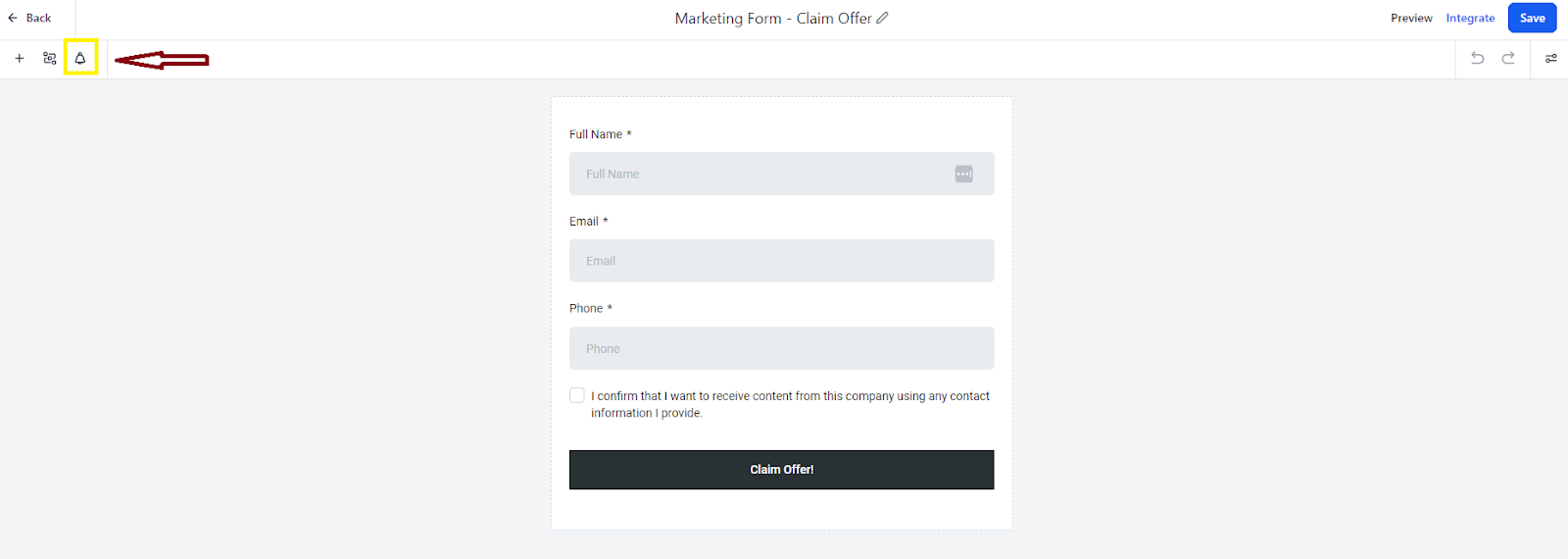
1. In the upper left corner, you’ll see the “Bell” icon for notifications. Click on that icon.
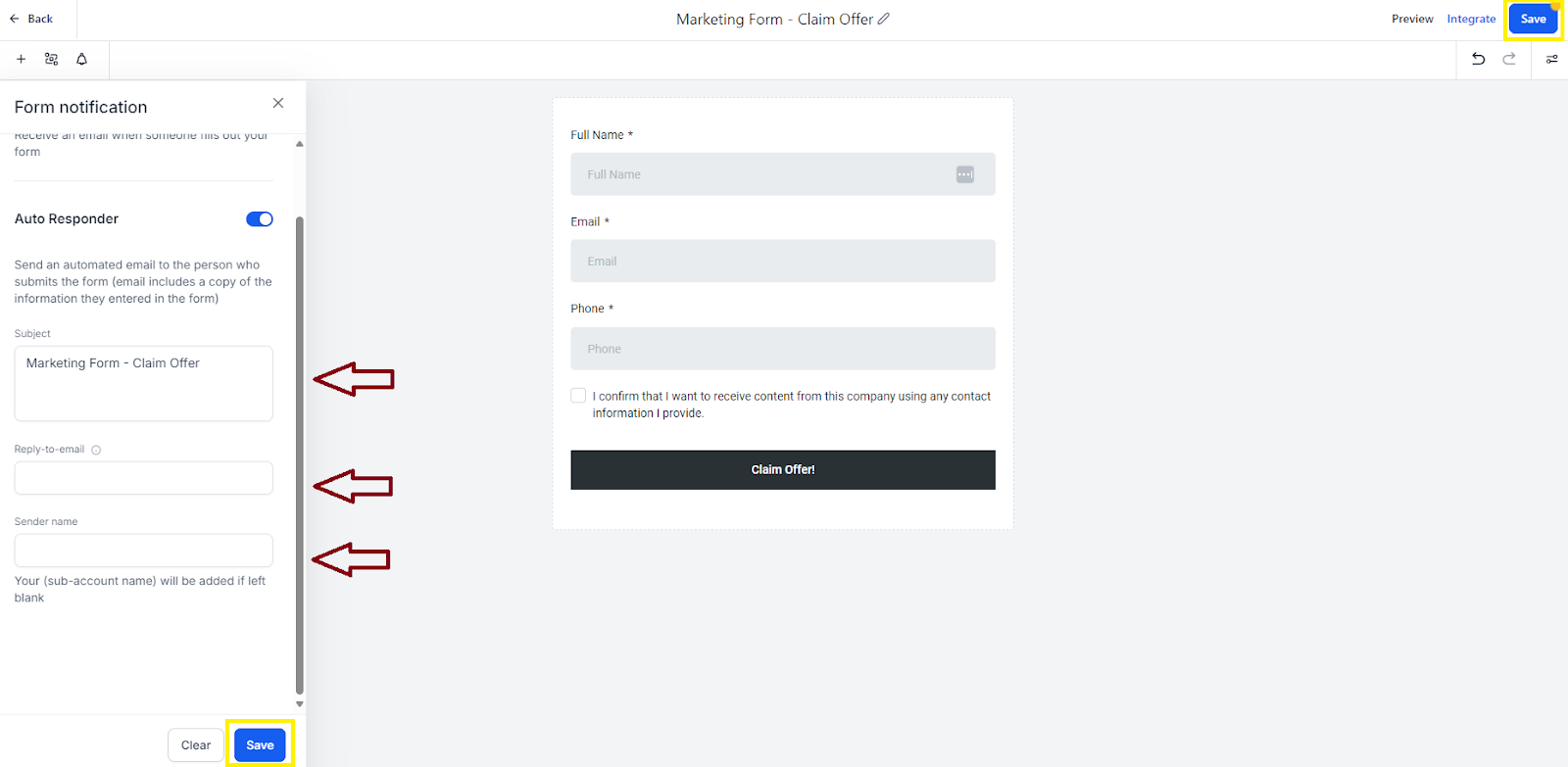
2. The notifications icon offers two choices: the first allows you to receive an email when someone completes the form, while the second is the Auto-Responder, which automatically sends a message to the form submitter. Simply toggle the button to enable either option.

3. Enter the “Subject” for the automated email that will be dispatched. The “reply to email” address will be used for receiving any responses if the recipient replies to this automated message. For the third field, “Sender name,” you can either leave it blank to use the default location name or customize it to display a different name on the email. After completing these entries, click Save, and then click Save again at the top right to finalize the updates to the form.
Best Practice:
After saving the new settings and form, select “Preview” in the upper right corner and complete the form to check if the feature functions correctly.
Keep learning