
How to Set Up Math Calculations in GHL Forms and Surveys
Updated February 25, 2025
Manually totalling form inputs wastes time and introduces errors, especially when scoring leads or calculating budgets inside GoHighLevel. This guide walks you through adding the Score custom field, defining calculation logic with numerical and monetary fields, and triggering conditional workflows based on real-time results.
What’s New?
- Custom Field – Score:Users can now add a custom field to calculate scores based on their inputs.
- Calculator: Set up math calculation logic using numerical and monetary fields within forms and surveys using the brand new calculator
- Real-time Calculation:Scores are calculated in real-time during form or survey preview.
- Support of Score in conditional logic: Setup logics and workflows based on scores to redirect to url, disqualify, show/hide fields.
Fields supported right now:
- Numerical type fields
- Monetary type fields.
How Does It Work?
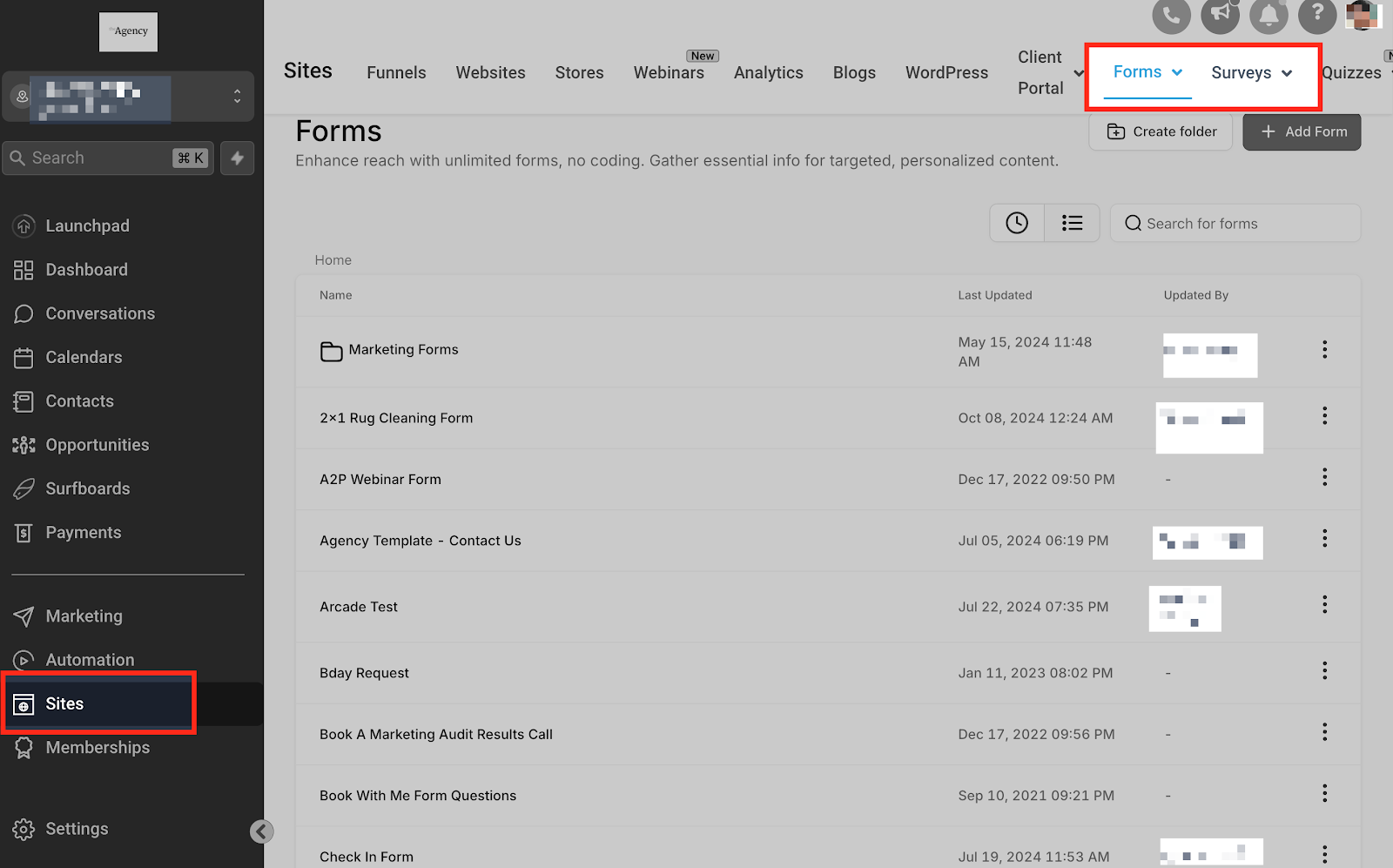
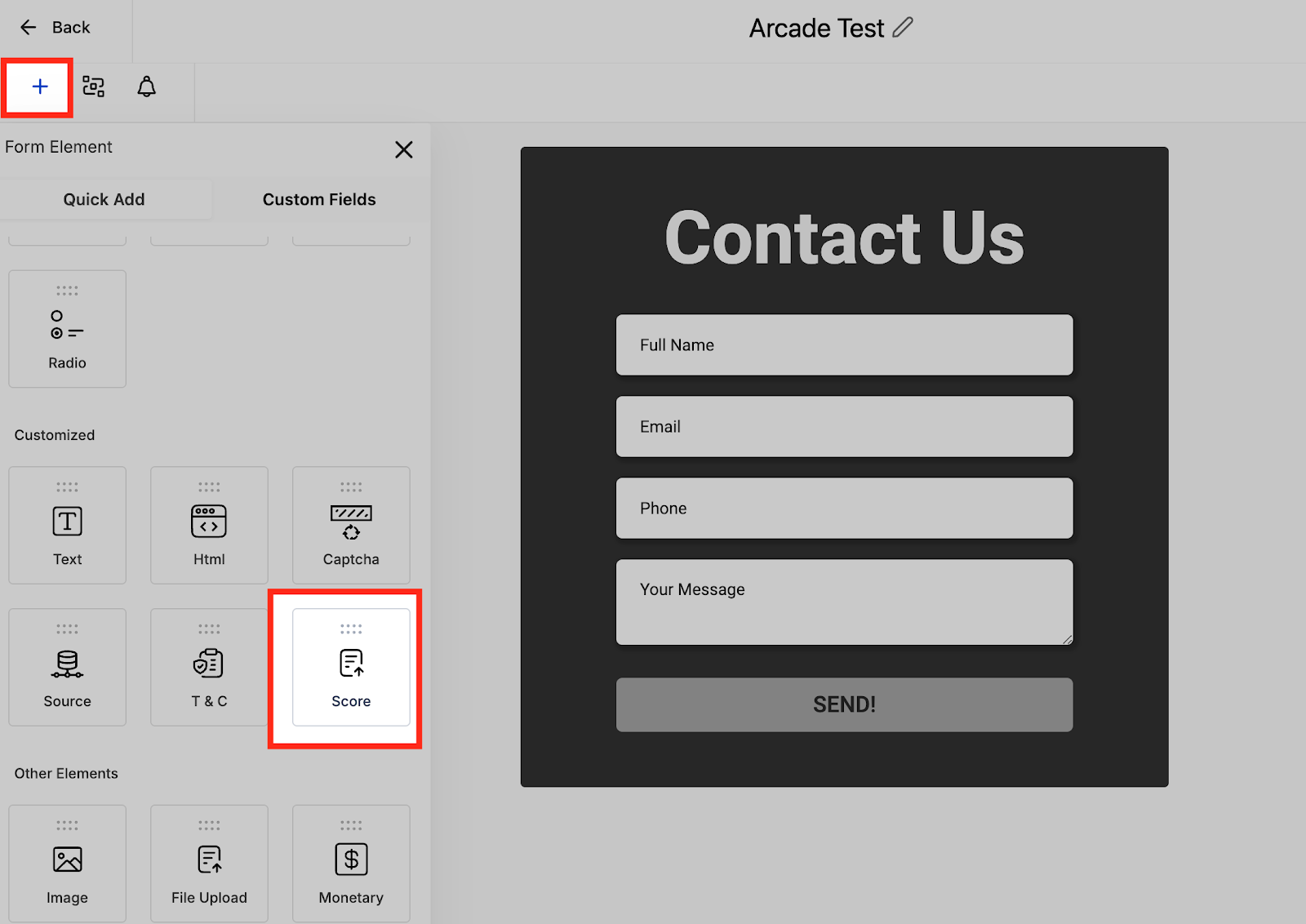
- Adding Custom Field: Navigate to the form or survey builder, drag and drop “Score” field from Quick Add.
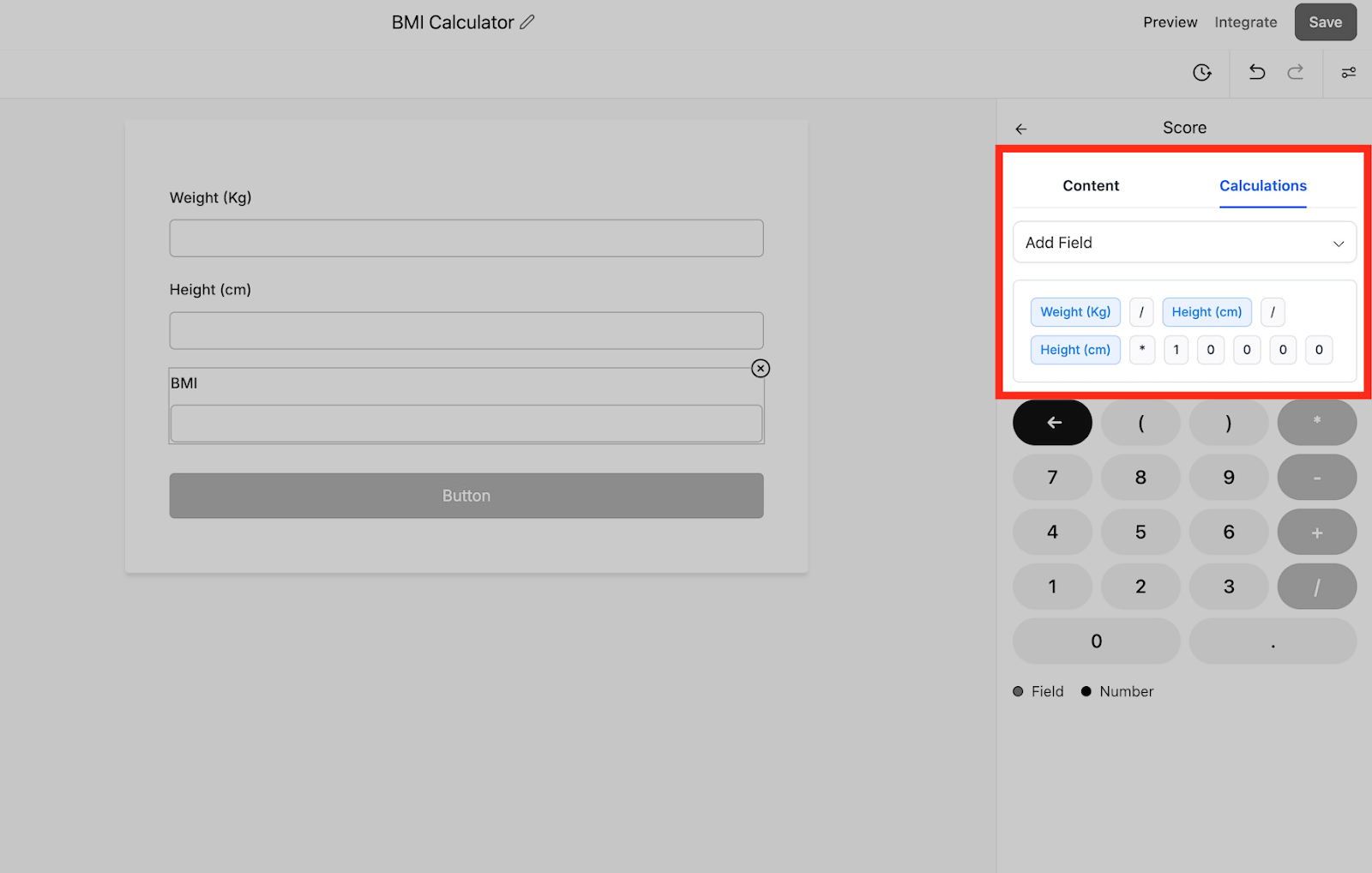
- Setting Up Calculations: Define your calculation logic by selecting the relevant numerical or monetary fields and specifying the calculation rules.
- Previewing: Use the preview mode to see real-time calculations as data is entered.
Why This Feature?
This functionality offers enhanced capabilities for users who require real-time calculations within their forms and surveys. Whether it’s for scoring, budgeting, or other specific needs, this feature improves both efficiency and usability, making data processing more seamless and intuitive.
Keep learning