
How to View and Schedule Service Calendar Appointments on Mobile
Updated February 27, 2025
Managing service appointments from a desktop limits flexibility for agencies and their teams working on the go. Using the GoHighLevel mobile app, you can view existing service calendar appointments and create new ones — complete with room selection and automatic equipment assignment — directly from iOS or Android.
What’s New
- View service calendar appointments
- Create new service calendar appointments
How It Works
- Open the mobile app with your preferred sub-account selected.
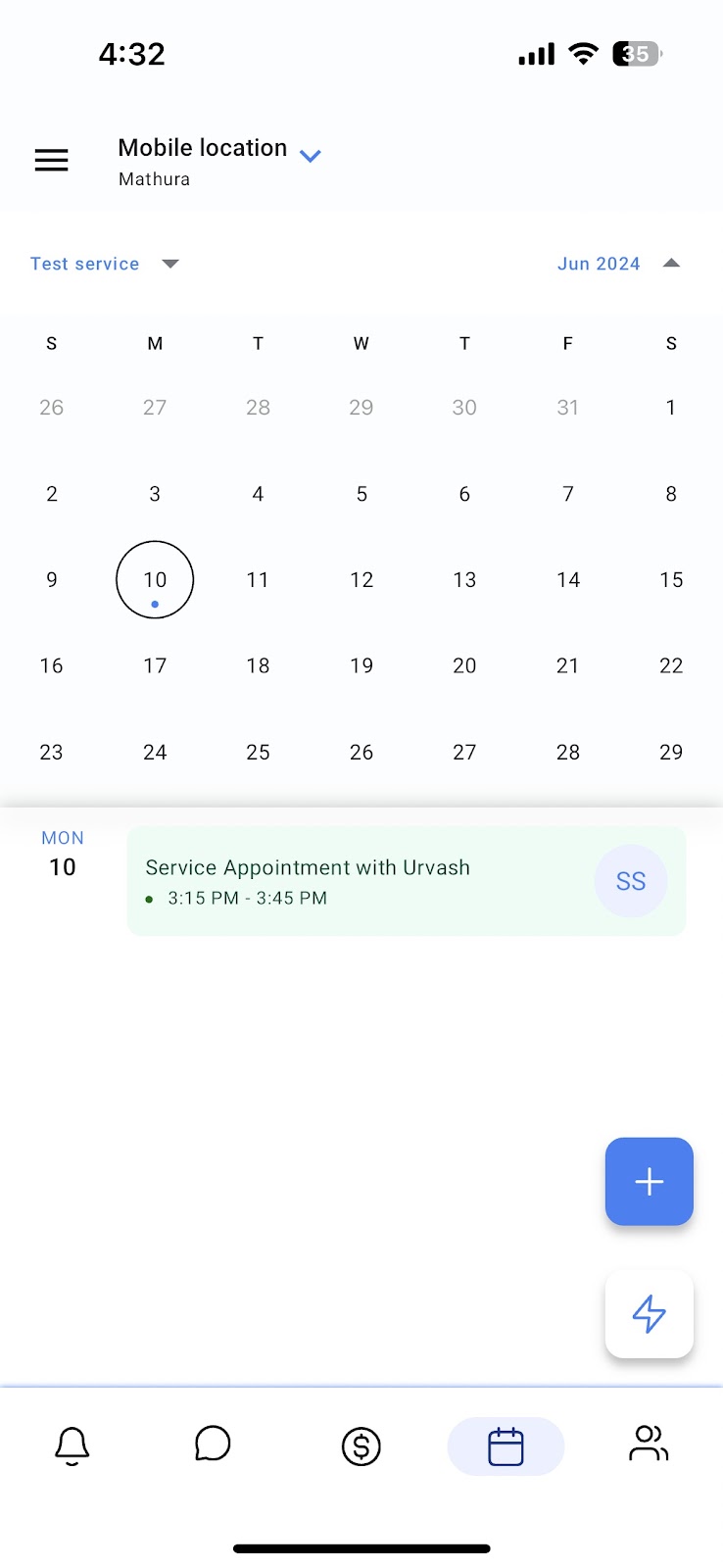
- Head over to the calendars section. You will see all your service appointments under their relevant dates.
- To create a new service appointment, tap on the “+” button and tap on Schedule appointment.
- From the calendar dropdown, choose a service calendar that you have created on the web.
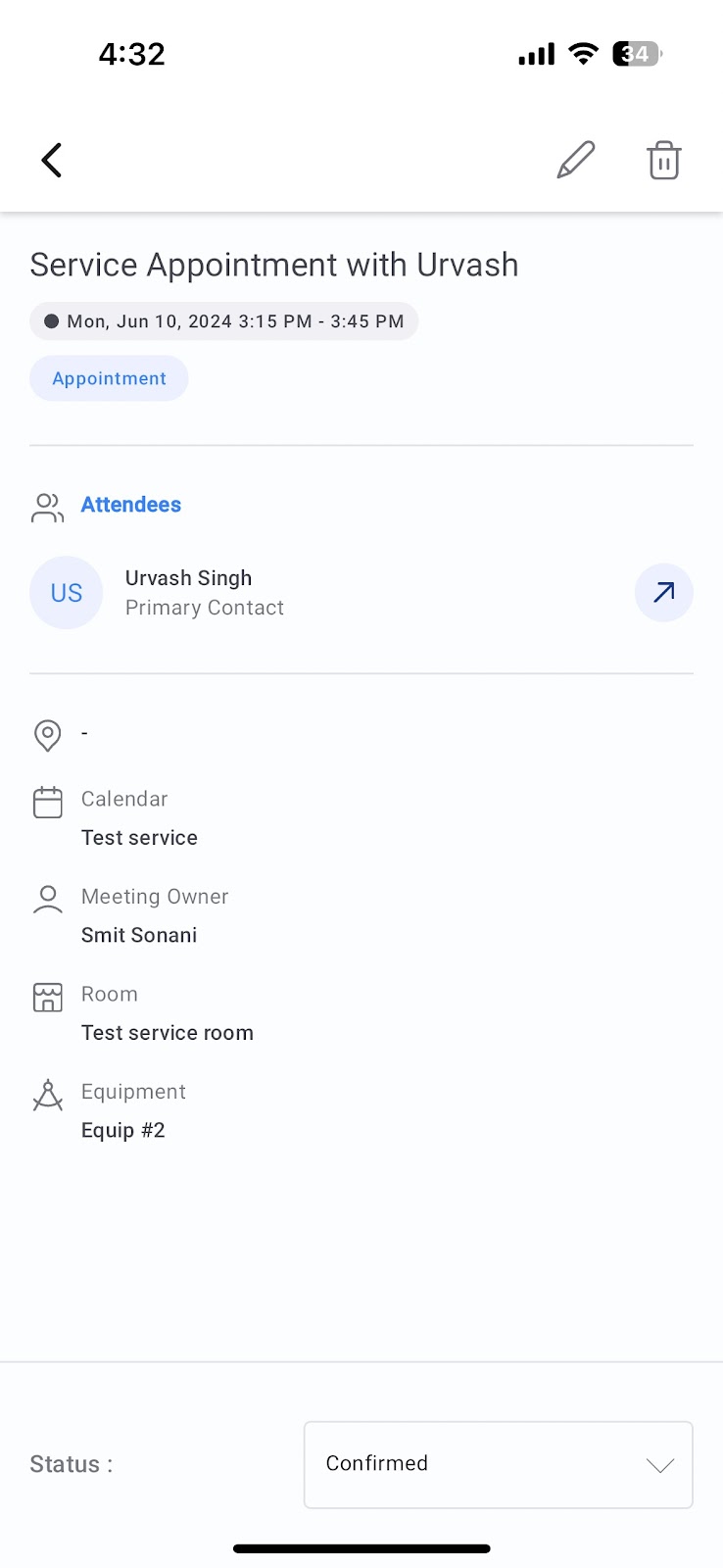
- You will then have to select the relevant room for the service. Once the room has been selected, equipment will automatically be assigned based on availability.
- Fill out all the other relevant details and hit save to successfully schedule the appointment!
Users can now effortlessly view and schedule service appointments directly from the mobile app with this latest update..
Availability
- HighLevel (iOS, Android) – v3.74 or later
- LeadConnector (iOS, Android) – v3.74 or later
- WhiteLabel (iOS, Android) – v3.74 or later
Keep learning