
How to Use Shopify Elements Inside GoHighLevel Workflows
Updated February 10, 2024
Connecting Shopify to GoHighLevel unlocks powerful automation possibilities, but knowing which triggers, conditions, and custom values to use can be overwhelming. This guide walks you through adding Shopify workflow triggers, configuring If/Else logic, and building branded email templates inside the GHL Email Builder.
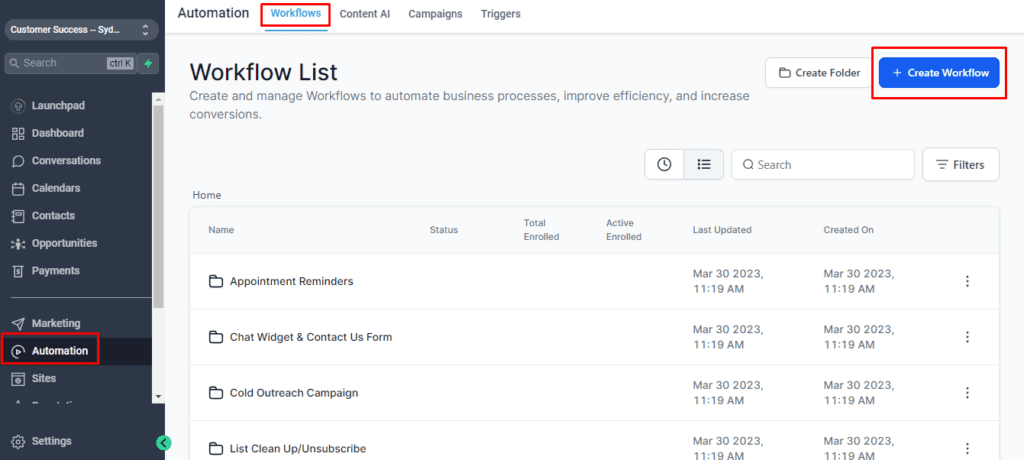
Navigate to the Automation tab, select Workflow, and then click the option to create a new Workflow.
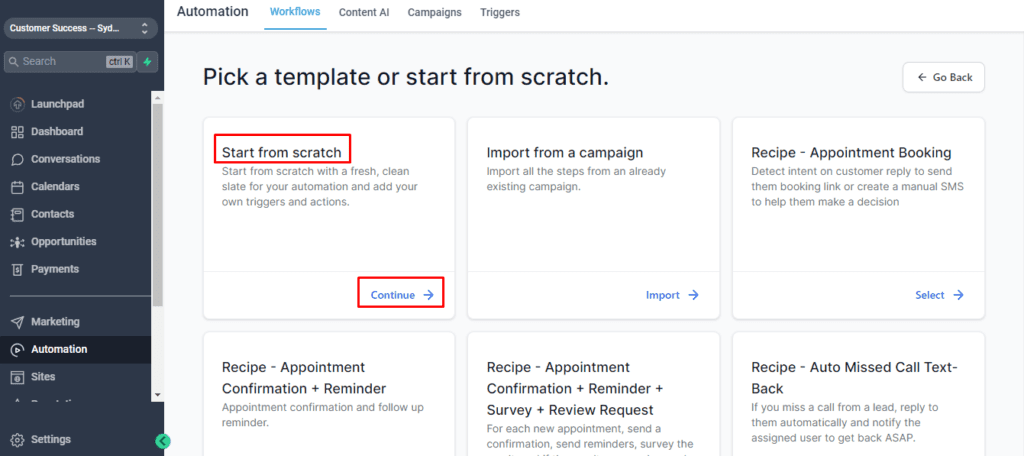
Within the Workflow dashboard, opt for starting a new Workflow from Scratch.
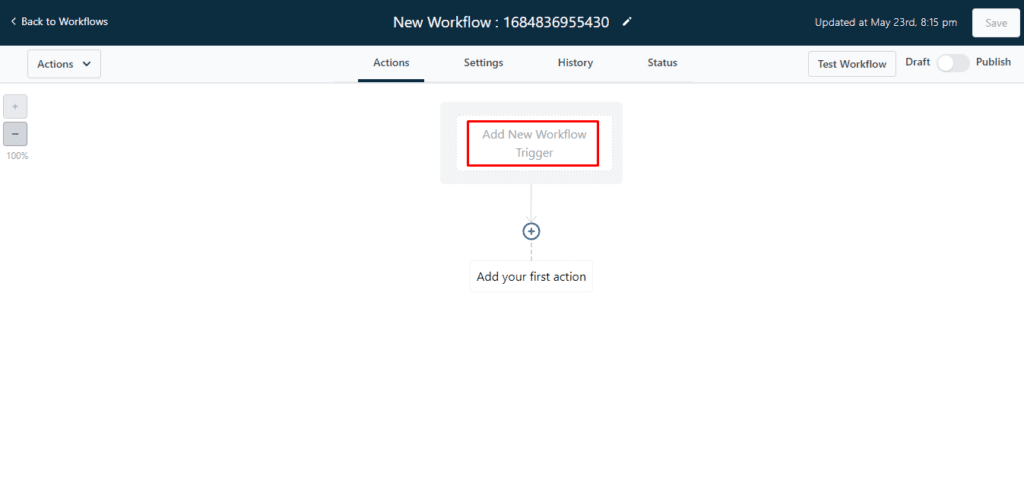
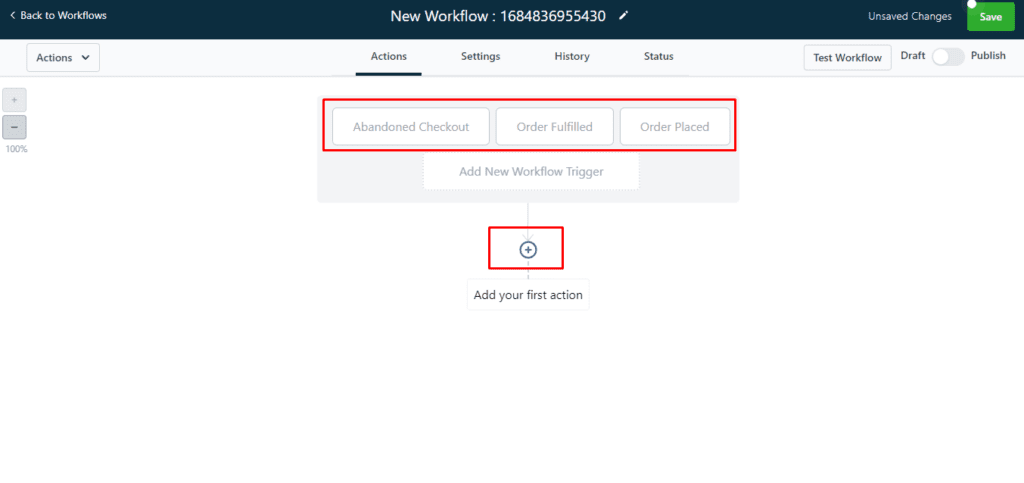
Click Add New Workflow Trigger
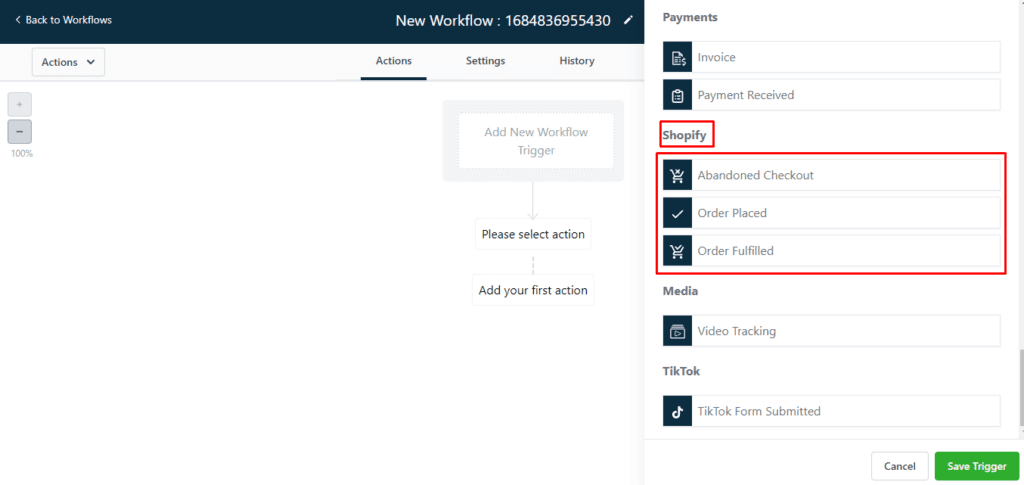
Scroll down until you see Shopify, and add the three tabs under Shopify.
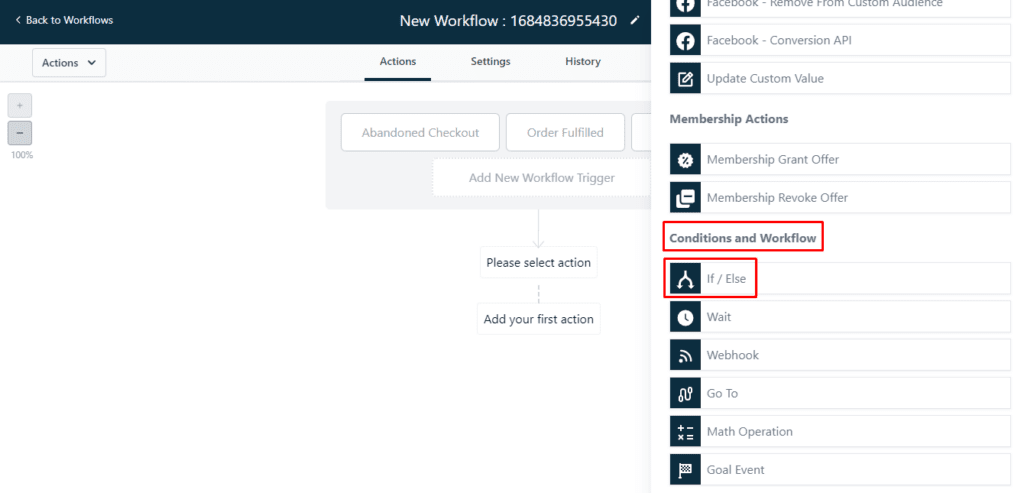
After adding the desired components, proceed to click on Actions. Scroll down to locate the section labeled Conditions and Workflow and select the option If/Else from the available choices.
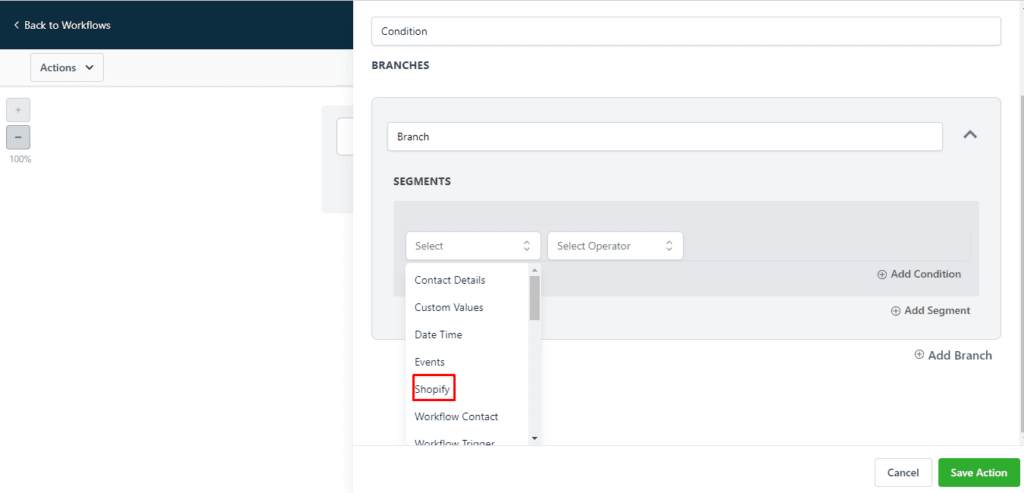
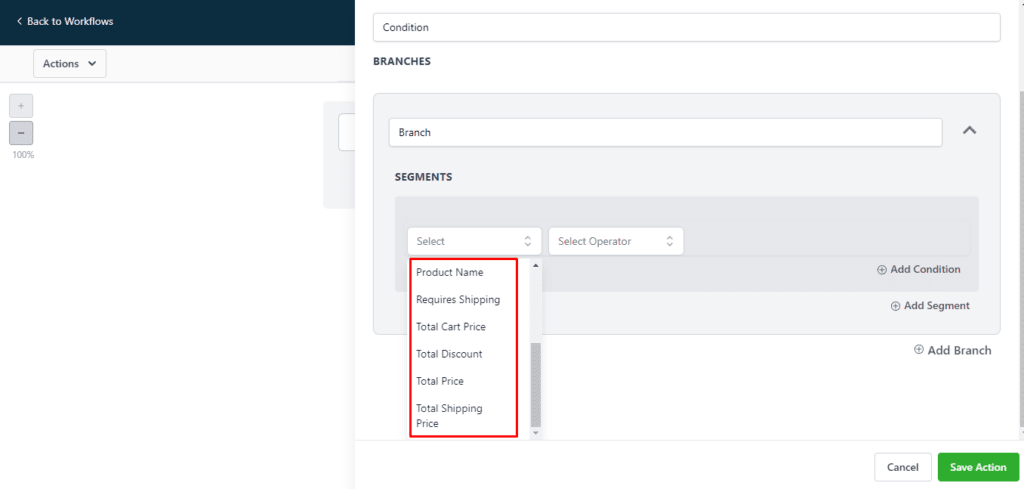
Select the Shopify option and then choose one of the various segments available within the selection.
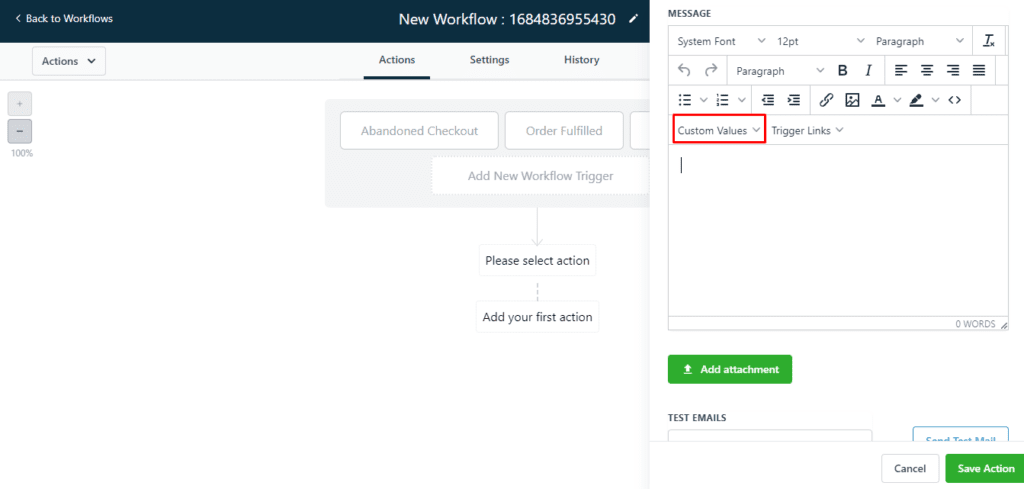
Click on any Action and Scroll down until you see custom values, and hover over Shopify and you will see the different values you can use.

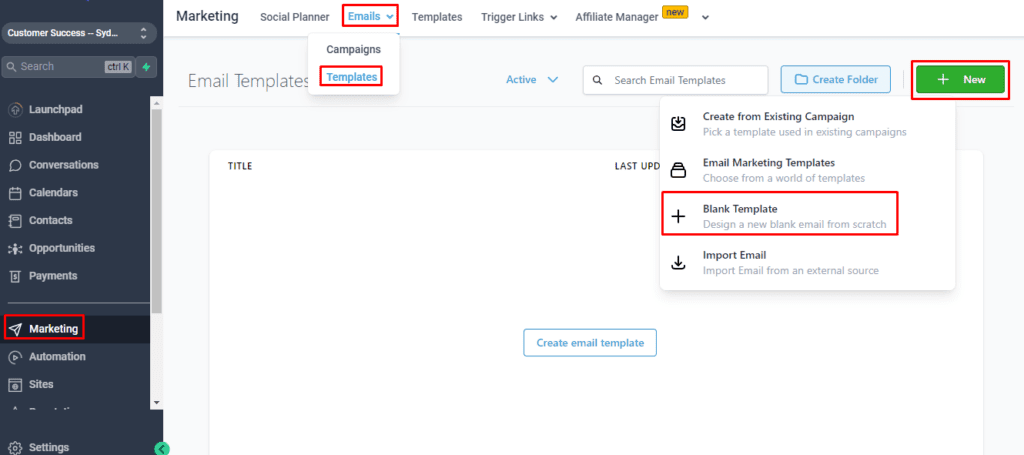
To access the Email Builder, navigate to the Marketing section, then click on Emails. From there, select Templates and click on the New button. Finally, choose the option for a Blank Template.
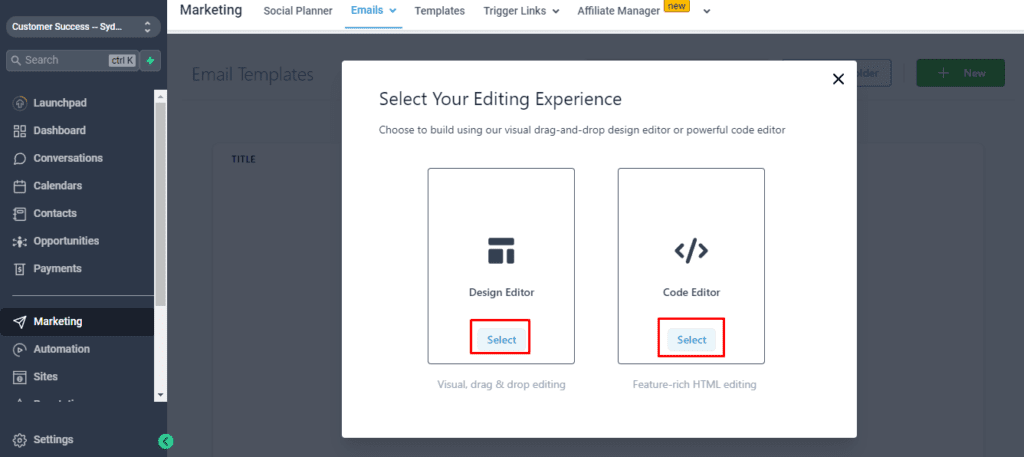
You can select either the Design Editor or the Code Editor.
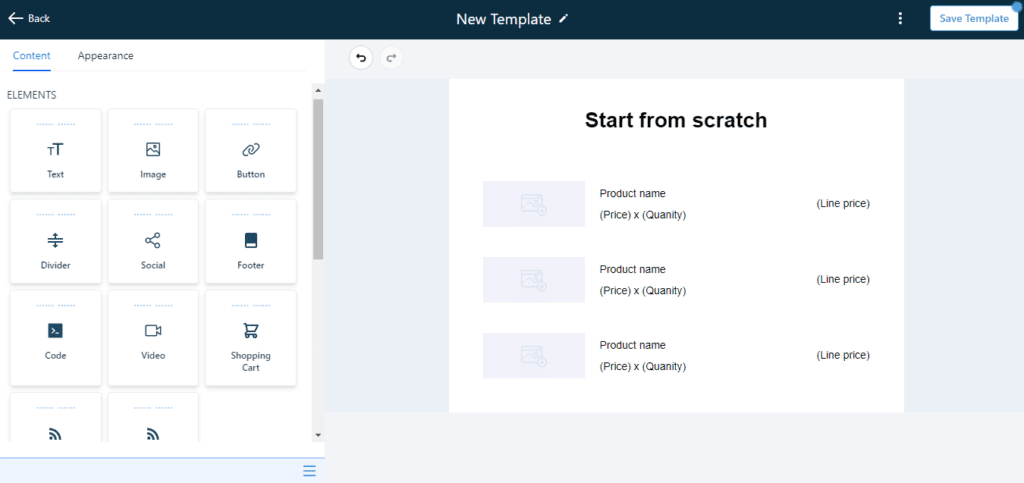
When you access the Email builder, you can modify the visual appearance of the email sent to your customers.
Keep learning