
How to Set Up Automated Calls and Voicemail Drops in a Workflow
Updated January 19, 2023
Manually following up with contacts through calls and voicemails wastes time and creates gaps in your outreach sequences. Using GoHighLevel workflows, you can build a fully automated call and voicemail drop sequence triggered by contact tags — complete with user assignment and internal notifications.
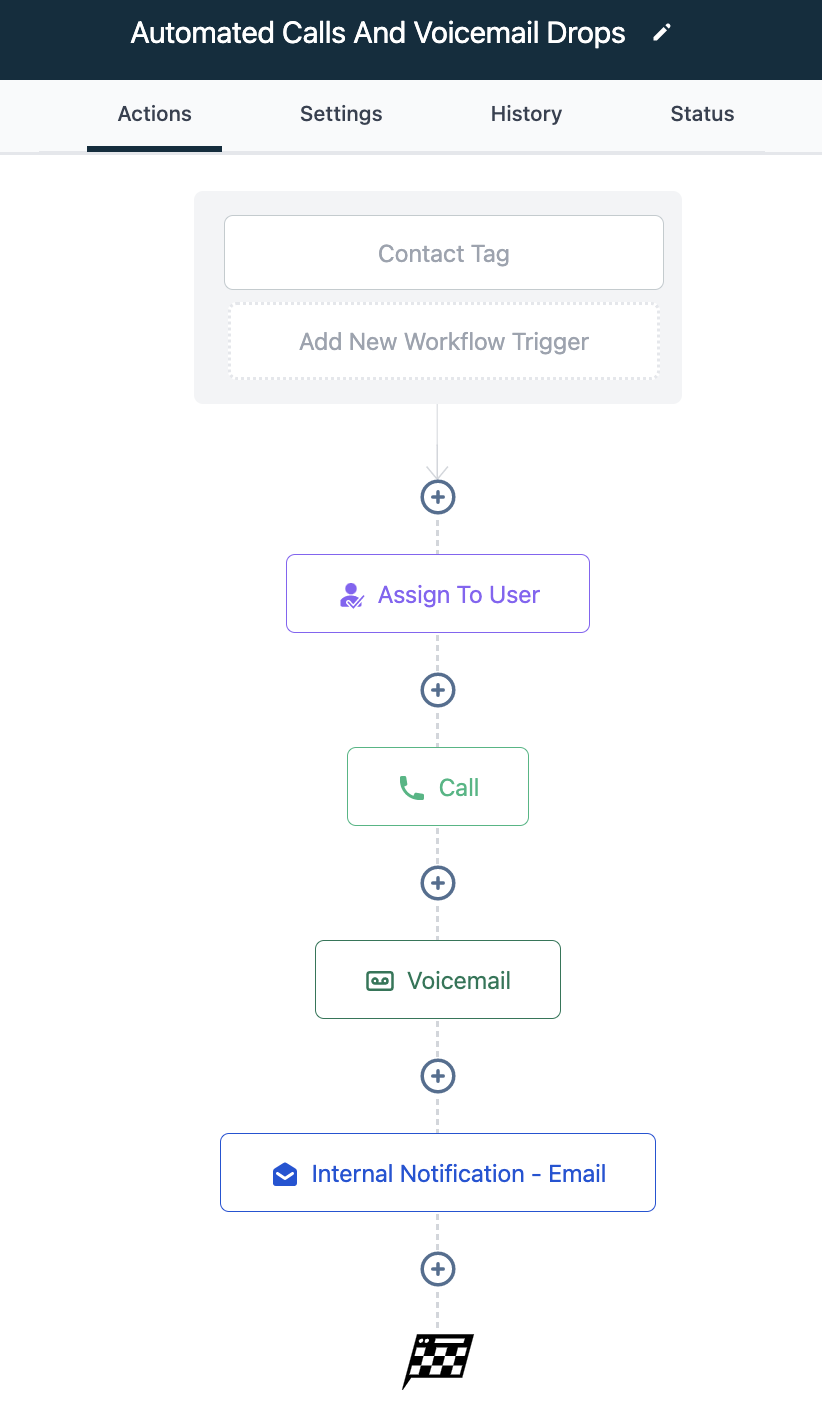
Within the Workflow builder, you may want to setup an automated sequence of calls and voicemail drops. Here’s a sample Workflow showing you how you can create this based on a tag.
- Create a new Workflow.
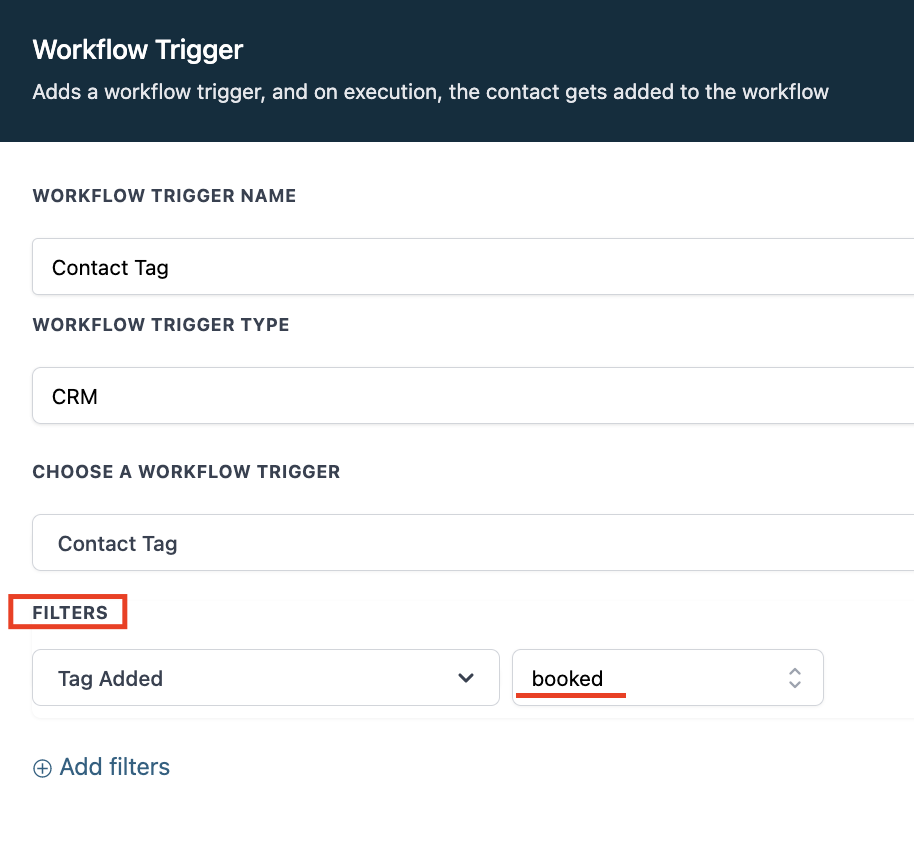
- In the Workflow builder, add a trigger for “Contact Tag” and determine which tag you want this to be based on.
- Use the “Filters” to choose a specific tag.
- NOTE: If you do not specify a certain tag, this will run on any contact tag. It’s important to choose the appropriate tag for your business use. Do you want the workflow to run off a tag based on appointment bookings? Or maybe a tag that you added to a marketing list of contacts you imported into your system? Choose that appropriate tag here.
- Save this trigger and then add your Workflow actions.
- In this example, we’ve added “Assign to User”, “Call”, “Voicemail”, and an “Internal Notification”. You can customize these communications as you’d like, adding or removing actions.
- Save and publish the Workflow for it to function.
Keep learning