
How to Import a Campaign into GoHighLevel Workflows
Updated January 19, 2023
Manually rebuilding campaign logic inside GoHighLevel workflows wastes time and risks losing your original messaging sequences. This guide shows you how to import an existing campaign directly into the workflow builder and customise it with triggers, paths, and automation rules.
If you have a campaign you wish to integrate into the Workflow builder, you can easily import it. By importing a Campaign into a workflow, you can further customize it with several triggers, paths, and more, giving you more automation control over your business. Follow these steps to learn how:
Step 1: Create the Workflow and Import the Campaign
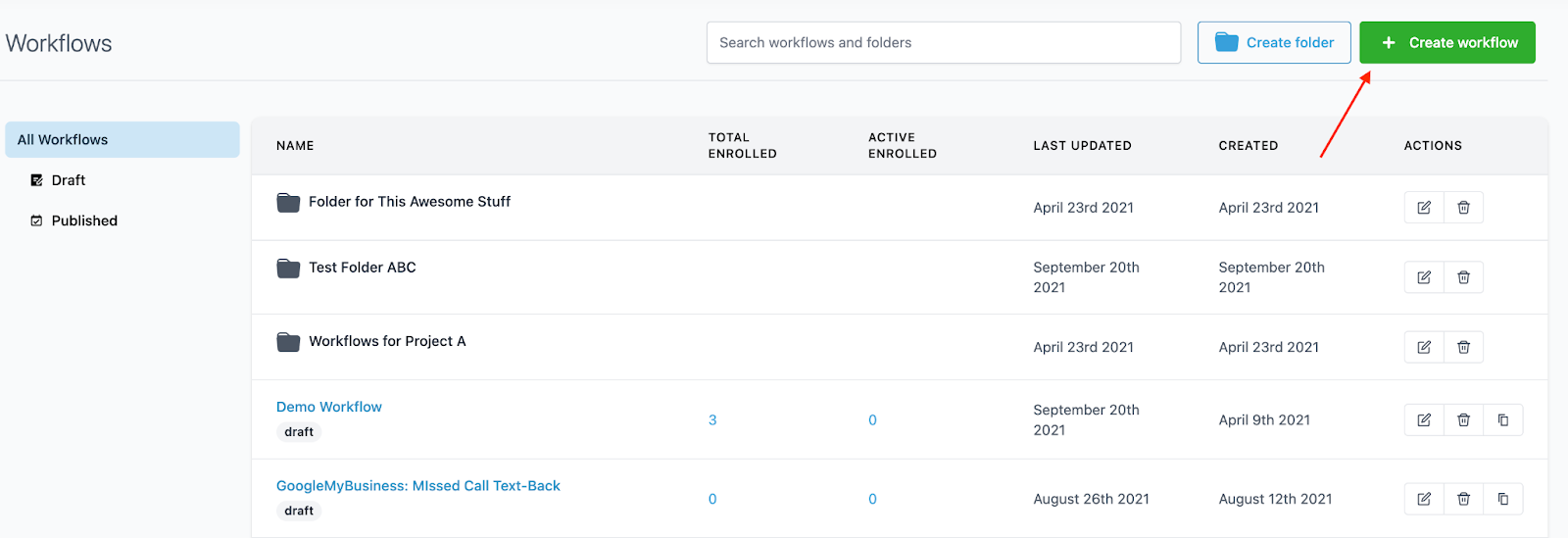
- Navigate to Workflows and click “+ Create Workflow”
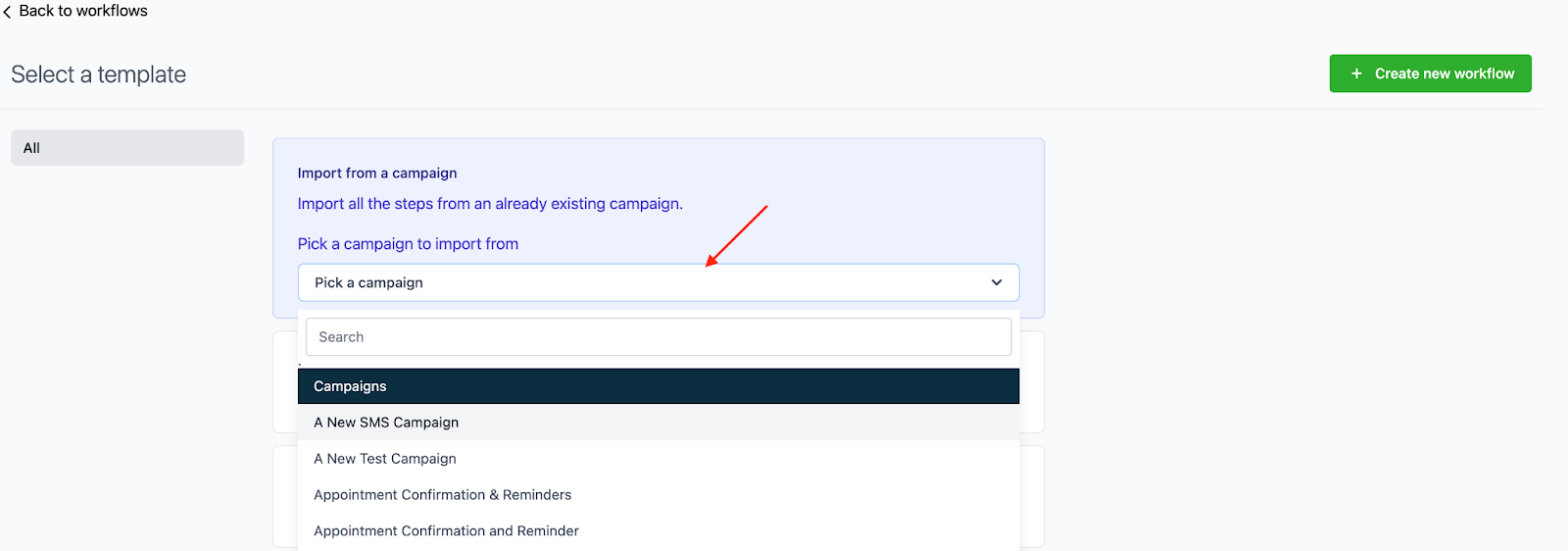
- Select “Import from a Campaign” and from the dropdown list, pick which Campaign you want to import.
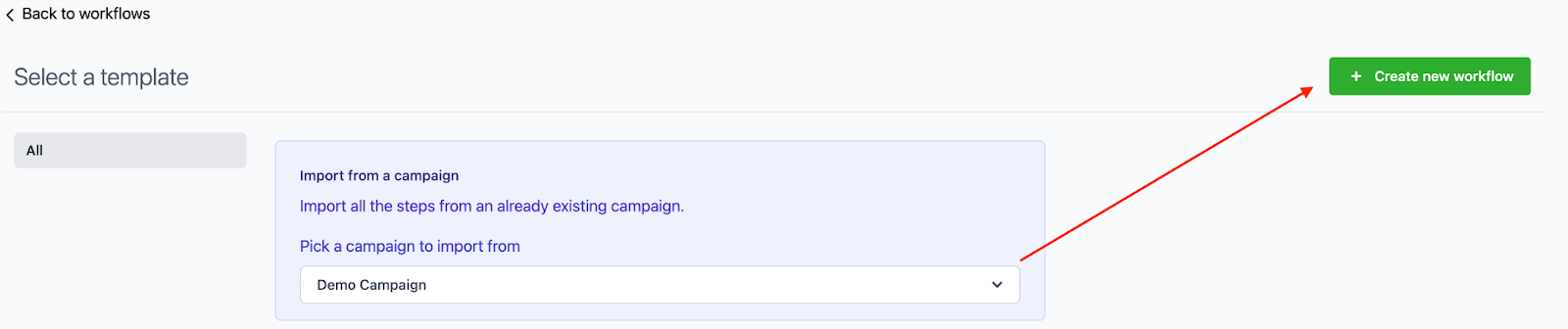
- Click “+ Create Workflow” to import that campaign.
Step 2: Making Customizations
- The Workflow will be created from the imported Campaign automatically. You’ll see a message in the Workflow builder that looks like this:
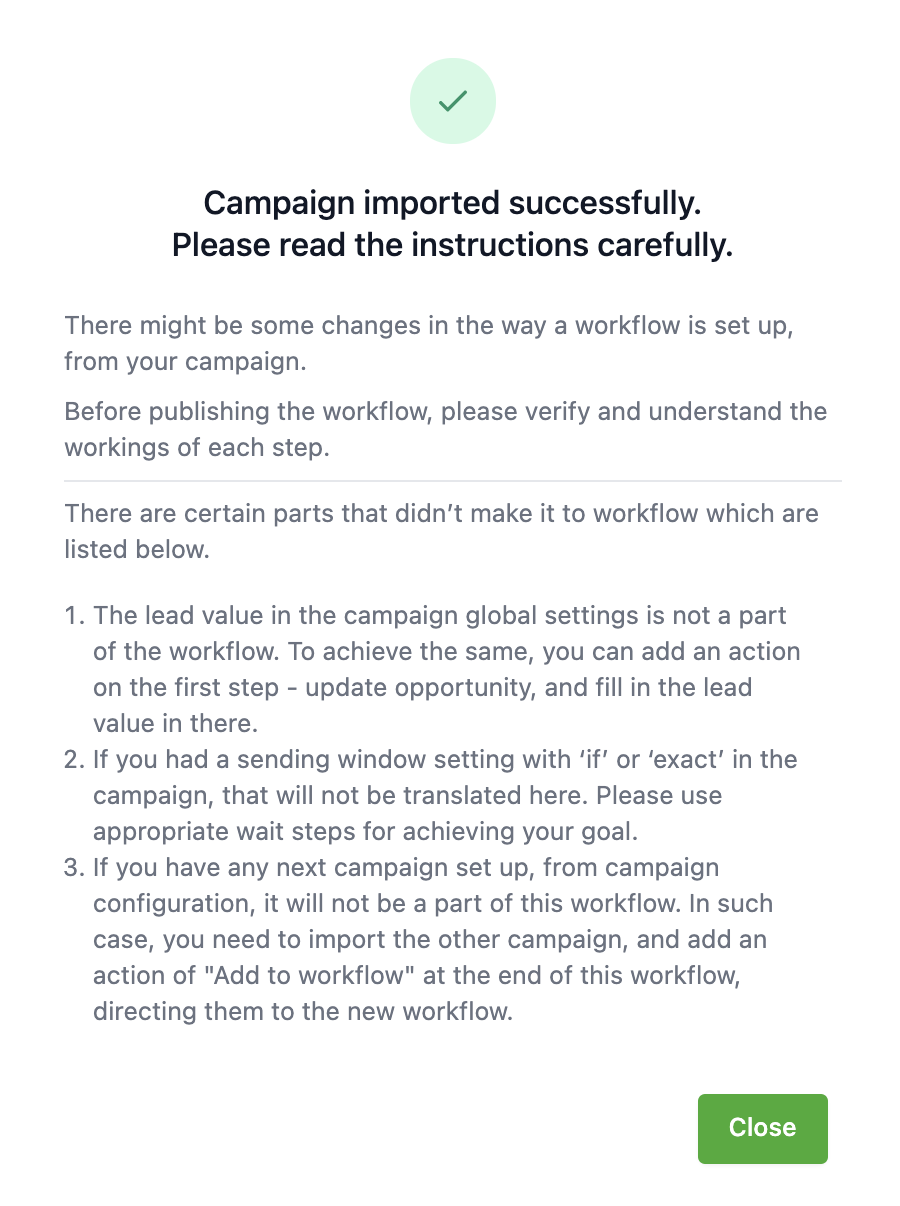
- Click close to accept the message and confirm the import.
- Make any modifications or customizations.
- Save the Workflow.
- Publish the Workflow.
Keep learning