
How to Add Product Collections with SEO to Your GHL Store
Updated August 27, 2024
Without dedicated collection display controls, store pages can feel generic and miss critical SEO signals that drive organic product traffic. This guide walks you through configuring the GoHighLevel Collection List Element, adding collection images, and setting SEO titles, descriptions, and handles for each product group.
Store owners now have the ability to feature specific collections on any page within their store by placing a configurable element. Additionally, they can enhance their collections by adding images and SEO details, thereby improving the overall user experience.
How to use:
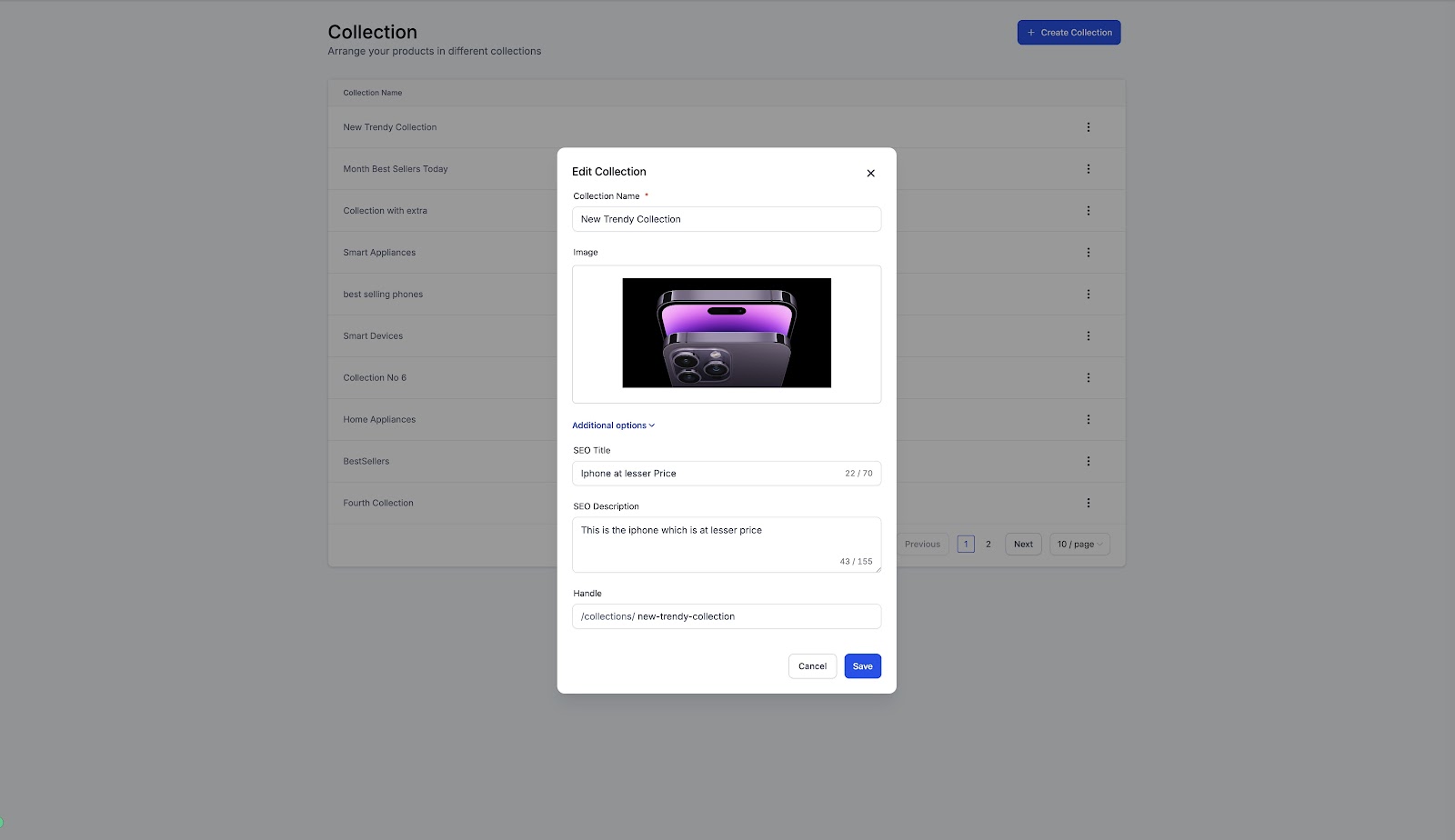
- Configure your collection, with/without an image, and fill in the necessary details under Payments -> Products -> Collections. The name, image, along with SEO title, SEO Description and Handle can be updated here.
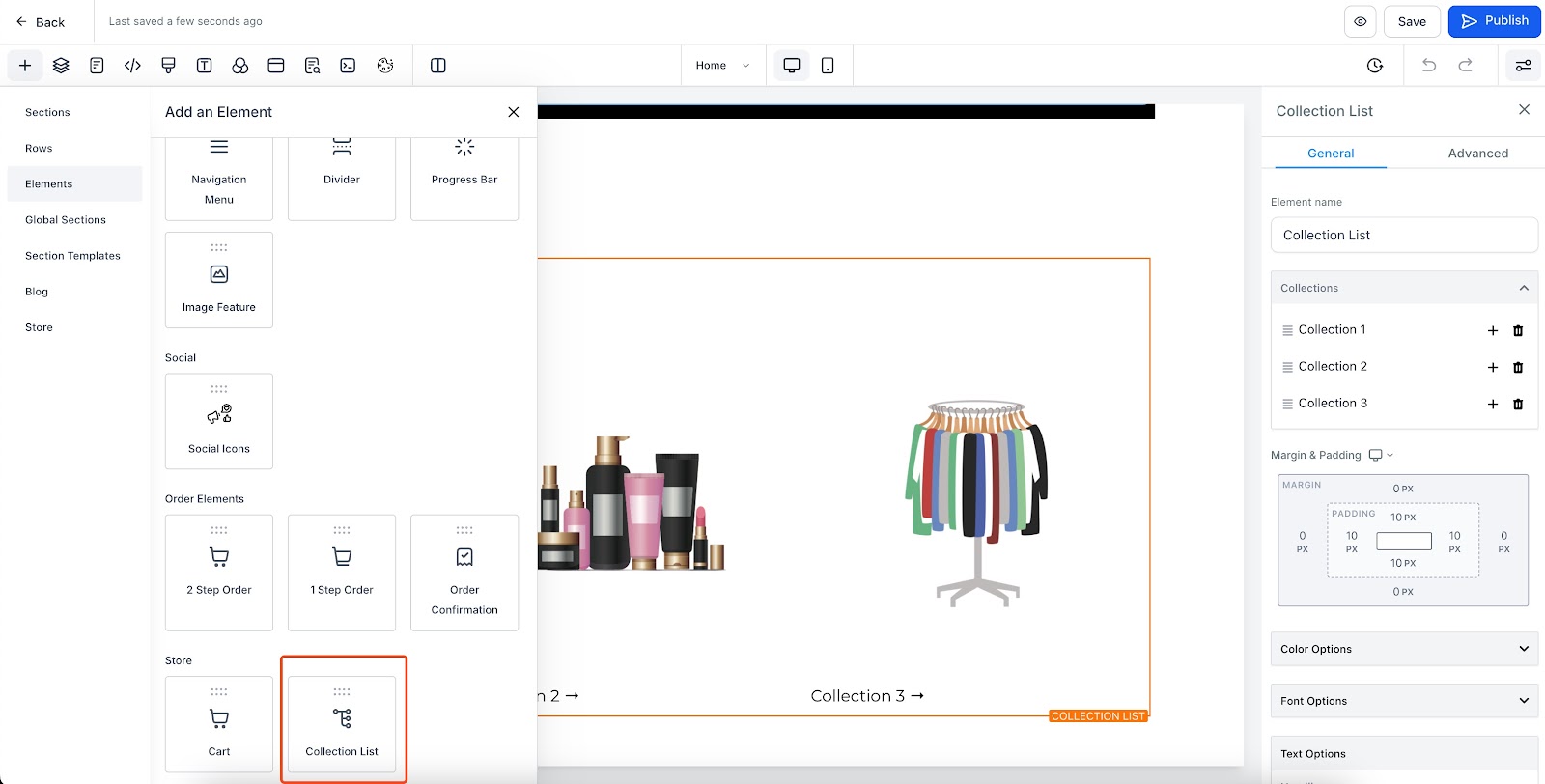
- Navigate to the page builder of your store, and add the Collection List Element. This would be under the Store section in the elements.
- You would now see 3 default placeholder collections added with placeholder names and images. Click on the element to get the settings on the right, and configure all the necessary settings.
- Fields such as heading, margin padding, colors, borders, fonts can be configured, just like any other element.
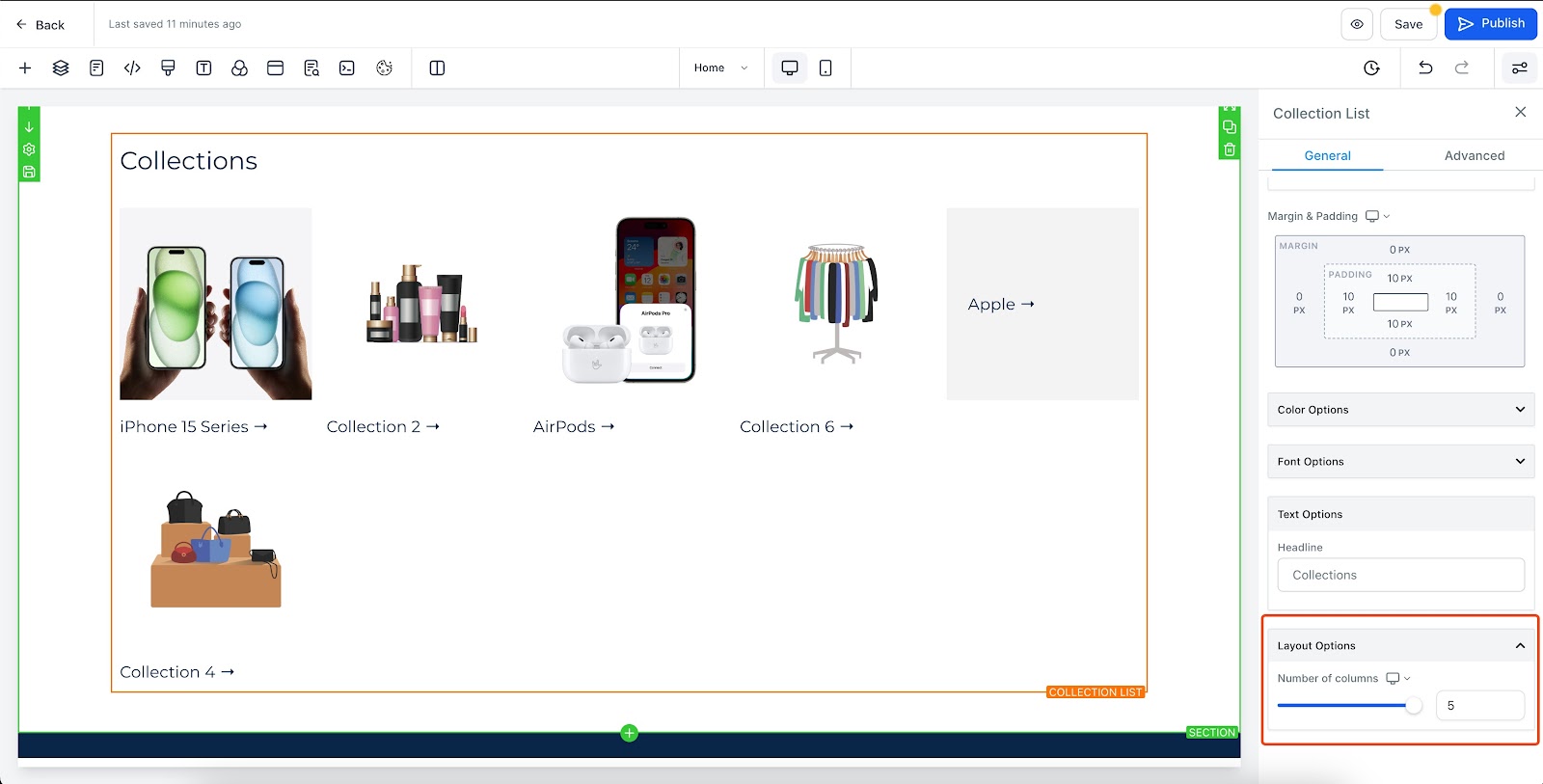
- By default, the number of collections shown per row is 3. You can configure this number for both desktop and mobile using the Number of columns field, under the layout tab. The maximum would be 5 and 2 columns for desktop and mobile respectively.
- If a heading is not required, simply keep the Headline field empty under Text options and the heading will be removed.
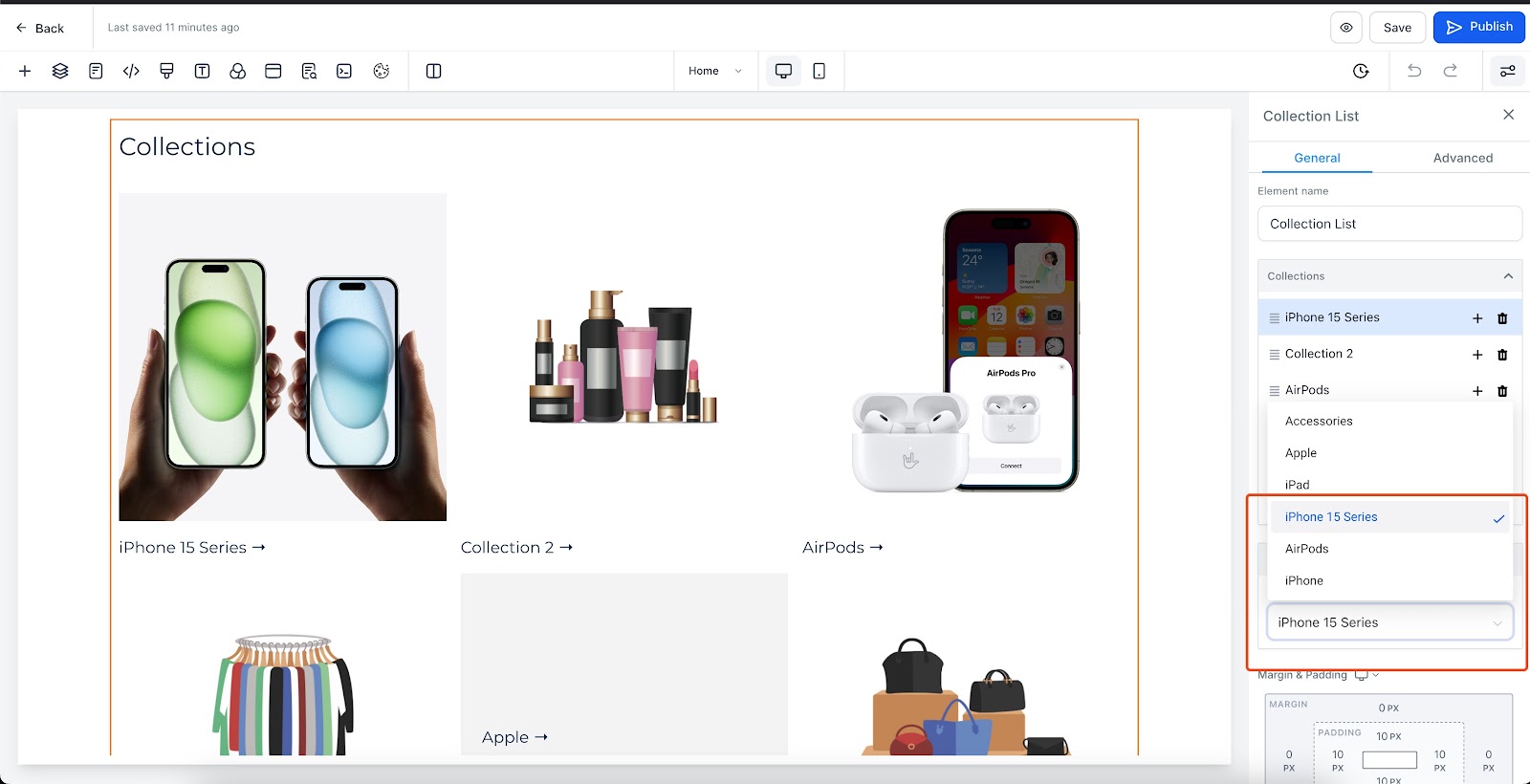
- In order to define a set of collections to be shown, click on any of the collections listed under the Collections group, and a section will be shown where a collection can be selected. Upon selection, the selected collection item will reflect the name and image of the collection on the builder. Note: This step has to be done to show the real collections. Placeholder collections will not serve any purpose in a live site.
- Click on save/Publish to view your changes in your site!
Some key aspects:
- If a collection image is available, it will be displayed for that specific collection. If no image is available, the collection text will be centered on the item and presented with a background.
- The image uploaded, along with the SEO details, will be used for adding respective SEO tags in the product list page with a collection filter.
Keep learning