
How to Add Product Weight, Dimensions, and SKU in GoHighLevel
Updated August 27, 2024
Without accurate weight, dimension, and SKU data attached to your products, GoHighLevel's upcoming shipping integrations will lack the information they need to function correctly. This guide walks you through adding these details to individual pricing and variant pages inside the Payments > Products section of your GHL store.
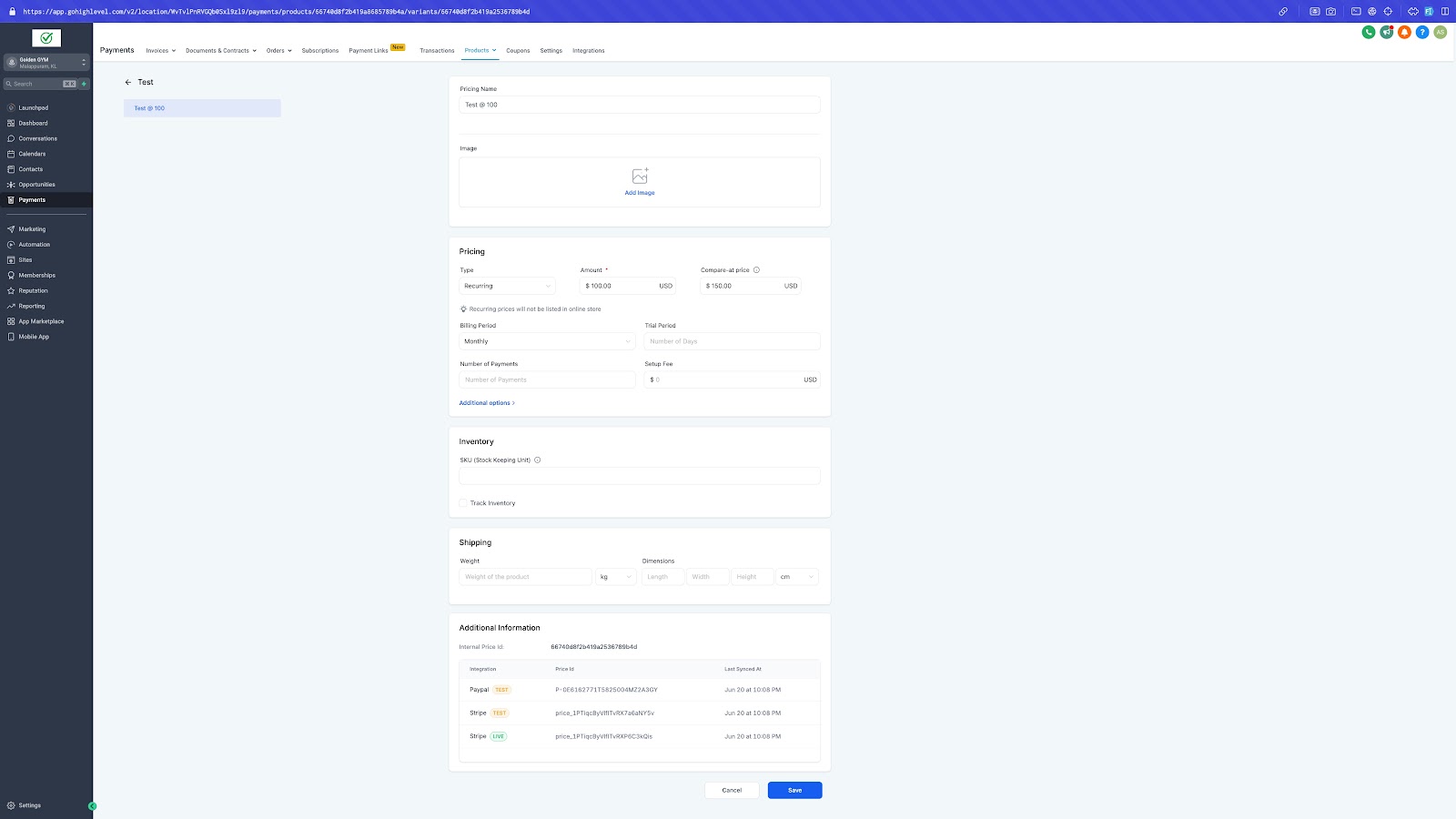
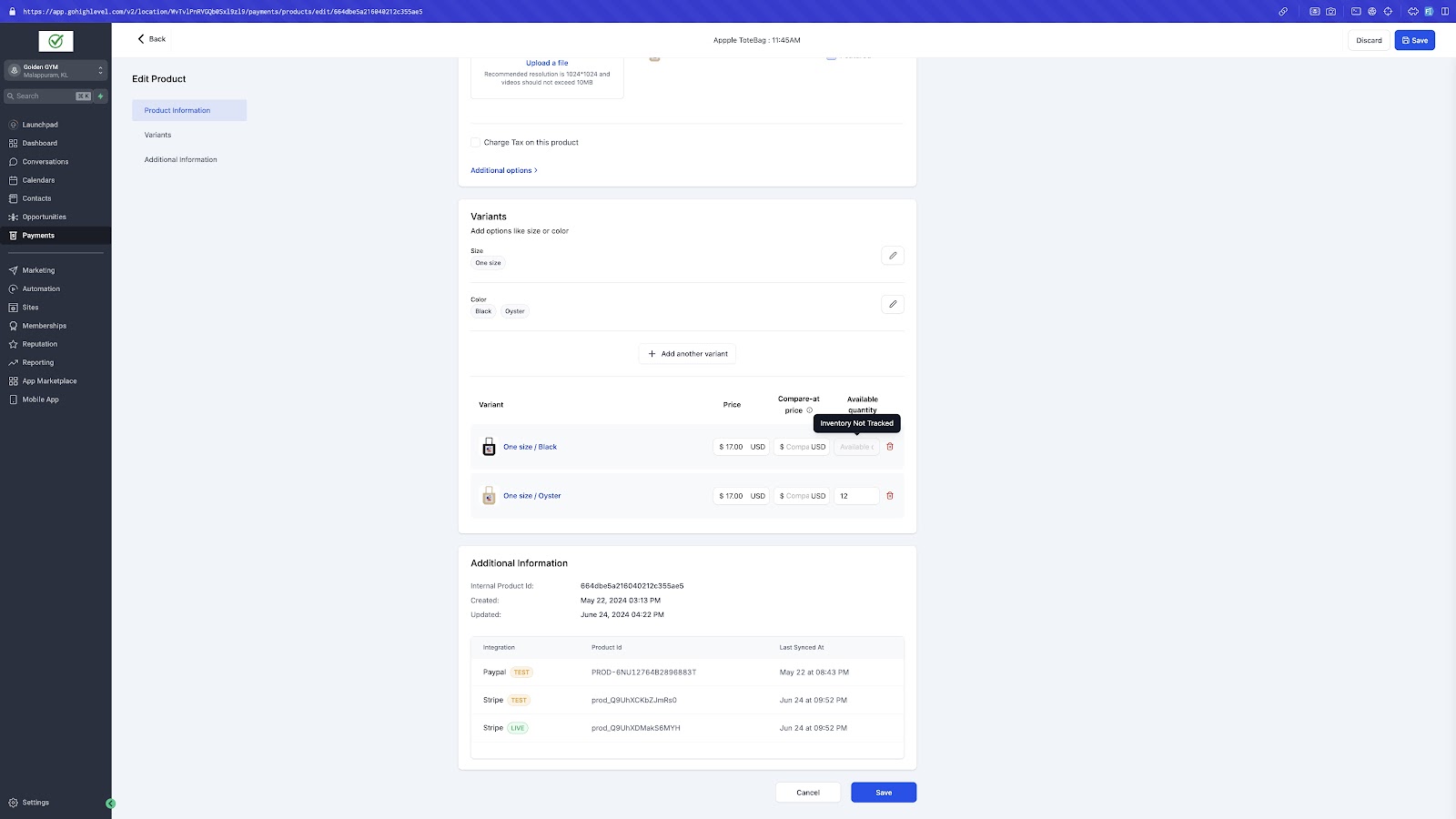
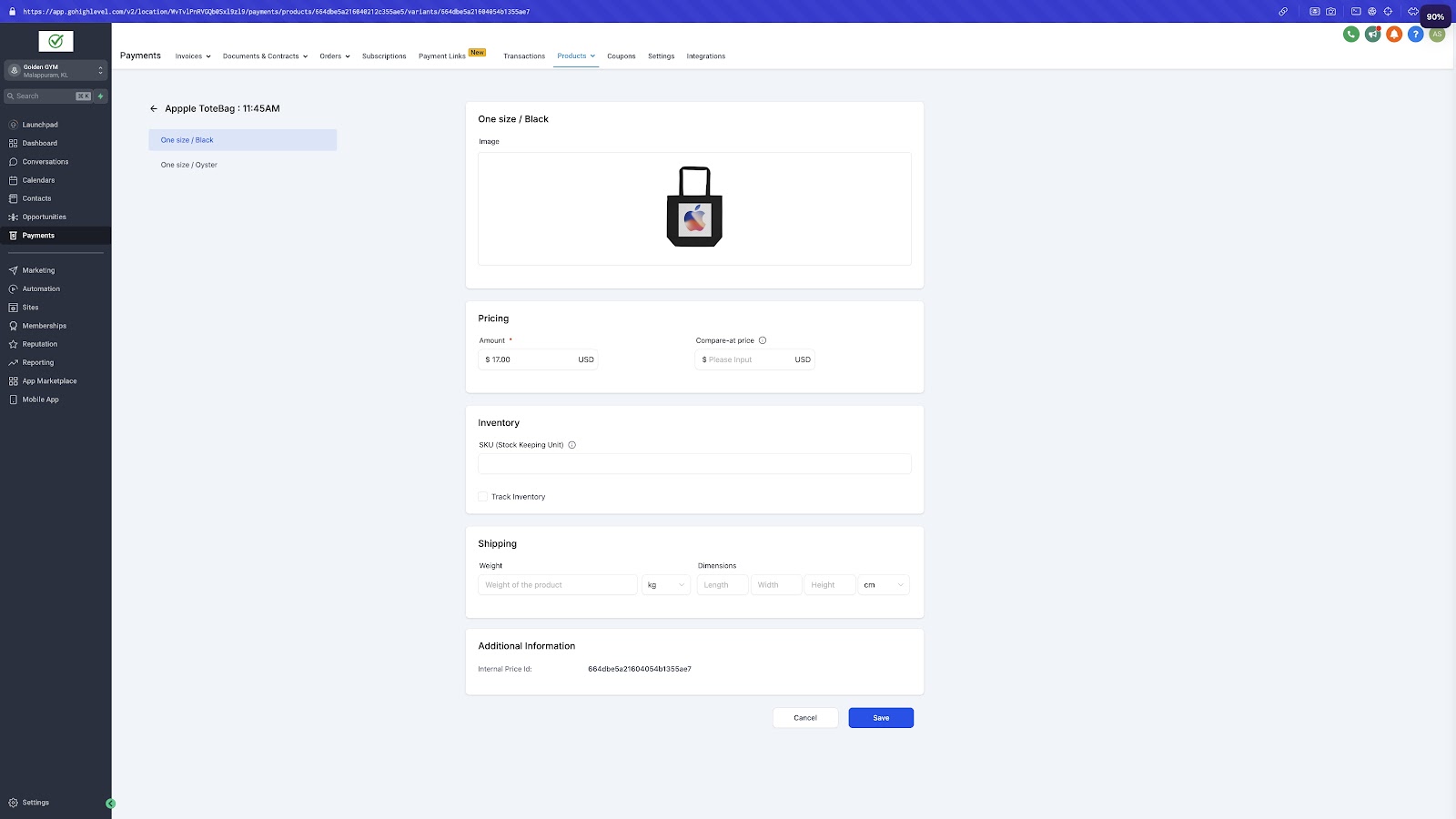
Store owners now have the option to provide additional details for their products, including Weight, Dimensions, and SKU (Stock Keeping Unit). These fields are crucial for upcoming shipping integration features. We’ve introduced a new page dedicated to variants and pricing, allowing users to specify product weights, dimensions, and SKU details, along with the capability to track inventory for individual variants.
How to use:
- To add these details, store owners can access it from:
Payments > Products > Create Product > Add Pricing/ Variants > Pricing/ Variant page
. - Initially, users must create a price or variant to access the respective page via the hyperlink in Product name.
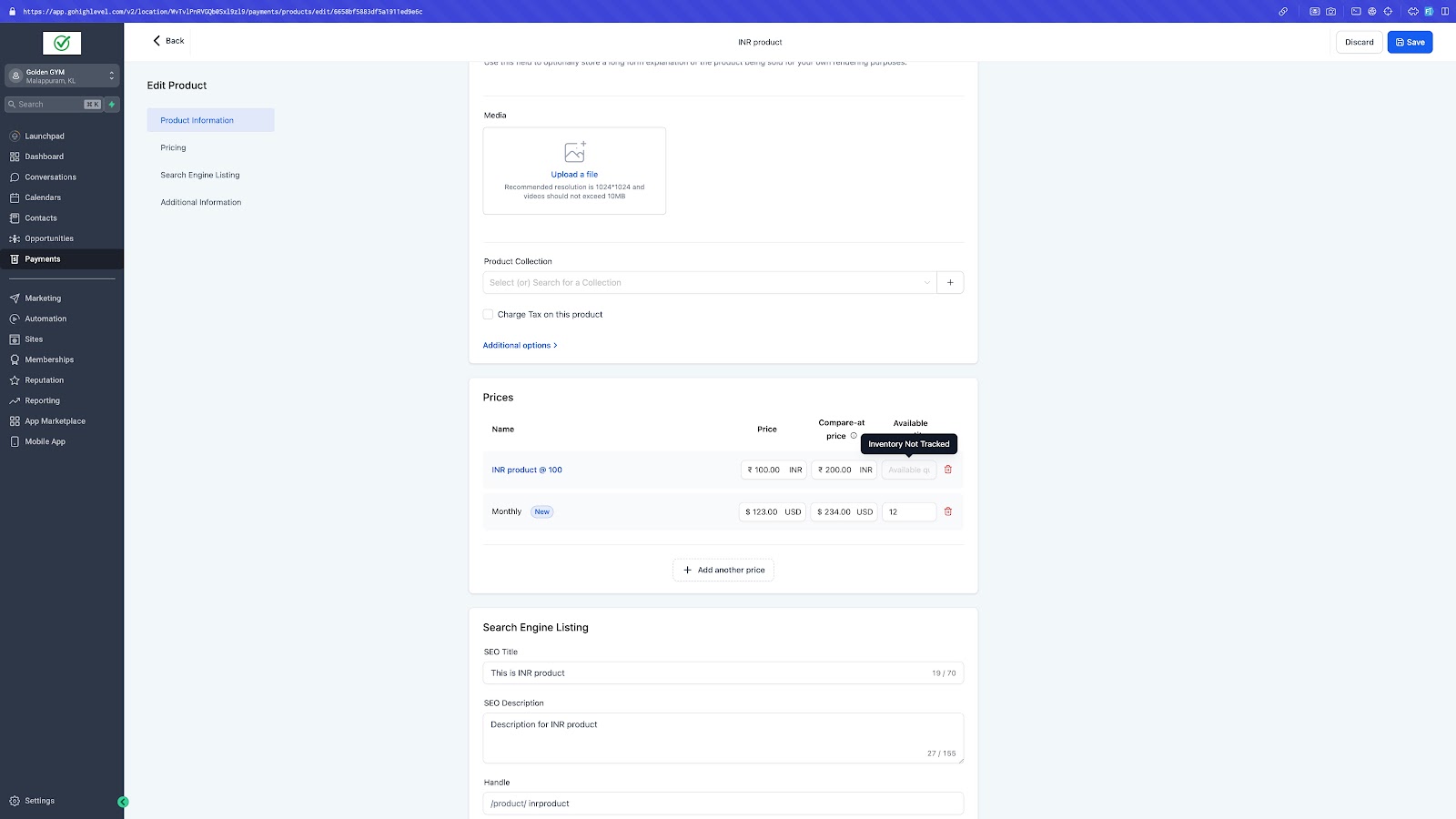
- A “New” tag will appear for newly added unsaved prices, and the price/ variant page will be available only after saving the changes.
- Users can also input product weights, dimensions, and SKUs directly on the variants or pricing page, in addition to managing inventory.
Newly created price:
Pricing page view:
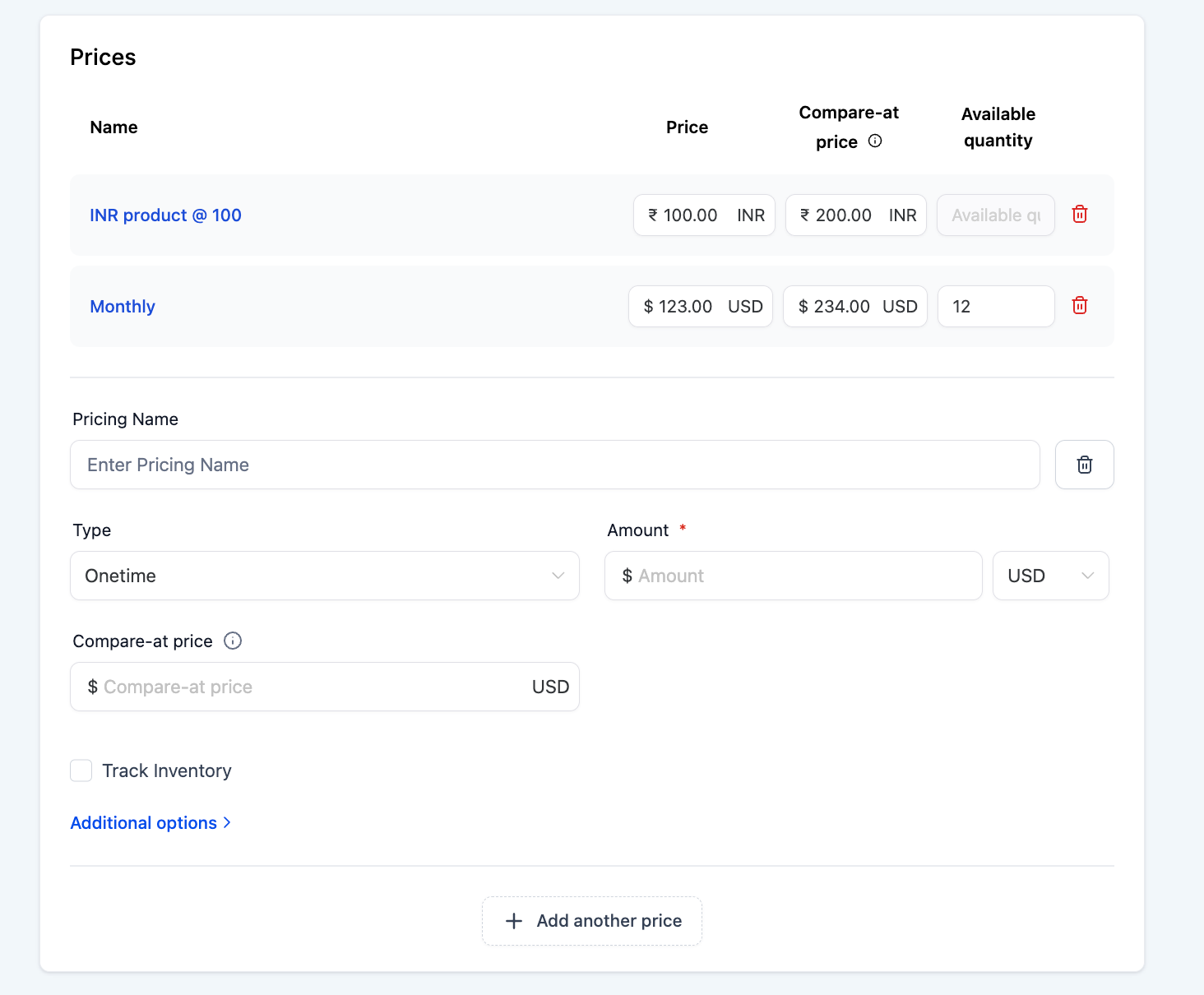
Creating a new price:
Variant Pages:
Keep learning