
How to Set Up Google Review Capture in GoHighLevel
Updated January 12, 2023
Most agencies lose potential social proof simply because they have no automated system prompting clients to leave reviews after a job is done. This guide walks you through configuring GoHighLevel's reputation management settings, customising your review request templates, and sending review requests individually or in bulk.
In this article, you will learn how to set up your system with Google to capture reviews. This will help you gather information about your business, what to improve, and if your contacts/leads were satisfied with the services that your business provides.
Step 1: Accessing the Reputation Settings
- Navigate to Settings > Reputation Management
- Here you can add your Google review link, customize the “Review Request Behavior”, and more.
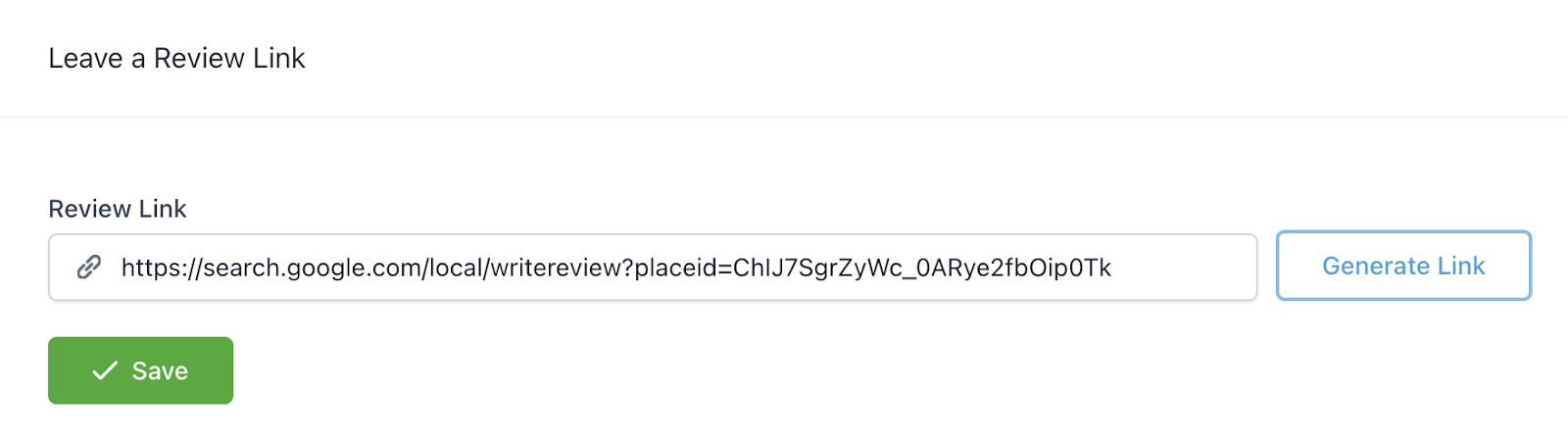
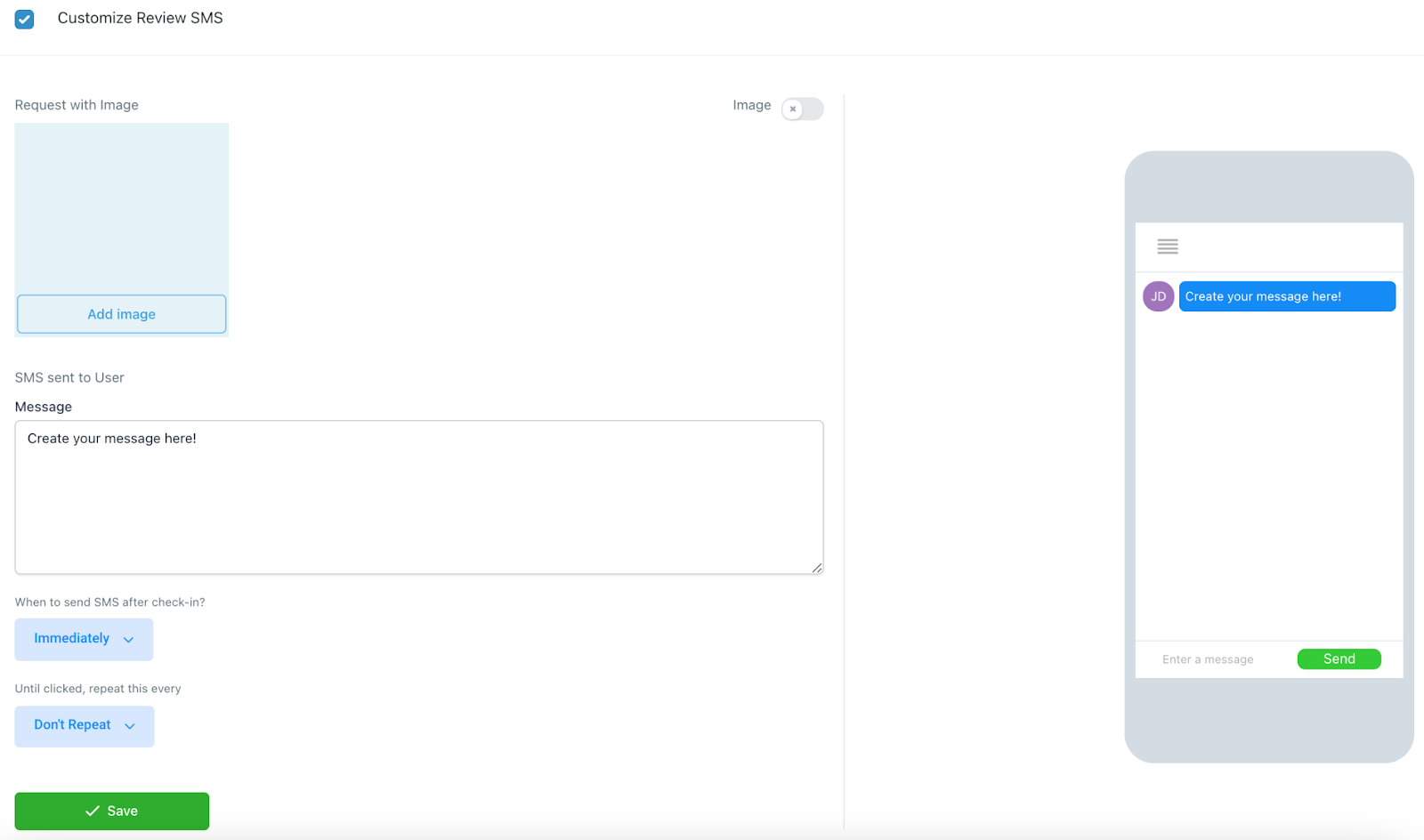
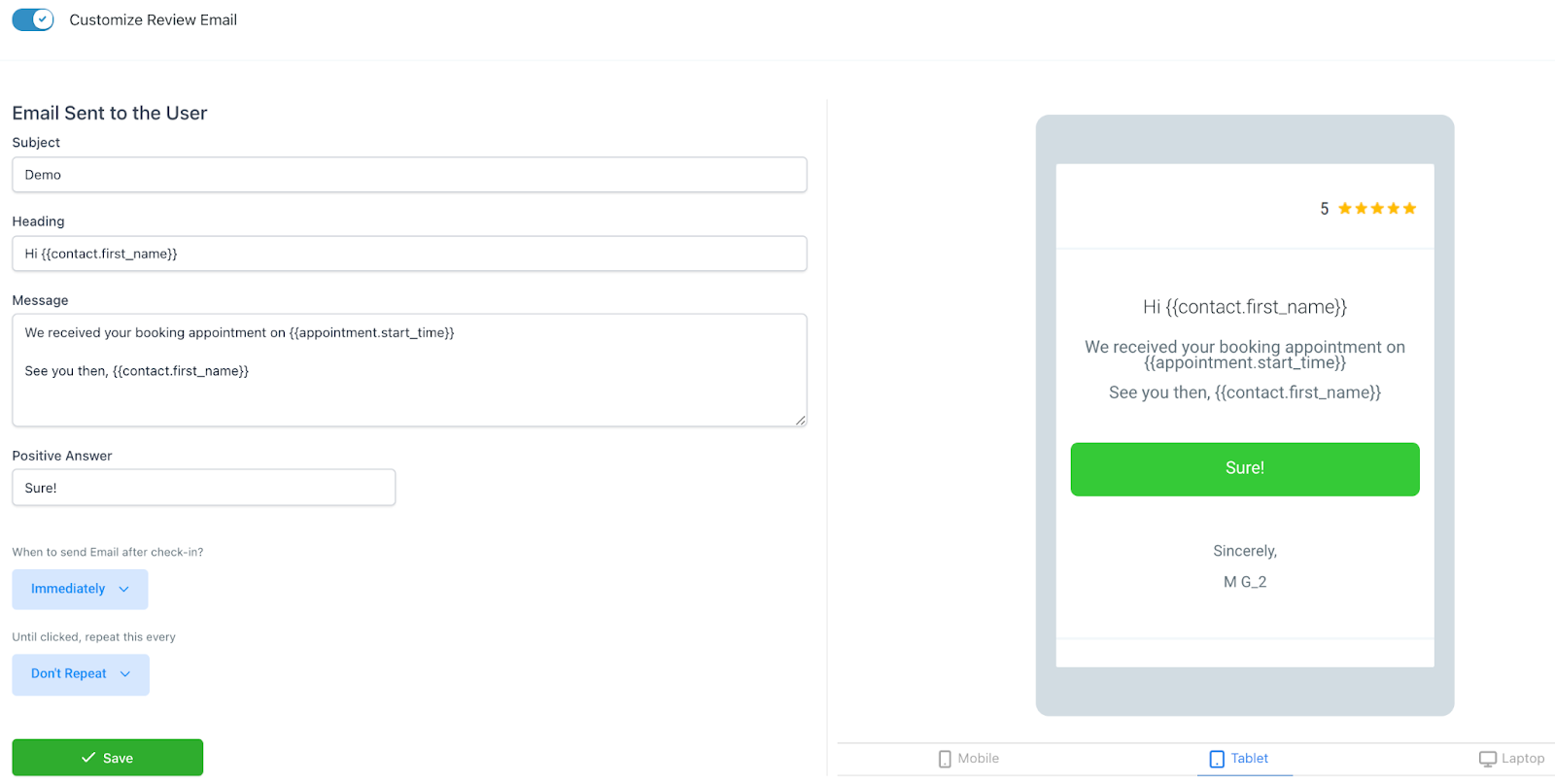
- Scroll down on this page and you can edit the review SMS template under Customize Review SMS, and you can edit the email template under Customize Review Email.
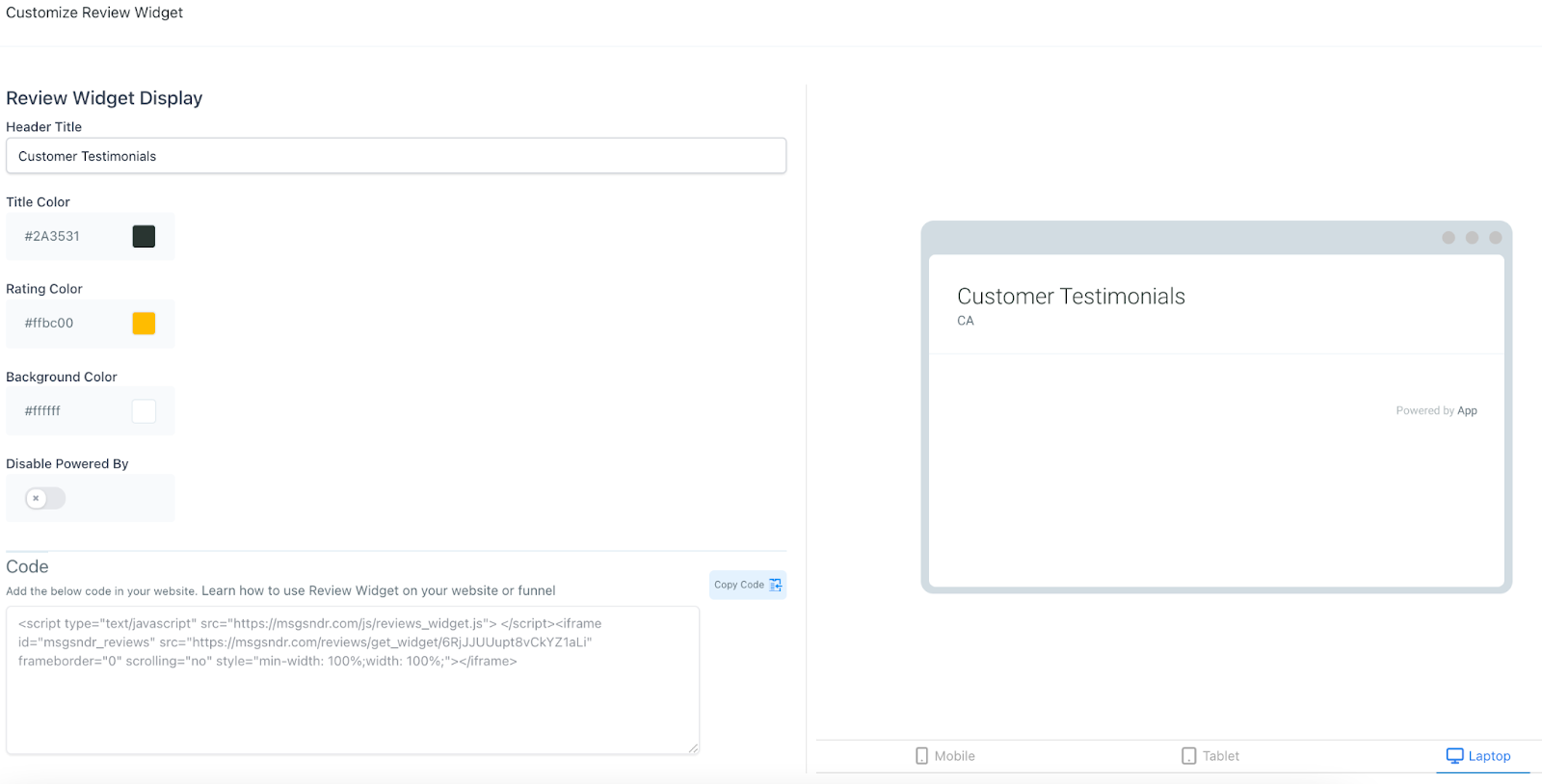
- Scroll to the bottom to edit the Review Widget under Customize Review Widget.
- Save any changes you make in each section.
Step 2: Sending a Review Request
- Under the Reputation tab in the main menu, there is a “Send Review Request” button.

- Click the green button and fill out the information in the popup window to send a review request.

- You can also send a review request to multiple people at once, using the Bulk Actions under the Contacts section of your system.
Step 3: Accessing the Reputation Section
- Navigate to the Reputation page from your Dashboard. Here you can view tabs for Overview, Requests, Reviews and Listings. In the top right of each page, you can also access the “Send Review Request” button from this section.
Keep learning