
How to Configure Email Forwarding and BCC in GoHighLevel
Updated November 17, 2022
Missing email replies or losing track of outbound messages can silently break client communication in GoHighLevel. This guide walks you through configuring forwarding addresses, BCC emails, and the forward-to-assigned-user toggle in your SMTP settings.
There are many options for setting up your email within the Settings, to include a forwarding address, BCC, or even forwarding to an assigned user. Here we’ll explain each:
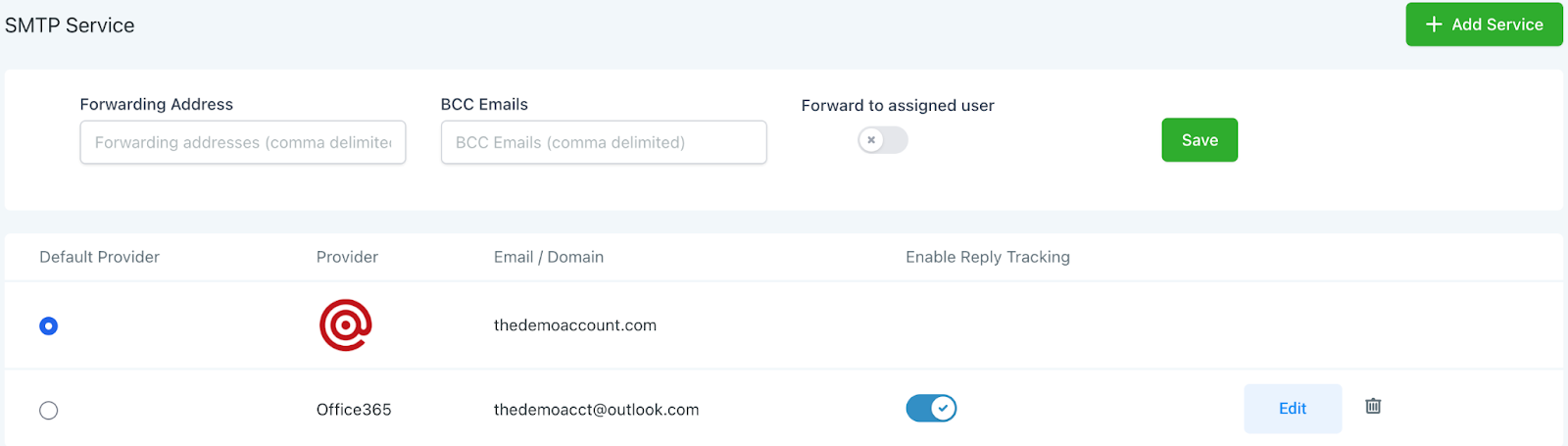
Step 1: Navigate to Settings > SMTP and MailGun Service. Here you will see Forwarding Address, BCC Emails, and a toggle for Forward to assigned user. Choose your preferences based on the descriptions below:
- Forwarding address: Email replies will be sent to the chosen email inbox and will also be viewable in Conversations. (You can use more than one email address separated by a comma).
- BCC emails: You will receive a copy of every email that is sent from that account. (You can use more than one email address separated by a comma).
- Forward to assigned user: Toggle this feature on or off for the specific user assigned to the particular lead to receive the email replies within their user email.
Step 2: Click Save to save your changes.
NOTE: With the forwarding address setup, if you reply to an email from a lead directly in your email inbox, it will not sync back into the system.
Keep learning