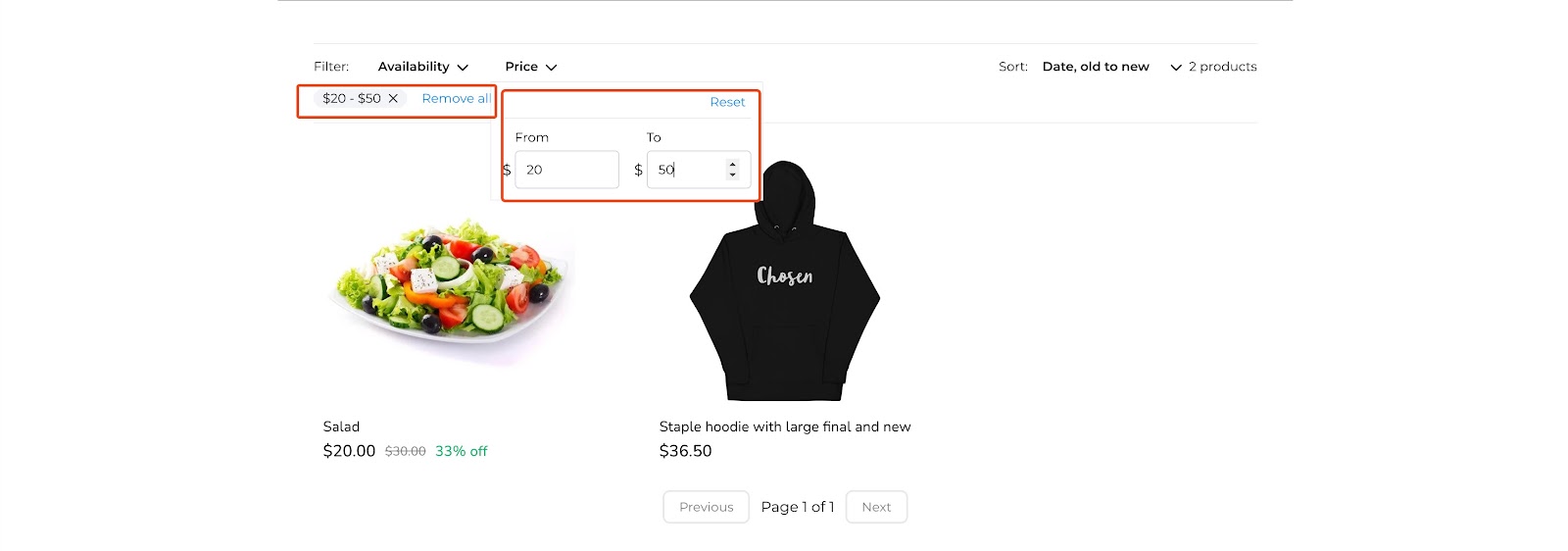
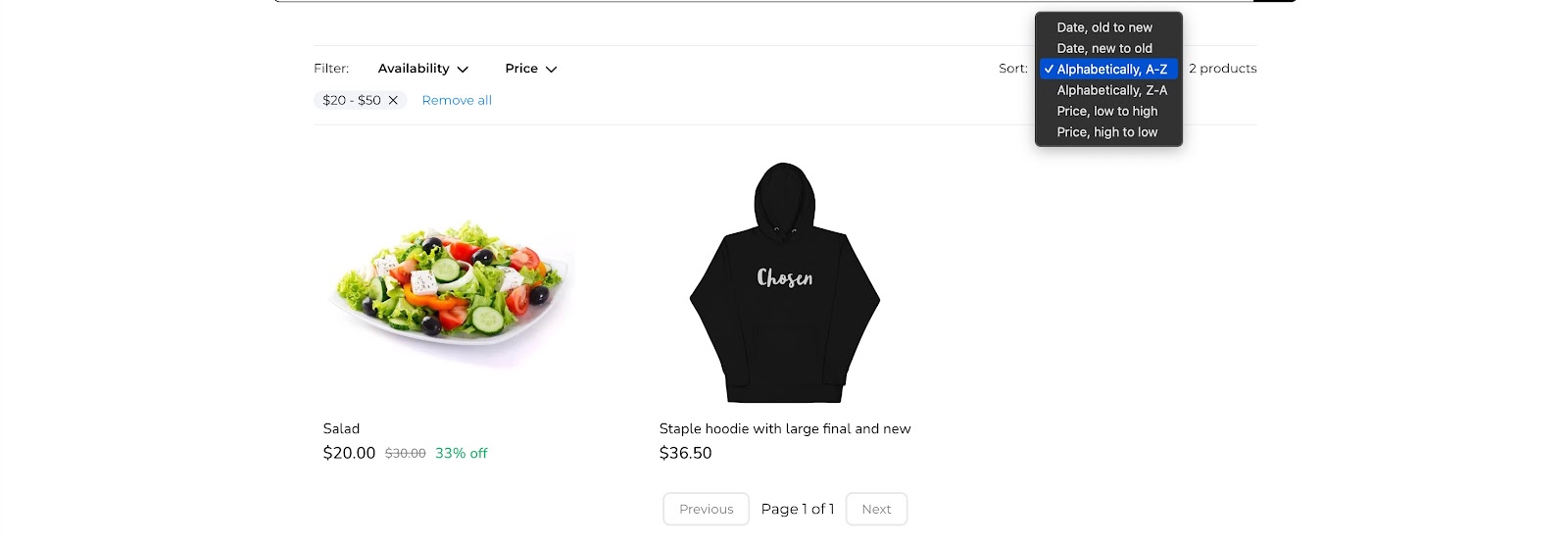
The organization of products on the Product List page posed a challenge, making it difficult for buyers to easily find what they were looking for, which became a significant hurdle for store owners. To address this issue, store owners now have the ability to add sorting and filtering options on the Product List page, enhancing product discoverability.
How to use:
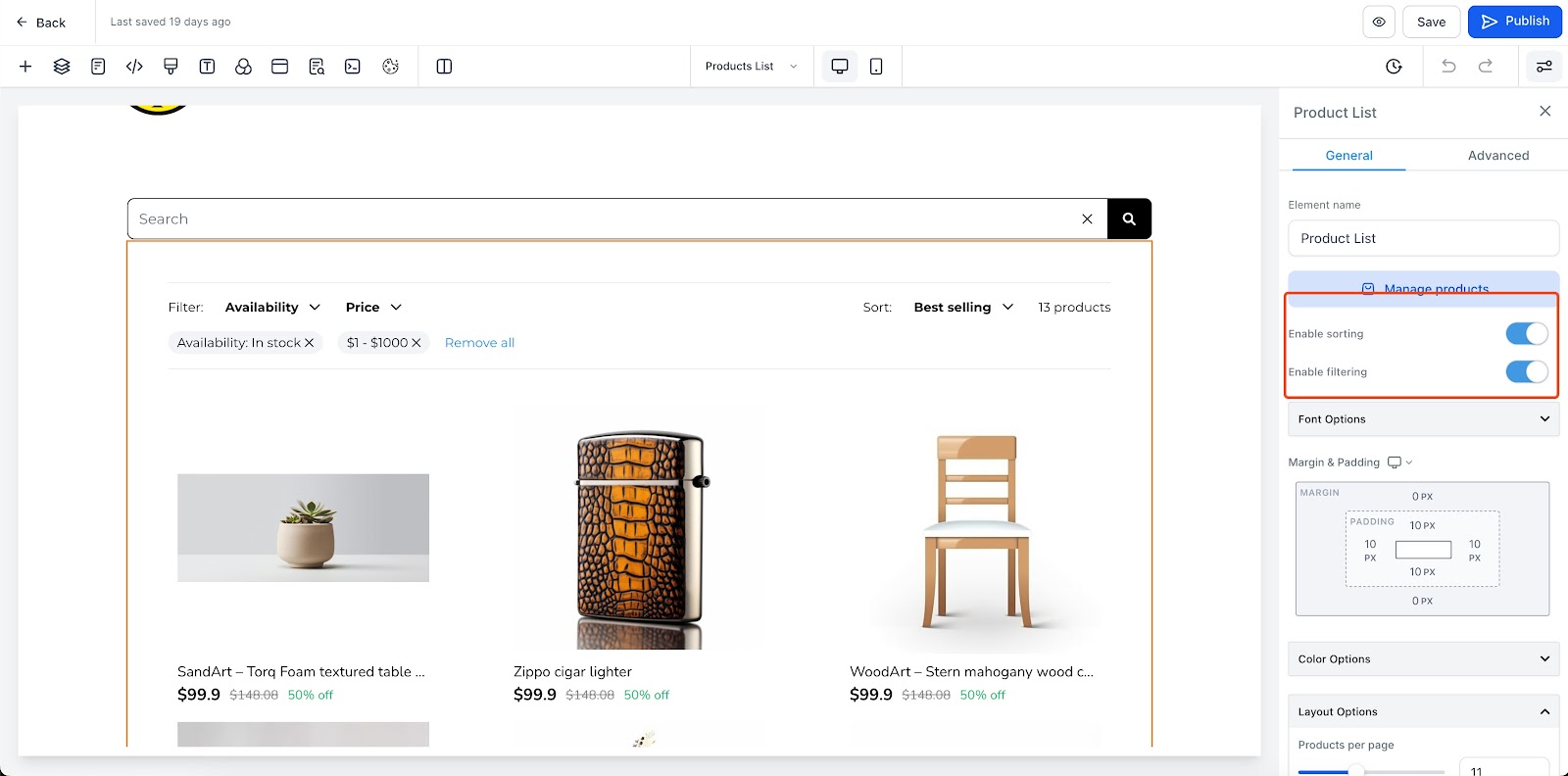
Go to the product list page and choose the product list element. You’ll now see two toggles for Sorting and Filtering. Activate these toggles to add the Sort & Filter features to your Product List page.
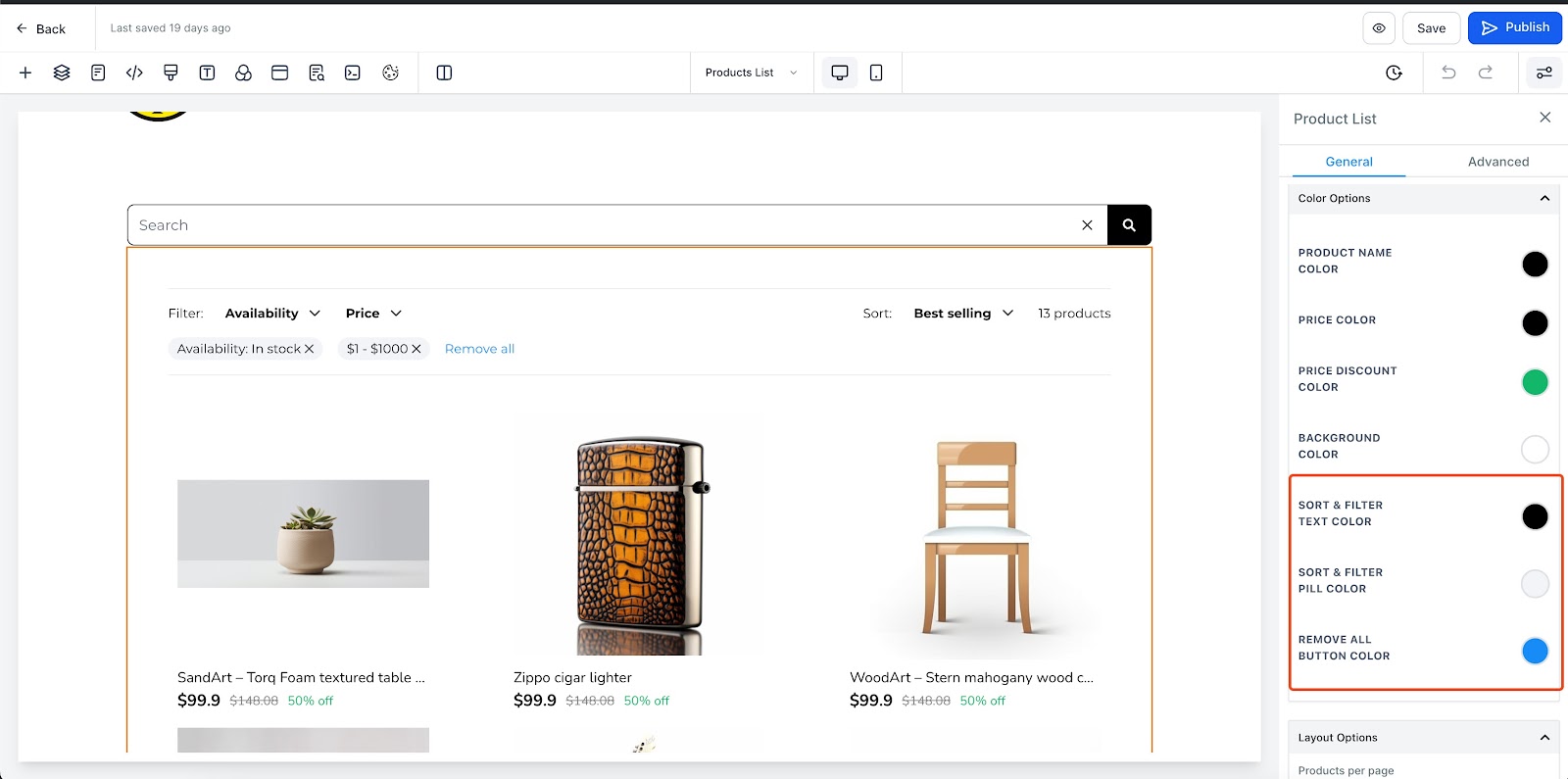
Configure properties for the sort and Filter. Some of the properties that can be configured are:
Sort and filter text color
Sort and filter pill color
Reset button color
Click on save/Publish to view your changes in your site!
Some key aspects:
Sort and filter options are only available in the product list page
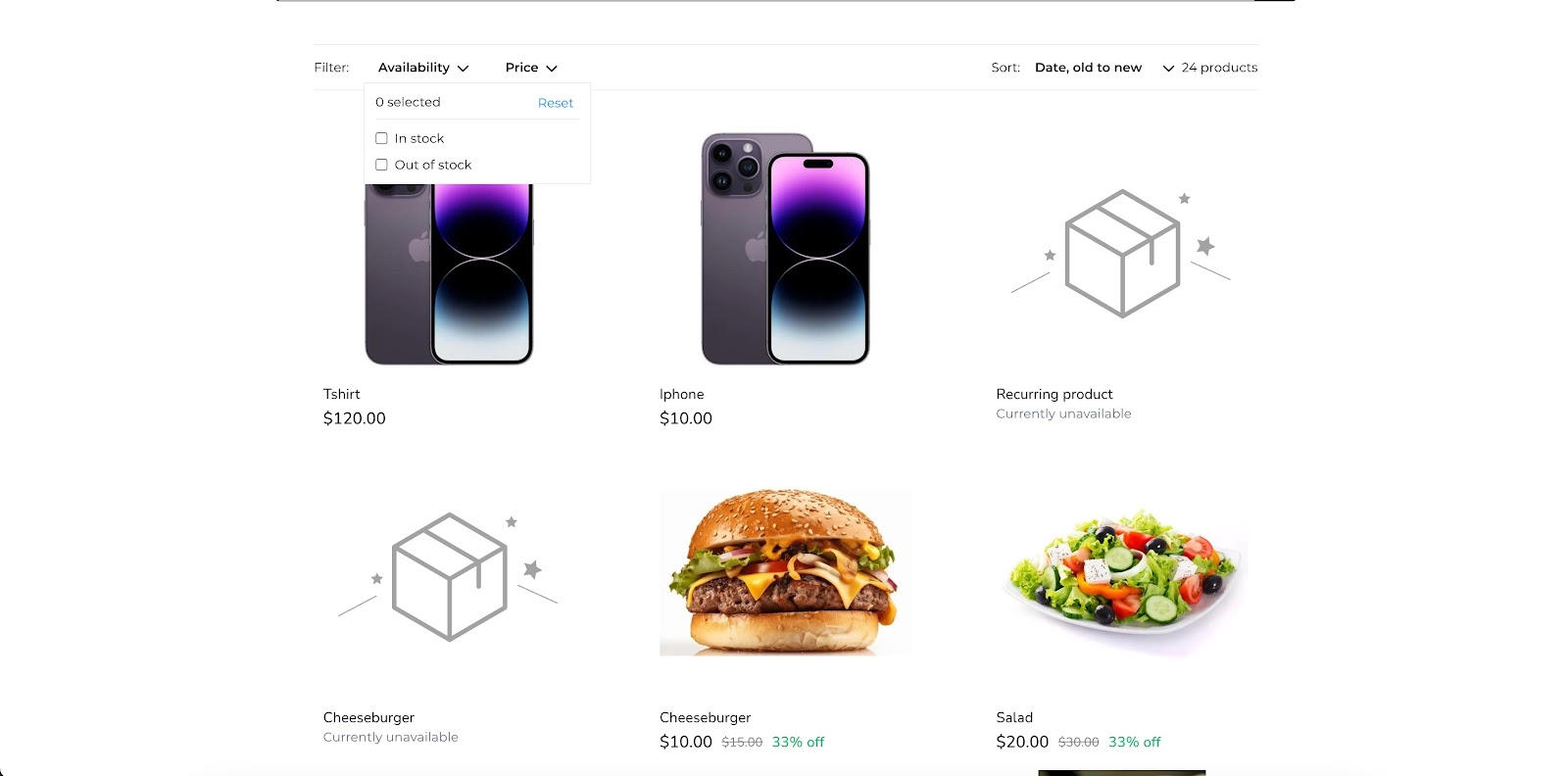
Default sort order is Date – Old to new
By default all products will be shown without any filters