
How to Create and Send Text-To-Pay Links in GoHighLevel
Updated April 22, 2024
Collecting payments from clients often means chasing invoices through slow, disconnected tools — but GoHighLevel's Text-To-Pay links solve this directly inside your conversations. By the end of this tutorial, you'll have Stripe connected to your sub-account and know exactly how to generate and send payment links via SMS.
To create Payment Links:
Step 1 – Integrate Sub-Account With Stripe:
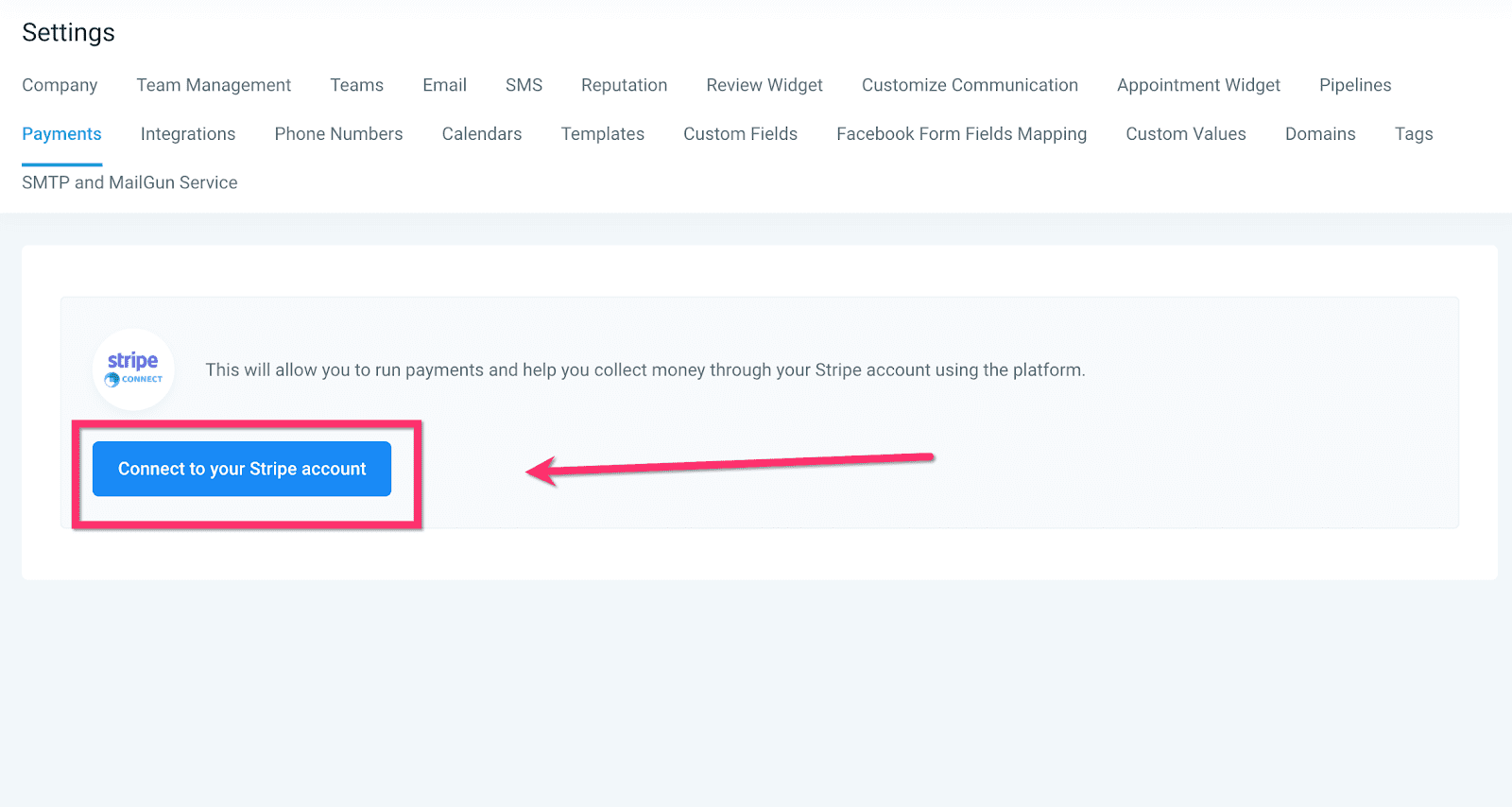
Connect your sub-account to Stripe effortlessly by navigating to Settings > Payments. Simply click the “Connect Your Stripe Account” button and follow the prompts to seamlessly integrate with Stripe.
Step 2 – Create An Invoice From A Conversation:
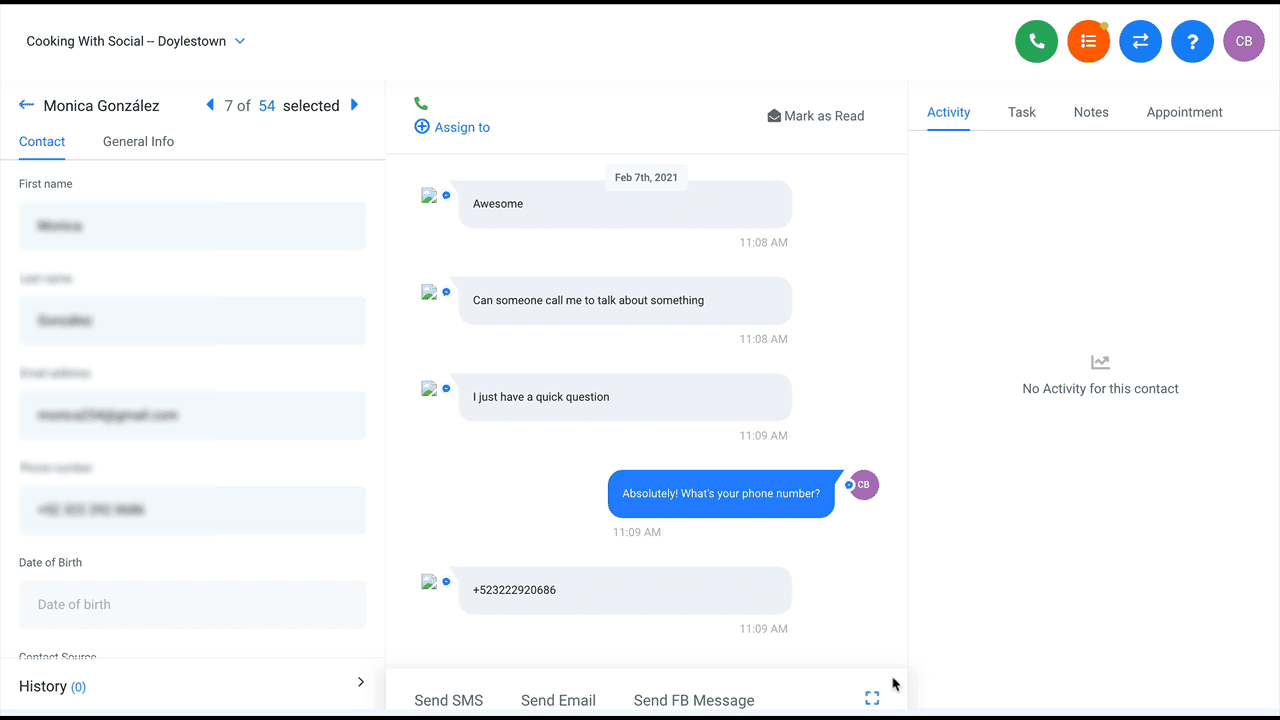
Navigate to a chat and locate the payment icon situated beneath the text editor. Within the ensuing modal, assign a name and price to the invoice, then establish a Link Expiration/Due Date before saving your changes. Subsequently, the payment link will manifest within the conversation editor.
Keep learning